
1. Entwodiksyon
This manual provides essential information for the safe and efficient operation of your Machenike Machcreator N17A laptop. Please read this manual thoroughly before using the device and retain it for future reference.
2. Pake kontni
Verifye ke tout atik yo prezan nan pakè a:
- Machenike Machcreator N17A Laptop
- Adaptè pouvwa
- Manyèl Itilizatè (dokiman sa a)
3. Pwodwi souview
The Machenike Machcreator N17A is a 17.3-inch laptop designed for daily computing tasks. It features an Intel N100 Processor, 8GB DDR5 RAM, and a 256GB PCIe SSD for responsive performance. The 17.3" Full HD 120Hz display provides clear visuals, and the laptop runs on Windows 11 Home.
3.1. Konpozan òdinatè pòtab

Figi 3.1: Devan view of the Machenike Machcreator N17A laptop.
This image shows the overall design of the Machenike Machcreator N17A laptop, highlighting its large 17.3-inch display and sleek chassis.

Figure 3.2: The 17.3-inch Full HD 120Hz display.
Yon detaye view of the laptop's 17.3-inch Full HD display, emphasizing its narrow bezels and 120Hz refresh rate for smooth visuals.

Figure 3.3: Backlit keyboard and touchpad.
This image highlights the backlit keyboard and the spacious touchpad, designed for comfortable typing and navigation.
3.2. Pò ak Konektè
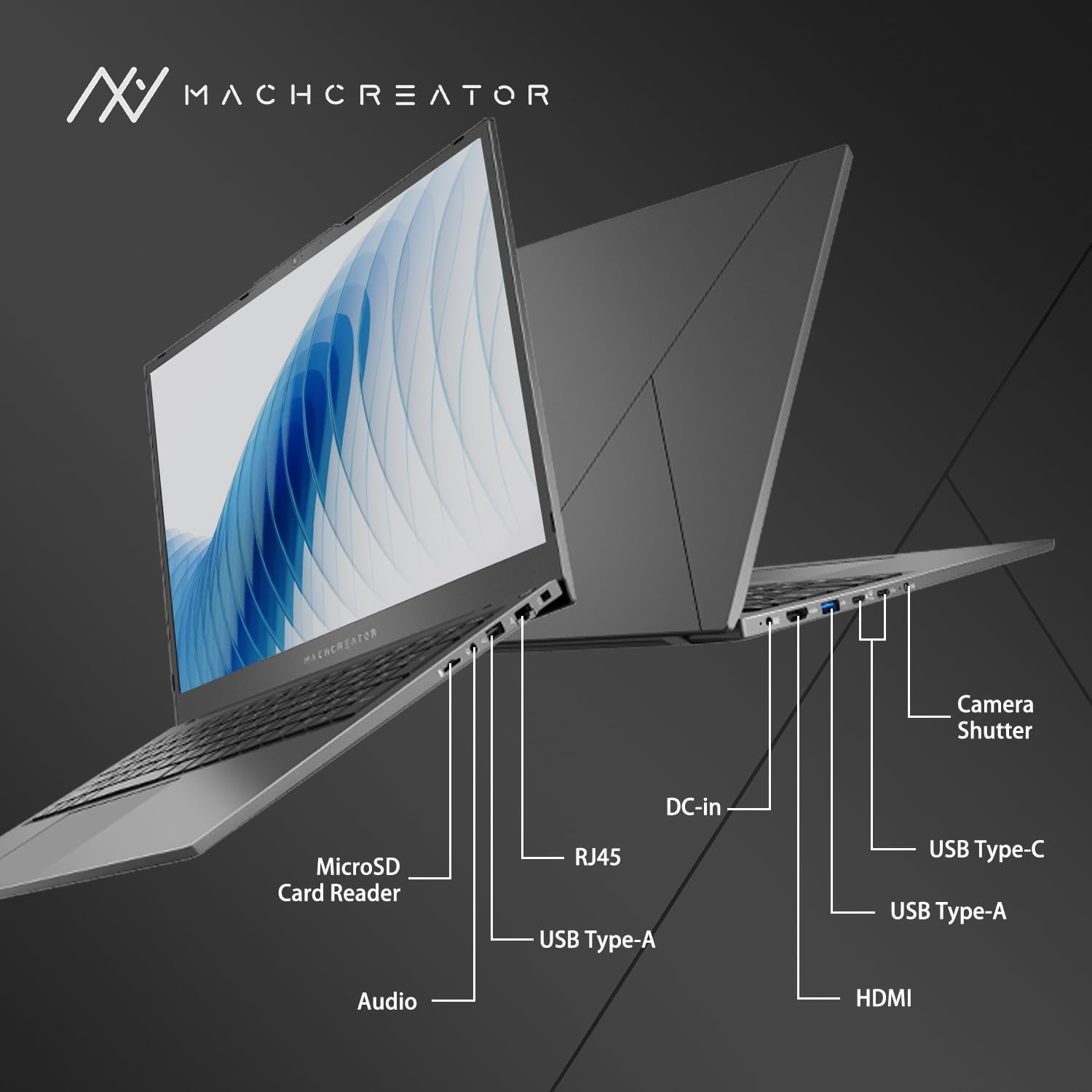
Figi 3.4: Side view with port labels.
An illustration detailing the various input/output ports available on the laptop, including USB, HDMI, and the SD card reader.
- MicroSD Card Reader: For reading and writing data to MicroSD cards.
- DC-an: Connect the power adapter for charging and power supply.
- Thunderbolt 4 (x2): Transfè done gwo vitès, pwodiksyon videyo, ak livrezon pouvwa.
- USB 2.0 Kalite-A (x2): Konekte aparèy USB yo.
- HDMI: Konekte ak ekran ekstèn oswa pwojektè.
- RJ45: Pò Ethernet pou koneksyon rezo filaire.
- Audio Jack: Konekte kas ekoutè oswa oratè ekstèn.
4. Enstalasyon
4.1. Premye Limen
- Depake laptop la ak tout akseswa yo nan bwat la.
- Connect the power adapter to the DC-in port on the laptop and then to a power outlet.
- Louvri kouvèti laptop la.
- Peze bouton pouvwa ki sitiye sou klavye a pou limen laptop la.
- Follow the on-screen instructions to complete the Windows 11 Home setup process. This includes selecting your region, language, and setting up your user account.
4.2. Konekte ak Wi-Fi
- During the Windows setup, you will be prompted to connect to a Wi-Fi network. Select your desired network from the list.
- Enter the Wi-Fi password if prompted and click "Connect".
- If you skip this step, you can connect later via Windows Settings: Go to Kòmanse > Anviwònman > Rezo ak entènèt > Wi-Fi.
5. Operasyon Enstriksyon
5.1. Itilizasyon klavye a ak touchpad la
The laptop features a full-size keyboard with a numeric keypad and a large touchpad. The keyboard is backlit, which can be activated or adjusted using the function keys (e.g., Fn + F5).
Figi 5.1: Dispozisyon klavye a ak touchpad la.
This image illustrates the keyboard and touchpad, showing the key layout and the size of the touchpad for user interaction.
5.2. Konekte Aparèy Ekstèn
Sèvi ak pò ki disponib yo pou konekte aparèy ekstèn yo:
- Aparèy USB: Plug USB drives, mice, or keyboards into the USB Type-A or Thunderbolt 4 (USB-C) ports.
- Ekspozisyon ekstèn: Connect an external monitor or TV using the HDMI port or one of the Thunderbolt 4 ports (with an appropriate adapter, if needed).
- Kat SD: Insert a MicroSD card into the MicroSD Card Reader slot to access its contents.
- Rezo filaire: Connect an Ethernet cable to the RJ45 port for a stable wired internet connection.
5.3. Adjusting the Display Angle
The laptop screen can be adjusted up to a 170-degree angle, providing flexibility for various viewing positions, presentations, or collaborative work.
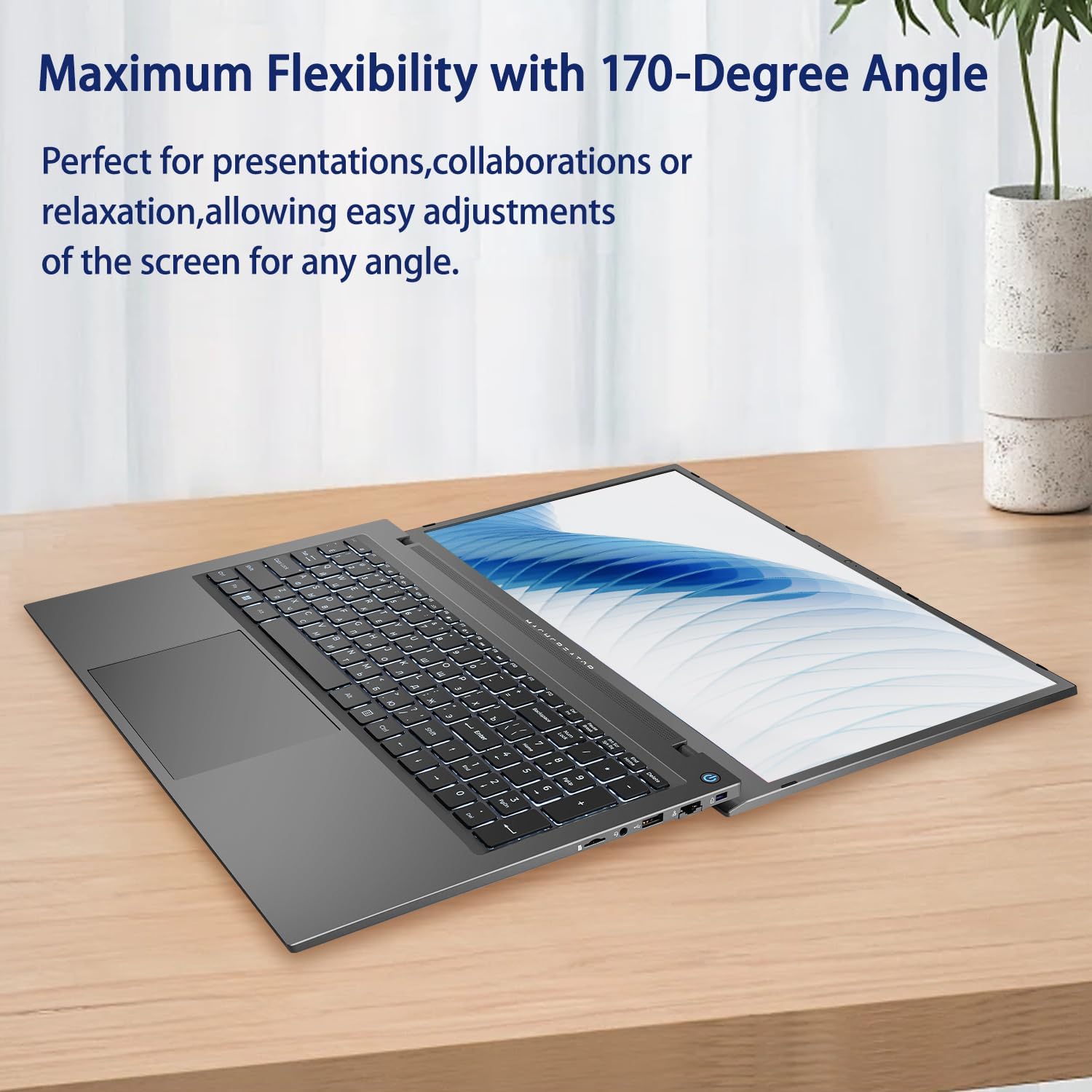
Figure 5.2: Laptop display at 170-degree angle.
This image demonstrates the laptop's ability to open its screen to a wide 170-degree angle, useful for various viewing senaryo.
5.4. Chaje òdinatè pòtab la
Connect the provided power adapter to the DC-in port. The laptop also supports fast charging via its USB-C (Thunderbolt 4) ports with a compatible USB-C Power Delivery charger.
6. Antretyen
6.1. Netwayaj
- Use a soft, lint-free cloth to clean the screen. For stubborn marks, lightly dampRense twal la avèk dlo oswa yon solisyon pou netwaye ekran.
- Wipe the keyboard and chassis with a soft, dry cloth. Avoid using harsh chemicals or abrasive materials.
- Asire w ke laptop la etenn epi debranche anvan ou netwaye li.
6.2. Swen batri
- Evite dechaje batri a nèt souvan.
- Pa ekspoze laptop la nan tanperati ekstrèm.
- If storing the laptop for an extended period, charge the battery to approximately 50-70% before turning it off.
6.3. Mizajou lojisyèl
Regularly update your Windows operating system and drivers to ensure optimal performance and security. Go to Kòmanse > Anviwònman > Mizajou Windows pou tcheke pou mizajou.
NAN. Depanaj
| Pwoblèm | Solisyon posib |
|---|---|
| Laptop la pa limen. |
|
| Pa gen koneksyon Wi-Fi. |
|
| Ekran an vid oswa li ap tranble. |
|
| Limyè klavye a pa fonksyone. |
|
8. Espesifikasyon
| Karakteristik | Detay |
|---|---|
| Non modèl | Machenike Machcreator N17A |
| Processeur | Intel N100 (4 Cores, up to 3.4 GHz) |
| RAM | 8GB DDR5 (4800 MHz) |
| Depo | 256GB PCIe SSD |
| Grafik | Grafik Intel UHD (Entegre) |
| Ekspozisyon | 17.3" FHD (1920x1080) IPS, 120Hz |
| Sistèm operasyon | Windows 11 Kay |
| Pò | 2x Thunderbolt 4, 2x USB 2.0 Type-A, 1x HDMI, 1x RJ45, 1x MicroSD Card Reader, 1x Audio Jack, 1x DC-in |
| Koneksyon san fil | Wi-Fi (802.11n) |
| Karakteristik espesyal | Klavye retroeklere, klavye nimerik |
| Dimansyon (LxWxH) | 15.6 x 10.32 x 1.02 pous |
| Pwa | 5.78 liv |
| Koulè | Gri |
9. Garanti ak sipò
For warranty information and technical support, please refer to the documentation provided with your purchase or visit the official Machenike websit la. Kenbe prèv acha ou pou reklamasyon garanti.
Resous sou entènèt:
- Machenike ofisyèl Websit: www.machenike.com (Nòt: Sa a se yon espas rezève URL, please refer to your product's specific warranty card for the correct support contact.)
10. Videyo Demonstrasyon Pwodwi
Video 10.1: Machcreator N17A Laptop Overview.
Videyo sa a bay yon vizyon souview of the Machenike Machcreator N17A laptop, showcasing its design, key features, and various ports. It demonstrates the unboxing experience, the backlit keyboard, and the available connectivity options.