
Entwodiksyon
Thank you for choosing the Walfront Omnidirectional Desktop Microphone. This device is designed to provide clear and stable audio capture for various applications, including online meetings, business conferences, gaming, and live streaming. Its omnidirectional pickup pattern ensures sound is captured from all directions, making it ideal for group discussions. This manual provides essential information for setting up, operating, and maintaining your microphone.

Image: The Walfront Omnidirectional Desktop Microphone, showcasing its compact design and integrated USB cable.
Ki sa ki nan bwat la
- 1 x Walfront Omnidirectional Desktop Microphone (USB Plug)
- 1 x manyèl itilizatè
Enstalasyon
The Walfront Omnidirectional Desktop Microphone is designed for simple plug-and-play operation. No additional drivers or software are typically required for most operating systems.
- Konekte mikwofòn la: Locate an available USB port on your PC or laptop. Insert the USB plug of the microphone firmly into the USB port.
- Rekonesans Sistèm: Your operating system (Windows XP/Vista/7/8/10, Mac OS) should automatically detect and install the necessary drivers. This process may take a few moments.
- Chwazi kòm Aparèy Defo: After installation, you may need to select the Walfront microphone as your default input device in your computer's sound settings.
- Pou Windows: Go to 'Sound Settings' > 'Recording' tab, then select the microphone and set it as default.
- Pou Mac OS: Go to 'System Preferences' > 'Sound' > 'Input' tab, then select the microphone.

Image: Illustration of connecting the USB microphone to a laptop, highlighting its plug-and-play functionality without requiring additional software.

Imaj: Yon imaj detaye view of the Walfront Omnidirectional Desktop Microphone and its USB plug, ready for connection.
Enstriksyon Operasyon
Once connected and configured, your Walfront microphone is ready for use. It features an omnidirectional pickup pattern and a convenient touch-mute function.
Omnidirectional Sound Pickup
The microphone is designed with a 360-degree omnidirectional pickup pattern, allowing it to capture sound equally from all directions. This makes it suitable for environments where multiple speakers are present, such as conference calls or group gaming sessions. The effective radius of sound pickup is approximately 3 meters (10 feet).

Image: Diagram illustrating the 360-degree omnidirectional sound pickup pattern of the microphone, with a note indicating a 3-meter effective radius.

Image: A visual representation of the microphone emitting sound waves, emphasizing its 360-degree omnidirectional capability for clear and stable sound quality.
Touch-Mute Function
The microphone features a touch-sensitive mute button located on its surface. This allows for quick and easy control over your audio input.
- Limyè ble: Indicates that the microphone is active and recording sound.
- Limyè wouj: Indicates that the microphone is muted and not recording sound.
Simply tap the center of the microphone to toggle between active (blue light) and muted (red light) states.

Image: A hand touching the microphone, illustrating the touch-mute function. Text indicates 'BLUE LIGHT: SOUND RECORDING' and 'RED LIGHT: MUTE'.
Senaryo Itilizasyon
This microphone is versatile and compatible with various communication and recording applications, including:
- Online meetings and video conferencing (e.g., Zoom, Microsoft Teams, Google Meet)
- Business conferences and presentations
- Gaming communication
- Live streaming and podcasting
- Voice recording for educational or personal use

Image: A collage of different usage scenarios, including video conferencing, gaming, and office meetings, demonstrating the microphone's versatility.

Image: The Walfront microphone placed on a conference table during a business meeting, capturing audio from multiple participants.
Antretyen
To ensure the longevity and optimal performance of your Walfront microphone, follow these simple maintenance guidelines:
- Netwayaj: Use a soft, dry cloth to gently wipe the exterior of the microphone. Avoid using harsh chemicals, abrasive cleaners, or excessive moisture, as these can damage the device.
- Depo: Lè w pa ap itilize mikwofòn nan, sere l nan yon kote ki pwòp epi sèk, lwen limyè solèy dirèk ak tanperati ekstrèm.
- Manyen: Avoid dropping the microphone or subjecting it to strong impacts, which can damage internal components.
- Swen kab: Do not bend or crimp the USB cable excessively. Always grasp the plug, not the cable, when disconnecting the microphone.
Depanaj
If you encounter issues with your Walfront Omnidirectional Desktop Microphone, please refer to the following common solutions:
| Pwoblèm | Solisyon posib |
|---|---|
| No sound input / Microphone not detected |
|
| Poor sound quality / Static / Low volume |
|
| Mute function not working |
|
Espesifikasyon
Below are the technical specifications for the Walfront Omnidirectional Desktop Microphone (USB Plug):
| Karakteristik | Spesifikasyon |
|---|---|
| Non modèl | WALFRONT4gf8xigpd0--1 |
| Koneksyon Teknoloji | USB |
| Direktiv | Omnidirectional (360°) |
| Sampling To | 48KHz |
| Enpedans Sòti | 75Ω |
| Sansiblite | -40dB ± 2dB |
| Radio Distance (Pickup) | Up to 300cm (3 meters) |
| Siyal-a-bwi Pwopòsyon | > 36dB |
| Aparèy konpatib | PC, Laptop |
| Sistèm operasyon yo | Windows XP/Vista/7/8/10, Mac OS |
| Karakteristik espesyal | Touch-Mute Function |
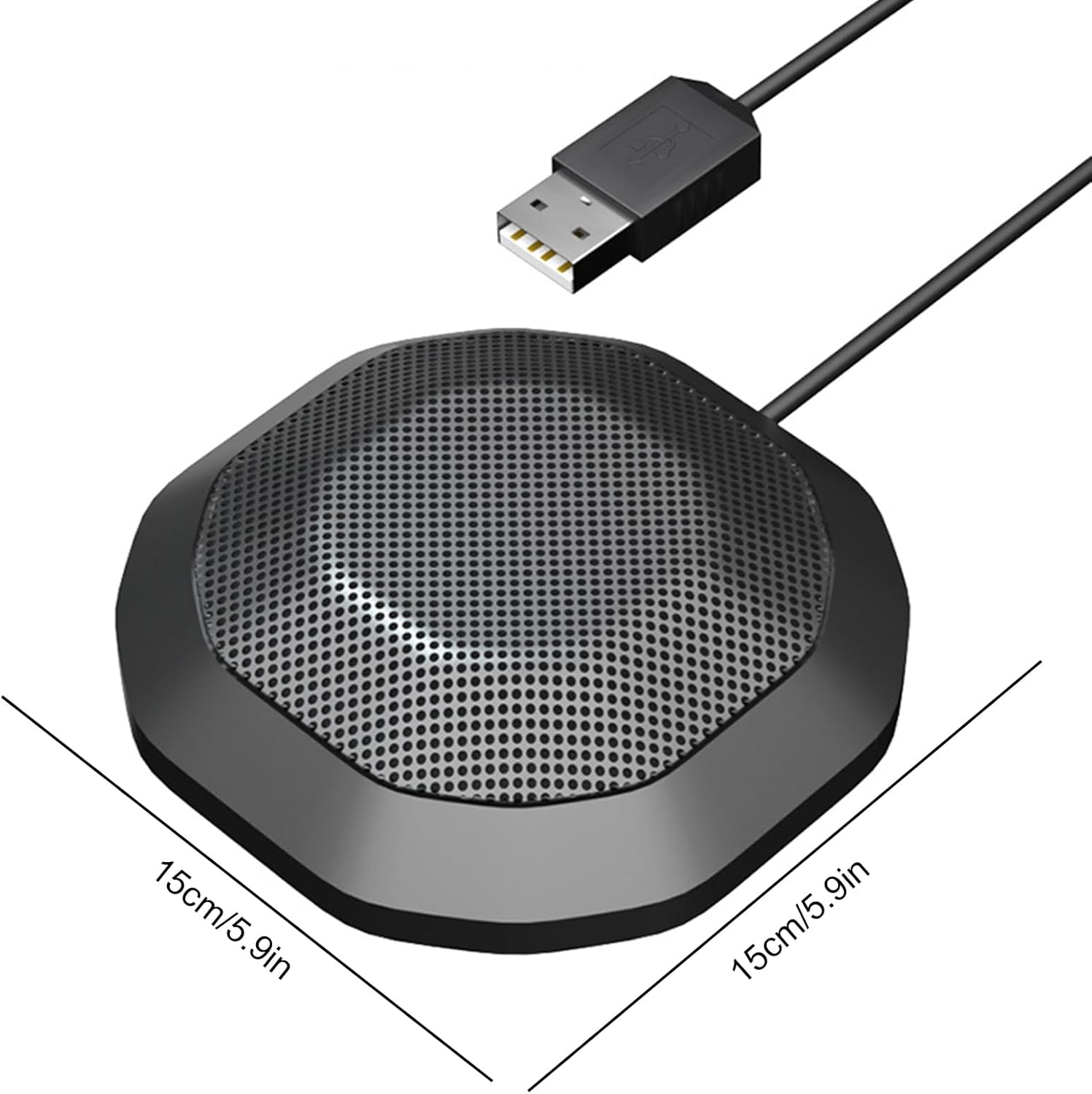
Image: The Walfront microphone with dimensions indicated as 15cm x 15cm (approximately 5.9 inches x 5.9 inches).
Garanti ak sipò
For information regarding warranty coverage, returns, or technical support, please refer to the documentation provided at the time of purchase or contact your retailer. Keep your purchase receipt as proof of purchase.
For further assistance, you may also visit the Walfront brand store on Amazon: Walfront Store