
1. Entwodiksyon
The Macally Wired Keyboard (Model UCACEKEYSG2) is designed for seamless connectivity and comfortable typing across various devices. This ultra-slim keyboard features a full-size 110-key layout, including a numeric keypad and 20 dedicated macOS shortcut keys, enhancing productivity for Mac, PC, iOS, and Android users. Its scissor-switch keys provide a quiet and responsive typing experience, while the integrated 2-in-1 USB-A and USB-C plug ensures broad compatibility.
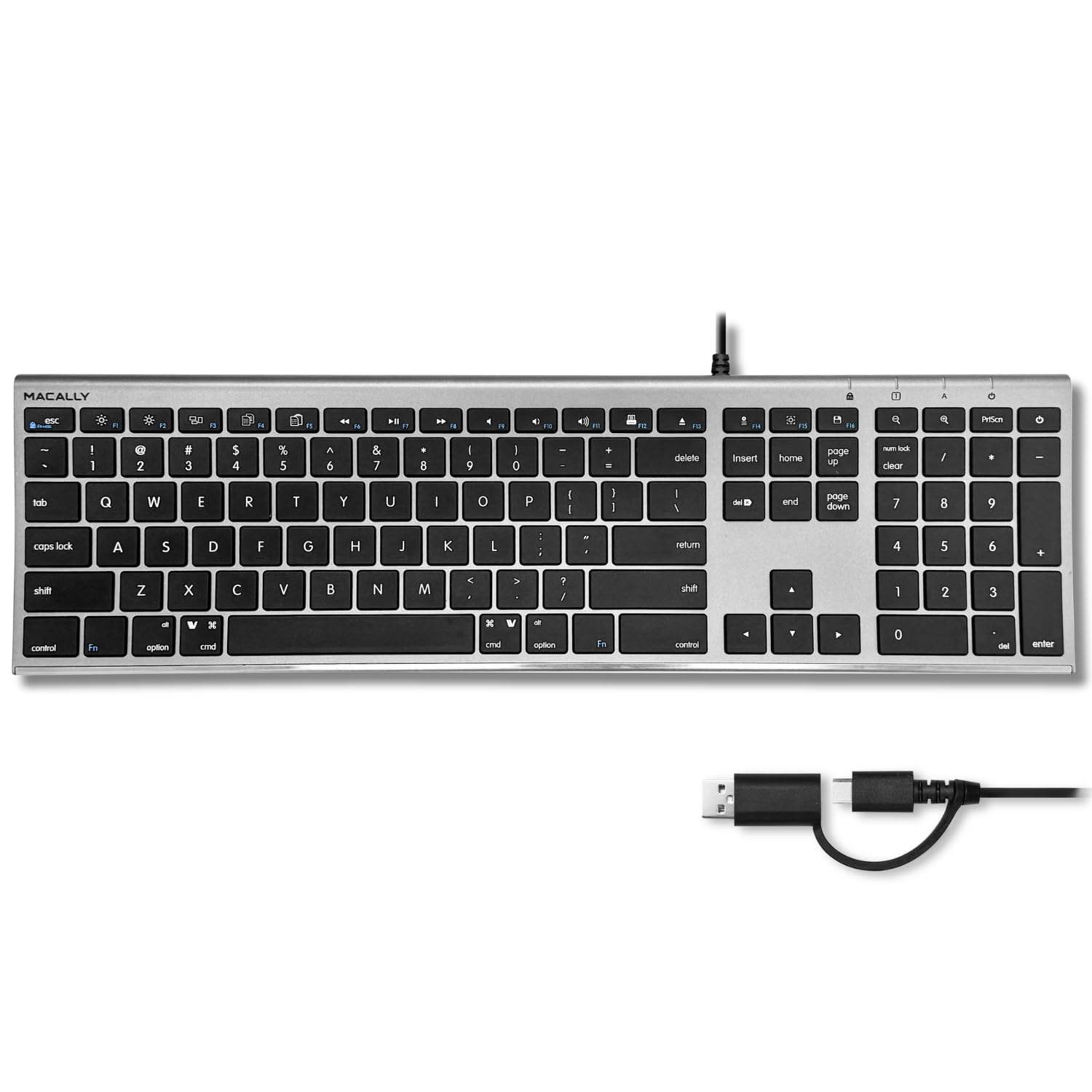
Image 1.1: The Macally Wired Keyboard, showcasing its full layout and dual USB connector.
2. Enstalasyon
Setting up your Macally Wired Keyboard is a straightforward plug-and-play process. No additional drivers or software installations are required.
2.1 Konekte klavye a
- Identify the appropriate USB port on your computer or device. The keyboard features a versatile 2-in-1 USB plug, allowing connection to either a standard USB-A port or a modern USB-C port.
- Plug the keyboard's USB connector into the chosen port.
- Your operating system should automatically detect the keyboard and make it ready for use within a few seconds.

Image 2.1: The keyboard's dual USB-A and USB-C plug for flexible connectivity.

Image 2.2: The keyboard connected to a device via its wired USB-C connection.
The wired connection ensures a stable and reliable input without the need for batteries or wireless pairing.
3. Itilizasyon klavye a
The Macally Wired Keyboard offers a familiar layout with enhanced functionality for macOS users.
3.1 Tape estanda
The 110-key layout includes all standard alphanumeric keys, function keys (F1-F12), navigation keys, and a dedicated numeric keypad. The scissor-switch mechanism provides a comfortable and quiet typing experience with tactile feedback.

Image 3.1: Demonstrating the smooth and tactile keystrokes of the keyboard.
3.2 macOS Shortcut Keys
The keyboard features 20 pre-programmed macOS shortcut keys located in the function row and other dedicated keys. These shortcuts allow for quick access to various system functions, such as brightness control, volume adjustment, media playback, Mission Control, and Launchpad.
- Kontwòl klète: F1 (diminisyon), F2 (ogmantasyon)
- Kontwòl Misyon: F3
- Launchpad: F4
- Kontwòl medya yo: F7 (mòso anvan), F8 (jwe/fè yon poz), F9 (mòso apre)
- Kontwòl Volim: F10 (fèmen son), F11 (diminye), F12 (ogmante)
- Ekspilsyon: Dedicated eject key

Image 3.2: Highlighting the 20 macOS shortcut keys for enhanced productivity.

Image 3.3: The 110-key layout, optimized for macOS but compatible with other operating systems.
3.3 Endikatè ki ap dirije
The keyboard includes LED indicators for Caps Lock, Num Lock, and Scroll Lock, providing visual feedback on their activation status.
4. Antretyen
Proper care and maintenance will ensure the longevity and optimal performance of your Macally Wired Keyboard.
4.1 Netwayaj
- Netwayaj jeneral: Sèvi ak yon ti moso twal mou, ki san pèl dampened with water or a mild, non-abrasive cleaning solution to wipe the surface of the keyboard. Avoid excessive moisture.
- Ant kle yo: Use compressed air to remove dust, crumbs, and debris from between the keys. Alternatively, a soft brush can be used.
- Evite: Do not use harsh chemicals, solvents, or abrasive materials, as these can damage the keyboard's finish or key legends.
4.2 Swen Kab
Avoid bending or twisting the USB cable sharply, especially near the connectors, to prevent internal wire damage. Store the cable neatly when not in use to prevent tangling.
NAN. Depanaj
If you encounter issues with your Macally Wired Keyboard, try the following troubleshooting steps:
- Klavye a pa reponn:
- Ensure the USB connector is fully and securely plugged into the computer's USB port.
- Eseye branche klavye a nan yon lòt pò USB sou òdinatè w la.
- Si w ap itilize yon hub USB, eseye konekte klavye a dirèkteman nan òdinatè a.
- Rekòmanse òdinatè w la oswa aparèy ou an.
- Kle espesifik ki pa fonksyone:
- Check for any physical obstructions or debris under the affected key. Use compressed air to clear it.
- Ensure the keyboard is connected directly to the computer and not through a faulty hub.
- Incorrect Key Output (e.g., @ instead of "):
- Verify that your operating system's keyboard layout settings match the physical layout of your keyboard (e.g., US English).
- Keyboard Not Detected on Mac:
- After plugging in, macOS might prompt you to identify the keyboard type. Follow the on-screen instructions to select the correct keyboard layout.
Si etap sa yo pa rezoud pwoblèm nan, tanpri al gade enfòmasyon sipò ki nan Seksyon 7 la.
6. Espesifikasyon
| Karakteristik | Detay |
|---|---|
| Nimewo Modèl | UCACEKEYSG2 |
| Dimansyon pwodwi | 16.5"L x 4.5"W x 0.6"H (41.9 x 11.4 x 1.5 cm) |
| Pwa atik | 1.32 liv (0.6 kg) |
| Koneksyon Teknoloji | Filaire (USB-A, USB-C) |
| Deskripsyon klavye | USB C Keyboard, Full-size 110-key layout |
| Karakteristik espesyal | 2-in-1 USB A + C Plug, 20 macOS Shortcuts, Scissor Keys |
| Aparèy konpatib | Laptop, PC, Tablet (Mac, PC, iOS, Android) |
| Koulè | Espas Gri |
| Materyèl | Plastic With Metallic Finish |
| Sous pouvwa | Branche |

Image 6.1: Physical dimensions of the Macally Wired Keyboard.
7. Garanti ak sipò
For warranty information and technical support, please refer to the documentation included with your product packaging or visit the official Macally website. Specific warranty terms and conditions may vary by region and retailer.
Sipò sou entènèt: www.macally.com/support
Manifakti: Mace Group Inc / Macally Peripherals