
1. Entwodiksyon
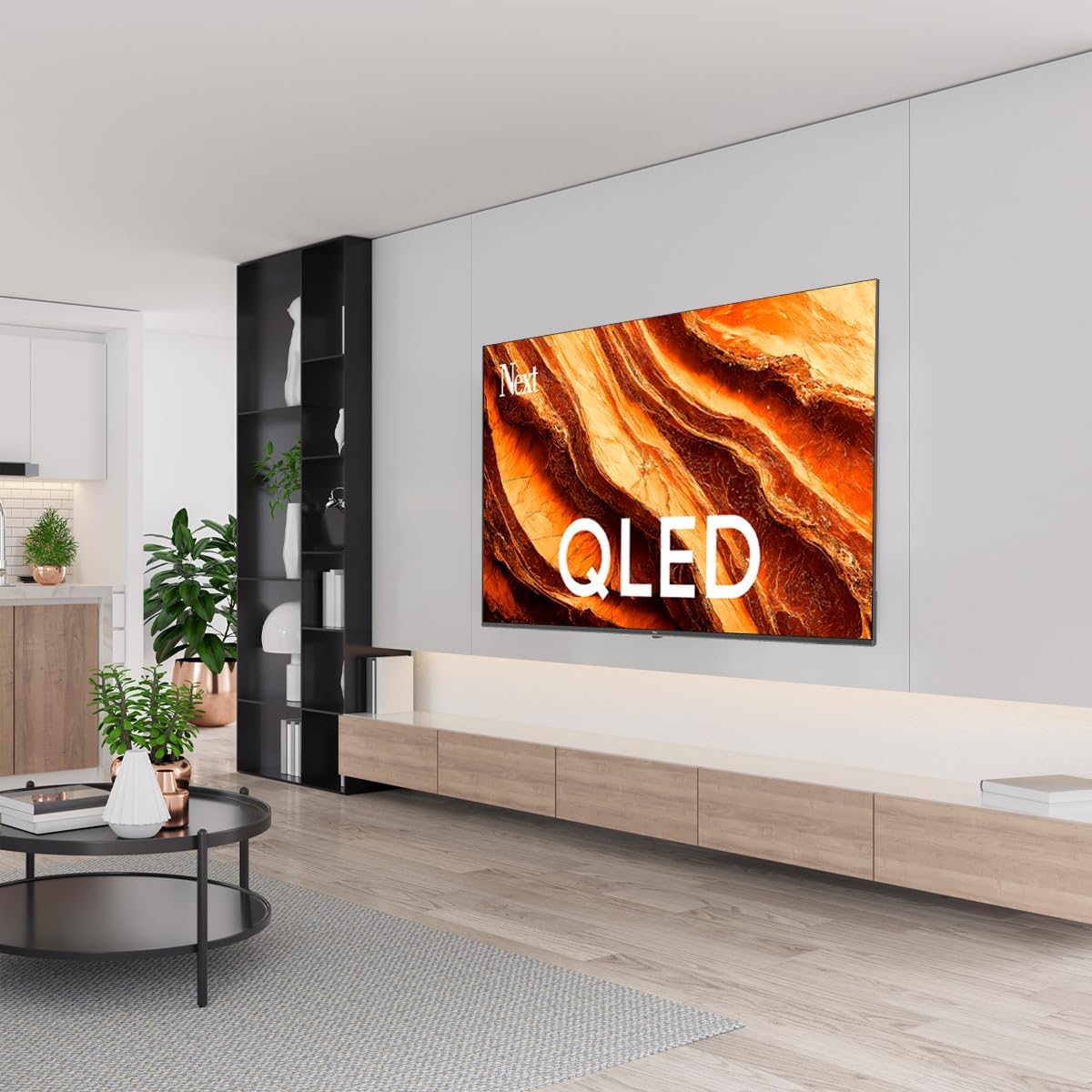
This manual provides essential information for the safe and efficient operation of your Next YE-65GFSG8-QLED 65-inch UHD 4K Google QLED TV. Please read this manual thoroughly before using the television and retain it for future reference. Your new television combines QLED display technology with the Google TV operating system, offering a high-quality viewing experience and smart features.
2. Enfòmasyon enpòtan sou sekirite
Always follow these basic safety precautions when operating your television:
- Sous pouvwa: Ensure the TV is connected to a power supply within the specified voltage ranje.
- Vantilasyon: Pa bloke ouvèti vantilasyon yo. Kite ase espas otou televizyon an pou bon sikilasyon lè a.
- Dlo ak imidite: Pa ekspoze televizyon an anba lapli oswa imidite. Pa mete objè ki plen likid, tankou vaz, sou televizyon an.
- Netwayaj: Debranche televizyon an nan priz kouran anvan ou netwaye li. Sèvi ak yon twal mou epi sèk. Pa sèvi ak pwodui netwayaj likid oswa pwodui netwayaj an ayewosòl.
- Plasman: Mete televizyon an sou yon sifas ki estab e plat. Evite mete l anba limyè solèy dirèk oswa toupre sous chalè.
- Zeklè: During lightning storms or when unused for long periods, unplug the TV from the power outlet and disconnect the antenna.
- Sèvis: Pa eseye fè sèvis pwodui sa a tèt ou. Refere tout sèvis yo bay pèsonèl sèvis kalifye.
3. Pake kontni
Verify that all items are present in your TV package:
- Next YE-65GFSG8-QLED 65-inch UHD 4K Google QLED TV
- Kontwòl Remote
- Pouvwa kab
- Sipò televizyon (2 moso) ak vis
- Manyèl Itilizatè (dokiman sa a)
- Gid Quick Start
4. Enstalasyon
4.1 Enstalasyon Fizik
You can install your TV on a stand or mount it on a wall. Ensure the TV is placed on a stable surface or securely mounted.

Imaj: TV Dimensions. This image illustrates the physical dimensions of the 65-inch television, including its width, height, and diagonal screen size of 164 cm (65 inches).
Enstalasyon kanpe:
- Mete televizyon an fas anba sou yon sifas ki plat e mou pou evite domaje ekran an.
- Attach the two stand pieces to the designated slots on the bottom of the TV.
- Fikse sipò yo ak vis yo bay yo.
- Leve televizyon an ak anpil atansyon pou l kanpe dwat sou yon sifas ki estab.
Montaj mi:
For wall mounting, use a VESA-compatible wall mount kit (sold separately) that matches the TV's VESA pattern. Follow the instructions provided with your wall mount kit. It is recommended to have professional assistance for wall mounting.
4.2 Konekte periferik
Connect your external devices to the appropriate ports on the back of your TV.
Imaj: Rear Panel Connections. This image displays the various input and output ports located on the back of the television, including HDMI, USB, DVB-S, DVB-T, CI Module, Mini AV-IN, Optical Out, and Ethernet.
- HDMI (ARC): Connect Blu-ray players, game consoles, or other HDMI devices. HDMI 1 supports Audio Return Channel (ARC).
- USB (2x): Konekte aparèy depo USB pou lekti medya.
- DVB-S / DVB-T: Connect satellite (DVB-S) or terrestrial (DVB-T) antenna cables.
- CI Module: Insert a Common Interface (CI) module for encrypted digital channels.
- Mini AV-IN: Connect older devices using an AV adapter cable.
- Soti optik: Connect to an external audio system for digital audio output.
- Ethernet: Konekte yon kab Ethernet pou yon koneksyon entènèt filaire.
- Pouvwa: Konekte kab kouran an nan televizyon an epi answit nan yon priz miray.
4.3 Premye Limen ak Premye Enstalasyon
- After connecting all cables, plug the power cord into an electrical outlet.
- Peze bouton pouvwa a sou kontwòl remote la oswa sou televizyon an.
- The TV will guide you through the initial setup process, which includes:
- Seleksyon lang
- Konekte ak Wi-Fi oswa Ethernet
- Signing in with your Google Account (required for Google TV features)
- Aksepte tèm ak kondisyon yo
- Channel scanning (for DVB-S/T)
- Swiv enstriksyon ki sou ekran pou konplete konfigirasyon an.
5. Opere televizyon ou
5.1 Fonksyon kontwòl Remote
The remote control allows you to navigate the TV's features. Familiarize yourself with its buttons:
- Pouvwa: Limen oswa etenn televizyon an.
- Google Asistan: Aktive kòmandman vokal yo.
- Pav Navigasyon (Anwo/Anba/Agoch/Dwat/OK): Navige nan meni yo epi chwazi opsyon yo.
- Retounen: Retounen nan ekran anvan an.
- Kay: Aksè ekran prensipal Google TV a.
- Volim +/-: Ajiste nivo volim.
- Chèn +/-: Chanje chanèl televizyon yo.
- Antre: Chwazi sous antre yo (HDMI, AV, elatriye).
- Bouton Aplikasyon yo: Aksè dirèk nan aplikasyon difizyon popilè yo.
5.2 Navigating Google TV Interface
Google TV organizes your entertainment with a personalized home screen. Content from your apps is brought together and organized for easy discovery.

Imaj: Google TV Interface. This image shows the main Google TV home screen with various streaming app icons and content recommendations, demonstrating the user interface.
- Ekran Kay: Montre rekòmandasyon pèsonalize, aplikasyon enstale, ak aksè rapid nan kontni.
- Onglet Pou Ou: Provides tailored content suggestions based on your viewabitid yo.
- Onglet An Dirèk: Accesses live TV channels from integrated services.
- Onglet Aplikasyon yo: Shows all installed applications. You can download more from the Google Play Store.
- Onglet Bibliyotèk: Accesses your purchased or rented content from Google Play.
5.3 Anviwònman Imaj ak Son
Pou ajiste paramèt foto ak son:
- Peze a Anviwònman button (usually a gear icon) on your remote.
- Navige nan Ekspozisyon & Son.
- Anviwònman Foto: Adjust brightness, contrast, color, sharpness, and select picture modes (e.g., Standard, Vivid, Movie, Game). Your QLED TV offers enhanced color saturation.
- Anviwònman son: Adjust bass, treble, balance, and select sound modes (e.g., Standard, Music, Movie, Speech).

Imaj: QLED Color Saturation. This image visually demonstrates the high color saturation achieved with QLED technology, showing a vibrant and rich color display.

Imaj: HDR (High Dynamic Range). This image illustrates the visual impact of HDR, showcasing improved contrast and color detail in a scene when HDR is enabled versus when it is off.
5.4 Anviwònman rezo
To connect your TV to the internet:
- Peze a Anviwònman bouton sou remote w la.
- Navige nan Rezo & Entènèt.
- Chwazi Wi-Fi to connect to a wireless network or ensure Ethernet is connected for a wired connection.
- For Wi-Fi, select your network from the list and enter the password.
6. Antretyen
6.1 Netwaye televizyon an
- Toujou debranche televizyon an anvan ou netwaye li.
- Sèvi ak yon twal mou, sèk, ki pa gen pousyè pou siye ekran an ak kò televizyon an dousman.
- Pou mak ki difisil pou retire, pase yon ti krasampen the cloth with water or a specialized screen cleaner (ensure it's safe for TV screens). Never spray cleaner directly onto the screen.
- Evite itilize pwodui netwayaj abrazif, sir, oswa solvang.
6.2 Mizajou lojisyèl
Your TV may receive software updates to improve performance and add new features. It is recommended to keep your TV's software updated.
- Asire w ke televizyon ou an konekte ak entènèt la.
- Peze a Anviwònman bouton sou remote w la.
- Navige nan Sistèm > Konsènan > Aktyalizasyon sistèm lan.
- Chwazi Tcheke pou aktyalizasyon.
- Swiv enstriksyon yo sou ekran an pou telechaje epi enstale nenpòt mizajou ki disponib.
NAN. Depanaj
Si w rankontre pwoblèm ak televizyon w lan, gade pwoblèm ak solisyon komen sa yo:
| Pwoblèm | Kòz posib / Solisyon |
|---|---|
| Pa gen pouvwa | Check if the power cord is securely plugged into the TV and the wall outlet. Ensure the outlet is working. |
| Pa gen imaj, men gen son | Check the input source. Ensure the connected device is turned on and functioning correctly. |
| Pa gen son, men imaj la la | Check the volume level and mute status. Verify audio cable connections for external devices. Check TV sound settings. |
| Remote kontwòl pa travay | Ranplase pil yo. Asire w pa gen okenn obstak ant telekòmand lan ak detèktè IR televizyon an. |
| Pa ka konekte ak Wi-Fi | Ensure your Wi-Fi router is on and within range. Re-enter the Wi-Fi password carefully. Try restarting the TV and router. |
| Aplikasyon yo ralanti oswa yo bloke | Close unused apps. Clear app cache (Settings > Apps > See all apps > [App Name] > Clear cache). Ensure a stable internet connection. |
Si pwoblèm nan pèsiste apre ou fin eseye solisyon sa yo, tanpri kontakte sèvis kliyan.
8. Espesifikasyon
Technical specifications for the Next YE-65GFSG8-QLED 65-inch UHD 4K Google QLED TV:
- Mak: Next
- Ane modèl: 2025
- Rezolisyon: 4K (3840x2160)
- Teknoloji ekspozisyon: QLED
- Gwosè ekran: 65 pous (165 cm)
- Rapò aspè: 16:9
- Pousantaj rafrechisman: 60 Hz
- Karakteristik kle: Konsepsyon Frameless
- Koneksyon: Bluetooth, Ethernet, HDMI (ARC), USB (2x), Wi-Fi
- Dimansyon pwodwi: 27.8P x 144.6L x 88.9H cm
- Pwa: 16.3 Kilogram
- Sistèm operasyon: Google TV
- Eleman ki enkli: Kontwòl Remote
- Peyi orijin: Latiki
9. Garanti ak sipò
Your Next YE-65GFSG8-QLED TV comes with a manufacturer's warranty. Please refer to the warranty card included in your package for specific terms and conditions, including the warranty period and coverage details.
For technical support, service requests, or further assistance, please contact Next customer service. Contact information can typically be found on the manufacturer's websit la oubyen nan dokiman garanti a.
- Sipò sou entènèt: Visit the official Next website for FAQs, troubleshooting guides, and support contact details.
- Sant sèvis: For hardware issues, locate an authorized service center near you.