

Image: The COLORROOM K10 Android 14 Tablet, showcasing its design and included protective case.
Entwodiksyon
This manual provides essential instructions for setting up, operating, maintaining, and troubleshooting your COLORROOM K10 Android 14 Tablet. Please read this guide thoroughly to ensure proper use and to maximize your tablet's performance and longevity. The K10 features an 11-inch IPS display, an octa-core processor, 12GB RAM, 128GB internal storage expandable up to 1TB, an 8000mAh battery with 18W PD fast charging, dual-band WiFi6, Bluetooth 5.0, GPS, and FM Radio.
Ki sa ki nan bwat la
Upon unboxing, verify that all items listed below are present:
- COLORROOM Android 14 Tablet
- USB kab
- Adaptè pouvwa
- Shock-proof Case
Enstalasyon
1. Chaje tablèt la
Before first use, fully charge the tablet. Connect the provided USB cable to the tablet's charging port and the power adapter, then plug the adapter into a wall outlet. The tablet supports 18W PD fast charging. A full charge typically takes several hours.
2. Powering On / Off
- Pou limen: Press and hold the Power button until the COLORROOM logo appears.
- Pou etenn: Peze epi kenbe bouton Power la, answit chwazi "Power off" nan opsyon yo.
- Pou rekòmanse: Peze epi kenbe bouton Pouvwa a, answit chwazi "Rekòmanse" nan opsyon yo.
3. Inisyal Enstalasyon Sòsye
Follow the on-screen instructions to complete the initial setup, which includes selecting your language, connecting to a Wi-Fi network, and signing in with your Google account.
4. Konekte ak Wi-Fi
- Ale nan Anviwònman > Rezo ak entènèt > Wi-Fi.
- Aktive Wi-Fi a On.
- Chwazi rezo ou vle a nan lis la.
- Antre modpas la si yo mande w, epi tape Konekte. The tablet supports dual-band WiFi (2.4/5GHz) for stable connections.
5. Expanding Storage
The tablet supports up to 1TB expandable storage via a microSD card (not included). Locate the microSD card slot, insert the card gently until it clicks into place, and follow any on-screen prompts to format it if necessary.
6. Installing the Protective Case
Carefully align the tablet with the provided shock-proof case and gently press it into place, ensuring all ports and buttons are accessible and the tablet is securely fitted.
Enstriksyon Operasyon
1. Navigasyon debaz
- Manyen: Tape yon ikòn pou ouvri yon aplikasyon oubyen chwazi yon atik.
- Glise: Trennen dwèt ou sou ekran an pou defile oswa navige ant ekran yo.
- Zongle: Sèvi ak de dwèt pou agrandi oswa diminye imaj yo epi web paj.
- Bouton Kay: Retounen nan ekran kay la.
- Bouton tounen: Retounen nan ekran anvan an.
- Bouton Aplikasyon Dènye: Montre aplikasyon ki fèk louvri yo.
2. Multitech
The tablet's octa-core processor and 12GB RAM allow for efficient multitasking. You can run multiple applications simultaneously. Use the recent apps button to switch between open applications or use split-screen mode for two apps side-by-side.
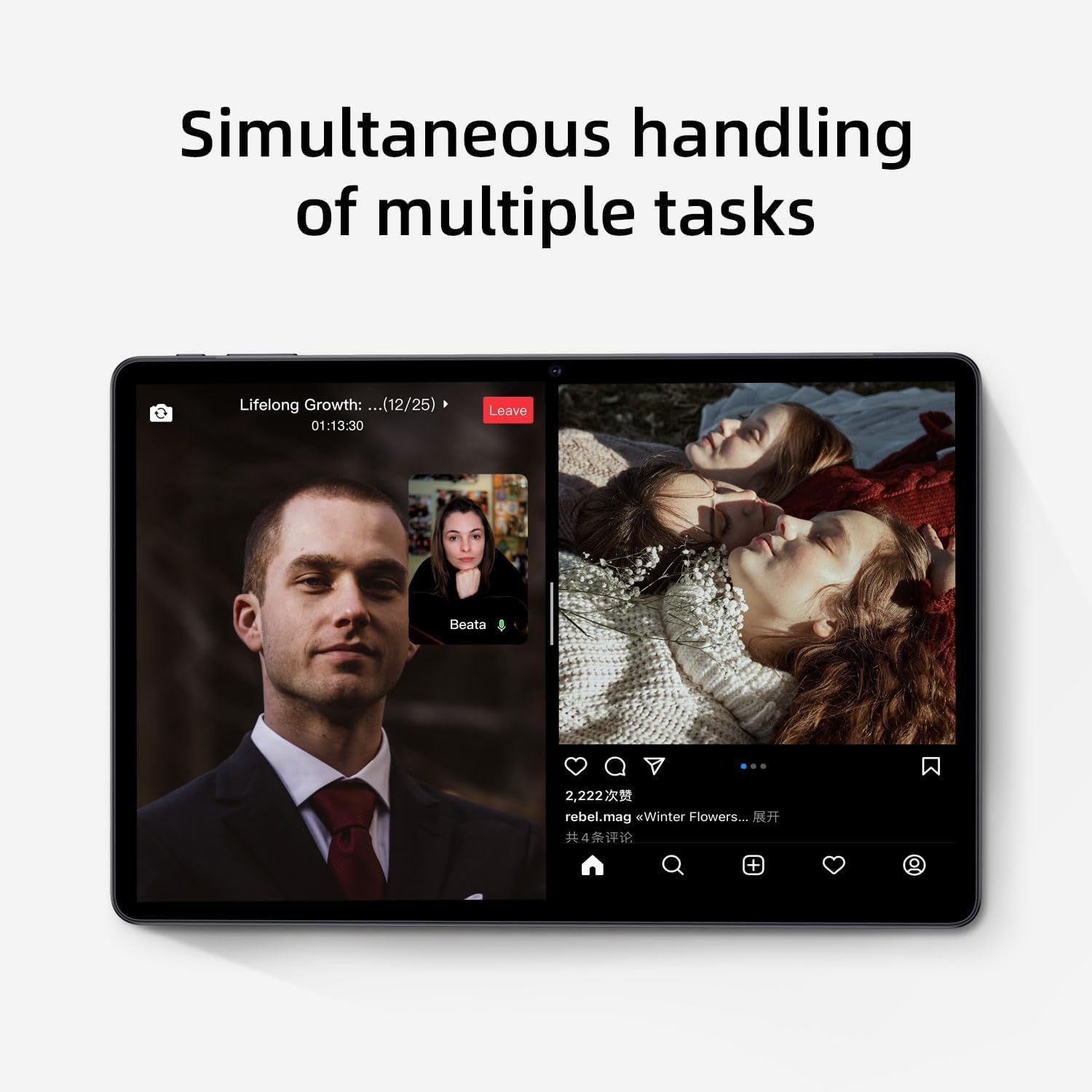
Image: The tablet screen showing two applications running simultaneously in split-screen mode, illustrating its multitasking feature.
3. Lekti Medya
The 11-inch IPS display with 1920x1200 resolution provides clear and vibrant visuals for streaming videos, viewing photos, and playing games. Use pre-installed media players or download your preferred apps from the Google Play Store.
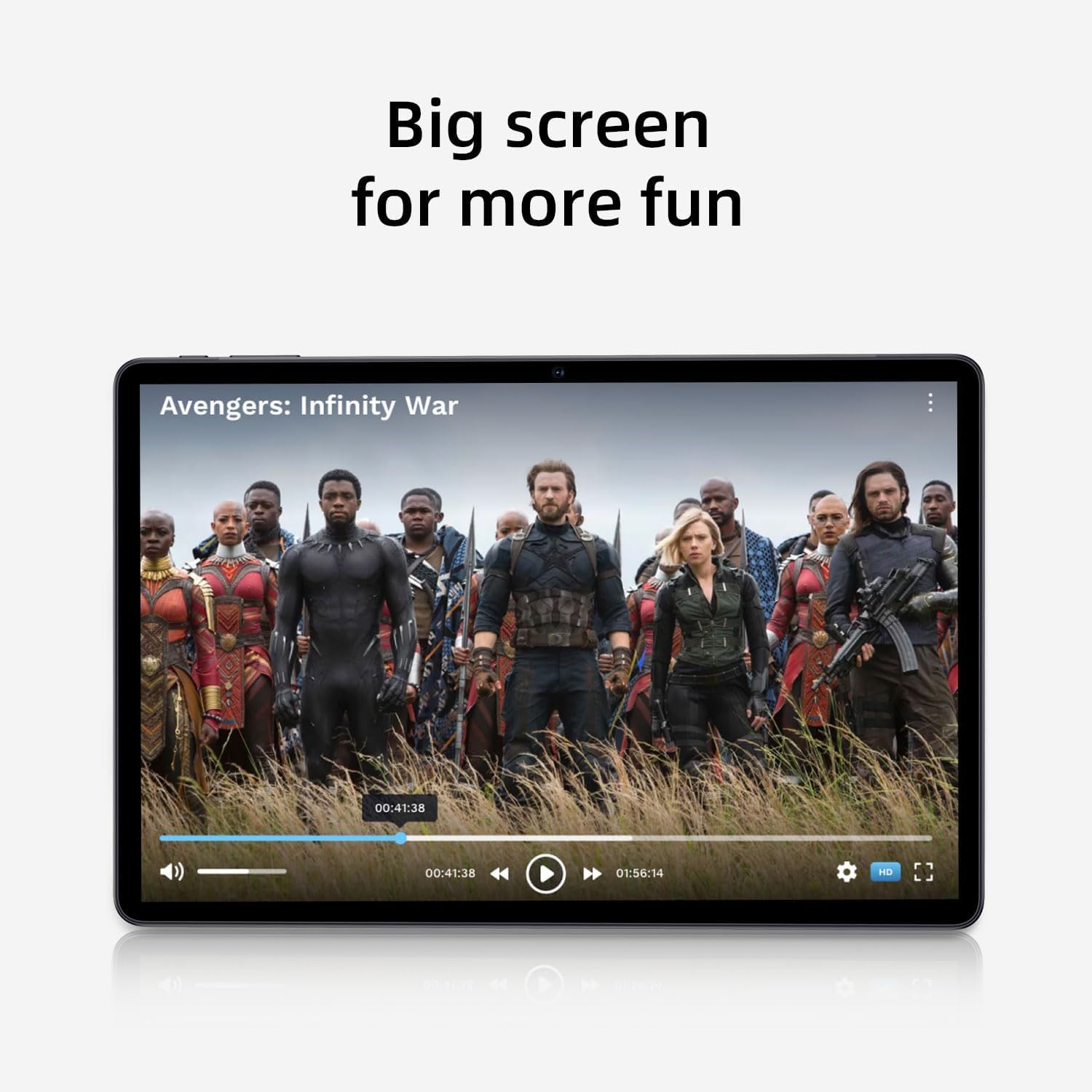
Image: The tablet screen showing a video playing, highlighting the display quality for entertainment.
4. Sèvi ak GPS
The tablet includes built-in GPS functionality. To use navigation apps, ensure location services are enabled in Anviwònman > Kote. Download a navigation app from the Google Play Store for turn-by-turn directions.
5. Using FM Radio
To use the FM Radio, connect wired headphones (not included) to the tablet's audio jack. The headphones act as an antenna. Open the pre-installed FM Radio app and scan for available stations.
6. Bluetooth Koneksyon
To pair Bluetooth devices (e.g., headphones, speakers):
- Ale nan Anviwònman > Aparèy ki konekte > Preferans koneksyon > Bluetooth.
- Aktive Bluetooth On.
- Asire w aparèy Bluetooth ou a nan mòd koneksyon.
- Chwazi aparèy ou an nan lis aparèy ki disponib yo epi swiv nenpòt enstriksyon ki parèt sou ekran an pou konplete koneksyon an.
7. Itilizasyon kamera
Open the Camera app from the home screen or app drawer. Tap the shutter button to take photos or switch to video mode to record videos. Adjust settings like flash, timer, and camera mode within the app interface.
Antretyen
1. Netwaye Tablèt la
Sèvi ak yon twal mou ki pa gen pousyè pou netwaye ekran an ak kò tablèt la. Pou tach ki difisil pou retire, siye yon ti kras.ampRense twal la avèk dlo oswa yon solisyon pou netwaye ekran. Evite pwodui chimik ki agresif oswa materyèl abrazif.
2. Swen batri
- Evite tanperati ekstrèm, paske yo ka diminye lavi batri a.
- Pa kite batri a dechaje nèt souvan.
- Sèvi ak plato ki vini ak li a pou yon chajman optimal.
- The 8000mAh battery provides extended usage; however, proper care ensures long-term performance.

Image: A visual representation of the tablet's 8000mAh battery capacity, emphasizing its long-lasting power.
3. Mizajou lojisyèl
Regularly check for system updates to ensure your tablet has the latest features and security patches. Go to Anviwònman > Sistèm > Aktyalizasyon sistèm lan.
4. Jesyon Depo
Tanzantan review aplikasyon ou enstale yo ak files. Dezenstale aplikasyon ki pa itilize yo epi efase aplikasyon ki pa nesesè yo files to free up the 128GB internal storage. Utilize the 1TB expandable storage for large media files.
Depanaj
Tablet Not Powering On
- Ensure the tablet is sufficiently charged. Connect it to the power adapter and wait a few minutes before attempting to power on.
- Peze epi kenbe bouton Pouvwa a pou omwen 10-15 segonn pou fòse rekòmanse.
Pwoblèm Koneksyon Wi-Fi
- Rekòmanse routeur Wi-Fi ou a ak tablèt la.
- Bliye rezo a nan paramèt Wi-Fi yo epi rekonekte li.
- Asire w ou nan zòn siyal Wi-Fi a.
Pèfòmans Ralanti
- Fèmen aplikasyon ou pa itilize k ap fonksyone nan background nan.
- Efase done kach pou aplikasyon yo itilize souvan.
- Tcheke epi enstale nenpòt mizajou sistèm ki disponib.
- Consider performing a factory reset as a last resort (back up your data first). Go to Anviwònman > Sistèm > Reyajiste opsyon > Efase tout done (reset faktori).
Ekran taktil la pa reponn
- Rekòmanse tablèt la.
- Asire w ekran an pwòp epi li pa gen debri oswa imidite.
Espesifikasyon

Image: The tablet shown with its physical dimensions, including screen size and overall device measurements.
| Non modèl | K10 |
| Sistèm operasyon | Android 14 |
| Processeur | Octa-core (Unisoc) |
| RAM | 12GB |
| Depo Entèn | 128GB |
| Depo dilatabl | Jiska 1TB (mikroSD) |
| Gwosè ekran | 11 pous |
| Rezolisyon ekran | 1920x1200 IPS |
| Kapasite batri | 8000mAh |
| Chaje | Chaj rapid 18W PD |
| Wi-Fi | Dual-band (2.4/5GHz) 802.11ac |
| Bluetooth | Bluetooth 5.0 |
| GPS | Wi |
| Radyo FM | Wi |
| Pwa atik | 2.33 liv |
| Dimansyon pwodwi | 10.1 x 3.5 x 0.35 pous |
Enfòmasyon sou Garanti
This COLORROOM K10 Tablet is covered by a standard manufacturer's warranty. The specific terms and duration of the warranty may vary by region. Please retain your proof of purchase for warranty claims. For detailed warranty information, including coverage and how to make a claim, please refer to the warranty card included with your product or visit the official COLORROOM websit.
Sipò
For further assistance, technical support, or to inquire about service, please visit the COLORROOM official support websit entènèt la oubyen kontakte depatman sèvis kliyan yo. Anjeneral, ou ka jwenn enfòmasyon pou kontakte yo sou sit fabrikan an. websit la oubyen sou materyèl anbalaj yo.