
1. Entwodiksyon
This manual provides instructions for the installation, operation, and maintenance of the Intermatic SH-ABIWS1-WH Smart Wi-Fi Switch. This device is designed to automate lighting and motor loads, offering compatibility with Matter-certified platforms and voice assistants like Alexa, Google Home, and Siri. It supports both single-pole and 3-way installations and operates on 2.4 GHz Wi-Fi without requiring a separate hub.
The Intermatic SH-ABIWS1-WH Smart Wi-Fi Switch allows for convenient control of connected devices through a dedicated mobile application, voice commands, or traditional manual operation.
2. Enfòmasyon sou Sekirite
AVÈTISMAN: Risk pou chòk elektrik. Improper installation can lead to serious injury or death. Always turn off power at the circuit breaker before installation or servicing. Installation must be performed by a qualified electrician or in accordance with local electrical codes.
- Ensure the circuit breaker is OFF before beginning installation.
- Verifye ke rezèv la voltage is within the specified range of 120-277 VAC.
- A neutral wire is required for operation. If your electrical box does not have a neutral wire, consult a qualified electrician.
- Do not use with dimmable loads unless the load itself has dimming capabilities controlled separately. This switch provides ON-OFF control only.
- Do not exceed the maximum load ratings for the switch.
3. Pake kontni
The Intermatic SH-ABIWS1-WH Smart Wi-Fi Switch package includes:
- Intermatic SH-ABIWS1-WH Smart Wi-Fi Switch
- Gid enstalasyon (dokiman sa a)
- Fil nwa
Nòt: A wall faceplate is not included and must be purchased separately.

Figure 3.1: Intermatic ABRA In-Wall Smart Switch packaging and the switch unit.
4. Espesifikasyon
| Karakteristik | Spesifikasyon |
|---|---|
| Nimewo Modèl | SH-ABIWS1-WH |
| Antre Voltage | 120-277 VAC, 50/60 Hz |
| Rating aktyèl | 15 Amps |
| Kalite chaj | LED, Incandescent, Ballast, Inductive, Motor Loads |
| Kapasite Chaj Motè | Up to 1 HP at 120V, 3 HP at 240V |
| Mòd operasyon | ON-OFF |
| Koneksyon | 2.4 GHz Wi-Fi, Matter Certified |
| Konpatibilite | Single-Pole, 3-Way |
| Sipò Asistan Vwa | Amazon Alexa, Google Home, Apple Siri |
| Dimansyon (L x W x H) | 1.65 x 1.73 x 4.09 pous |
| Pwa | 6.74 ons |
| Kalite kontak | Nòmalman Louvri |
| Kalite Connector | Fil Plon |
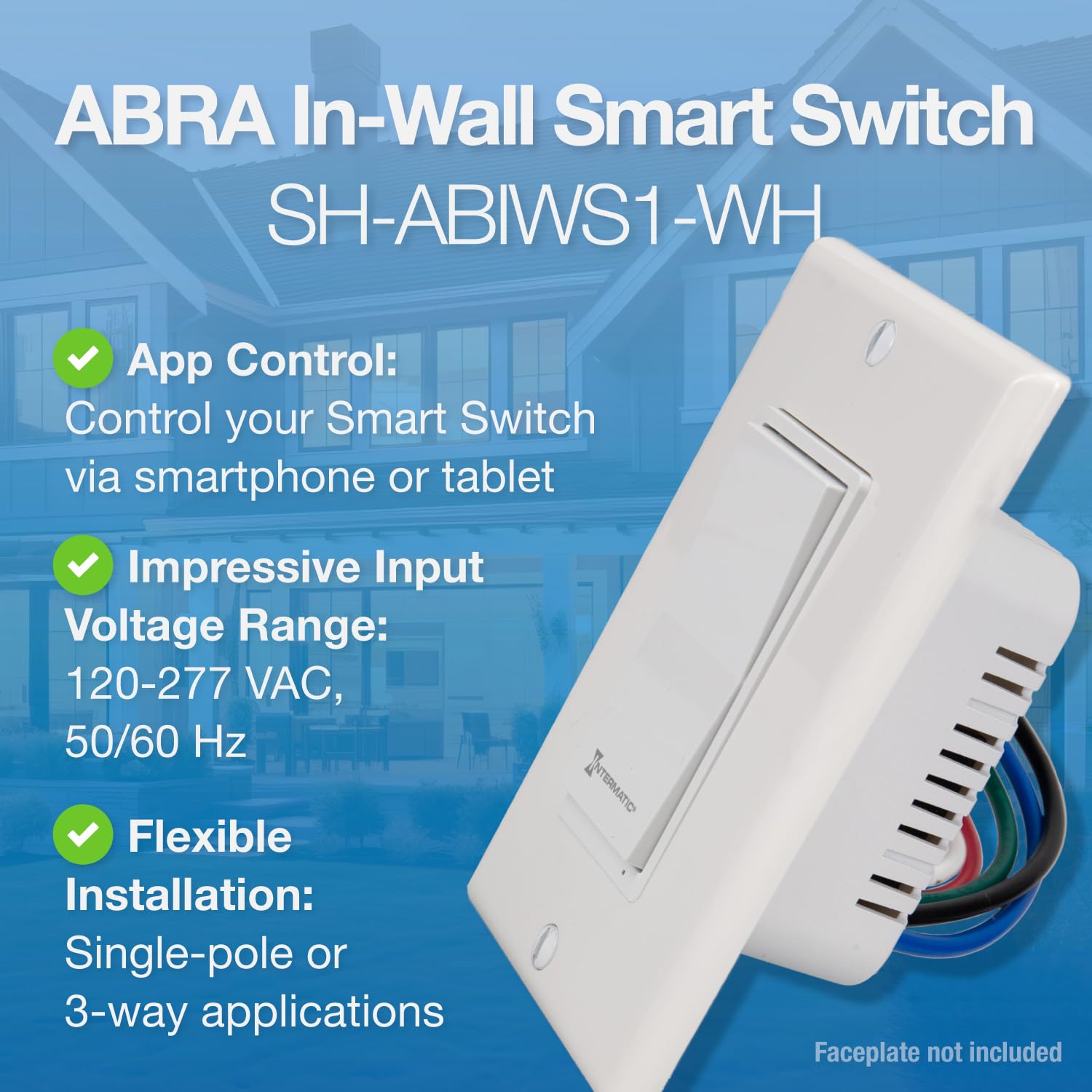
Figure 4.1: Key features of the Intermatic ABRA In-Wall Smart Switch.
5. Enstalasyon ak Enstalasyon
5.1 Lis Enstriksyon Pre-Enstalasyon an
- Confirm you have a 2.4 GHz Wi-Fi network available.
- Ensure your electrical box has a neutral wire (typically white).
- Gather necessary tools: screwdriver (Phillips and flathead), wire strippers, voltage tèsteur.
5.2 Enstriksyon fil elektrik
IMPORTANT: Turn off power at the circuit breaker before proceeding.
- Retire plak miray ki deja egziste a ak switch.
- Identify the wires: Line (hot), Load, Neutral, Ground, and Traveler (for 3-way installations). Use a voltage tester to confirm the Line wire is de-energized.
- Connect the Intermatic Smart Wi-Fi Switch wires to your home's wiring using the provided wire nuts:
- Black wire (Line): Connect to the incoming hot wire from the circuit breaker.
- Red wire (Load): Connect to the wire going to the light fixture or motor load.
- White wire (Neutral): Connect to the neutral bundle in the electrical box.
- Green wire (Ground): Connect to the bare copper or green ground wire in the electrical box.
- Blue wire (Traveler): For 3-way installations, connect to the traveler wire. For single-pole installations, cap this wire with a wire nut.
- Carefully push the wired switch into the electrical box. Secure it with screws.
- Install a standard wall faceplate (not included).
- Retabli kouran an nan disjonktè a. Limyè endikatè switch la ta dwe limen.

Figure 5.1: Flexible installation for single-pole and 3-way applications.
5.3 App and Matter Configuration
The Intermatic Smart Wi-Fi Switch is Matter certified, allowing integration with various smart home platforms.
- Download the ABRA App: Chèche pou "Intermatic ABRA" on the Apple App Store or Google Play Store and install the application.
- Ajoute Aparèy: Open the ABRA app and follow the on-screen instructions to add a new device. You will be prompted to scan the Matter QR code located on the front of the switch body (behind the faceplate) or on the included documentation. The QR code is unique to your device (e.g., MT:CKXU79CN1686AB42510).
- Konekte ak Wi-Fi: The app will guide you through connecting the switch to your 2.4 GHz Wi-Fi network.
- Entegre ak platfòm kay entelijan yo: Once connected via the ABRA app or directly via Matter, you can link your switch to platforms like Apple Home, Samsung SmartThings, Google Home, and Amazon Alexa. Follow the respective platform's instructions for adding a Matter-certified device. For Alexa, you may need to initiate pairing from the Apple Home app and copy a setup code.

Figure 5.2: Matter certification and platform compatibility.

Figure 5.3: App control features and benefits.
6. Operasyon Enstriksyon
6.1 Manyèl Kontwòl
Press the rocker switch to manually turn the connected load ON or OFF. The small blue indicator light on the switch will illuminate when the load is ON and turn off when the load is OFF.
6.2 Kontwòl App
Use the Intermatic ABRA app or any Matter-compliant third-party app (e.g., Apple Home, Google Home, Alexa app) to control the switch. From the app, you can:
- Turn the connected load ON or OFF remotely.
- Set custom schedules for automatic ON/OFF times.
- Create countdown timers.
- Monitor the status of the switch.
6.3 Kontwòl vwa
Once integrated with Amazon Alexa, Google Home, or Apple Siri, you can use voice commands to control your switch. Examples:
- "Alexa, limen limyè salon an."
- "Hey Google, etenn vantilatè a."
- "Siri, set the porch light to turn off in 15 minutes."

Figure 6.1: Various applications for the smart switch.
7. Antretyen
The Intermatic Smart Wi-Fi Switch requires minimal maintenance.
- Netwayaj: Disconnect power at the circuit breaker before cleaning. Wipe the switch and faceplate with a soft, damp twal. Pa sèvi ak pwodui netwayaj abrazif oswa solvang.
- Mizajou mikrolojisyèl: Periodically check the Intermatic ABRA app for available firmware updates to ensure optimal performance and security.
NAN. Depanaj
| Pwoblèm | Kòz posib | Solisyon |
|---|---|---|
| Switch does not respond (no power). | Pa gen kouran nan switch la. | Check the circuit breaker and ensure it is ON. Verify wiring connections. |
| Cannot connect to Wi-Fi or Matter. | Incorrect Wi-Fi band, weak signal, or pairing error. | Ensure you are using a 2.4 GHz Wi-Fi network. Check Wi-Fi signal strength at the switch location. Re-scan the Matter QR code. Power cycle the switch (turn off/on at breaker). |
| Kontwòl vwa a pa fonksyone. | Switch not linked to voice assistant or incorrect device name. | Verify the switch is successfully linked to your Amazon Alexa, Google Home, or Apple Home app. Check the device name in the respective app. Ensure your internet connection is stable. |
| Switch makes a clicking noise when operated. | Fonksyonman relè nòmal. | This is a normal sound of the internal relay engaging or disengaging and does not indicate a malfunction. |
| Blue indicator light is flashing. | Pairing mode or network issue. | If flashing slowly, it may be in pairing mode. If flashing rapidly or inconsistently, it may indicate a network connection issue. Refer to app for status. |
9. Garanti ak sipò
For warranty information, please refer to the official Intermatic website or contact Intermatic customer support. Keep your purchase receipt for warranty claims.
For technical assistance or support, please visit the Intermatic support page or contact their customer service department. Contact details can typically be found on the official Intermatic websit.