
1. Entwodiksyon
This manual provides essential information for the safe and efficient operation of your Canon imagePROGRAF PRO-310 Professional 13-inch Wireless Inkjet Photo Printer. Please read this manual thoroughly before using the printer and keep it for future reference.

Figi 1: Devan view of the Canon imagePROGRAF PRO-310 printer.
2. Enfòmasyon sou Sekirite
Toujou obsève prekosyon sekirite sa yo pou evite blesi oswa domaj nan enprimant lan.
2.1 Sekirite jeneral
- Pa mete enprimant lan sou yon sifas ki pa estab.
- Keep the printer away from water and moisture.
- Evite bloke ouvèti vantilasyon yo.
2.2 Sekirite elektrik
- Sèvi ak sèlman kòd kouran ki vini ak enprimant lan.
- Pa twò chaje priz elektrik.
- Unplug the printer during lightning storms or when unused for long periods.
2.3 Ink Handling
- Keep ink cartridges out of reach of children.
- Pa vale lank lan. Si ou vale l, chèche swen medikal imedyatman.
- Avoid contact with eyes or skin. If contact occurs, rinse thoroughly with water.
3. Pake kontni
Verifye ke tout atik yo prezan nan bwat la:
- Canon imagePROGRAF PRO-310 Printer
- Set of Ink Cartridges (9 colors + Chroma Optimizer)
- Kòd pouvwa
- CD-ROM Enstalasyon (pou Windows/Mac)
- Sample Photo Paper
- Setup Guide and other documentation
For detailed information on ink cartridges, refer to the 'Replacing Ink Cartridges' section.
4. Enstalasyon
4.1 Debale ak Plasman
- Remove the printer from its packaging. Use the clear plastic bag with handles to safely lift the printer.
- Place the printer on a stable, flat surface with adequate space around it for operation and ventilation. The printer dimensions are approximately 28.7"D x 18.6"W x 14.04"H.
- Retire tout tep pwoteksyon ak materyèl anbalaj ki sou deyò ak anndan enprimant lan.

Figi 2: Angle view of the PRO-310, showing its compact design.
4.2 Koneksyon pouvwa
- Konekte kòd kouran an nan pò antre kouran enprimant lan.
- Ploge lòt pwent fil kouran an nan yon priz elektrik ki chita.
- Peze bouton Pouvwa a pou limen enprimant lan.
4.3 Enstalasyon katouch lank
- Open the top cover of the printer. The print head carriage will move to the center.
- Depake chak katouch lank.
- Insert each ink cartridge into its corresponding slot, matching the color labels. Press down firmly until it clicks into place.
- Close the top cover. The printer will begin initial adjustments.

Figure 3: Installing ink cartridges into the PRO-310. The printer uses a 9-color plus Chroma Optimizer pigment-based ink system.
4.4 Chajman Papye
The PRO-310 offers versatile media handling with two paper paths: the Top Feed and the Manual Feed Tray.
4.4.1 Top Feed
Use the Top Feed for standard paper types and sizes. Lift the paper support and extend the output tray.

Figure 4: The PRO-310 with its top paper feed open, ready for paper loading.
4.4.2 Manual Feed Tray
The Manual Feed Tray is ideal for thicker fine art media and custom sizes up to 13" x 129".

Figure 5: The PRO-310 with its CD/DVD printing tray extended, demonstrating versatile media handling.
4.5 Premye Enstalasyon ak Koneksyon Rezo a
- Follow the on-screen instructions on the 3.0-inch Color LCD Monitor to complete the initial setup.
- To connect to a network, navigate to the network settings on the LCD. The printer supports Wi-Fi, Ethernet, and USB connectivity.
- For Wi-Fi setup, select your network and enter the password. For Ethernet, connect a network cable to the Ethernet port.
Video 1: Official Canon USA video demonstrating the Canon imagePROGRAF PRO-310 Wireless Photo Printer's features and connectivity options.
5. Itilizasyon Enprimant lan
5.1 Enpresyon debaz
You can print directly from your computer using the printer driver or from compatible devices via the network connection.
5.2 Using Professional Print & Layout Software
The Canon Professional Print & Layout (PPL) software provides advanced printing options for photographers and artists. It integrates as a plug-in with popular photo editing software like Adobe Photoshop and Lightroom.
5.3 Media Handling
The PRO-310 supports a wide range of paper sizes and types, including square, panoramic, and custom sizes up to 13" x 129". Ensure correct paper settings are selected in the printer driver or LCD for optimal results.

Figure 6: The PRO-310 printing a panoramic image, showcasing its versatile media handling capabilities.
5.4 Understanding the 3.0-Inch Color LCD Monitor
The 3.0-inch Color LCD Monitor allows you to check ink levels, printer status, and adjust settings directly on the printer without a computer. Use the navigation buttons to browse menus and confirm selections.
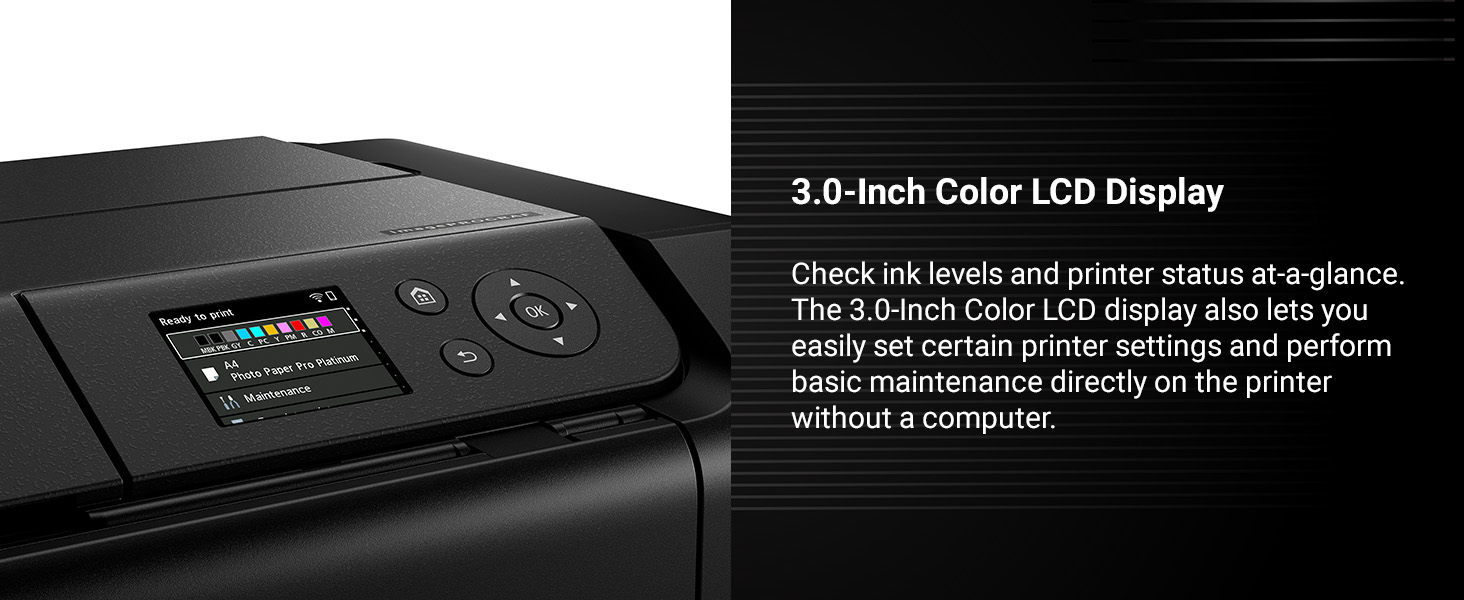
Figure 7: The 3.0-inch color LCD monitor provides easy access to printer status and settings.
6. Antretyen
Regular maintenance ensures optimal print quality and extends the life of your printer.
6.1 Tcheke Nivo Lank
Ink levels can be checked on the printer's LCD monitor or through the printer driver software on your computer. Replace cartridges when levels are low to avoid interruptions during printing.
6.2 Ranplase katouch lank yo
When an ink cartridge is empty, the printer will prompt you to replace it. Open the top cover, remove the empty cartridge by pressing the tab, and insert a new one until it clicks into place. Close the cover to resume operation.
6.3 Netwayaj tèt enprime
If print quality declines (e.g., missing lines, streaking), perform a print head cleaning from the printer's maintenance menu or through the printer driver. This clears clogged nozzles.
6.4 Nozzle Recovery System
The PRO-310 features a Nozzle Recovery System that helps prevent print failures due to clogged nozzles, ensuring consistent print quality.
6.5 Skew Correction
The printer includes Skew Correction technology to automatically adjust paper alignment, reducing errors and wasted media.
NAN. Depanaj
Seksyon sa a adrese pwoblèm komen ou ka rankontre.
7.1 Common Print Quality Issues
- Tras oswa dekolorasyon: Check ink levels. Perform print head cleaning or deep cleaning.
- Koulè ki pa kòrèk: Ensure correct paper type is selected in print settings. Perform print head alignment.
- Grainy Prints: Use higher quality paper or adjust print quality settings to 'High' or 'Fine'.
7.2 Konfiti papye
If a paper jam occurs, follow the on-screen instructions on the LCD monitor. Carefully remove any jammed paper from the paper paths, ensuring no torn pieces remain inside.
7.3 Pwoblèm koneksyon
- Dekoneksyon Wi-Fi: Check your router and printer's Wi-Fi status. Reconnect the printer to the network via the LCD menu.
- Pwoblèm koneksyon USB: Asire w kab USB a byen konekte ak enprimant lan ak òdinatè a. Eseye yon lòt pò USB oswa kab.
- Ethernet Issues: Verify the Ethernet cable is properly connected and your network is active.
7.4 Mesaj erè
Refer to the printer's LCD monitor for specific error codes and messages. Consult the online manual or Canon support website for detailed solutions corresponding to each code.
8. Espesifikasyon
| Mak | Canon |
| Non modèl | imagePROGRAF PRO-310 |
| Nimewo Modèl | 6858C002 |
| Teknoloji Enpresyon | Ankr |
| Sistèm lank | 9 Color + Chroma Optimizer Pigment-Based Ink |
| Gwosè Maksimòm Enpresyon | 13" x 19" (A3+), Custom (up to 13" x 129") |
| Koneksyon | Wi-Fi, Ethernet, USB |
| Ekspozisyon | 3.0-inch Color LCD Monitor |
| Dimansyon (D x W x H) | 28.7"D x 18.6"W x 14.04"H |
| Pwa | 31.6 liv |
| Maksimòm rezolisyon enprime | 1200 x 1200 dpi |
9. Garanti ak sipò
9.1 Enfòmasyon sou Garanti
The Canon imagePROGRAF PRO-310 printer comes with a 1-ane garanti limiteGaranti sa a kouvri domaj nan materyèl ak nan fabrikasyon anba itilizasyon nòmal. Tanpri konsève prèv acha ou pou reklamasyon garanti.
9.2 Sipò pou pwodwi
Pou plis asistans, sipò teknik, oswa kesyon sou sèvis, tanpri vizite sit sipò ofisyèl Canon an. website or contact Canon customer service. Online resources include FAQs, driver downloads, and additional manuals.
Visit the Canon Store: Magazen Ofisyèl Canon