
1. Entwodiksyon
This manual provides detailed instructions for the setup, operation, maintenance, and troubleshooting of your Transformers TF-Crystal 85 Keys Mechanical Keyboard. Please read this manual thoroughly before using the product to ensure proper functionality and longevity.
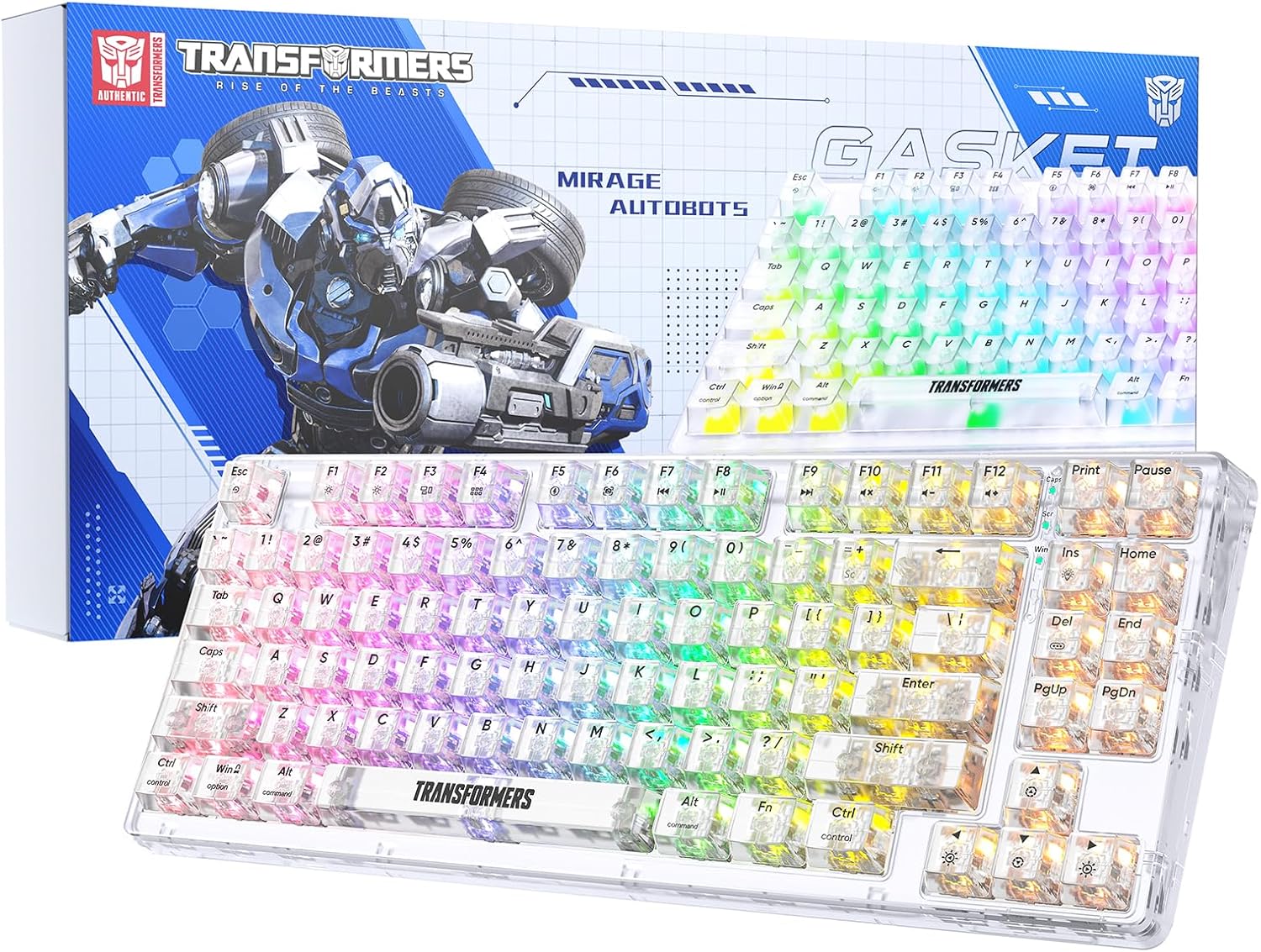
Image 1.1: Transformers TF-Crystal 85 Keys Mechanical Keyboard with its packaging, showcasing the transparent design and RGB lighting.
2. Pwodwi souview
2.1 Karakteristik kle
- Layout 85-Kle: Compact 75% design retaining essential functions, arrow, and navigation keys.
- Koneksyon Tri-Mòd: Sipòte koneksyon Bluetooth 5.0, koneksyon san fil 2.4GHz, ak koneksyon filaire USB-C.
- PCB ki ka ranplase a cho: Compatible with most 3-pin and 5-pin mechanical switches, allowing for easy customization and replacement.
- Linear Switches: Pre-lubricated switches with a 50 million keystroke lifespan for durability and smooth operation.
- Estrikti Joint: Incorporates high-quality gasket materials and a silicone pad to absorb vibrations and reduce typing noise.
- Customizable RGB Backlight: Features 20 built-in backlight modes, 16.8 million color options, and dynamic music rhythm effects.
- Programmable Driver: Enables macro customization, key function remapping, and advanced lighting control.
- Long lavi batri: Equipped with a 4000mAh battery, providing up to 240 hours of continuous use in 2.4GHz mode without backlighting.
- Lajè konpatibilite: Supports Mac, Windows, iOS, Android, PC, Laptop, Smartphone, Tablet, Switch, Xbox, and PlayStation.
- Konsepsyon transparan: Features transparent keycaps and base for enhanced aesthetic appeal.
3. Enstalasyon
3.1 Chaje klavye a
Before initial use, fully charge the keyboard. Connect the provided USB-C cable to the keyboard's USB-C port and the other end to a powered USB port (e.g., computer, wall adapter). The charging indicator will show the charging status.
3.2 Connecting via 2.4GHz Wireless Mode
- Locate the 2.4GHz USB receiver, typically stored in a compartment on the keyboard.
- Ploge reseptè USB a nan yon pò USB ki disponib sou òdinatè w lan.
- Toggle the mode switch on the keyboard to the 2.4G pozisyon.
- The keyboard will automatically connect to your device.
3.3 Connecting via Bluetooth 5.0 Mode
- Toggle the mode switch on the keyboard to the BT pozisyon.
- Peze epi kenbe Fn + 1 (oswa Fn + 2, Fn + 3) for 3-5 seconds until the indicator light flashes rapidly, indicating pairing mode.
- Sou aparèy ou an (òdinatè, tablèt, telefòn entelijan), aktive Bluetooth epi chèche nouvo aparèy.
- Select "TF-Crystal 85" from the list of available devices to pair.
- Once paired, the indicator light will stop flashing and remain solid. You can pair up to three Bluetooth devices using Fn + 1, Fn + 2, ak Fn + 3.
3.4 Connecting via USB-C Wired Mode
- Konekte kab USB-C ki vini ak li a nan pò USB-C klavye a.
- Konekte lòt bout kab USB-C a nan yon pò USB ki disponib sou òdinatè w la.
- The keyboard will automatically switch to wired mode and function without battery power.

Image 3.1: Diagram illustrating the three connection modes: Bluetooth 5.0, 2.4GHz wireless, and USB-C wired, compatible with various devices.
4. Operasyon Enstriksyon
4.1 Chanje ant mòd yo
Use the physical switch located on the keyboard to select between BT (Bluetooth), 2.4G (2.4GHz wireless), and USB-C (wired) modes.
4.2 Kontwòl ekleraj RGB
The keyboard features customizable RGB backlighting. Use the following key combinations to adjust:
- Fn + Ins: Cycle through 20 different backlight effects.
- Fn + Del: Switch backlight colors within certain modes.
- Fn + ↑ / ↓: Ajiste klète limyè dèyè a (5 nivo).
- Fn + ← / →: Adjust backlight effect speed (5 levels).
- Fn + Esc (hold for 3s): Reset backlight settings to default.

Image 4.1: Visual guide for controlling RGB backlight effects, brightness, and speed using Fn key combinations.
4.3 Programmable Driver Usage
The keyboard includes a programmable driver for advanced customization. This driver allows you to:
- Makro koreksyon: Record and edit complex key sequences.
- Key Redefinition: Customize the function of individual keys.
- RGB Effect Customization: Fine-tune lighting modes, colors, and speeds, including music rhythm lighting effects.
Refer to the software's dedicated user interface for detailed instructions on using these features.

Image 4.2: Screenshot of the programmable driver interface, showing options for macro editing, RGB effects, and key redefinition.
4.4 Switch pou Chanje Cho
The TF-Crystal 85 keyboard features a hot-swappable PCB, allowing you to change mechanical switches without soldering. This supports most 3-pin and 5-pin mechanical switches.
- Etenn klavye a oubyen dekonekte li nan aparèy ou an.
- Use the provided keycap puller to carefully remove the desired keycap.
- Use the provided switch puller to gently grip the switch from its top and bottom clips, then pull it straight up to remove it.
- Aliyen broch nouvo switch la ak twou ki sou PCB a. Asire w broch yo dwat.
- Gently press the new switch into place until it clicks securely. Do not force it.
- Ranplase kouvèti kle a.

Image 4.3: Illustration of the hot-swappable feature, showing how to remove and insert 3-pin/5-pin switches and the linear switch specifications.
5. Antretyen
5.1 Netwaye klavye a
- Dekonekte klavye a nan tout sous kouran anvan ou netwaye li.
- Sèvi ak yon ti moso twal mou, ki san pèl dampRense avèk dlo oswa yon solisyon netwayaj dou pou siye bouchon kle yo ak chasi a.
- Pou pousyè ak debri ant kle yo, sèvi ak lè konprese oswa yon ti bwòs.
- Avoid using harsh chemicals or abrasive materials that could damage the keyboard's surface.
5.2 Swen Batri
- Evite dechaje batri a nèt souvan.
- Sere klavye a nan yon kote ki fre epi sèk lè w pa itilize li pou yon bon bout tan.
- If the keyboard will not be used for a long time, charge it to about 50% before storage.
NAN. Depanaj
| Pwoblèm | Kòz posib | Solisyon |
|---|---|---|
| Klavye a pa reponn nan mòd san fil. | Low battery, incorrect mode selected, receiver not connected, Bluetooth not paired. | Charge the keyboard. Ensure the mode switch is set correctly (2.4G or BT). Re-insert the 2.4G receiver. Re-pair Bluetooth. |
| Kle yo pa anrejistre oswa yo tape de fwa. | Faulty switch, debris under keycap, software issue. | Clean under the keycap. Try hot-swapping the switch with a known working one. Restart your computer. |
| RGB backlight not working or incorrect. | Backlight turned off, incorrect settings, software conflict. | Ajiste klète a lè l sèvi avèk Fn + ↑. Cycle modes with Fn + Ins. Reset backlight with Fn + Esc (hold 3s). Check programmable driver settings. |
| Keyboard not charging. | Faulty USB-C cable, power source issue, keyboard port damage. | Try a different USB-C cable. Use a different USB port or power adapter. Ensure the cable is fully inserted. |
7. Espesifikasyon
| Karakteristik | Detay |
|---|---|
| Nimewo Modèl | TF-Crystal 85 |
| Layout kle | 85 Keys (75% Compact) |
| Koneksyon | Bluetooth 5.0, 2.4GHz san fil, USB-C ak fil |
| Chanje Kalite | Pre-lubricated Linear Mechanical Switches |
| Chanje validite | 50 milyon frap |
| Cho-Swappable | Yes (3-pin/5-pin compatible) |
| Ekleraj | RGB (20 modes, 16.8 million colors) |
| Kapasite batri | 4000mAh |
| Battery Life (2.4G, no light) | Jiska 240 èdtan |
| Battery Life (Backlit ON) | Apeprè 22 èdtan |
| Dimansyon (L x W x H) | 34.7 cm x 14 cm x 4.5 cm |
| Konpatibilite | Mac, Windows, iOS, Android, PC, Laptop, Smartphone, Tablet, Switch, Xbox, PlayStation |

Image 7.1: Visual representation of the keyboard's battery life: 240 hours with backlight off, 22 hours with backlight on, powered by a 4000mAh battery.
8. Garanti ak sipò
Transformers is committed to providing exceptional customer service. If you encounter any problems with your TF-Crystal 85 Keys Mechanical Keyboard, our after-sales support team is available to assist you. This includes technical support, exchanges, or installation guidance.
Please contact our customer service for assistance. We guarantee a hassle-free service experience.