
Entwodiksyon
Thank you for choosing the KODAK 7-Inch Wooden Digital Photo Frame. This manual provides essential information for setting up, operating, and maintaining your digital photo frame. Please read these instructions carefully before use to ensure proper functionality and to maximize your enjoyment of the product. This frame is designed to display your cherished photos, videos, and music with its high-quality 1024x600 IPS HD display.
Kontni pake
Tanpri tcheke pake a pou atik sa yo:
- KODAK 7-Inch Wooden Digital Photo Frame
- Adaptè pouvwa
- Kontwòl Remote
- Manyèl itilizatè
Pwodwi souview
The KODAK 7-Inch Wooden Digital Photo Frame features a 1024x600 IPS HD display, supporting various multimedia formats including photos, videos, and music. It includes an auto-rotate feature for flexible placement and is controlled via a remote.
Devan View ak kontwòl remote
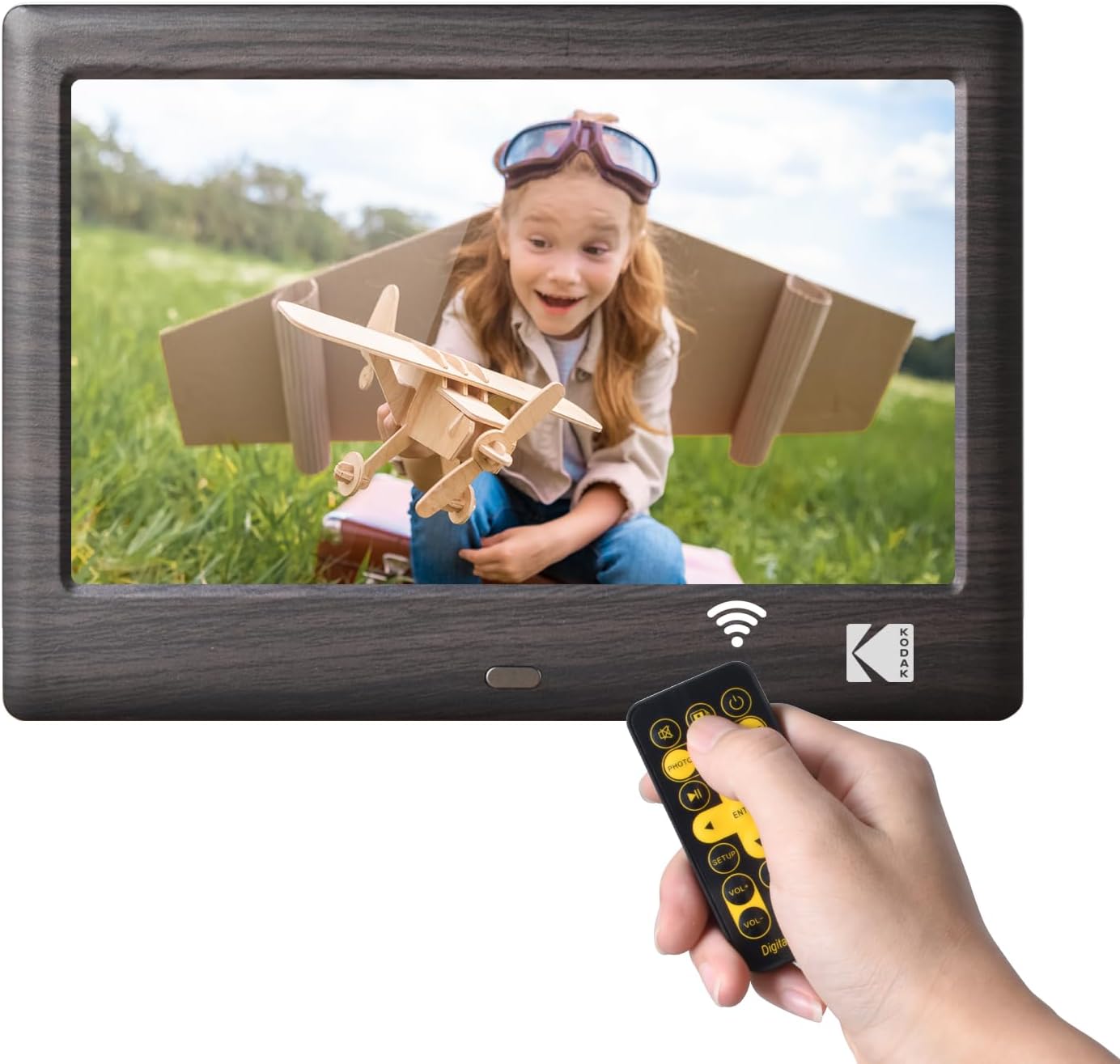
This image shows the front of the KODAK 7-Inch Wooden Digital Photo Frame displaying a picture of a child. A hand is holding the included remote control, highlighting the frame's primary control method.
Dèyè View and Connectivity Ports

Dèyè a view of the digital photo frame illustrates the USB port and SD card slot, where external storage devices can be inserted to load media files. A USB drive is shown being inserted into the USB 3.1 port, and an SD card is visible in its slot.
Enstalasyon
- Koneksyon pouvwa: Connect the provided power adapter to the DC IN port on the back of the frame and then plug it into a standard electrical outlet.
- Insert Storage Device: Insert a USB flash drive or an SD/SDHC memory card (up to 32GB, not included) into the corresponding slot on the back of the frame. Ensure the card or drive is inserted correctly.
- Pouvwa sou: The frame will typically power on automatically once connected to power. If not, press the power button located on the back or side of the frame.
- Premye konfigirasyon: Swiv enstriksyon yo sou ekran an pou chwazi lang ou prefere a epi mete dat ak lè a.
Enstriksyon Operasyon
Sèvi ak kontwòl remote la
The included remote control allows for easy navigation and control of the frame's functions. Point the remote directly at the frame's IR receiver.
- Bouton pouvwa: Turns the frame on or off.
- Bouton meni: Accesses the main menu or returns to the previous menu.
- Bouton Navigasyon (Anwo/Anba/Agoch/Dwat): Used to navigate through menus and select options.
- Bouton Antre: Konfime yon seleksyon.
- Bouton Volim: Adjusts the volume for videos and music.
- Playback Controls (Play/Pause, Previous, Next): Kontwole lèktur medya yo.
- Mode Buttons (Photo, Video, Music, Calendar): Switches directly to the respective media mode.
Lektur Media
- Selecting Media Source: From the main menu, select the desired media type (Photo, Music, Video) or use the dedicated buttons on the remote.
- Navigasyon Files: Navige nan ou files and folders using the remote's navigation buttons.
- Kòmanse Lekti a: Chwazi yon file and press the Enter button to start playback. For photos, a slideshow will typically begin automatically.
Anviwònman
Access the settings menu to customize your frame's behavior:
- Paramèt Diaporama: Adjust transition effects, display time, and playback order for photos.
- Anviwònman sistèm: Configure language, time, date, auto-rotate function, and brightness.
- Mòd Kalandriye: Display a calendar with your photos in the background.
Antretyen
- Netwaye ekran an: Use a soft, dry, lint-free cloth to gently wipe the screen. For stubborn smudges, slightly dampRense twal la avèk dlo oubyen yon pwodui netwayaj ekran ki fèt pou aparèy elektwonik. Evite pwodui chimik ki agresif.
- Netwaye ankadreman an: Wipe the wooden frame with a soft, dry cloth.
- Depo: When not in use for extended periods, disconnect the power adapter and store the frame in a cool, dry place away from direct sunlight.
- Evite likid: Do not expose the frame to water or other liquids.
Depanaj
- Ankadreman an pa limen:
- Ensure the power adapter is securely connected to both the frame and a working electrical outlet.
- Try a different outlet. - No image or video displayed:
- Verify that a USB drive or SD card with compatible media files is inserted correctly.
- Tcheke la file formats. The frame supports common photo (JPEG), video (MP4, AVI), and music (MP3) formats.
- Ensure the correct media source is selected. - Kontwòl remote pa travay:
- Check the battery in the remote control and replace if necessary.
- Ensure there are no obstructions between the remote and the frame's IR receiver.
- Make sure you are pointing the remote directly at the frame. - Images are distorted or blurry:
- Ensure the resolution of your images is suitable for the frame's 1024x600 display.
- Clean the screen if there are smudges.
Espesifikasyon
| Karakteristik | Spesifikasyon |
|---|---|
| Mak | KODAK |
| Nimewo Modèl | RCF1012WDB |
| Gwosè ekran | 7 pous |
| Rezolisyon ekspozisyon | 1024x600 IPS HD |
| Aspè rapò | 16:9 |
| Koneksyon Teknoloji | USB |
| Sous pouvwa | Fil elektrik |
| Metòd kontwòl | Remote |
| Aparèy konpatib | Personal Computer, Smartphone, Tablet (for media transfer) |
| Dimansyon atik L x W | 7.09"L x 4.69"Lajè |
Garanti ak sipò
This KODAK Digital Photo Frame comes with a 1 ane garanti apati dat acha a. Tanpri konsève prèv acha ou pou reklamasyon garanti.
For technical support, troubleshooting assistance beyond this manual, or warranty inquiries, please contact KODAK customer service. Refer to the contact information provided on the product packaging or the official KODAK websit.