
1. Entwodiksyon
This manual provides essential information for setting up, operating, and maintaining your GenMachine Mini PC AMD Ryzen 7 7735HS. Please read this manual thoroughly before using the device to ensure proper functionality and safety.
2. Enfòmasyon sou Sekirite
Obsève règ sekirite sa yo pou evite domaje aparèy la oswa blese tèt ou:
- Pa ekspoze aparèy la nan dlo, imidite, oswa tanperati ekstrèm.
- Asire bon vantilasyon pou anpeche surchof. Pa bloke ouvèti vantilasyon yo.
- Itilize sèlman adaptè pouvwa yo bay la.
- Evite jete oswa sibi aparèy la nan gwo enpak.
- Pa eseye ouvri oswa repare aparèy la tèt ou. Konfye tout antretyen bay pèsonèl kalifye.
3. Pake kontni
Verifye ke tout atik yo prezan nan pakè a:
- GenMachine Mini PC
- Manyèl itilizatè
- Adaptè pouvwa
- HDMI kab
- Mounting Support (ak vis)

Imaj: Kontni pake a. This image displays the items included in the GenMachine Mini PC box: the Mini PC unit, user manual, power adapter, HDMI cable, and a mounting bracket with screws.
4. Pwodwi souview
The GenMachine Mini PC is a compact, high-performance computer designed for various applications, from home office tasks to multimedia consumption. Its small footprint allows for versatile placement.

Imaj: Devan View of GenMachine Mini PC. This image shows the front panel of the GenMachine Mini PC, featuring the power button, USB-C port, audio jack, and two USB 3.0 ports.
4.1 Panèl devan
- Bouton pouvwa: Peze pou limen/ete aparèy la.
- USB-C pò: Pou transfè done ak pwodiksyon ekspozisyon.
- Audio Jack: Pou kas ekoutè oswa oratè ekstèn.
- Pò USB 3.0 (x2): For connecting peripherals like keyboards, mice, or external storage.
4.2 Panèl dèyè

Imaj: Dèyè View of GenMachine Mini PC. This image illustrates the rear panel of the Mini PC, highlighting the power input, HDMI ports, Ethernet ports, and additional USB ports.
- Power Input (DC IN): Konekte adaptè pouvwa a isit la.
- Pò HDMI (x2): Connect to monitors or TVs for video output. Supports 4K resolution.
- Ethernet Ports (x2): For wired network connections (Dual 2.5G).
- Pò USB 2.0 (x2): Pou konekte plizyè aparèy USB.
4.3 Design and Dimensions

Image: GenMachine Mini PC Size Comparison. This image compares the compact size of the GenMachine Mini PC to a traditional tower chassis, illustrating its space-saving design. Dimensions are shown as 126mm x 130mm x 40mm.
The GenMachine Mini PC features an ultra-durable, lightweight metal casing. Its compact design (approximately 126 x 130 x 40 mm) makes it significantly smaller than traditional desktop computers, ideal for any work environment.
5. Enstalasyon
5.1 Konekte periferik
- Connect your monitor(s) to the HDMI ports or the USB-C port using appropriate cables.
- Connect your USB keyboard and mouse to the available USB ports.
- If using wired internet, connect an Ethernet cable to one of the Ethernet ports.
- Connect the power adapter to the DC IN port on the Mini PC, then plug it into a power outlet.
5.2 Limen
Press the power button on the front panel of the Mini PC. The power indicator light will illuminate, and the system will begin to boot.
5.3 Initial Operating System Setup
Upon first boot, you will be guided through the operating system setup process (e.g., Windows 11). Follow the on-screen instructions to configure language, region, network, and user accounts.
6. Operasyon Enstriksyon
6.1 Koneksyon Rezo
- Wi-Fi: During initial setup or via the operating system's network settings, select your Wi-Fi network and enter the password. The Mini PC supports Wi-Fi 6 for faster and more stable wireless connections.
- Ethernet: If an Ethernet cable is connected, the system should automatically detect and connect to the wired network. The Mini PC features dual 2.5G network ports for enhanced connectivity.
6.2 Bluetooth Devices
The Mini PC supports Bluetooth 5.2. To pair a Bluetooth device (e.g., headphones, keyboard, mouse):
- Enable Bluetooth on your device and set it to pairing mode.
- On the Mini PC, go to the operating system's Bluetooth settings.
- Chèche pou and select your device from the list, then follow any on-screen prompts to complete pairing.
6.3 Konfigirasyon Plizyè Ekran
The GenMachine Mini PC supports up to four displays simultaneously, utilizing its two HDMI ports and one full-function USB-C port (which supports 4K display output).
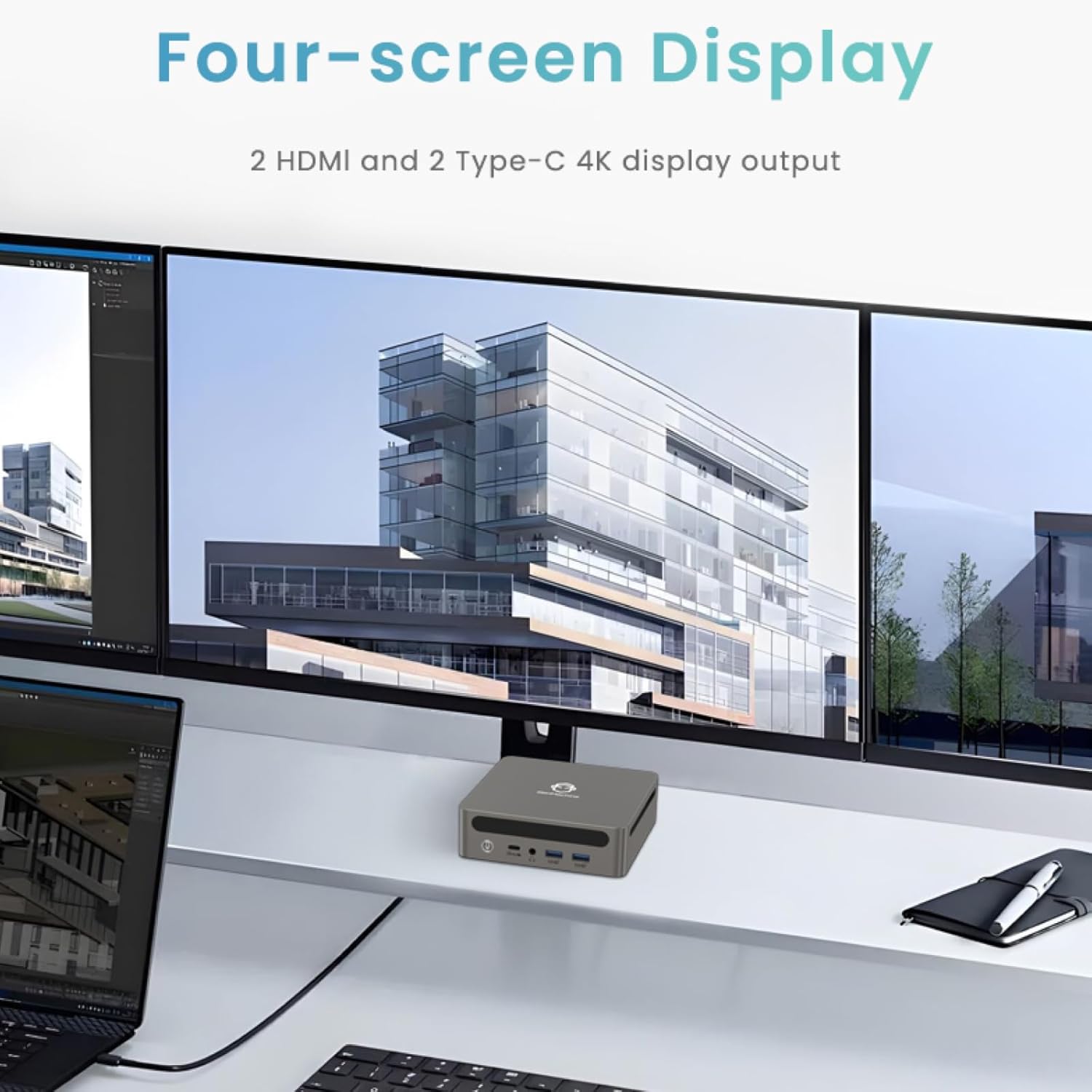
Image: Four-Screen Display Setup. This image demonstrates the GenMachine Mini PC connected to four monitors, showcasing its multi-display capabilities for enhanced productivity.
To configure multiple displays, connect your monitors and then adjust display settings within your operating system (e.g., Extend, Duplicate, or Second screen only).
7. Antretyen
7.1 Netwayaj
Regularly clean the exterior of the Mini PC with a soft, dry cloth. For stubborn dirt, slightly dampen the cloth with water. Do not use harsh chemicals or abrasive cleaners. Ensure ventilation openings are free of dust buildup.
7.2 Mizajou lojisyèl
Keep your operating system and drivers updated to ensure optimal performance and security. Check for updates regularly through your operating system's settings.
7.3 Depo
When not in use for extended periods, store the Mini PC in a cool, dry place, away from direct sunlight and extreme temperatures.
NAN. Depanaj
| Pwoblèm | Kòz posib | Solisyon |
|---|---|---|
| Pa gen pouvwa | Adaptè kouran an pa konekte; priz kouran an gen pwoblèm. | Ensure power adapter is securely connected to the Mini PC and a working power outlet. Try a different outlet. |
| Pa gen ekspozisyon sou monitè a | Monitor not connected; incorrect input source selected on monitor; faulty cable. | Check HDMI/USB-C cable connections. Ensure the monitor is set to the correct input source. Try a different cable or monitor. |
| Wi-Fi pa konekte | Incorrect password; router issue; Wi-Fi adapter driver issue. | Verify Wi-Fi password. Restart your router. Check operating system settings for Wi-Fi adapter status and drivers. |
| Sistèm nan ralanti oswa li pa reponn | Too many applications running; insufficient free storage; outdated drivers. | Close unnecessary applications. Free up disk space. Update operating system and drivers. Restart the Mini PC. |
9. Espesifikasyon
The following table details the technical specifications of the GenMachine Mini PC AMD Ryzen 7 7735HS:
| Karakteristik | Detay |
|---|---|
| Processeur | AMD Ryzen 7 7735HS (3.2 GHz, 8 Cores, 16 Threads, up to 4.75 GHz Max Boost Clock) |
| Grafik | AMD Radeon Graphics (Integrated, 680 MB RAM) |
| RAM | 32GB LPDDR5 (up to 6400 Mb/s) |
| Depo | 512GB 2280 SSD (PCIE x 16 interface) |
| Sistèm operasyon | OS (Windows 11 typically pre-installed) |
| Sòti videyo | 2x HDMI (4K @ 60Hz), 1x USB-C (4K display output), supports up to 3 displays |
| Pò USB | 2x USB 3.0, 2x USB 2.0, 1x USB-C (full-function USB 4.0 port) |
| Rezo | Wi-Fi 6, Bluetooth 5.2, Dual 2.5G Ethernet |
| Odyo | Audio Jack |
| Dimansyon | 6.34 x 6.3 x 3.62 pous (apeprè 16.1 x 16 x 9.2 cm) |
| Pwa | 2.4 liv (apeprè 1.09 kg) |
| Koulè | Sliver |

Image: AMD Ryzen 7 7735HS Processor. This image highlights the specifications of the AMD Ryzen 7 7735HS processor, including its 8 cores, 16 threads, and up to 4.75 GHz max boost clock.

Image: LPDDR5 Memory Performance. This image illustrates the enhanced speed of LPDDR5 RAM, showing a 50% increase in maximum DRAM bandwidth compared to LPDDR4X, reaching up to 6400 Mb/s.
10. Garanti ak sipò
For warranty information and technical support, please refer to the documentation included with your purchase or visit the official GenMachine websit la. Kenbe prèv acha ou pou reklamasyon garanti.
For further assistance, you may contact GenMachine customer service through their official channels.