
1. Pwodwi souview
The Rosewill Helium NAS Black ATX Mid Tower Computer Case is engineered for optimal performance and extensive storage capabilities, making it suitable for DIY NAS, media servers, and small business applications. Its design prioritizes airflow, efficient cooling, and versatile component compatibility.
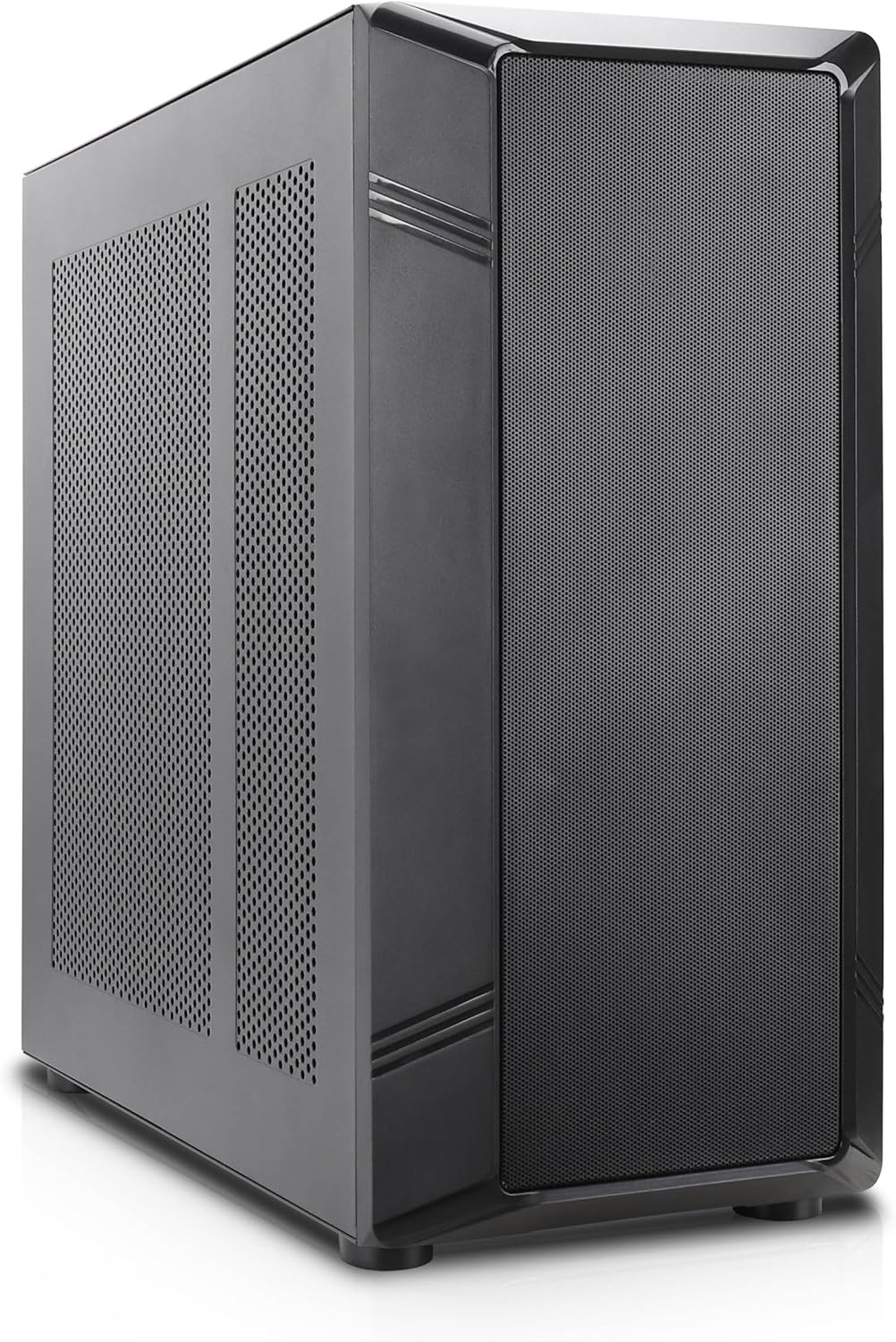
Figi 1: Devan angilè view of the Rosewill Helium NAS Black ATX Mid Tower Computer Case.
Karakteristik kle:
- Maximized Airflow: All-mesh side panels ensure unrestricted airflow for optimal cooling and prevention of thermal throttling.
- Quiet, Efficient Cooling: Four pre-installed 140mm PWM fans provide silent and efficient cooling, maintaining system stability under heavy workloads.
- Kapasite depo masiv: Supports up to 10 x 3.5" HDDs and 3 x 2.5" SSDs, ideal for large media libraries, virtual machines, and data-intensive applications.
- Konpatibilite versatile: Supports ATX motherboards and 360 AIO Radiators, offering flexibility for various system configurations and high-performance cooling solutions.
2. Enstalasyon ak Enstalasyon
Follow these steps for proper installation of your computer components.
2.1 Prepare Ka a
- Mete bwat la sou yon sifas ki plat e ki estab.
- Remove the side panels by unscrewing the thumbscrews at the rear and sliding the panels off.

Figure 2: Interior layout of the Rosewill Helium NAS case, showing component mounting areas.
2.2 Enstalasyon mèr
- Install the I/O shield into the motherboard tray opening.
- Align your ATX motherboard with the standoffs inside the case.
- Sere kat manman an byen sere ak vis yo bay yo.
2.3 Enstalasyon Disk Depo
The case supports up to 10 x 3.5" HDDs and 3 x 2.5" SSDs. Utilize the dedicated drive cages for secure mounting.
Video 1: Demonstration of hard drive cage installation and cabling. This video illustrates the process of securing and connecting multiple hard drives within a PC case, which is applicable to the Rosewill Helium NAS case's storage capabilities.
- For 3.5" HDDs, slide the drives into the designated bays within the drive cages and secure them with screws.
- For 2.5" SSDs, mount them in the dedicated SSD trays, typically located behind the motherboard tray or on top of the HDD cages, and secure with screws.
- Connect SATA power and data cables to each installed drive.
2.4 Enstalasyon ekipman pou pouvwa a
- Mount the power supply unit (PSU) in the bottom rear compartment of the case.
- Fikse PSU a ak vis nan dèyè bwat la.
- Route the necessary power cables to your motherboard and other components.
2.5 Enstalasyon Kat Grafik ak Kat Ekspansyon
- Retire kouvèti fant PCIe ki nesesè yo nan dèyè bwat la.
- Insert your graphics card or other expansion cards into the appropriate PCIe slots on the motherboard.
- Sere kat yo ak vis.
2.6 Jesyon kab
Utilize the cable routing cutouts and tie-down points behind the motherboard tray to organize cables. This improves airflow and aesthetics. Zip ties are included for assistance.
3. Operasyon Enstriksyon
3.1 Front Panel I/O

Figure 3: Front panel I/O ports located on the top of the case.
- Bouton pouvwa: Press to power on/off the system.
- Bouton Reyajiste: Peze pou rekòmanse sistèm nan.
- USB 3.1 Kalite-C Port: Pou transfè done gwo vitès.
- Pò USB 3.0: Pou konekte aparèy konpatib ak USB 3.0.
- Pò USB 2.0: Pou konekte aparèy konpatib ak USB 2.0.
- Jack odyo HD: Pou konekte kas ekoutè ak mikwofòn.
3.2 Premye pouvwa sou
- Ensure all components are securely installed and cables are properly connected.
- Konekte kab kouran an nan PSU a ak nan yon priz miray.
- Press the power button on the front panel to start your system.
4. Antretyen
Regular maintenance ensures optimal performance and longevity of your computer case and components.
4.1 Netwayaj Filtè Pousyè yo
The Rosewill Helium NAS case features removable dust filters on the top and bottom for easy cleaning.
- Gently pull out the bottom dust filter.
- The top mesh panel is magnetic and can be easily lifted off.
- Netwaye filtè yo avèk lè konprese oswa yon bwòs mou pou retire pousyè ki akimile a.
- Reinstall the filters once clean.
4.2 Netwayaj jeneral
- Use a soft, dry cloth to wipe down the exterior surfaces of the case.
- For interior cleaning, use compressed air to remove dust from fans and components. Ensure the system is powered off and unplugged before cleaning.
NAN. Depanaj
Seksyon sa a bay solisyon pou pwoblèm komen ou ka rankontre.
- Sistèm nan pa limen:
- Check all power connections, including the PSU, motherboard, and front panel power switch cables.
- Asire w ke switch PSU a nan pozisyon 'ON'.
- Konpozan ki chofe twòp:
- Verify all case fans are spinning correctly.
- Clean dust filters and internal components to improve airflow.
- Ensure CPU cooler and GPU fans are functioning.
- Twòp bri fanatik:
- Check for loose cables or obstructions hitting fan blades.
- Ensure fans are securely mounted.
- Adjust fan speeds through motherboard BIOS or software if supported.
- Front Panel I/O Not Working:
- Verify that all front panel cables (USB, Audio, Power, Reset) are correctly connected to the motherboard headers.
6. Espesifikasyon
| Karakteristik | Spesifikasyon |
|---|---|
| Mak | Rosewill |
| Seri | Helium NAS |
| Non modèl | Helium NAS |
| Nimewo Modèl Atik | B0DP3PQFKW |
| Kalite Ka | Mid Tower |
| Mèr konpatibilite | ATX |
| Koulè | Nwa |
| Materyèl | Aliminyòm, Nerjaveèi |
| Pwa atik | 19.71 liv |
| Dimansyon pwodwi (LxWxH) | 25 x 24.41 x 12.68 pous |
| 3.5" HDD Support | Jiska 10 |
| 2.5" SSD Support | Jiska 3 |
| Fanatik pre-enstale | 4 fanatik PWM 140mm |
| Metòd refwadisman | Air, Water (360 AIO Radiator Support) |
| Front Panel USB 2.0 Ports | 2 |
| Front Panel USB 3.0 Ports | 2 |
| Itilizasyon Rekòmande | AI Server, Media Server, NAS, Workstation |
7. Garanti ak sipò
For warranty information, technical support, or further assistance, please refer to the official Rosewill websit la oubyen kontakte depatman sèvis kliyan yo. Kenbe resi acha w la pou reklamasyon garanti.