
1. Entwodiksyon
Thank you for choosing the QDVOPHZA 4K 8MP PTZ Outdoor WiFi Security Camera. This manual provides detailed instructions for the installation, operation, and maintenance of your security camera. Please read this manual thoroughly before use to ensure proper functionality and to maximize the camera's performance.
This camera is designed for outdoor surveillance, offering advanced features such as 4K Ultra HD resolution, 10X optical zoom, automatic tracking, and color night vision, all within a durable, weatherproof design.

Image: The QDVOPHZA PTZ camera highlighting its key features including automatic tracking, multi-lens design, and dual-screen preview capability, alongside a mobile app interface.
2. Pwodwi Features
- 4K 8MP Ultra HD Resolution: Provides clear and detailed images for comprehensive surveillance.
- Zoom optik 10X: Allows for clear magnification of distant objects without loss of image quality.
- Suivi otomatik: Intelligently tracks moving objects, keeping them within the monitoring field.
- Vizyon lannwit koulè: Delivers clear, colorful images even in low-light or complete darkness.
- Evalyasyon rezistans move tan IP66: Ensures stable operation in various weather conditions, including heavy rain and snow.
- Fonksyonalite Pan ak Tilt: Offers a 355° horizontal pan and 90° vertical tilt for wide area coverage, controllable via mobile app.
- Dual-lens Dual-screen Preview: Enables simultaneous monitoring of a fixed wide view and a zoomed-in PTZ view.
- Humanoid Detection Alarm: Advanced detection capabilities to identify human figures and trigger alarms.
- De-fason Audio: Pèmèt kominikasyon atravè kamera a.
- Plizyè Opsyon Depo: Supports TF card storage (up to 128G) and cloud storage (if applicable).
3. Pake kontni
Tanpri verifye sa ki nan pake a lè w ap debale l. Si gen nenpòt atik ki manke oswa ki domaje, kontakte sèvis kliyan.
- QDVOPHZA 4K 8MP PTZ Outdoor WiFi Security Camera
- Adaptè pouvwa (DC 12V)
- Vis ak ploge miray pou monte
- Manyèl Itilizatè (dokiman sa a)
- Waterproof Kit for Network Cable (if applicable)
4. Gid Enstalasyon
4.1 Enstalasyon Fizik
Choose a suitable outdoor location for installation, ensuring a clear line of sight and access to a power source. The camera can be mounted on a wall or pole.
- Make pozisyon perçage yo: Use the mounting template (if provided) or the camera base to mark the screw holes on the desired surface.
- Fè twou: Drill holes at the marked positions. Insert wall plugs if mounting on masonry.
- Kamera an sekirite: Attach the camera base to the surface using the provided screws. Ensure it is securely fastened.
- Konekte pouvwa: Connect the DC 12V power adapter to the camera's power input and plug it into an outdoor-rated power outlet.

Image: The QDVOPHZA PTZ camera mounted on a tree, illustrating its 355° pan and 90° tilt capabilities for wide area coverage.
4.2 Mobile App Installation and Pairing
Download the compatible mobile application (e.g., "iCSee" or similar, refer to packaging for specific app name) from your device's app store (iOS App Store or Google Play Store).
- Telechaje App: Chèche pou the recommended app and install it on your smartphone.
- Enskri kont: Louvri aplikasyon an epi swiv enstriksyon ki sou ekran an pou enskri yon nouvo kont oubyen konekte si ou deja genyen youn.
- Ajoute Aparèy: Tap the "+" icon or "Add Device" option in the app.
- Chwazi Kalite Kamera: Choose "WiFi Camera" or "Smart Camera" and follow the prompts for network configuration.
- Konekte ak WiFi: Ensure your phone is connected to a 2.4GHz WiFi network. The camera supports 2.4GHz WiFi.
- Fè eskanè kòd QR: The app will guide you to scan a QR code on the camera or generate a QR code on your phone for the camera to scan. Hold your phone's screen towards the camera lens until you hear a confirmation sound.
- Ranpli Enstalasyon: Once connected, name your camera and set a password.
4.3 Enstalasyon Kat Mikwo SD (Si ou vle)
For local video storage, install a Micro SD card (up to 128GB, not included unless specified in your purchase).
- Pouvwa Off: Disconnect the camera from the power supply before installing or removing the SD card.
- Jwenn plas la: Find the SD card slot, usually under a protective cover on the camera body.
- Mete kat: Gently insert the Micro SD card into the slot with the contacts facing the correct direction until it clicks into place.
- Pouvwa sou: Reconnect the power. Format the SD card via the mobile app settings if prompted.
5. Operasyon Enstriksyon
5.1 Viv View ak Kontwòl PTZ
Open the mobile app and select your camera to access the live view.
- Pan / Panche: Use the directional controls (arrows or joystick) on the app interface to rotate the camera horizontally (pan) and vertically (tilt).
- Zoom: Sèvi ak jès pense pou agrandi a sou an dirèk la view or dedicated zoom buttons to activate the 10X optical zoom.

Image: The camera's 10X optical zoom capability, illustrating how distant objects like a camel in a snowy landscape can be clearly magnified.
5.2 Automatic Tracking
Enable the automatic tracking feature in the camera settings within the app. When activated, the camera will automatically follow detected moving objects.
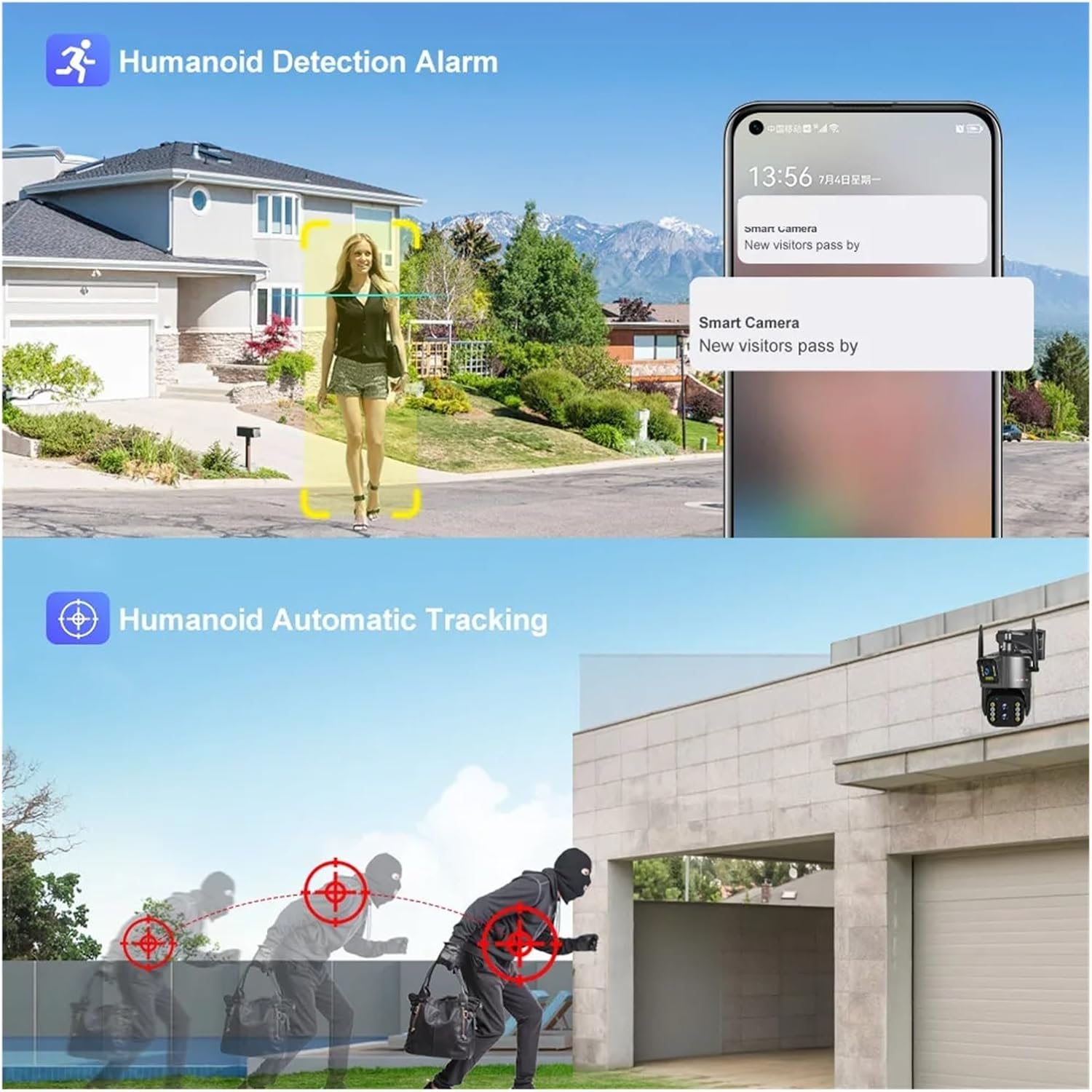
Image: Illustration of the camera's humanoid detection and automatic tracking, showing how it follows a person and a potential intruder.
5.3 Mòd Vizyon Lannwit
The camera supports both infrared (black and white) and full-color night vision. You can switch between modes or set it to automatic in the app settings.
- Envizib detèktè mòd: Bay imaj nwa ak blan klè nan fènwa total.
- Full Color Night Vision Mode: Utilizes built-in spotlights to illuminate the area, providing color images at night.

Image: A comparison demonstrating the clarity of infrared night vision versus the vibrant detail of full-color night vision provided by the camera.
5.4 Dual-lens Dual-screen Preview
Karakteristik sa a pèmèt ou view two video streams simultaneously: one from the fixed wide-angle lens and another from the PTZ (pan-tilt-zoom) lens. This enables comprehensive monitoring with both a general overview and detailed close-ups.

Image: The dual-lens dual-screen preview feature, displaying both a wide-angle fixed view and a zoomed-in PTZ view concurrently on a single screen.
5.5 Anrejistreman ak Lektur
Recordings are stored on the Micro SD card or cloud storage (if subscribed). Access playback through the app's "Playback" or "History" section.
- Anrejistreman evènman: Records automatically when motion or humanoid detection is triggered.
- Anrejistreman kontinyèl: Can be enabled in settings for 24/7 recording (requires sufficient storage).
- Lektur: Select a date and time in the app to review anrejistre footage.
6. Antretyen
- Netwayaj: Periodically clean the camera lens with a soft, dry cloth to ensure clear image quality. Do not use harsh chemicals.
- Mizajou mikrolojisyèl: Check the mobile app regularly for firmware updates. Keeping the firmware updated ensures optimal performance and security.
- Pwovizyon pou pouvwa: Ensure the power adapter and cable are free from damage. Replace if necessary.
- SD Kat Jesyon: If using an SD card, periodically check its status in the app. Consider formatting it every few months to maintain performance.
NAN. Depanaj
7.1 Kamera Dekonekte
- Tcheke pouvwa: Ensure the camera is properly connected to a power source and the outlet is working.
- Check WiFi: Verify your WiFi router is functioning and the camera is within range. Restart the router if necessary.
- Re-pair Camera: If the issue persists, try re-pairing the camera with the app.
7.2 Kalite imaj pòv
- Netwaye Lantiy: Clean the camera lens for any dirt or smudges.
- Estabilite rezo: Ensure a stable WiFi connection. Poor signal can affect streaming quality.
- Anviwònman Rezolisyon: Check the resolution settings in the app; ensure it's set to 4K or 8MP for best quality.
7.3 Automatic Tracking Not Working
- Enable Feature: Confirm that automatic tracking is enabled in the app settings.
- Klè View: Asire w pa gen okenn obstak ki bloke kamera a view.
- Sansiblite: Ajiste sansiblite deteksyon mouvman an nan aplikasyon an.
7.4 SD Card Not Recording
- Mete kòrèkteman: Asire w ke kat SD a byen mete.
- Fòma Kat: Format the SD card through the app.
- Card Capacity/Health: Check if the SD card is full or damaged. Replace if necessary.
- Anviwònman anrejistreman: Verify that recording options (event or continuous) are enabled in the app.
8. Espesifikasyon
| Karakteristik | Detay |
|---|---|
| Nimewo Modèl | w0u5903wei (LS-WL341) |
| Rezolisyon | 4K 8MP (4.0 Megapixels) |
| Zoom optik | 10X |
| Lantiy | 2.8-12mm |
| Pan Range | 0°-360° (typically 355° controllable) |
| Panche Range | Other (typically 90° controllable) |
| Vizyon lannwit | Color Night Vision, Infrared Mode |
| Koneksyon | Wi-Fi (2.4GHz) |
| Depo | TF Card (up to 128GB), Cloud Storage (optional) |
| Odyo | Odyo de fason |
| Evalyasyon IP | IP66 (Enpèmeyab / Rezistan a move tan) |
| Pwovizyon pou pouvwa | DC 12V |
| Tanperati Fonksyònman | -10 ° C a 60 ° C (14 ° F a 140 ° F) |
| Dimansyon (L x W x P) | 25x20x18cm (approx. 9.8 x 7.9 x 7.1 inches) |
| Sipòte sistèm mobil | Android, iOS |
| Konpresyon videyo | H.264, H.265 |
9. Garanti ak sipò
For warranty information and technical support, please refer to the documentation included with your purchase or visit the official QDVOPHZA websit la. Ou kapab kontakte vandè a dirèkteman atravè platfòm kote ou te achte pwodwi a.
Tanpri konsève prèv acha ou a pou nenpòt reklamasyon garanti.