
Entwodiksyon
This manual provides detailed instructions for the Phomemo PM-248-WF WiFi Thermal Label Printer. It covers initial setup, operational procedures, maintenance guidelines, and troubleshooting steps to ensure optimal performance and longevity of your device. Please read this manual thoroughly before using the printer.

Image: The Phomemo PM-248-WF printer demonstrating its WiFi capability with a printed label.
Kontni pake
Verifye ke tout atik ki nan lis anba a yo enkli nan pakè ou a. Si gen nenpòt atik ki manke oswa ki domaje, tanpri kontakte sèvis kliyan.
- 1x Phomemo 248-WF Wi-Fi Label Printer
- 1x Power Cord & Adapter
- 1x USB kab
- 1x USB-C Adapter
- 1x Gid pou Itilizatè
- 10 sheets of 4x6 Label Paper

Image: A visual representation of all components included in the Phomemo 248-WF product package.
Pou kòmanse: Enstalasyon
1. Koneksyon pouvwa
- Connect the power adapter to the printer's power port.
- Ploge kòd elektrik la nan yon priz elektrik estanda.
- Press the power button to turn on the printer. The indicator light will illuminate.
2. Loading Labels
- Louvri kouvèti enprimant lan.
- Adjust the label guides to match the width of your labels (supports 1 to 4.6 inches).
- Insert the labels with the print side facing up. Ensure the labels are fed smoothly into the printer.
- Close the printer cover. The printer will automatically detect and calibrate the label size.

Image: The printer's adjustable label guides, accommodating various label widths.
3. Software Installation & Connectivity
Mobile Device Setup (Labelife App)
- Download the "Labelife" app from the App Store (iOS) or Google Play Store (Android).
- Ensure your phone's Bluetooth and Wi-Fi are enabled.
- Open the Labelife app and connect to the printer (PM-248-WF).
- Follow the in-app instructions for network configuration, entering your Wi-Fi password when prompted.
- Once connected, you can import and print labels directly from the app.

Image: Step-by-step guide for connecting the printer via the Labelife mobile application.
Computer Setup (Printer Setting Tool)
- Download the Printer Setting Tool for Windows or macOS from the official Phomemo websit oswa aimotech.com/labelife/analysis.html.
- Connect your computer to the printer via the provided USB cable.
- Launch the Printer Setting Tool. Select your Wi-Fi network and enter the password to configure the printer's Wi-Fi connection.
- After initial Wi-Fi setup, the printer will automatically connect to the configured network upon power-on. USB connection is also available for printing.

Image: Instructions for configuring the printer's Wi-Fi network using the computer-based Printer Setting Tool.
Wireless (Wi-Fi) Koneksyon
The PM-248-WF supports 5GHz Wi-Fi for stable and fast wireless printing from iOS, Android, iPad, macOS, and Windows devices. Ensure your device is connected to the same Wi-Fi network as the printer.
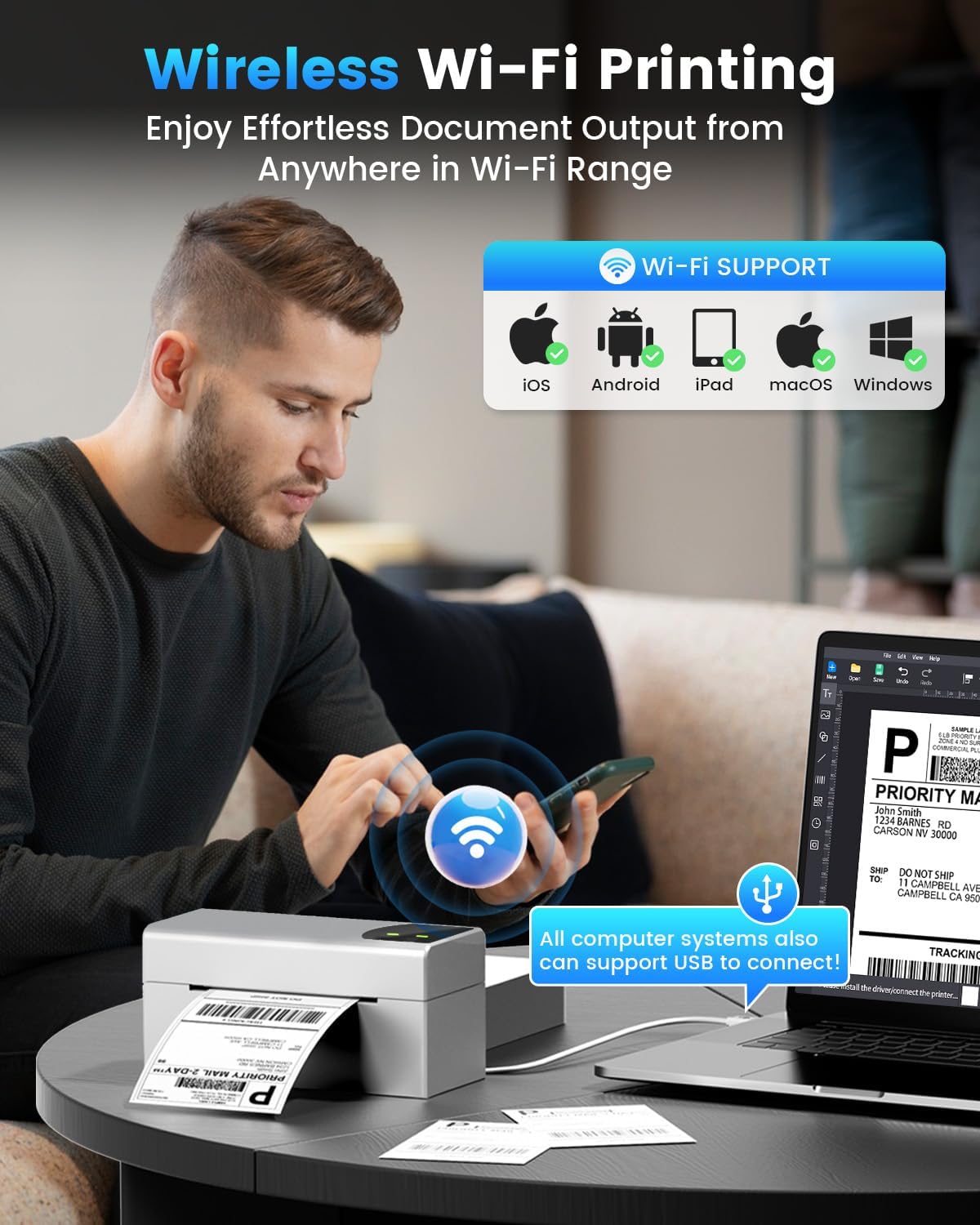
Image: Demonstrates wireless printing from various devices to the Phomemo printer.
Koneksyon USB
For direct connection, use the provided USB cable. The printer is compatible with ChromeOS, Linux, macOS, and Windows systems via USB. This offers an alternative to wireless printing.
Operasyon
1. Enpresyon Etikèt
Once the printer is set up and labels are loaded, you can initiate printing from your connected device or computer. The printer features a speed of 150 mm/s, capable of producing up to 72 sheets of 4x6 labels per minute with 203 DPI resolution.

Image: The printer's high-speed printing capability, highlighting its efficiency.
2. Supported Platforms and Label Types
The Phomemo PM-248-WF is compatible with major shipping platforms and marketplaces, including FedEx, UPS, USPS, ShipStation, Shopify, Amazon, Etsy, eBay, and more. It supports various label sizes from 1 to 4.6 inches, allowing for printing of shipping labels, barcodes, product labels, and custom stickers.

Image: The printer's broad compatibility with various e-commerce and shipping platforms.

Image: Printer in use for shipping packages.

Image: Printer used for custom labels on jars.
Antretyen
Regular maintenance ensures the longevity and performance of your thermal label printer.
- Netwaye tèt enprime a: Sèvi ak yon ti koton ki mouye dousmanampened with isopropyl alcohol to gently wipe the print head. Ensure the printer is off and cooled down before cleaning. Allow it to dry completely before use.
- Netwayaj woulo plak la: Thorne woulo plak la epi siye l ak yon anons.amp cloth to remove any dust or adhesive residue.
- Netwayaj eksteryè: Siye deyò enprimant lan avèk yon twal mou epi sèk. Evite itilize pwodui chimik ki agresif oswa pwodui netwayaj abrazif.
- No Ink or Toner Required: As a thermal printer, it does not require ink cartridges or toner, simplifying maintenance.
Depanaj
Gade tablo ki anba a pou pwoblèm komen ak solisyon yo.
| Pwoblèm | Kòz posib | Solisyon |
|---|---|---|
| Enprimant lan pa limen | Kab kouran an dekonekte; pwoblèm priz kouran | Check power cable connections; try a different outlet. |
| Pa ka konekte via Wi-Fi | Incorrect Wi-Fi password; printer not on same network; 5GHz compatibility issue | Verify Wi-Fi password; ensure printer and device are on the same 5GHz network; reconfigure Wi-Fi using the app or computer tool. |
| Printer not detected by computer/app | Software not installed; USB cable issue; Bluetooth/Wi-Fi off | Install Labelife app or Printer Setting Tool; check USB cable connection; ensure Bluetooth/Wi-Fi is enabled on your device. |
| Poor print quality (faint, blurry) | Print head dirty; low-quality labels; incorrect print density settings | Clean the print head; use high-quality thermal labels; adjust print density in software settings. |
| Etikèt yo pa ap byen manje | Labels loaded incorrectly; label guides not adjusted; paper sensor issue | Reload labels correctly (print side up); adjust label guides snugly; clean paper sensor if accessible. |
| Enprimant sispann enprime nan mitan travay la | Connectivity interruption; out of labels; overheating | Check Wi-Fi/USB connection; replace label roll; allow printer to cool down. |
Espesifikasyon teknik
| Karakteristik | Spesifikasyon |
|---|---|
| Non modèl | PM-248-WF |
| Teknoloji Enpresyon | Tèmik |
| Koneksyon Teknoloji | USB, Wi-Fi (5GHz) |
| Vitès Enpresyon Maksimòm (Monochrome) | 150 mm/s (72 sheets of 4x6 labels per minute) |
| Rezolisyon Maksimòm Enpresyon | 203 DPI |
| Gwosè Maksimòm Medya | 4 x 6 pous |
| Lajè Etikèt Sipòte | 1" - 4.6" |
| Aparèy konpatib | iOS, Android, iPad, macOS, Windows (Wi-Fi); ChromeOS, Linux, macOS, Windows (USB) |
| Dimansyon pwodwi | 7.16"D x 3.54"W x 3.5"H |
| Pwa atik | 1.58 liv |
| Karakteristik espesyal | Portable, Wireless Wi-Fi & USB Connection, No Ink, Auto Detection, Auto Paper Return, Intelligent Self-Test |
Garanti ak sipò
The Phomemo PM-248-WF Thermal Label Printer comes with a limited warranty. For specific details regarding warranty coverage and duration, please refer to the warranty card included in your package or visit the official Phomemo websit.
For technical assistance, troubleshooting, or any product-related inquiries, please contact Phomemo customer support. Contact information can typically be found in the user guide or on the manufacturer's websit.