
1. Entwodiksyon
The Phomemo P15 is a portable, wireless label maker designed for various labeling needs, from home organization to office classification. It utilizes thermal transfer printing technology, offering durable and clear labels without the need for ink. Its compact design and Bluetooth connectivity allow for easy operation via a smartphone or tablet application. This manual provides detailed instructions for setting up, operating, maintaining, and troubleshooting your P15 label maker.
2. Ki sa ki nan bwat la
Upon unpacking your Phomemo P15 Label Maker, please ensure all the following items are present:
- Phomemo P15 Label Maker Machine
- 1-Roll Labels Tape (12x40mm Black on White)
- USB-C Chaje kòd
- Manyèl Itilizatè (dokiman sa a)
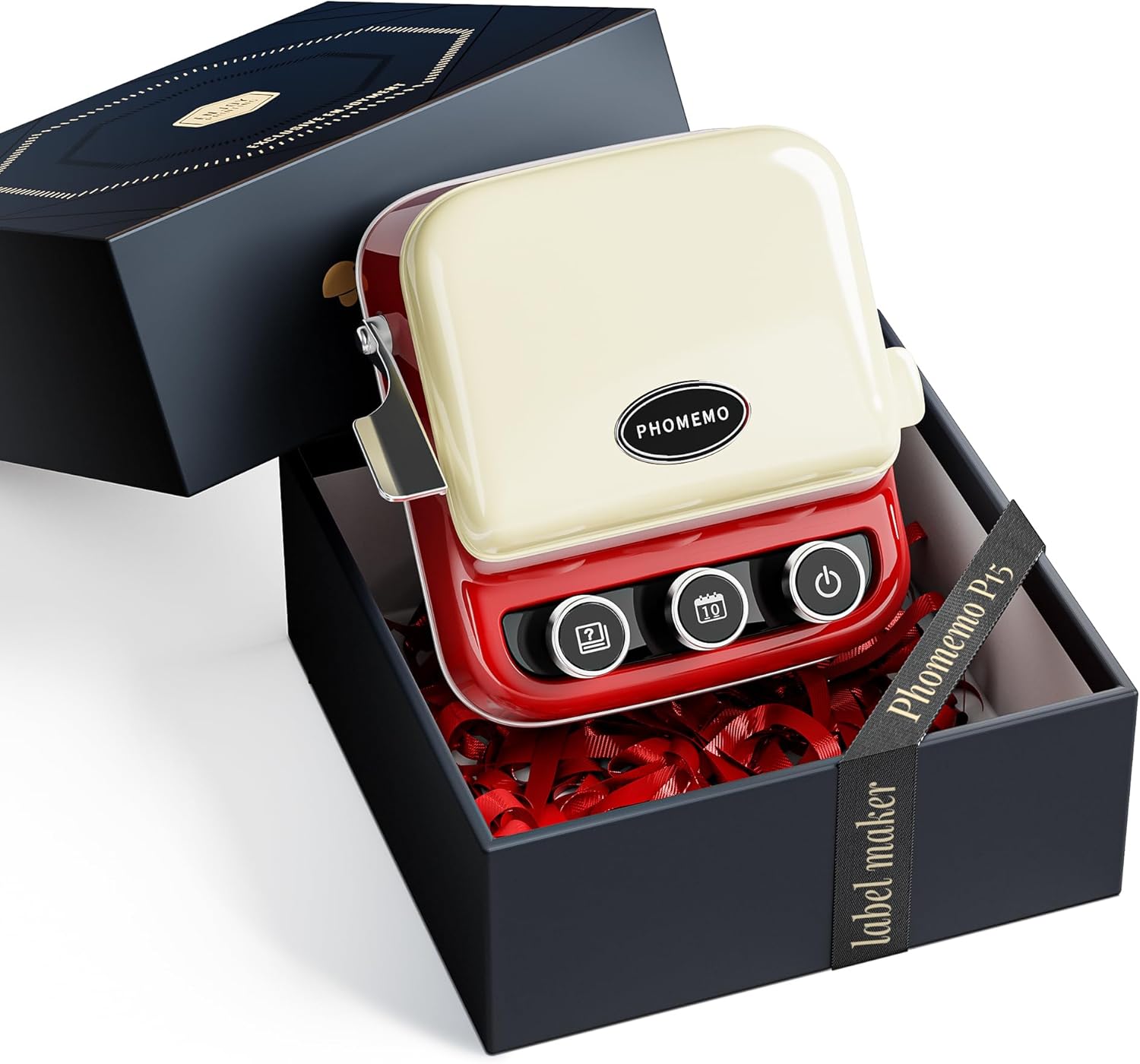
Image 2.1: The Phomemo P15 Label Maker and its included accessories neatly packaged in its gift box.
3. Pwodwi souview
The Phomemo P15 features a retro-inspired design with intuitive controls. Familiarize yourself with the main components:
- Bouton pouvwa: Located on the right, press and hold for 3 seconds to power on/off.
- Bouton Dat: Located in the center, press to instantly print the current date.
- Book of Answers Button: Located on the left, press to print a random phrase or a customized message.
- Label Cutter: A lever on the side for clean label cutting after printing.
- Label Compartment: Located under the top cover, where label cartridges are inserted.

Imaj 3.1: Plis paseview of the Phomemo P15 label maker, highlighting its main buttons and retro design.
4. Gid Enstalasyon
4.1. Chaje Aparèy la
Before first use, fully charge the Phomemo P15 using the provided USB-C charging cord. Connect the cord to the charging port on the device and a standard USB power adapter (not included). The indicator light will show charging status.
4.2. Chaje tep etikèt la
- Louvri kouvèti anwo machin pou fè etikèt la.
- Insert a Phomemo P15 label cartridge into the compartment, ensuring it clicks into place. The label tape should feed out through the slot.
- Close the top cover securely. The device will automatically recognize the label type and size.

Imaj 4.1: Egzanpample of Phomemo P15 label tape cartridges.
4.3. Enstalasyon Aplikasyon an ak Koneksyon Bluetooth
- Telechaje la "Print Master" aplikasyon an nan App Store (iOS) oubyen Google Play Store (Android).
- Ensure your Phomemo P15 is powered on and Bluetooth is enabled on your smartphone or tablet.
- Open the "Print Master" app. The app will guide you to connect to the P15 via Bluetooth. Select "Phomemo P15" from the list of available devices.
- Once connected, the app will display a connected status, and you are ready to create labels.

Image 4.2: Steps for downloading the app, connecting via Bluetooth, and preparing to print.
5. Operasyon Enstriksyon
5.1. Creating Labels with the Print Master App
The "Print Master" app offers extensive customization options:
- Tèks: Enter text, choose from over 200 fonts, adjust size, style (bold, italic), and alignment.
- Ikon ak senbòl: Access over 600 symbols and 1500+ icons to enhance your labels.
- Borders & Templates: Utilize over 200 border materials and various pre-designed templates for quick label creation.
- Kòd bar ak kòd QR: Generate and print barcodes or QR codes directly from the app.
- Entegrasyon Imaj: Insert images, with features for resizing, cropping, rotation, and filtering.
- Voice & Image Recognition: Advanced features for automated text extraction and label generation.

Image 5.1: The Print Master app interface demonstrating various creative features for label design.
5.2. Using the Date Button
For quick dating of items like food storage, documents, or memory boxes, simply press the dedicated Dat bouton on the device. The P15 will instantly print the current date on a label without needing to open the app.

Image 5.2: Demonstrating the one-press date printing feature for quick labeling.
5.3. Using the Book of Answers Button
La Book of Answers Button provides a fun, interactive feature. Pressing this button will print a random phrase. You can also customize the phrases within the app to print personalized messages, making it suitable for unique gifts or interactive activities.

Image 5.3: The 'Book of Answers' feature in action, printing various responses.
5.4. Diverse Label Applications
The Phomemo P15 supports a wide range of label types, including pre-cut, continuous, patterned, magnetic, colored font, ribbon, fabric iron-on, premium glitter, and luminous labels. This versatility allows for applications such as:
- Household Labeling: Organize kitchen items, storage containers, and personal belongings.
- Biwo ak Lekòl: Klasifye files, notebooks, and school supplies.
- Gift Wrapping & Decoration: Create personalized messages for gifts or decorative tags.
- Specialty Labels: Use luminous labels for switches or iron-on labels for fabric items.


6. Antretyen
To ensure the longevity and optimal performance of your Phomemo P15 Label Maker, follow these maintenance guidelines:
- Netwayaj: Gently wipe the exterior of the device with a soft, dry cloth. Avoid using harsh chemicals or abrasive materials. For the print head, use a cotton swab lightly dampened with rubbing alcohol, ensuring the device is off and dry before use.
- Depo: Sere machin etikèt la nan yon kote ki fre epi sèk, lwen limyè solèy dirèk ak tanperati ekstrèm.
- Label Cartridges: Use only genuine Phomemo P15 label cartridges to prevent damage and ensure print quality. Replace cartridges when empty.
- Dirab: The P15 is designed to be resistant to water and oil, making it suitable for various environments. However, avoid prolonged exposure to liquids or harsh conditions.

Image 6.1: Key features of the Phomemo P15, including its durability and printing capabilities.
NAN. Depanaj
If you encounter issues with your Phomemo P15, refer to the following common problems and solutions:
| Pwoblèm | Kòz posib | Solisyon |
|---|---|---|
| Aparèy pa limen | Batri fèb; Bouton pouvwa a pa kenbe ase lontan | Chaje aparèy la nèt; Peze epi kenbe bouton pouvwa a pandan 3 segonn. |
| Pa ka konekte via Bluetooth | Bluetooth koupe; Aparèy la pa nan zòn nan; Pwoblèm aplikasyon | Ensure Bluetooth is on; Move device closer; Restart app and device; Check app permissions. |
| Poor print quality / Faint print | Incorrect label type; Dirty print head; Faulty label cartridge | Ensure correct label cartridge is used; Clean the print head; Replace label cartridge. |
| Label jam / Not feeding | Improperly loaded cartridge; Obstruction | Re-insert the label cartridge correctly; Remove any obstructions from the label path. |
| App not responding / Crashing | Software glitch; Outdated app version | Restart the app; Check for app updates in your app store; Reinstall the app if necessary. |
| Automatic label recognition fails | Improperly loaded cartridge; Damaged cartridge | Ensure cartridge is seated correctly; Try a different, known-good cartridge. |
8. Espesifikasyon
Below are the technical specifications for the Phomemo P15 Label Maker Printer:
| Karakteristik | Detay |
|---|---|
| Dimansyon pwodwi | 1.83"D x 2.95"W x 6.45"H |
| Pwa atik | 5.6 ons (160 gram) |
| Koneksyon Teknoloji | Bluetooth |
| Teknoloji Enpresyon | Transfè tèmik |
| Maksimòm rezolisyon enprime nwa e blan | 203 Dots Per Inch (DPI) |
| Vitès Maksimòm Enpresyon (Monochrome) | 20 ppm (paj pa minit) |
| Gwosè Maksimòm Medya | 0.59 pous (15mm) |
| Aparèy konpatib | Telefòn entelijan, Tablèt (Android, iOS) |
| Metòd kontwòl | App |
| Batri | 1 batri ityòm Polymère (enkli) |
| Wattage | 7 Watt-èdtan |
| Karakteristik espesyal | Portable, Inkless, Wireless, Rechargeable, Print Continuous & Pre-cut Label Tapes, Rich Font Icon Pattern, Creative Print Functions (Barcode, Text, Picture, QR 2D Code, Table, Date, Border, Icon, Shape, Pattern, Template, Save as, Line, Image Recognition, Voice Recognition, Automated Text Extraction, Automated Image Resizing, Automated Image Cropping, Automated Image Rotation, Automated Image Filtering, Automated Image Compression) |
9. Garanti ak sipò
9.1. Enfòmasyon sou Garanti
The Phomemo P15 Label Maker Printer comes with a garanti limite. Please refer to the warranty card included in your product packaging or visit the official Phomemo websit la pou wè kondisyon detaye konsènan pwoteksyon ak dire garanti a.
9.2. Sipò pou Kliyan
For technical assistance, product inquiries, or warranty claims, please contact Phomemo customer support through their official website or the contact information provided in your product documentation. When contacting support, please have your model number (WuAiTing-CA-P15-RD) and purchase details ready.