
1. Entwodiksyon
Thank you for choosing the Cuifati Bluetooth Transparent Mouse. This device offers dual-mode connectivity (Bluetooth 5.0 and 2.4G USB receiver), RGB backlighting, and a rechargeable design for versatile use with PCs, laptops, and tablets. This manual provides detailed instructions for setup, operation, maintenance, and troubleshooting to ensure optimal performance.
2. Pake kontni
Tanpri verifye ke tout atik yo prezan nan pakè ou a:
- 1 x Cuifati Bluetooth Transparent Mouse
- 1 x Kab Chaje (Kalite-C)
- 1 x Reseptè USB (2.4G)
- 1 x manyèl itilizatè

Image: Contents of the Cuifati mouse package, including the mouse, Type-C charging cable, and 2.4G USB receiver.
3. Espesifikasyon
| Karakteristik | Detay |
|---|---|
| Anviwònman DPI | 800, 1200, 1600 |
| Mòd transmisyon | 2.4G san fil, Bluetooth 5.0 |
| Kapasite batri | 400mAh Li-ion batri |
| Dimansyon sourit | Approx. 113.5 x 58 x 25mm (±2mm) |
| Chaje Metòd | Kalite-C USB |
| Opere Voltage | 3.3V-4.2V |
| Operating Current (Light mode) | ≤25mA |
| Operating Current (Non-lighting mode) | ≤8mA |
| Kondisyon sistèm 2.4G | Windows XP/7/8/10+, Android 4.4+, OS X 10.5+, Linux Kernel 2.6+2, Chrome OS |
| Kondisyon pou sistèm Bluetooth | Windows 8/10, Android 5.0+, OS X 10.10+ (Bluetooth 4.0 and above adapter required) |
| Materyèl | PC |
4. Enstalasyon
4.1. Chaje Sourit la
Before first use, fully charge the mouse. Connect the provided Type-C charging cable to the mouse's charging port and the other end to a USB power source (e.g., computer USB port, USB wall adapter). A full charge typically takes 2-3 hours.

Image: The Cuifati mouse being charged via its Type-C port, indicating a 2-3 hour charging time.
4.2. Connecting via 2.4G USB Receiver
- Locate the USB receiver, usually stored within the mouse's magnetic cover or packaging.
- Branche reseptè USB a nan yon pò USB ki disponib sou òdinatè w la oswa aparèy ou an.
- Turn on the mouse and switch it to 2.4G mode (refer to Section 5.1 for mode switching).
- Sourit la ta dwe konekte otomatikman ak aparèy ou an.

Image: The transparent design of the Cuifati mouse, showing the internal components and the USB receiver slot.
4.3. Konekte atravè Bluetooth 5.0
- Turn on the mouse and switch it to Bluetooth mode (refer to Section 5.1 for mode switching).
- On your device (PC, laptop, tablet), navigate to the Bluetooth settings.
- Aktive Bluetooth epi chèche nouvo aparèy.
- Select "Cuifati Mouse" or a similar name from the list of available devices to pair.
- Swiv nenpòt envit ki sou ekran pou konplete pwosesis kouple a.
Note: You cannot use Bluetooth mode and 2.4G USB mode simultaneously. Ensure only one mode is active at a time.
5. Operasyon Enstriksyon
5.1. Pouvwa pou limen/etenn ak chanjman mòd
The mouse features a switch on its underside to power it on/off and select the connection mode. Slide the switch to the desired position for 2.4G or Bluetooth connectivity, or to the 'Off' position to conserve battery.
5.2. Ajisteman DPI
The mouse supports three DPI (Dots Per Inch) settings: 800, 1200, and 1600. Press the DPI button (usually located near the scroll wheel or on the underside) to cycle through these settings and adjust cursor sensitivity to your preference.
5.3. Kontwòl ekleraj RGB
The mouse features various RGB lighting effects. A dedicated lighting switch key, typically on the underside or a side button, allows you to cycle through 11 different lighting modes or turn off the lights completely. This enhances the aesthetic appeal during use.
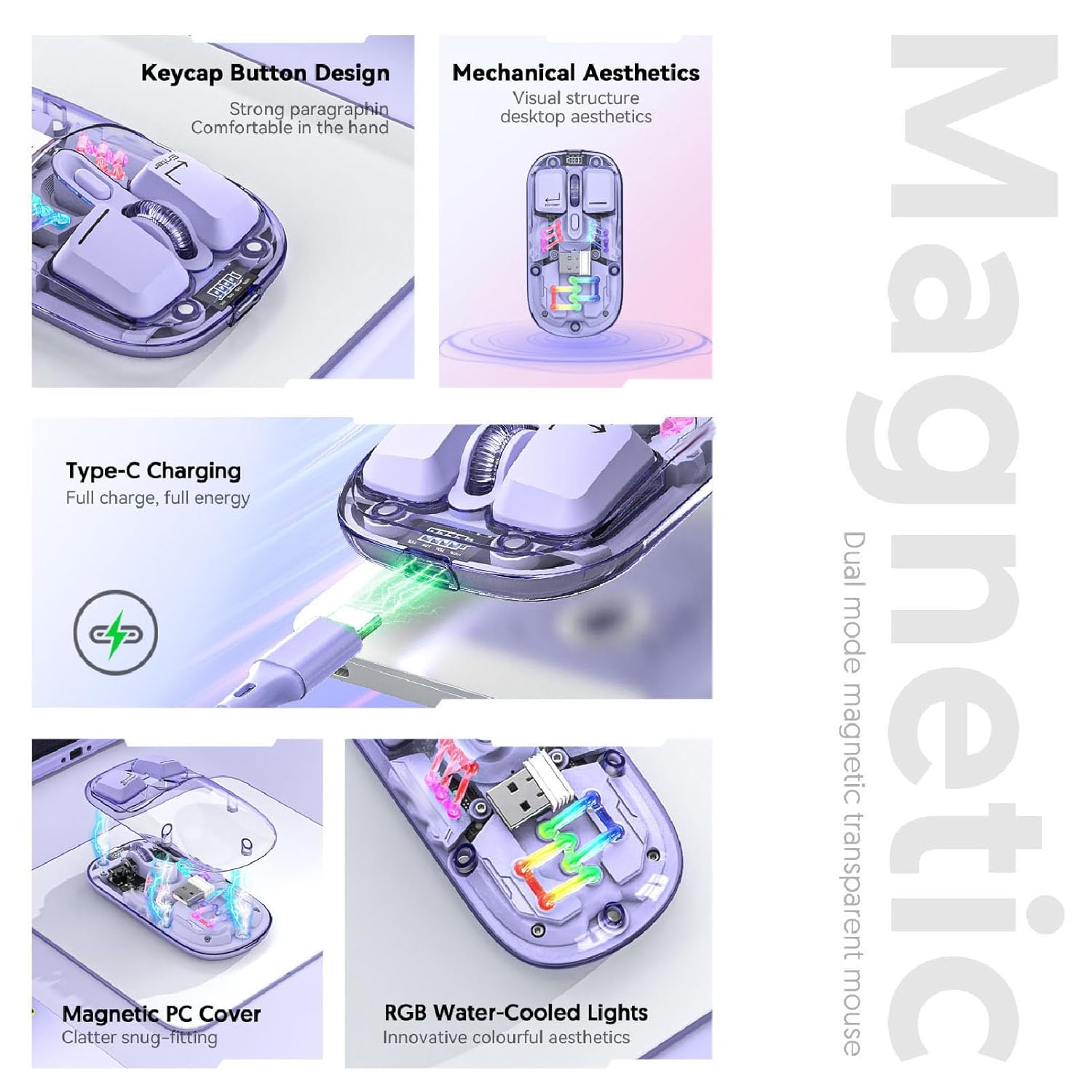
Imaj: Yon konpoze view highlighting the RGB lighting, Type-C charging, and magnetic cover design of the mouse.
5.4. Ekspozisyon Nivo Batri
The mouse is equipped with a power display to check the remaining battery level at any time. This display typically uses indicator lights to show the charge status:
- 4 lights on: 100% batri
- 3 lights on: 75% batri
- 2 lights on: 50% batri
- 1 light on: 25% batri

Image: Close-up of the Cuifati mouse's battery level display, illustrating how indicator lights correspond to charge percentage.
5.5. Automatic Energy Saving
To conserve battery life, the mouse features an automatic sleep function:
- Dòmi limyè: After 60 seconds of no operation, the mouse enters a light sleep state.
- Gwo twou san fon dòmi: If no operation occurs for 10 minutes, the mouse enters a deep sleep mode.
- Reveye: To wake the mouse from sleep, simply move it or press any button.
Note: Actual power saving performance may vary based on usage habits.

Image: Visual representation of the mouse's power-saving states: light sleep after 60 seconds, deep sleep after 10 minutes, and how to wake it up.
6. Antretyen
6.1. Netwayaj
To maintain the mouse's appearance and functionality, regularly clean its surfaces. Use a soft, dry, lint-free cloth. For stubborn dirt, slightly dampen the cloth with water or a mild, non-abrasive cleaner. Avoid using harsh chemicals or abrasive materials that could damage the transparent shell or internal components.

Image: The Cuifati mouse with its magnetic top cover detached, revealing the internal structure for potential cleaning or maintenance.
6.2. Swen batri
The built-in Li-ion battery is designed for long-term use. To prolong battery life:
- Evite dechaje batri a nèt souvan.
- Chaje sourit la avèk kab Kalite-C ki vini ak li a.
- Sere sourit la nan yon kote ki fre epi sèk lè w pa itilize li pou yon bon bout tan.
NAN. Depanaj
If you encounter issues with your Cuifati mouse, please refer to the following common solutions:
- Sourit la pa reponn:
- Asire w sourit la mache.
- Tcheke nivo batri a epi chaje si sa nesesè.
- Verify the correct connection mode (2.4G or Bluetooth) is selected.
- For 2.4G, ensure the USB receiver is securely plugged in. Try a different USB port.
- Pou Bluetooth, asire w ke Bluetooth aktive sou aparèy ou an epi sourit la konekte. Eseye konekte ankò.
- Mouvman kurseur a pa regilye oswa ralanti:
- Netwaye detèktè optik ki anba sourit la.
- Asire w ke w ap itilize sourit la sou yon sifas ki apwopriye (ki pa twò reflektif oswa transparan).
- Adjust the DPI setting (refer to Section 5.2).
- Limyè RGB yo pa fonksyone:
- Asire w sourit la mache.
- Press the lighting switch key to cycle through modes or turn them on (refer to Section 5.3).
- Check battery level; low battery might disable lighting.
- Cannot connect via Bluetooth and 2.4G simultaneously:
- This is expected behavior. The mouse is designed to operate in one mode at a time. Switch to the desired mode using the selector switch.
8. Garanti ak sipò
The Cuifati Bluetooth Transparent Mouse comes with a standard manufacturer's warranty. Please refer to the warranty card included in your package or visit the official Cuifati websit la pou wè tèm ak kondisyon garanti detaye yo.
For technical support, product inquiries, or warranty claims, please contact Cuifati customer service through their official channels. Contact information can typically be found on the product packaging or the manufacturer's websit.