
Introduction to Apple Watch Series 10
The Apple Watch Series 10, officially announced on September 9, 2024, and released on September 20, 2024, features Apple's largest and thinnest smartwatch display to date. It offers faster charging compared to the Series 9, alongside enhanced health monitoring and safety features. Available in various finishes including silver, jet black, rose gold, natural titanium, titanium gold, and dark slate grey titanium, this device is designed for both new and experienced users.
This manual provides detailed instructions to help you understand and utilize all the capabilities of your Apple Watch Series 10, running on WatchOS 11.
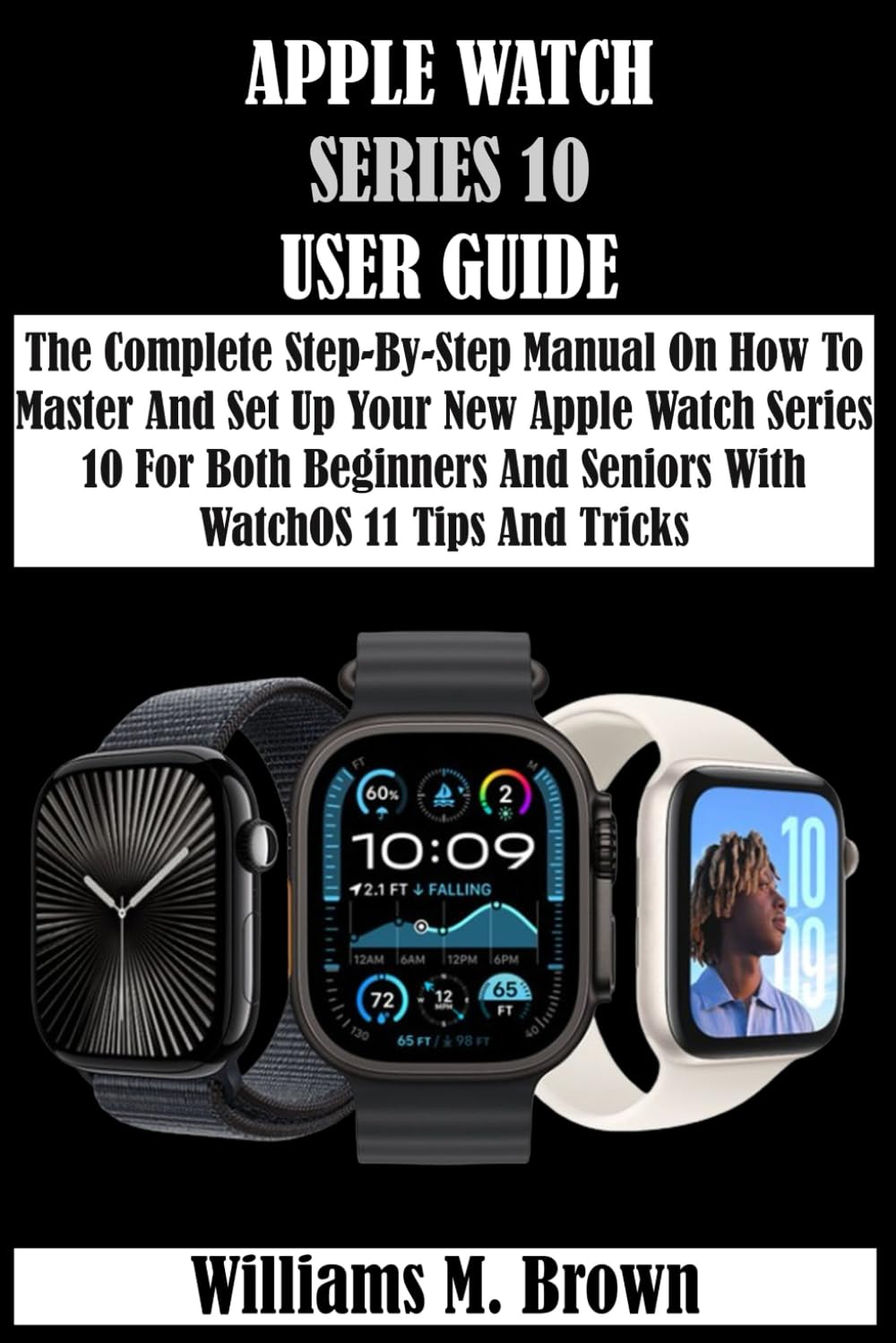
Image: Front cover of the Apple Watch Series 10 User Guide, displaying the title and a graphic representation of the Apple Watch.
Enstalasyon ak Pairing
This section guides you through the initial setup process for your Apple Watch Series 10, including pairing with your iPhone and configuring settings for family members.
- How to Set Up and Pair Your Apple Watch with iPhone:
To begin, ensure your iPhone is updated to the latest iOS version. Turn on your Apple Watch and bring it close to your iPhone. Follow the on-screen prompts on your iPhone to pair the devices. You will be guided through choosing a wrist, setting up a passcode, and configuring various features.
- How to Set Up More Than One Apple Watch:
If you have multiple Apple Watches, you can pair them all with a single iPhone. Open the Apple Watch app on your iPhone, tap "All Watches" at the top left, then "Add Watch" and follow the pairing instructions for each additional device.
- How to Pair Apple Watch with a New iPhone:
Before pairing with a new iPhone, unpair your Apple Watch from your old iPhone. On your old iPhone, open the Apple Watch app, tap "All Watches," then the information button next to your watch, and select "Unpair Apple Watch." Once unpaired, you can pair it with your new iPhone following the standard setup process.
- How to Set Up Apple Watch for Your Kids (Family Setup):
Family Setup allows you to set up an Apple Watch for a family member who doesn't have their own iPhone. Open the Apple Watch app on your iPhone, tap "All Watches," then "Add Watch," and choose "Set Up for a Family Member." Follow the instructions to create an Apple ID for the child (if needed) and configure communication, health, and safety features.
- How to Set Up and Use Cellular Service on Apple Watch:
If your Apple Watch Series 10 has cellular capabilities, you can set up a cellular plan during the initial pairing process or later through the Apple Watch app on your iPhone. Navigate to "My Watch" > "Cellular" and follow the prompts from your carrier.
- How to Set Up and View Your Medical ID on Apple Watch:
Your Medical ID can provide crucial health information to first responders. On your iPhone, open the Health app, tap your profile picture, then "Medical ID." Fill in your medical information. To view it on your Apple Watch, press and hold the side button until the sliders appear, then tap "Medical ID."
Kijan pou w itilize Apple Watch Seri 10 ou a
This section covers the daily use of your Apple Watch, from basic interactions to advanced features and personalization.
- Buttons and Gestures: Interact using the Digital Crown, Side Button, and various touch gestures like tap, swipe, and force touch.
- Activate and Wake Up: Raise your wrist, tap the screen, or press the Digital Crown or Side Button.
- Lock or Unlock: Your watch automatically locks when removed from your wrist or after a period of inactivity. Enter your passcode to unlock.
- Schooltime: Manage distractions for children during school hours. Configure this feature via the Apple Watch app on your iPhone under Family Setup.
- Mizik ak Podcast: Play music and podcasts directly from your watch, even without your iPhone, especially useful for managed watches.
- Activity and Health Reports: Monitor activity trends and health data for family members through the Health app on your iPhone.
- Fanmi Apple Cash: Set up and manage Apple Cash for a child's Apple Watch through Family Setup.
- Apple Watch App: Use the companion app on your iPhone to manage settings, customize watch faces, and install apps.
- Aksè Aplikasyon: Press the Digital Crown to view your app layout, then tap an app to open it.
- Tell Time: Your Apple Watch displays the time on its face. You can customize watch faces to show additional information.
- Ikon Estati: Familiarize yourself with icons indicating battery level, connectivity, notifications, and more.
- Sant kontwòl: Swipe up from the bottom of the watch face to access quick settings like Wi-Fi, Airplane Mode, and Flashlight.
- Flach: Access from Control Center to use your watch screen as a light source.
- Ping Your iPhone: Swipe up to Control Center and tap the iPhone icon to make your paired iPhone play a sound.
- Mòd Avyon: Toggle on/off from Control Center to disable wireless features.
- Silence Alerts and Notifications: Use Do Not Disturb or Theater Mode from Control Center, or manage specific app notifications in the Apple Watch app.
- Notifikasyon: Notifications appear on your watch face. Swipe down to view them and respond directly from your wrist.
- Timely Widgets in Smart Stack: Scroll the Digital Crown on the watch face to view context-aware widgets.
- Antre tèks: Use Scribble, dictation, or a full keyboard (on supported models) to enter text.
- Konekte ak Wi-Fi: Your watch connects to known Wi-Fi networks automatically or can be manually connected via Settings > Wi-Fi.
- Use Without Paired iPhone: With cellular service or a known Wi-Fi network, your watch can perform many functions independently.
- Customize Language and Orientation: Adjust these settings in the Apple Watch app on your iPhone under My Watch > General.
- Adjust Brightness and Text Size: Go to Settings > Display & Brightness on your watch.
- Adjust Volume, Sounds, and Haptics: Adjust these settings in the Settings app on your watch or the Apple Watch app on your iPhone.
- Double Tap: Perform common actions by double-tapping your index finger and thumb together. Enable and customize in Accessibility settings.
- Personalize Action Button: If your model has an Action Button, customize its function in Settings > Action Button.
- Arrange Applications: On the app layout, touch and hold an app icon to enter jiggle mode, then drag to rearrange.
- Modify Notification Preferences: Manage app-specific notifications in the Apple Watch app on your iPhone.
- Konsantre: Sync Focus modes from your iPhone to your Apple Watch to manage notifications and distractions.
- Manage Apple Account Settings: Access and modify your Apple ID settings directly from your watch or the companion app.
- Enskripsyon: Use the Check-In feature to automatically notify friends or family when you've arrived at your destination.
- Siri: Activate Siri by raising your wrist and speaking, pressing and holding the Digital Crown, or using the "Hey Siri" command.
- Wearable Audio Devices (AirPods/Beats): Pair Bluetooth headphones to your watch for audio playback and alerts.
- Call Announcements with Siri: Configure Siri to announce incoming calls.
- Customize Watch Face: Force touch the watch face or use the Apple Watch app to browse and customize faces.
- Share Apple Watch Faces: Share your customized watch faces with others via the Apple Watch app.
Maintenance and Battery Management
Proper maintenance ensures the longevity and optimal performance of your Apple Watch Series 10.
- Ki jan yo chaje batri a:
Place your Apple Watch on its magnetic charging cable. Ensure the charger is connected to a power source. The watch will display a charging indicator.
- How to Check Battery Health and Usage:
On your Apple Watch, go to Settings > Battery. Here you can see your battery percentage, usage history, and battery health information.
- How to Make the Apple Watch Last Longer on a Single Charge:
To extend battery life, enable Low Power Mode (from Control Center or Settings > Battery), reduce screen brightness, limit background app refresh, and manage notifications.
- How to Eliminate, Replace, and Secure Straps:
To remove a strap, press the strap release button on the back of the watch and slide the strap horizontally. To attach a new strap, slide it in until you hear a click. Ensure it is securely fastened before wearing.
Troubleshooting and Safety Features
Your Apple Watch Series 10 includes features designed to assist in emergencies and help resolve common issues.
- How to Contact Emergency Services:
Press and hold the side button until the Emergency SOS slider appears. Drag the slider to call emergency services. You can also set up automatic calls after a countdown.
- How to Manage Fall Detection:
Fall Detection is enabled by default for users over 55. If a hard fall is detected and you are unresponsive, your watch can automatically call emergency services. Manage this feature in the Apple Watch app on your iPhone under My Watch > Emergency SOS.
- How to Manage Crash Detection:
Similar to Fall Detection, Crash Detection can detect severe car crashes and automatically call emergency services if you are unresponsive. This feature is enabled by default. Manage it in the Apple Watch app on your iPhone under My Watch > Emergency SOS.
Espesifikasyon
Key technical specifications for the Apple Watch Series 10:
| Karakteristik | Detay |
|---|---|
| Dat lage | September 20, 2024 (Announced September 9, 2024) |
| Ekspozisyon | Largest display on an Apple Watch to date |
| Design | Thinnest and lightest Apple smartwatch ever |
| Chaje | Faster charging than Apple Watch Series 9 |
| Karakteristik Sante | New health monitoring features |
| Karakteristik sekirite | Lòt karakteristik sekirite |
| Koulè | Silver, Jet Black, Rose Gold, Natural Titanium, Titanium Gold, Dark Slate Grey Titanium |
| Sistèm operasyon | WatchOS 11 |

Image: Back cover of the Apple Watch Series 10 User Guide, showing the ISBN barcode and publication details.
Garanti ak sipò
For detailed warranty information and official support for your Apple Watch Series 10, please refer to Apple's official website or contact Apple Support directly. Warranty terms typically cover manufacturing defects for a specified period from the date of purchase.
You can find additional resources and contact information at the official Apple Support websit: sipò.apple.com/watch