
1. Enfòmasyon enpòtan sou sekirite
Tanpri li tout enstriksyon yo ak anpil atansyon anvan ou itilize pwodui sa a. Kenbe manyèl sa a pou referans pita.
- Pa bloke ouvèti vantilasyon yo. Asire w ke gen ase sikilasyon lè toutotou pwojektè a.
- Pa ekspoze pwojektè a ak lapli oswa imidite pou anpeche dife oswa chòk elektrik.
- Sèvi ak sèlman atachman/akseswa manifakti a espesifye.
- Dekonekte pwojektè a pandan tanpèt zèklè oswa lè ou pa itilize li pou yon bon bout tan.
- Refere tout sèvis yo bay pèsonèl sèvis kalifye.
2. Pake kontni
Verifye ke tout atik yo prezan nan pakè ou a:
- WEWATCH S3 4K Portable Projector
- Kontwòl Remote
- Pouvwa kab
- HDMI kab
- Manyèl itilizatè
3. Pwodwi souview
Familiarize yourself with the components and ports of your WEWATCH S3 projector.

Imaj: Devan view of the WEWATCH S3 4K Portable Projector, showcasing konsepsyon elegant li yo ak lantiy li yo.
3.1. Pò ak Koneksyon
The projector features various ports for versatile connectivity:

Imaj: Dèyè view of the WEWATCH S3 projector, highlighting its various input and output ports including LAN, USB, HDMI, and audio jacks.
- LAN (x1): Pou koneksyon rezo filaire.
- USB (x2): Pou konekte kle USB oswa lòt aparèy USB.
- HDMI (x2): For connecting external devices like laptops, gaming consoles, or streaming sticks.
- AU (Audio Out x1): Pou konekte aparèy odyo ekstèn.
- AX (Audio In x1): Pou opinyon odyo.
4. Enstalasyon
Follow these steps to set up your projector for the first time:
- Plasman: Place the projector on a stable, flat surface or mount it securely. Ensure it is positioned to project onto a suitable screen or wall.
- Koneksyon pouvwa: Konekte kab kouran an nan antre kouran pwojektè a epi answit nan yon priz kouran.
- Pouvwa sou: Peze bouton pouvwa a sou pwojektè a oswa kontwòl remote la pou limen aparèy la.

Image: The WEWATCH S3 projector set up in a living room environment, projecting an image onto a screen, demonstrating typical home usage.
5. Operasyon Enstriksyon
5.1. Sistèm Operasyon Android TV
The WEWATCH S3 features an integrated Android TV system, providing direct access to popular streaming applications.

Image: A person using the remote control to navigate the Android TV interface projected onto a large screen, showing various streaming app icons like Prime Video, YouTube, and Netflix.
- Navigasyon: Use the remote control's directional buttons and OK button to navigate the Android TV interface.
- Itilizasyon aplikasyon an: For optimal experience with certain applications (e.g., Netflix, YouTube), it is recommended to switch the remote control to mouse mode. After using the application, switch back to normal mode.
6. Koneksyon
6.1. Wi-Fi Connection (2.4G + 5G)
Connect your projector to a wireless network for internet access and screen mirroring.
- Navigate to the Wi-Fi settings in the Android TV menu.
- Select your desired network and enter the password.
- The projector supports both 2.4G and 5G Wi-Fi bands for fast and stable connections.
6.2. Bluetooth Koneksyon
Connect external Bluetooth speakers or headphones for enhanced audio, or use the projector as a Bluetooth speaker.

Image: A smartphone wirelessly connected to the WEWATCH S3 projector, demonstrating the 2.4G/5G Wi-Fi and Bluetooth dual-channel capabilities for seamless content streaming.
- Ale nan paramèt Bluetooth yo.
- Pè ak aparèy Bluetooth ou.
- The projector can also function as a standalone Bluetooth speaker when connected to a phone.
6.3. Koneksyon HDMI ak USB
Konekte aparèy ekstèn yo atravè pò HDMI oswa USB.
- Insert the HDMI cable into one of the projector's HDMI ports and the other end into your device (e.g., laptop, game console).
- Insert a USB drive into a USB port to access media files.
7. Karakteristik kle
7.1. Electronic Focus
Adjust the image clarity easily using the remote control.

Image: A hand holding the projector's remote control, pointing to the F+/F- buttons used for electronic focus adjustment, with a clear projected image of a tiger cub.
- Sèvi ak la F+ epi F- buttons on the remote control to fine-tune the focus until the image is sharp.
7.2. 4-Point Keystone Correction
Correct distorted images to achieve a perfectly rectangular projection, regardless of the projector's angle.
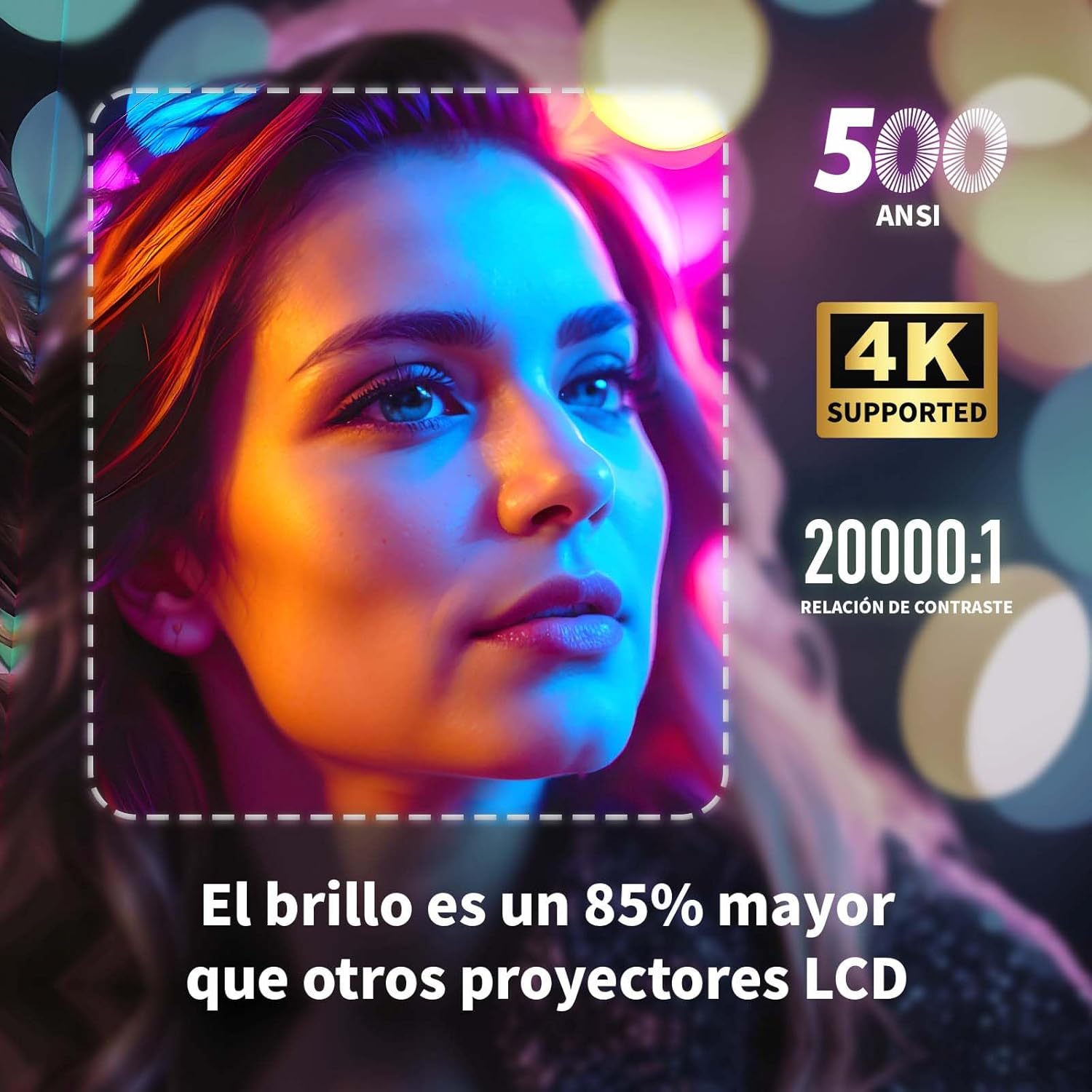
Image: A projected image of a woman's face with a dotted outline demonstrating how 4-point keystone correction adjusts the image to be perfectly rectangular, even when projected at an angle.
- Access the keystone correction settings in the menu to adjust each corner of the image independently.
- The projector also supports automatic vertical keystone correction.
7.3. Fonksyon Zoom
Adjust the image size without moving the projector.

Image: A visual representation of the projector's zoom function, showing how the image size can be reduced from 100% to 50% without physically moving the projector.
- The zoom function allows you to reduce the image size from 100% to 80%.
7.4. Large Screen Projection
Eksperyans immersion viewing with a large adjustable screen size.

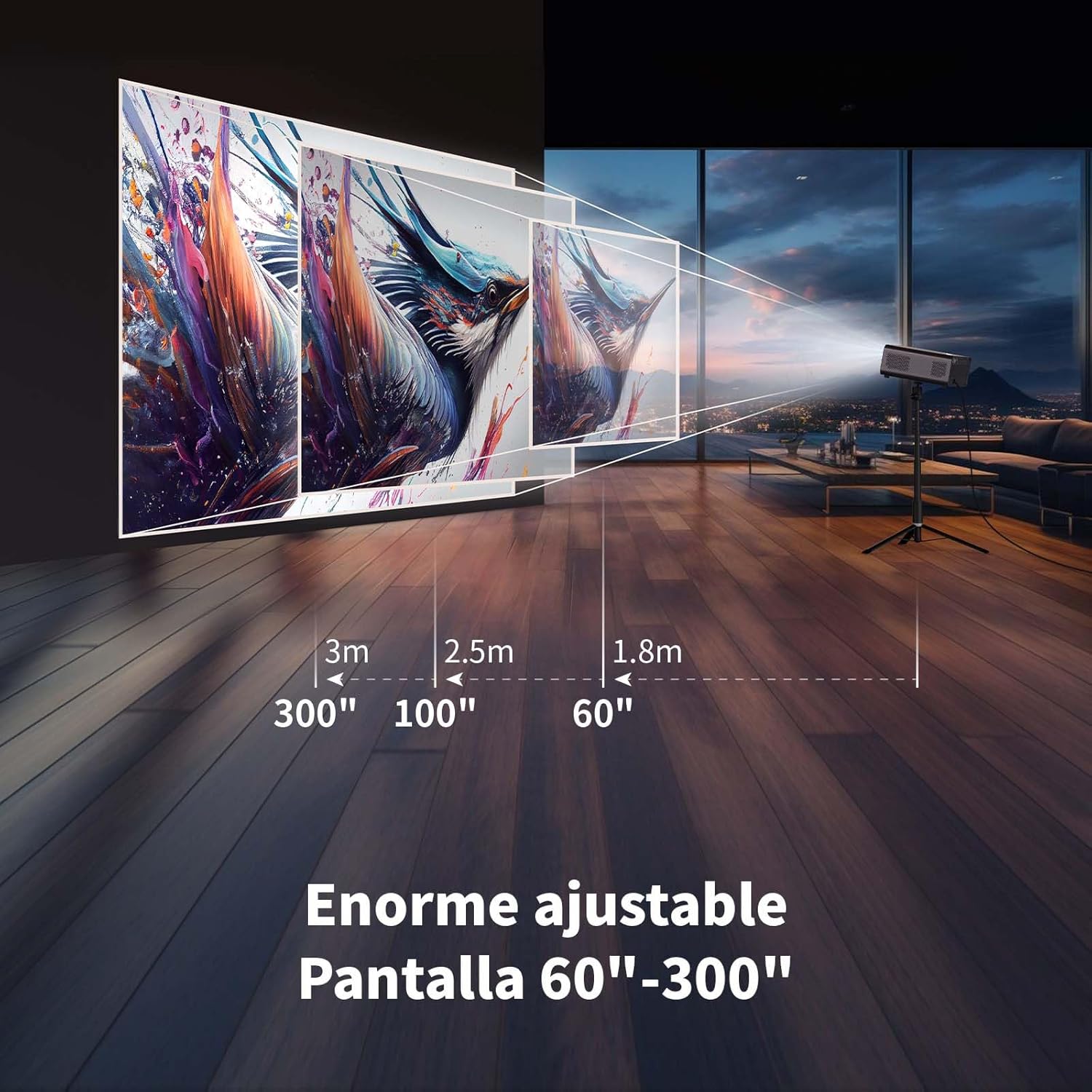
Image: A large projected image of an astronaut on a snowboard, illustrating the 300-inch screen capability of the projector in a home cinema setting.
- The projector can produce an adjustable screen size from 60 inches to 300 inches, suitable for various viewanviwònman yo.
8. Antretyen
8.1. Dust-Proof Design and Cleaning
The projector features a dust-proof design with a hidden dust box to prevent dust accumulation.
Imaj: Yon gwo plan view of the projector's hidden dust box, showing the filter inside, and an illustration of airflow, emphasizing the importance of regular cleaning to prevent dust from entering the device.
- Regularly clean the dust box to maintain optimal performance and prevent dust from affecting the image quality.
- Sèvi ak yon twal mou epi sèk pou netwaye deyò pwojektè a.
- Pa sèvi ak pwodui netwayaj likid oswa ayewosòl.
NAN. Depanaj
Si ou rankontre pwoblèm ak pwojektè ou a, gade pwoblèm ak solisyon komen sa yo:
| Pwoblèm | Solisyon posib |
|---|---|
| Pa gen imaj projeté | Check power connection. Ensure input source is correctly selected (HDMI, USB, etc.). Verify lens cap is removed. |
| Imaj la twoub | Adjust electronic focus using the F+/F- buttons on the remote. Ensure the projection surface is flat. |
| Imaj la defòme (fòm trapèz) | Use 4-point keystone correction in the settings menu to adjust the image corners. Check for automatic vertical correction. |
| Pa gen son | Check volume settings on the projector and connected device. Ensure external speakers are properly connected or Bluetooth is paired. |
| Pwoblèm koneksyon Wi-Fi | Ensure Wi-Fi is enabled. Re-enter Wi-Fi password. Restart the projector and router. Try connecting to a different Wi-Fi band (2.4G or 5G). |
10. Espesifikasyon
Key technical specifications for the WEWATCH S3 Projector:
- Mak: WAGADE
- Nimewo Modèl: S3
- Koulè: Gri fimen
- Kalite pwodwi: Pwojektè pòtab
- Klate: 500 ANSI lumèn
- Native Display Resolution: 1920 x 1080 (Full HD)
- Rezolisyon ekspozisyon maksimòm: 3840 x 2160 (4K sipòte)
- Pwopòsyon kontras: 20000:1
- Kalite ekspozisyon: dirije
- Koneksyon Teknoloji: Bluetooth, Ethernet, HDMI, USB, Wi-Fi (2.4G/5G)
- Karakteristik espesyal: Wi-Fi Compatible, Digital Keystone Correction, Built-in Speaker, Auto Focus, Portable
- Aparèy konpatib: Speaker, Laptop, Smartphone, Tablet
- Dimansyon pwodwi: 24.3L x 24.9W x 10.5H santimèt
- Itilizasyon Rekòmande: Sinema Lakay, Jwèt Videyo, Pwofesyonèl, Edikasyon
11. Garanti ak sipò
The WEWATCH S3 Projector comes with a manufacturer's warranty to ensure your peace of mind.
- Garanti manifakti a: 2 ane
- For technical support or warranty claims, please refer to the contact information provided with your purchase documentation or visit the official WEWATCH websit.