
H3C H3C Magic NX15-UK
Manyèl Itilizatè Routeur H3C Magic NX15 AX1500 Doub Band Gigabit Wi-Fi 6
Model: H3C Magic NX15-UK
1. Entwodiksyon
The H3C Magic NX15 is a high-performance Gigabit Wi-Fi 6 router designed to provide a fast and reliable internet experience. Featuring a vertical design, full gigabit network ports, and Wi-Fi 6 (802.11ax) technology on the 5GHz band, it ensures high-speed connectivity. Equipped with four high-gain external antennas and EasyMesh compatibility, it offers wide and flexible network signal coverage. Enhanced security is provided through WPA3 encryption. This manual provides essential information for setting up, operating, and maintaining your H3C Magic NX15 router.
2. Pake kontni
Tanpri verifye sa ki nan pake a ak anpil atansyon. Si gen nenpòt atik ki manke oswa ki domaje, tanpri kontakte revandè ou a.
- H3C Magic NX15 AX1500 Dual Band Gigabit Wi-Fi 6 Router
- Adaptè pouvwa
- Ethernet kab
- Gid Enstalasyon Rapid (manyèl sa a)
3. Pwodwi souview
Familiarize yourself with the components and interfaces of your H3C Magic NX15 router.
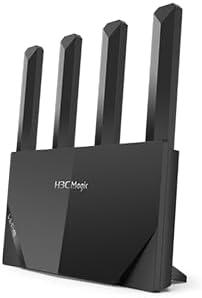
Figi 3.1: Devan view of the H3C Magic NX15 router, showcasing its vertical design and four external antennas.
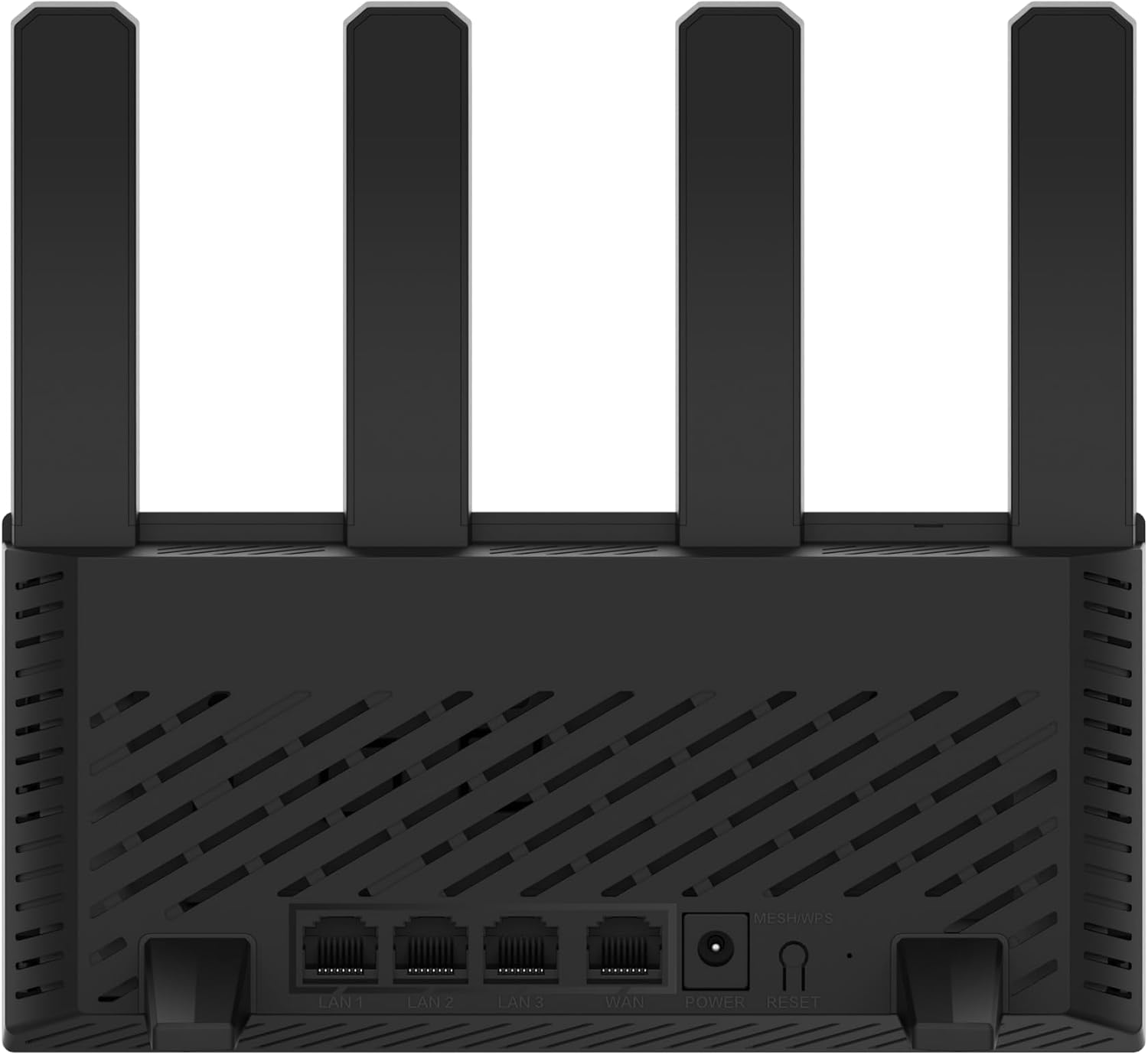
Figi 3.2: Dèyè view of the H3C Magic NX15 router, displaying the LAN ports, WAN port, power input, and Reset/WPS button.

Figi 3.3: Top view of the H3C Magic NX15 router, highlighting the ventilation design for heat dissipation.

Figi 3.4: Side view of the H3C Magic NX15 router, showing the sleek profile and additional ventilation slots.
Deskripsyon pò ak bouton:
- Pò WAN: Konekte ak modèm ou a oswa rezo founisè sèvis entènèt ou (ISP).
- Pò LAN (LAN1, LAN2, LAN3): Konekte ak aparèy filaire tankou òdinatè, konsola jwèt, oswa televizyon entelijan.
- Pouvwa Port: Konekte ak adaptè kouran ki enkli a.
- Bouton Reyajiste/WPS:
- Press briefly to activate WPS (Wi-Fi Protected Setup) for easy connection of compatible devices.
- Press and hold for approximately 5-10 seconds to restore the router to factory default settings.
- Antèn: Four high-gain external antennas for optimal Wi-Fi signal coverage.
4. Gid Enstalasyon
Follow these steps to set up your H3C Magic NX15 router for the first time.
- Depakete routeur la: Retire routeur la ak tout akseswa yo nan anbalaj la avèk prekosyon.
- Pozisyone routeur la: Place the router in a central location in your home or office, away from obstructions and sources of interference (e.g., microwaves, cordless phones). Ensure good ventilation.
- Konekte ak pouvwa: Connect the included power adapter to the router's power port and then plug the adapter into a power outlet. Wait for the router to power on and its indicator lights to stabilize.
- Konekte ak Modem: Connect one end of the provided Ethernet cable to the WAN port on your H3C Magic NX15 router and the other end to your modem's LAN port.
- Konekte Aparèy yo (Si ou vle): For wired connections, connect an Ethernet cable from one of the router's LAN ports to your computer or other network device.
- Konekte ak Wi-Fi:
- Sou òdinatè w oswa aparèy mobil ou, chèche rezo Wi-Fi ki disponib yo.
- Chwazi non rezo Wi-Fi a (SSID) ki enprime sou etikèt ki anba routeur ou a.
- Enter the Wi-Fi password (also printed on the router's label) when prompted.
- Paj Jesyon Routeur Aksè:
- Louvri a web navigatè (pa egzanp, Chrome, Firefox, Edge).
- Tape adrès IP pa defo a (anjeneral
192.168.1.1orh3cmagic.com) into the address bar and press Enter. Refer to the router's label for the exact address. - Follow the on-screen instructions to complete the initial setup, including setting a new administrator password and configuring your internet connection type (e.g., PPPoE, DHCP, Static IP).
5. Operasyon Enstriksyon
This section details the key features and how to operate your H3C Magic NX15 router.
5.1 Dual-Band Wi-Fi Operation
The H3C Magic NX15 supports dual-band Wi-Fi (2.4GHz and 5GHz) for optimal performance. It features intelligent band steering, which automatically directs your devices to the best available band (2.4GHz for wider coverage, 5GHz for higher speeds) without manual selection.
- 2.4GHz Band: Provides wider coverage and better penetration through walls, suitable for general browsing and devices further from the router.
- 5GHz Band: Offers higher speeds and lower latency, ideal for streaming 4K video, online gaming, and high-bandwidth applications, typically for devices closer to the router.
5.2 Intelligent Management via Mobile App
Manage your router conveniently using the dedicated H3C mobile application. The app allows for easy network settings configuration, network speed optimization, and various other operations.
- Telechaje App a: Chèche pou the "H3C Magic" app in your device's app store (Google Play Store for Android or Apple App Store for iOS).
- Enstale ak Lanse: Enstale aplikasyon an epi ouvri li.
- Konekte: Use your router's administrator credentials to log in to the app.
- Jere Anviwònman: Soti nan aplikasyon an, ou ka:
- Change Wi-Fi names and passwords.
- Kontwole aparèy ki konekte yo.
- Mete kanpe kontwòl paran yo.
- Configure guest Wi-Fi networks.
- Optimize network performance.
5.3 EasyMesh for Whole-Home Wi-Fi
The H3C Magic NX15 supports EasyMesh technology, allowing you to expand your Wi-Fi coverage by adding additional compatible H3C mesh units. This creates a seamless whole-home Wi-Fi network, eliminating dead zones in large or complex house types.
- Refer to the EasyMesh setup guide provided with your additional mesh units for detailed instructions on expanding your network.
- Ensure all mesh units are compatible with the EasyMesh standard.
5.4 Karakteristik Sekirite Rezo
The router includes multiple functions to enhance your private network's security:
- WPA3 chifreman: Provides the latest and strongest Wi-Fi security protocol.
- Access Allowlist/Denylist: Kontwole ki aparèy ki ka konekte sou rezo w la dapre adrès MAC yo.
- Wi-Fi envite: Kreye yon rezo Wi-Fi apa pou envite yo, pou kenbe rezo prensipal ou a an sekirite epi prive.
- Kontwòl Paran: Manage internet access times and block inappropriate content for specific devices.
These security features can be configured via the router's web management interface or the H3C mobile app.
6. Antretyen
Proper maintenance ensures the longevity and optimal performance of your H3C Magic NX15 router.
- Plasman: Keep the router in a well-ventilated area, away from direct sunlight, heat sources, and moisture. The stereoscopic heat dissipation design with a large metal heat sink helps maintain stable operation.
- Netwayaj: Regularly dust the router's exterior and ventilation slots with a soft, dry cloth. Do not use liquid cleaners or aerosols.
- Mizajou mikrolojisyèl: Tcheke epi enstale mizajou firmwèr yo regilyèman atravè routeur la. web management interface or the mobile app. Firmware updates often include performance improvements, new features, and security patches.
- Rdemare: Si w gen pwoblèm ak rezo a, eseye rekòmanse routeur la lè w debranche adaptè kouran an pandan 10 segonn epi branche l ankò.
- Sekirite: Regularly change your Wi-Fi password and router administrator password to strong, unique combinations.
NAN. Depanaj
Seksyon sa a adrese pwoblèm komen ou ka rankontre epi li bay solisyon.
| Pwoblèm | Kòz posib | Solisyon |
|---|---|---|
| Pa gen Aksè Entènèt |
|
|
| Wi-Fi Signal Weak or Unstable |
|
|
| M pa ka jwenn aksè nan paj jesyon routeur la. |
|
|
| Forgot Router Administrator Password | Modpas pèdi | Press and hold the Reset/WPS button on the router for 5-10 seconds to restore factory default settings. You will then need to reconfigure the router. |
8. Espesifikasyon
Detailed technical specifications for the H3C Magic NX15 router.
| Karakteristik | Detay |
|---|---|
| Non modèl | H3C Magic NX15 |
| Nimewo Modèl Atik | H3C Magic NX15-UK |
| Mak | H3C |
| Wireless Creole | 802.11ax (Wi-Fi 6) |
| Gwoup Gwoup Frekans | Doub-Band (2.4GHz ak 5GHz) |
| Antèn | 4 Antèn Ekstèn ki gen gwo benefis |
| Pò | Gigabit WAN, Gigabit LAN (x3) |
| Karakteristik espesyal | Access Point Mode, EasyMesh, WPA3 Security, Parental Control, Guest Wi-Fi, App Management |
| Dimansyon (Pake) | 21 x 19.4 x 6.3 cm |
| Pwa (Pakè) | 500 g |
| Manifakti | H3C |
| Peyi orijin | Lachin |
| Premye Dat ki disponib | 24 out 2024 |
9. Garanti ak sipò
The H3C Magic NX15 router comes with a standard manufacturer's warranty. For specific warranty terms and conditions, please refer to the warranty card included in your product packaging or visit the official H3C websit.
Sipò teknik:
If you encounter any issues or have questions regarding your H3C Magic NX15 router, please contact H3C technical support.
- Sipò sou entènèt: Visit the official H3C support websit pou FAQ, gid depanaj, ak telechajman chofè/firmwèr.
- Enfòmasyon pou kontakte: Refer to the H3C website or your product documentation for regional contact numbers and email support.
Please have your product model number (H3C Magic NX15-UK) and serial number ready when contacting support.
Ask a question about this manual
Ask about setup, troubleshooting, compatibility, parts, safety, or missing instructions. Manuals+ will review the question and use this page’s manual context to help answer it.