
1. Entwodiksyon
This manual provides detailed instructions for the installation, operation, and maintenance of your Luowice Solar Security Camera. This wireless outdoor camera features a 3W solar panel for continuous power, 360° pan and tilt functionality, 3MP color night vision, and is designed to be weatherproof for reliable outdoor use. Please read this manual thoroughly before use to ensure proper setup and functionality.

Image 1.1: Luowice Solar Security Camera with integrated solar panel.
2. Pwodwi souview
2.1 Karakteristik kle
- 100% Wire-Free Setup: Operates on WiFi and powered by a 3W solar panel, eliminating the need for frequent battery charging and complex wiring.
- Kouvèti Gran Ang: Offers 355° horizontal and 90° vertical rotation for comprehensive area monitoring via the O-KAM PRO app.
- 3MP Color Night Vision: Provides clear, high-resolution video day and night, including full-color night vision with floodlights.
- Motion-Triggered Floodlights & Auto Tracking: Automatically activates floodlights and tracks human-shaped objects upon detection, enhancing security.
- De-fason Audio: Allows real-time communication with visitors or deterrence of intruders.
- Depo Lokal ak Depo Nwaj: Supports micro SD card (up to 128GB, not included) for 24/7 loop recording and optional cloud storage services.
- Konsepsyon ki enpèmeyab: IP66 rated, ensuring reliable performance in various severe weather conditions.
- Multi-User Sharing & Data Encryption: Securely share camera access with family members with advanced encryption.
2.2 Eleman
Pake a anjeneral gen ladan:
- Luowice Solar Security Camera
- 3W Solar Panel (integrated or separate with mounting bracket)
- Mounting Support ak Vis
- USB Chaje Kab
- Manyèl itilizatè
3. Enstriksyon Enstalasyon
3.1 Chaje batri a
Before initial use, fully charge the camera's internal battery using the provided USB cable. Connect the cable to the camera's charging port and a standard 5V USB power adapter (not included). The indicator light will show charging status.
3.2 Enstalasyon Aplikasyon ak Kreyasyon Kont
- Telechaje la O-KAM PRO aplikasyon an nan magazen aplikasyon telefòn entelijan ou an (iOS oswa Android).
- Louvri aplikasyon an epi swiv enstriksyon ki sou ekran an pou kreye yon nouvo kont oubyen konekte si ou deja genyen youn.
3.3 Connecting the Camera to Wi-Fi
- In the O-KAM PRO app, tap the "+" icon to add a new device.
- Select your camera model or scan the QR code on the camera if prompted.
- Follow the app's instructions to connect the camera to your 2.4 GHz Wi-Fi network. Ensure your phone is connected to the same 2.4 GHz network during setup.
- Yon fwa konekte, limyè endikatè kamera a ap chanje, epi w ap resevwa yon konfimasyon nan aplikasyon an.

Image 3.1: The camera supports 2.4 GHz Wi-Fi for stable data transmission.
3.4 Monte Kamera a
Chwazi yon kote ki gen pi bon ekspozisyon limyè solèy pou panèl solè a epi yon kote ki klè. view of the area you wish to monitor. Ensure the camera is within range of your Wi-Fi network.
- Mark the drilling positions using the mounting bracket as a template.
- Fè twou epi mete lank miray si sa nesesè.
- Fikse sipò montaj la sou miray la ak vis.
- Attach the camera to the mounting bracket. Adjust the angle of the solar panel to maximize sunlight exposure.

Image 3.2: Camera mounted outdoors, demonstrating continuous solar power.
4. Operasyon Enstriksyon
4.1 Viv View ak Kontwòl Pan/Tilt
Open the O-KAM PRO app and select your camera to access the live view. Use the on-screen controls to pan (355° horizontal) and tilt (90° vertical) the camera to adjust its viewang ang.

Image 4.1: Remote pan and tilt control via the O-KAM PRO app.
4.2 Odyo De-fason
Soti nan ap viv la view, tap the microphone icon to speak through the camera's speaker. Tap the speaker icon to listen to audio from the camera's vicinity.

Image 4.2: Demonstrating two-way audio communication.
4.3 Deteksyon Mouvman ak Alèt
The camera features advanced motion detection with human shape recognition. When motion is detected, the camera can automatically turn on floodlights, track the object, and send instant alerts to your phone.
- Setting Detection Sensitivity: In the app settings, adjust the detection sensitivity to minimize false alarms.
- Defining Detection Zones: Create specific detection zones to focus monitoring on critical areas and ignore irrelevant movements.
- Avètisman: Receive instant app notifications and email alerts when motion is detected.

Image 4.3: Motion detection with intelligent recognition for humans, vehicles, and pets.

Image 4.4: Configuring custom motion detection zones.
4.4 Anrejistreman ak Depo
The camera supports two primary storage methods:
- Kat mikwo SD: Insert a micro SD card (up to 128GB, not included) into the designated slot for continuous 24/7 loop recording, even without network access.
- Depo nwaj: Optional cloud storage services are available through the O-KAM PRO app for secure, remote access to your footage.

Image 4.5: Micro SD card slot for local storage.
5. Antretyen
5.1 Netwayaj
- Siye lantiy kamera a ak panèl solè a regilyèman avèk yon twal mou.amp cloth to remove dust and debris. This ensures optimal image clarity and solar charging efficiency.
- Pa sèvi ak pwodwi chimik piman bouk oswa pwodui netwayaj abrazif.
5.2 Pwoteksyon move tan
The camera is IP66 weatherproof, designed to withstand rain, snow, and dust. However, extreme weather conditions may temporarily affect performance. Ensure all ports are securely sealed.
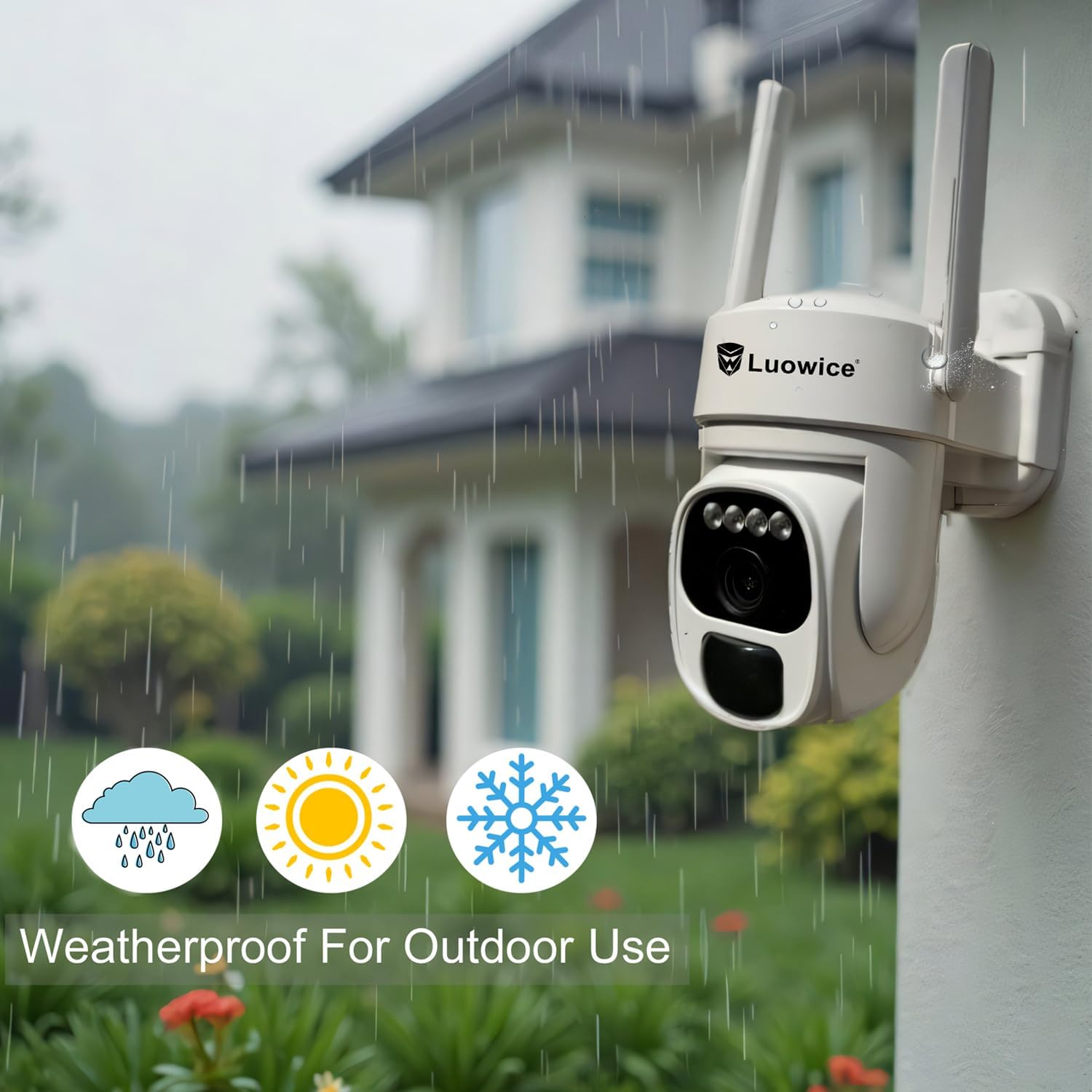
Image 5.1: The camera's weatherproof design for outdoor use.
NAN. Depanaj
- Kamera a pa konekte ak Wi-Fi a: Ensure your Wi-Fi is 2.4 GHz. Check Wi-Fi signal strength at the camera's location. Restart your router and the camera.
- Batri pa chaje: Verify the solar panel is clean and receiving direct sunlight. Check the USB charging cable connection. Ensure the ambient temperature is within the operating range for charging.
- Move kalite videyo: Clean the camera lens. Ensure adequate lighting. Check your internet connection speed.
- Alèt fo mouvman: Adjust motion detection sensitivity in the app. Define specific detection zones to exclude irrelevant areas.
- Pan/Tilt not responding: Check app connectivity. Ensure there are no physical obstructions. Restart the camera.
7. Espesifikasyon
| Karakteristik | Spesifikasyon |
|---|---|
| Rezolisyon Capture Videyo | 3 MP |
| Sous pouvwa | Alimante pa Solè (Panèl Solè 3W) |
| Pwotokòl Koneksyon | Wi-Fi (XN GHz) |
| Pan / Panche Range | 355 ° orizontal, 90 ° vètikal |
| Vizyon lannwit | Color Night Vision with Floodlights |
| Opsyon Depo | Kat Micro SD (jiska 128GB), Depo nan nwaj la |
| Rating ki enpèmeyab | IP66 |
| Batri obligatwa | 1 batri ityòm Ion (enkli) |
| Pwa atik | 1.85 liv |
| Dimansyon | 7.87 x 6.18 x 5.55 pous (Pakè) |
| Aparèy konpatib | Smartphones, Tablets, Computers |
8. Garanti ak sipò
8.1 Enfòmasyon sou Garanti
Luowice products typically come with a manufacturer's warranty. Please refer to the product packaging or the official Luowice website for specific warranty terms and conditions. Optional extended protection plans may be available for purchase.
8.2 Sipò pou Kliyan
For technical assistance, troubleshooting, or warranty claims, please contact Luowice customer support through their official website or the contact information provided with your product. When contacting support, please have your product model (B0DF4TVZ7Z) and purchase details ready.