
1. Entwodiksyon
This manual provides essential information for the proper setup, operation, and maintenance of your FUNYET 2-in-1 Laptop Tablet. Please read this manual thoroughly before using the device to ensure optimal performance and longevity. Keep this manual for future reference.
2. Pwodwi souview
2.1 Kontni pake a
- FUNYET 2-in-1 Laptop Tablet
- Klavye detachable
- AC pouvwa adaptè
- Manyèl Itilizatè (dokiman sa a)
2.2 Layout Aparèy ak Pò
Familiarize yourself with the various ports and buttons on your device.

Imaj: Side view of the FUNYET 2-in-1 Laptop Tablet illustrating the location of the power button, volume control, two Type-C ports, and Micro HDMI port.
- Bouton pouvwa: Press and hold to power on/off or sleep/wake the device.
- Kontwòl Volim: Ajiste volim sistèm lan.
- Type-C (Full-featured): Sipòte transfè done, pwodiksyon videyo, ak livrezon pouvwa.
- Type-C (Charging and Data Transfer): Primarily for charging the device and data transfer.
- Mikwo HDMI: Connects to external displays.
2.3 Karakteristik kle
- Processeur: Intel 12th Gen Celeron N100 (up to 3.4 GHz, 4 cores, 4 threads).
- memwa: 16GB DDR5 RAM pou fè plizyè bagay an menm tan avèk efikasite.
- Depo: 512GB SSD for fast boot times and ample depo.
- Ekspozisyon: 14-inch 1920 x 1200 IPS Touchscreen.
- Koneksyon: Wi-Fi 6 (802.11ax) and Bluetooth 5.2.
- Kamera: 2MP Front Camera and 5MP Rear Camera.
- Klavye: Detachable, backlit keyboard.
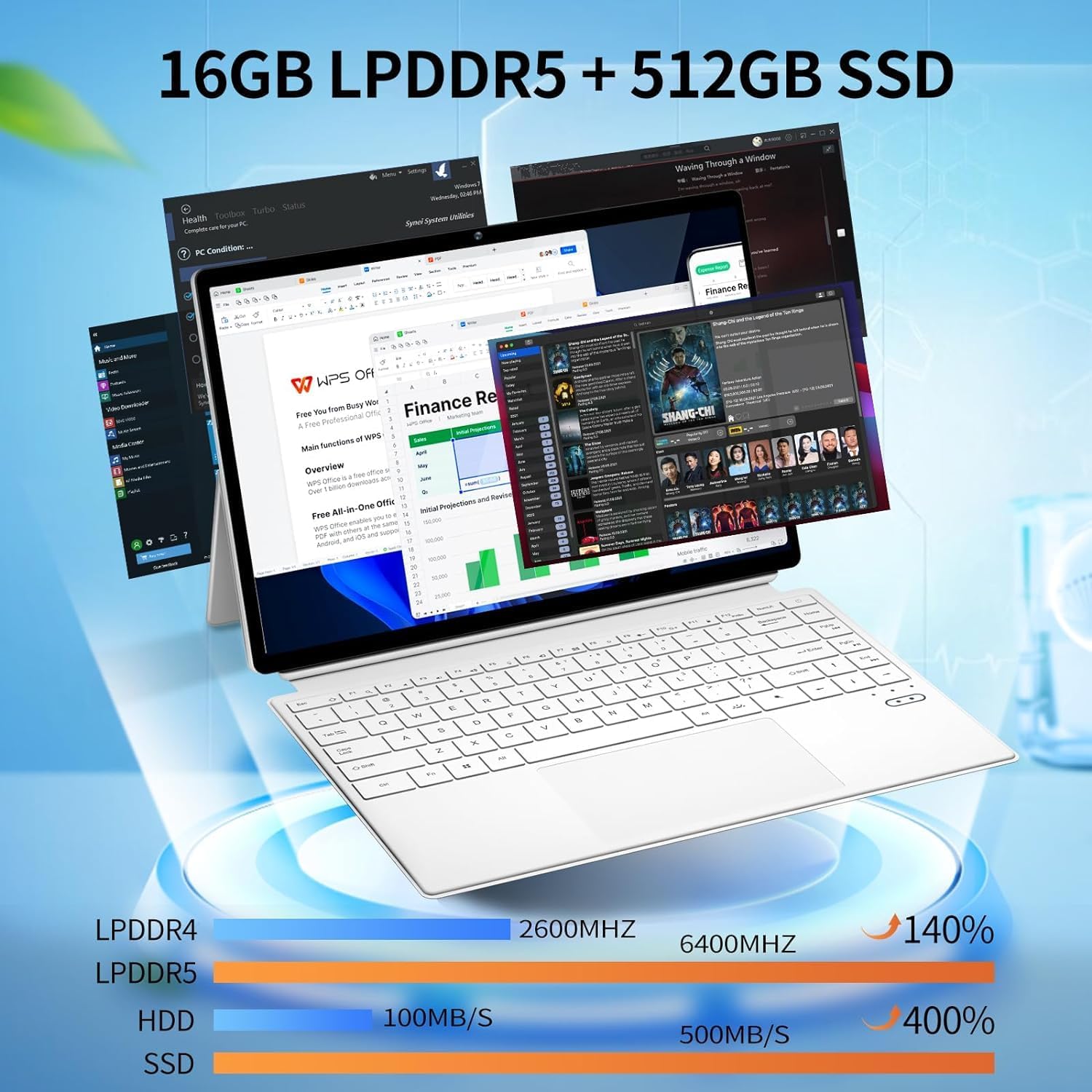
Imaj: The device displaying multiple open applications, illustrating its multitasking capabilities with 16GB LPDDR5 RAM and 512GB SSD.
3. Enstalasyon
3.1 Premye chaj
Before first use, connect the AC power adapter to the device's charging Type-C port and a power outlet. Charge the device until the battery is full. The battery indicator will show charging status.
3.2 Attaching and Detaching the Keyboard
The keyboard connects magnetically to the tablet. Align the magnetic connectors on the tablet and keyboard until they snap into place. To detach, gently pull the tablet away from the keyboard.
3.3 Adjusting the Kickstand
The integrated kickstand allows for various viewing angles. Extend the kickstand from the back of the tablet and adjust it to your desired position. Ensure the kickstand is fully extended and stable to prevent the device from tipping.

Imaj: Visual guide demonstrating the correct method for deploying the device's kickstand for stable use, alongside examples of incorrect positioning.
3.4 Premye Demaraj ak Enstalasyon Windows
Press and hold the Power Button until the screen turns on. Follow the on-screen instructions to complete the Windows 11 Pro setup, including language selection, network connection, and user account creation.
4. Operasyon Enstriksyon
4.1 Mòd pou limen/etenn ak dòmi
- Pouvwa sou: Press and hold the Power Button for a few seconds.
- Pouvwa Off: From Windows, go to Start > Power > Shut down. Alternatively, press and hold the Power Button, then select 'Shut down' from the options.
- Mòd dòmi: Briefly press the Power Button to enter or exit sleep mode.
4.2 Sèvi ak Touchscreen la
The 14-inch display supports multi-touch gestures. Use your fingers to navigate, tap, swipe, pinch-to-zoom, and interact with applications.
4.3 Itilizasyon klavye a ak touchpad la
When the keyboard is attached, it functions as a standard laptop keyboard. The integrated touchpad supports multi-touch gestures for navigation. The keyboard features backlighting for use in low-light conditions.

Imaj: Yon fèmen view of the detachable backlit keyboard, showing the key layout and touchpad.
4.4 Konekte periferik
- Aparèy USB-C: Connect compatible USB-C devices to the Type-C ports for data transfer or external display output (if full-featured).
- Ekspozisyon ekstèn: Use the Micro HDMI port to connect to an external monitor or TV. An appropriate adapter may be required.
4.5 Koneksyon san fil
- Wi-Fi: Access network settings in Windows to connect to available Wi-Fi 6 networks.
- Bluetooth: Pair Bluetooth devices such as headphones, mice, or keyboards through Windows Bluetooth settings.

Imaj: The device in use, highlighting its wireless capabilities (Wi-Fi 6, Bluetooth 5.2) and integrated cameras (2MP front, 5MP rear).
4.6 Itilizasyon Kamera
The device includes a 2MP front camera and a 5MP rear camera. Use the built-in Camera application in Windows to take photos, record videos, or participate in video calls.
5. Antretyen
5.1 Netwayaj
Sèvi ak yon twal mou ki pa gen pousyè pou netwaye ekran an ak sifas ekstèn yo. Pou mak ki difisil pou retire,ampSiye twal la yon ti kras avèk dlo oswa yon pwodui netwayaj ki an sekirite pou ekran. Evite pwodui chimik ki agresif oswa materyèl abrazif.
5.2 Swen Batri
Pou pwolonje lavi batri:
- Evite tanperati ekstrèm.
- Pa dechaje batri a nèt souvan.
- If storing the device for an extended period, charge it to about 50-70%.

Imaj: An illustration of the 38Wh battery capacity and estimated usage times: 10 hours for daily use, 6-8 hours for video playback (Wi-Fi off), and 4 hours for video playback (Wi-Fi on).
5.3 Mizajou lojisyèl
Regularly check for and install Windows updates to ensure system stability, security, and access to the latest features. Go to Start > Settings > Windows Update.
5.4 Jesyon Depo
Tanzantan review and manage your storage space. Delete unnecessary files, dezenstale aplikasyon ou pa itilize yo, epi konsidere depo nan nwaj la pou gwo files pou kenbe pèfòmans optimal.
NAN. Depanaj
- Aparèy la pa limen: Ensure the device is charged. Connect the AC adapter and try again. If unresponsive, press and hold the power button for 15-20 seconds to perform a hard reset.
- Klavye a pa reponn: Ensure the keyboard is securely attached. Check if the keyboard's power is on (if it has a separate power switch or indicator). Re-attach the keyboard.
- Pwoblèm koneksyon Wi-Fi: Check if Wi-Fi is enabled in Windows settings. Restart your router and the device. Ensure you are within range of a Wi-Fi network.
- Pèfòmans ralanti: Close unnecessary applications. Check for background processes consuming resources. Ensure sufficient free storage space. Run a system scan for malware.
- Screen not rotating: Ensure auto-rotation is enabled in Windows settings (Action Center).
7. Espesifikasyon
| Karakteristik | Spesifikasyon |
|---|---|
| Non modèl | FUNYET-2-IN-1-LAPTOP-TABLET-1 |
| Processeur | Intel Celeron N100 (12th Gen) |
| RAM | 16 GB DDR5 |
| Depo | 512 GB SSD |
| Gwosè ekran | 14 pous |
| Rezolisyon ekran | 1920 x 1200 piksèl |
| Sistèm operasyon | Windows 11 Pro |
| Kalite san fil | 802.11ax (Wi-Fi 6) |
| Bluetooth | Bluetooth 5.2 |
| Kamera devan | 2 MP |
| Kamera dèyè | 5 MP |
| Pwa atik | 5.37 liv |
| Dimansyon pwodwi | 12.5 x 8.4 x 0.4 pous |
| Koulè | Blan |
8. Garanti ak sipò
FUNYET offers a Echanj gratis pou 30 jou ak yon 1-ane reparasyon gratis service for all its products. For any questions or assistance regarding your FUNYET 2-in-1 Laptop Tablet, please contact FUNYET support. We aim to respond within 24 hours.
For support, please visit the official FUNYET store or contact customer service through your purchase platform.