
1. Entwodiksyon
This manual provides essential information for setting up, operating, maintaining, and troubleshooting your Maxtang MTN-6900HX Mini PC. Please read this manual thoroughly before using the product to ensure proper and safe operation.
The Maxtang MTN-6900HX is a high-performance mini PC equipped with an AMD Ryzen 9 6900HX processor, designed for a wide range of applications including office work, multimedia, and light gaming. Its compact design and robust features make it a versatile computing solution.
2. Pake kontni
Carefully unpack the box and ensure all items listed below are present and in good condition. If any items are missing or damaged, please contact your retailer.
- 1x Maxtang MTN-6900HX Mini PC
- 1x HDMI kab
- 1x pouvwa adaptè
- 1x pouvwa kòd
- 1x VESA Mount
- 4x Mounting Vis
- 1x Product Manual (this document)

Figure 2.1: Maxtang MTN-6900HX Mini PC and Included Accessories
3. Pwodwi souview
The Maxtang MTN-6900HX Mini PC features a comprehensive set of ports and internal components designed for high performance and connectivity.
3.1 Panno devan ak dèyè
Familiarize yourself with the input/output ports on your Mini PC:
- Panèl devan: Power Button, USB 3.2 Gen2 ports, USB 2.0 port, Audio Jack.
- Dèyè Panel: 2x USB-C (USB4) ports, 2x USB 3.2 Gen2 ports, 1x 2.5GbE LAN port, 1x HDMI port, 1x DisplayPort (DP), DC-in power port.

Figure 3.1: Front and Rear Panel Ports
3.2 Konpozan Entèn yo
The Mini PC supports upgrades for memory and storage:
- memwa: Dual channel SO-DIMM DDR5 memory slots, supporting up to 64GB.
- Depo: Two PCIe Gen4 2280 M.2 slots for NVMe SSDs, supporting up to 4TB each, for a total of up to 8TB.
- San fil: One M.2 slot for Wi-Fi and Bluetooth modules.

Figure 3.2: Internal Memory and Storage Expansion
4. Enstalasyon
Follow these steps to set up your Maxtang MTN-6900HX Mini PC.
4.1 Koneksyon Inisyal
- Konekte Ekspozisyon: Connect your monitor to the Mini PC using an HDMI, DisplayPort, or USB4 cable. The Mini PC supports up to three displays simultaneously.
- Konekte periferik: Plug in your keyboard, mouse, and other USB devices into the available USB ports.
- Konekte Rezo a (Si ou vle): For a wired connection, connect an Ethernet cable from your router or modem to the 2.5GbE LAN port on the Mini PC. For wireless, ensure the Wi-Fi antenna (if external) is connected or the internal module is installed.
- Konekte pouvwa: Connect the power adapter to the DC-in port on the Mini PC, then plug the power cord into an electrical outlet.
4.2 Enstalasyon Mòn VESA
Sipò VESA ki enkli a pèmèt ou tache Mini PC a nan do yon monitè konpatib oswa sou yon miray, sa ki ekonomize espas sou biwo a.
- Attach the VESA bracket to the back of your monitor or desired surface using the provided mounting screws. Ensure it is securely fastened.
- Slide the Mini PC onto the VESA bracket until it clicks into place.
5. Operasyon Enstriksyon
5.1 Limen/Etenyen
- Pouvwa sou: Press the power button located on the front panel. The power indicator light will illuminate.
- Pouvwa Off: From the Windows 11 Pro operating system, click the Start button, then Power > Shut down. Alternatively, you can press and hold the power button for 4-6 seconds to force a shutdown (use only when necessary).
5.2 Sistèm operasyon
Your Maxtang MTN-6900HX Mini PC comes pre-installed with Windows 11 Pro (64-bit). Follow the on-screen instructions for initial setup, including language, region, and user account creation.
5.3 Konfigirasyon Plizyè Ekran
The Mini PC supports up to three independent displays via HDMI, DisplayPort, and USB4. Connect your monitors to the respective ports. Windows 11 Pro will automatically detect the displays. You can configure display settings (resolution, orientation, extension/duplication) through the Display Settings in Windows.
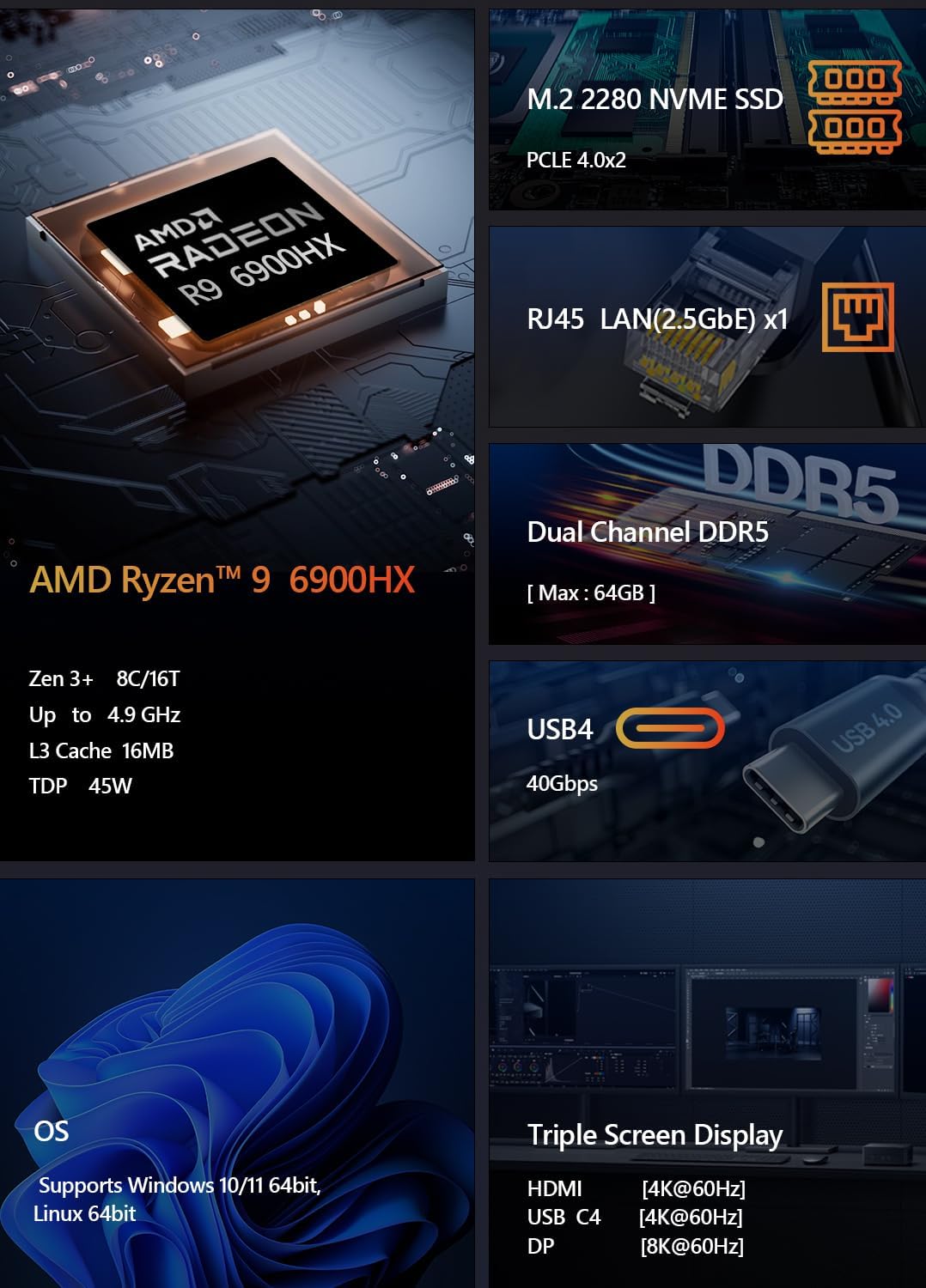
Figure 5.1: Triple Screen Display Setup
5.4 Fonksyonalite USB4
The USB4 ports offer versatile connectivity, supporting:
- Power Delivery (PD 3.0): Up to 100W power input.
- Transfè Done: Up to 40Gbps, compatible with Thunderbolt 3.
- Sòti videyo: Up to 8K resolution via DisplayPort 1.4 Alt Mode.

Figure 5.2: USB4 All-in-One Connection
5.5 Koneksyon Rezo
- Filè LAN: Connect an Ethernet cable to the 2.5GbE LAN port for high-speed wired internet access.
- Wi-Fi: The Mini PC supports Wi-Fi 6 for fast and stable wireless connectivity. Configure Wi-Fi settings through Windows Network & Internet settings.
- Bluetooth: Integrated Bluetooth 5.2 allows you to connect wireless peripherals such as keyboards, mice, and headphones.

Figure 5.3: LAN, Wi-Fi, and Bluetooth Connectivity
6. Antretyen
Bon antretyen asire lonjevite ak pèfòmans optimal Mini PC ou a.
6.1 Netwayaj
- Netwaye deyò Mini PC a regilyèman avèk yon twal mou epi sèk.
- Use compressed air to clear dust from ventilation openings and ports to prevent overheating. Ensure the PC is powered off and unplugged before cleaning.
6.2 Amelyorasyon Konpozan
The Maxtang MTN-6900HX is designed for easy upgrades:
- memwa: You can upgrade the DDR5 SO-DIMM memory up to a maximum of 64GB by replacing or adding modules in the two available slots.
- Depo: The two M.2 2280 NVMe SSD slots allow for storage expansion up to 8TB (2x 4TB).
Nòt: Always power off and unplug the Mini PC before opening the chassis for upgrades. Refer to online resources or professional assistance if you are unsure about the upgrade process.
NAN. Depanaj
If you encounter issues with your Mini PC, refer to the following common troubleshooting steps.
7.1 Pa gen pouvwa
- Ensure the power adapter is securely connected to both the Mini PC and a working electrical outlet.
- Verifye si priz kouran an fonksyone byen lè w branche yon lòt aparèy.
- Tcheke adaptè kouran an pou wè si li pa gen okenn domaj vizib.
7.2 Pa gen okenn pwodiksyon ekspozisyon
- Confirm that the display cable (HDMI, DP, or USB4) is securely connected to both the Mini PC and the monitor.
- Asire w ke monitè a limen epi li configuré sou sous antre ki kòrèk la.
- Eseye yon lòt kab ekran oswa monitè si ou genyen.
7.3 Pwoblèm koneksyon rezo
- Branche: Check if the Ethernet cable is properly connected and if the router/modem is working.
- San fil: Ensure Wi-Fi is enabled in Windows settings and you are connected to the correct network with the correct password. Restart your router/modem.
7.4 Pwoblèm Pèfòmans Sistèm
- Fèmen aplikasyon ki pa nesesè k ap fonksyone nan background nan.
- Asire w ke Windows ak chofè yo ajou.
- Tcheke si gen ase espas depo lib sou SSD ou a.
- Kontwole tanperati sistèm lan pou asire yon bon refwadisman.
8. Espesifikasyon
Detailed technical specifications for the Maxtang MTN-6900HX Mini PC:
| Eleman | Spesifikasyon |
|---|---|
| Nimewo Modèl | MTN-6900HX |
| Processeur | AMD Ryzen 9 6900HX (8 Cores/16 Threads, up to 4.9GHz) |
| Grafik | AMD Radeon 680M (Entegre) |
| Sistèm operasyon | Windows 11 Pro (64-bit) |
| memwa | Dual Channel DDR5 SO-DIMM, up to 64GB (2x slots) |
| Depo | 2x M.2 2280 NVMe PCIe Gen4 SSD slots (up to 4TB each) |
| Pò I/O | 2x USB-C (USB4), 4x USB 3.2 Gen2, 1x USB 2.0, 1x HDMI, 1x DisplayPort, 1x 2.5GbE LAN, Audio Jack |
| Koneksyon san fil | Wi-Fi 6, Bluetooth 5.2 |
| Antre pouvwa | 19V/20V DC-in |
| Metòd refwadisman | Refwadisman lè |
| Dimansyon | 127 mm x 135 mm x 55 mm (approximate) |

Figure 8.1: AMD Ryzen 9 6900HX Processor Details

Figure 8.2: AMD Radeon 680M Graphics Details
9. Garanti ak sipò
9.1 Pwodwi Garanti
The Maxtang MTN-6900HX Mini PC comes with a Garanti pwodwi 12 mwa apati dat acha a. Garanti sa a kouvri domaj fabrikasyon epi li asire pwodwi a satisfè pèfòmans espesifye li yo. Tanpri konsève prèv acha ou pou reklamasyon garanti.
9.2 Sèvis Kliyan
For technical support, warranty inquiries, or any questions regarding your Maxtang Mini PC, please contact our customer service team. Refer to the contact information provided with your purchase or visit the official Maxtang websit pou resous sipò.
Enfòmasyon pou kontakte manifakti: 6/F, Bldg 3, Honghui Industrial Park, Liuxian 2nd Road, Bao'an Dist, Shenzhen, China 518101