
1. Entwodiksyon
The MERCUSYS MA530 is a compact Bluetooth 5.3 Nano Adapter designed to provide wireless connectivity for your PC or laptop. This adapter enables communication with various Bluetooth-enabled devices such as headphones, speakers, keyboards, mice, and more. Featuring Bluetooth 5.3 technology, it offers improved speed, coverage, security, and reliability compared to previous Bluetooth versions. Its ultra-small size ensures convenient portability and discreet integration into your device.

Image 1.1: The MERCUSYS MA530 Bluetooth 5.3 Nano Adapter. This image shows the compact design of the adapter, highlighting its small form factor suitable for discreet use with laptops or desktop computers.
2. Enstriksyon Enstalasyon
Follow these steps to set up your MERCUSYS MA530 Bluetooth Nano Adapter:
- Mete adaptè a: Plug the MA530 adapter into an available USB port on your PC or laptop.
- Enstalasyon Chofè (Windows 11/10/8.1): For most Windows 11, Windows 10, and Windows 8.1 systems, the adapter is plug-and-play. The operating system should automatically detect the device and install the necessary drivers. Wait for a notification indicating that the device is ready for use.
- Enstalasyon Chofè (Windows 7): For Windows 7, manual driver installation may be required.
- If the adapter is not automatically recognized, visit the official MERCUSYS support websit.
- Navigate to the support page for the MA530 model.
- Download the appropriate driver package for Windows 7 (e.g., "Win_7_Win8.1- Modifications and Bug Fixes").
- Ekstrè postal la telechaje file and run the setup application.
- Swiv enstriksyon ki sou ekran an pou konplete enstalasyon chofè a.
- Rekòmanse òdinatè w la apre enstalasyon an si yo mande w.
- Verifye enstalasyon: After installation, check your computer's Device Manager to ensure the Bluetooth adapter is listed and functioning correctly.

Image 2.1: The MERCUSYS MA530 adapter shown next to a laptop, illustrating its nano-size and how it discreetly fits into a USB port. This image emphasizes the adapter's portability and minimal protrusion when connected.
3. Operasyon Enstriksyon
Once the MA530 adapter is installed, you can connect your Bluetooth devices:
- Pèmèt Bluetooth: Ensure Bluetooth is enabled on your computer. You can usually find this option in your operating system's settings (e.g., Windows Settings > Devices > Bluetooth & other devices).
- Mete aparèy la nan mòd koneksyon: Place your Bluetooth device (headphones, speaker, mouse, etc.) into pairing mode. Refer to your device's manual for specific instructions on how to do this.
- Ajoute yon aparèy Bluetooth: On your computer, go to Bluetooth settings and click "Add Bluetooth or other device." Select "Bluetooth" from the options.
- Chwazi epi konekte: Your computer will scan for nearby Bluetooth devices. Select your device from the list and follow any on-screen prompts to complete the pairing process. You may need to enter a PIN if required by your device.
- Using Connected Devices: Once paired, your Bluetooth device should connect automatically when in range and Bluetooth is enabled on both ends.
The MA530 supports stable connections for multiple devices simultaneously, offering a reliable wireless experience with extended range.
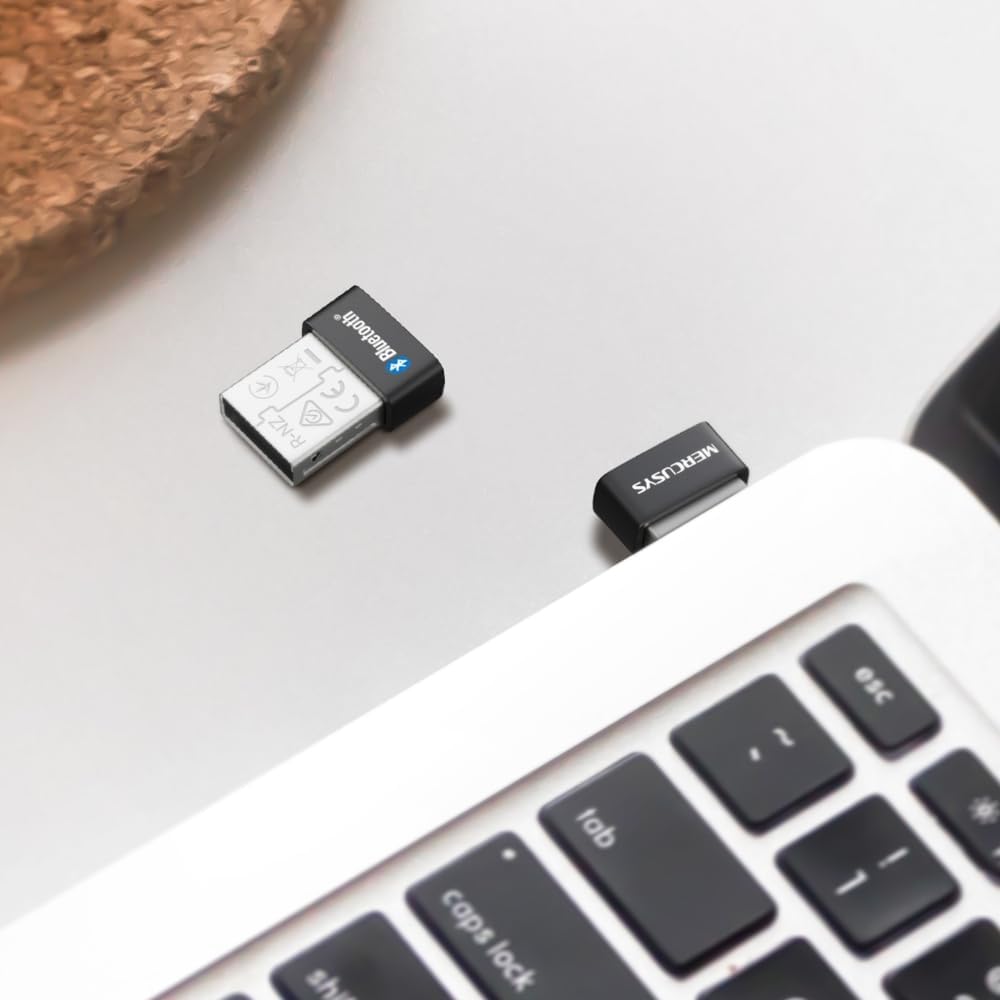
Image 3.1: The MERCUSYS MA530 adapter plugged into a laptop, with a visual representation of a Bluetooth signal emanating from it. This illustrates the active wireless connectivity provided by the adapter.
4. Antretyen
The MERCUSYS MA530 adapter requires minimal maintenance. To ensure optimal performance and longevity:
- Kenbe adaptè a pwòp epi san pousyè. Sèvi ak yon twal mou epi sèk pou siye li si sa nesesè.
- Evite ekspoze adaptè a nan tanperati ekstrèm, imidite, oswa limyè solèy dirèk.
- Pa eseye demonte oswa repare adaptè a tèt ou, paske sa ap anile garanti a.
- When not in use for extended periods, you may remove the adapter from the USB port, though its nano-size allows it to remain plugged in discreetly.
NAN. Depanaj
If you encounter issues with your MERCUSYS MA530 adapter, consider the following troubleshooting steps:
- Adaptè pa detekte:
- Eseye branche adaptè a nan yon lòt pò USB.
- Ensure the USB port is functional.
- Rekòmanse òdinatè w lan.
- Check Device Manager for any unknown devices or errors related to USB controllers.
- Bluetooth Not Functioning (Windows 11/10/8.1):
- Verify that Bluetooth is enabled in your Windows settings.
- Go to Device Manager, locate the Bluetooth adapter, right-click, and select "Update driver." If issues persist, try "Uninstall device" and then restart your computer to allow Windows to reinstall the driver.
- Bluetooth Not Functioning (Windows 7):
- Ensure you have installed the correct Windows 7 driver from the MERCUSYS support website as described in the Setup section.
- If the driver was installed, try reinstalling it.
- Cannot Pair/Connect Devices:
- Asire w aparèy Bluetooth ou a nan mòd koneksyon.
- Make sure the device is within range of the adapter.
- Remove any previously paired instances of the device from your computer's Bluetooth settings and attempt to pair again.
- Try pairing the device with another Bluetooth-enabled computer or phone to confirm the device itself is working.
- Poor Connection/Range:
- Ensure there are no physical obstructions (e.g., metal objects, thick walls) between the adapter and your Bluetooth device.
- Move the adapter to a different USB port, preferably one with a clear line of sight to your device.
- Minimize interference from other wireless devices (Wi-Fi routers, cordless phones, microwaves).
If these steps do not resolve the issue, please contact MERCUSYS Technical Support for further assistance.
6. Espesifikasyon
| Karakteristik | Detay |
|---|---|
| Modèl | MA530 |
| Bluetooth vèsyon | Bluetooth 5.3 (BLE Technology) |
| Entèfas Materyèl | USB 2.0 |
| Pwotokòl Done Link | Bluetooth, USB |
| Pousantaj Transfè Done | 2480 MHz |
| Sistèm operasyon konpatib | Windows 11, Windows 10, Windows 8.1, Windows 7 |
| Aparèy konpatib | Desktop, Laptop |
| Dimansyon (L x W x H) | 1.49 x 1.92 x 0.72 cm (0.59 x 0.76 x 0.28 pous) |
| Pwa | 2 gram |
| Manifakti | TP-Link |
7. Enfòmasyon sou Garanti
MERCUSYS products are typically covered by a limited warranty. The specific terms and duration of the warranty for your MA530 adapter may vary by region and retailer. Please retain your proof of purchase for warranty claims.
For detailed warranty information, including coverage, limitations, and the process for making a claim, please refer to the official MERCUSYS websit la oubyen kontakte sèvis kliyan yo dirèkteman.
8. Sipò teknik
If you require further assistance or have questions not covered in this manual, please contact MERCUSYS Technical Support:
- Websit: Visit the official MERCUSYS websit pou kesyon yo poze souvan (FAQ), telechaje chofè, ak resous sipò.
- Kontakte: Look for contact information (phone, email, live chat) on the MERCUSYS support page specific to your region.
When contacting support, please have your product model (MA530) and a description of your issue ready.