
Entwodiksyon
This manual provides detailed instructions for the installation, operation, and maintenance of your aigo AF12 3-in-1 ARGB Fan Kit. Please read this manual thoroughly before use to ensure proper functionality and longevity of the product.
Karakteristik pwodwi
The aigo AF12 3-in-1 ARGB Fan Kit offers efficient cooling and customizable lighting for your computer system. Key features include:
- Modèl: AF123IN1-BK
- Kantite fanatik: 3 x 120mm fans
- Vitès fanatik: 800-2000 RPM (±10%)
- Fan Noise Level: ≤30dBA
- Koule lè: 86.6 CFM
- Presyon estatik: 1.27mm-H²O
- Working Current (Motor): ≤0.2A (12V)
- Working Current (Light): ≤0.48A (5V)
- Dimansyon: 120 x 120 x 25 mm
- Ekleraj ARGB: Addressable RGB lighting for customizable effects.
Kontni pake
Verifye ke tout atik ki nan lis anba a yo prezan nan pakè ou a:
- 3 x aigo AF12 ARGB Fans
- Montaj Vis
- ARGB Controller (if included in kit)
- Cables (Power, ARGB Sync)
Gid enstalasyon
Follow these steps to properly install your aigo AF12 ARGB fans into your computer case.
- Prepare Sistèm ou an: Power off your computer and disconnect it from the power source. Open your computer case.
- Idantifye kote pou monte yo: Determine the desired locations for your fans (e.g., front, top, rear, bottom of the case). Ensure proper airflow direction.
- Monte fanatik yo: Position each fan in its chosen location. Use the provided mounting screws to secure the fans to the case. Ensure the fan blades are not obstructed.
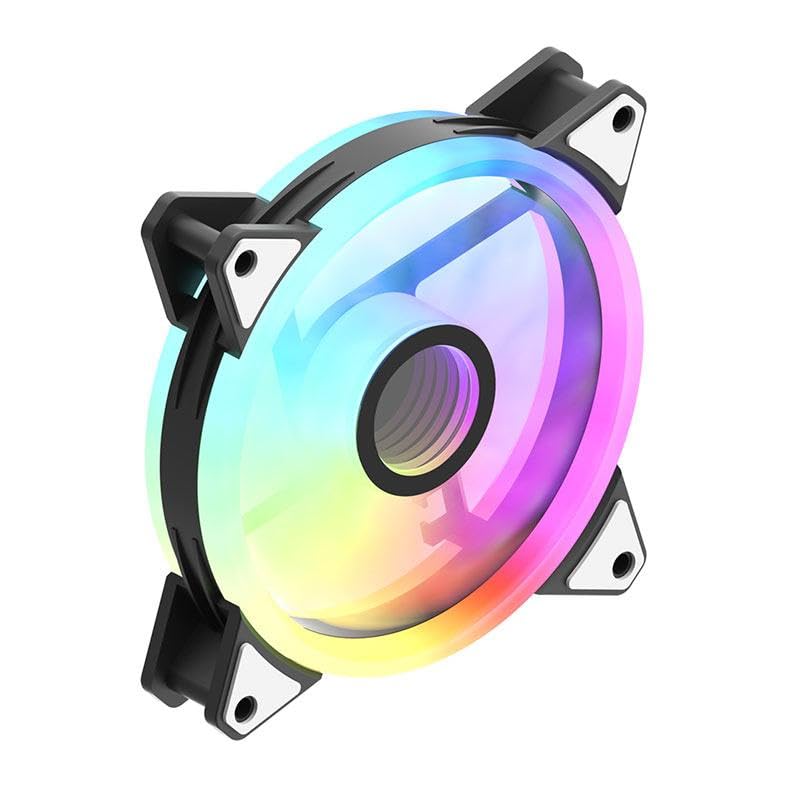
Image: An aigo AF12 fan viewed from an angle, highlighting the mounting points on its corners. This illustrates how the fan is secured.
- Konekte kab pouvwa yo: Connect the 3-pin power connector from each fan to an available fan header on your motherboard or fan controller.
- Konekte kab ARGB yo: Connect the ARGB cable from each fan to the ARGB controller (if applicable) or directly to a compatible 5V 3-pin ARGB header on your motherboard. Ensure correct pin orientation to avoid damage.
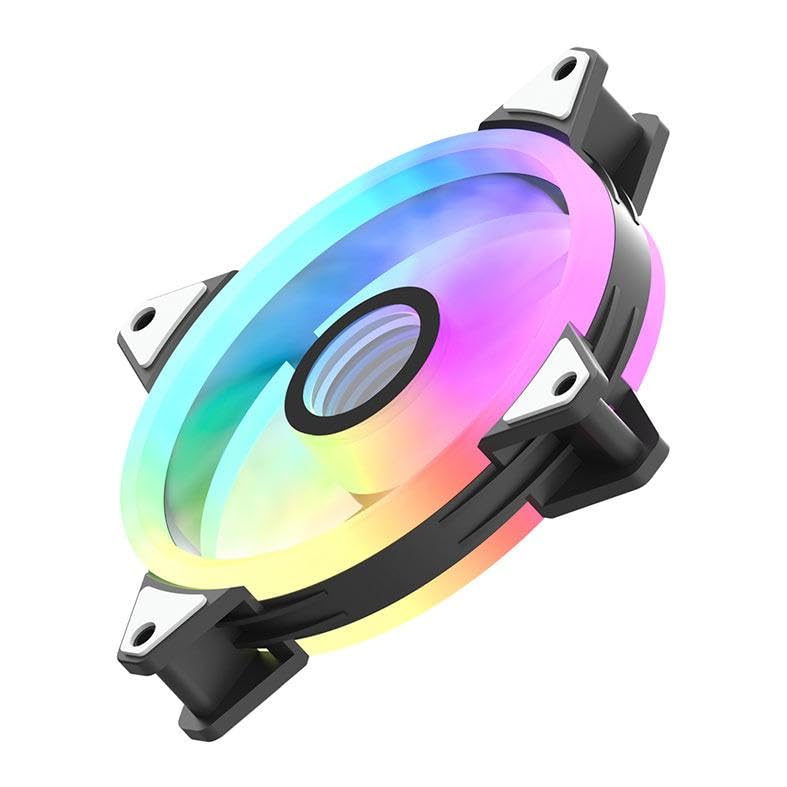
Imaj: Yon pwofesyonèl bò kotefile of the aigo AF12 fan, illustrating the thickness and potential locations for cable connections on the frame.
- Jesyon kab: Route cables neatly to prevent interference with other components and to improve airflow.
- Fèmen bwat la epi limen l: Close your computer case, reconnect the power, and power on your system.
Enstriksyon Operasyon
Once installed, your aigo AF12 ARGB fans will operate automatically based on your system's fan control settings. The ARGB lighting can be controlled via your motherboard's software or a dedicated ARGB controller.
Kontwòl vitès fanatik
Fan speed can typically be adjusted through your motherboard's BIOS/UEFI settings or through fan control software provided by your motherboard manufacturer. Refer to your motherboard manual for specific instructions.
Kontwòl ekleraj ARGB
If connected to a 5V 3-pin ARGB header on your motherboard, use your motherboard's ARGB synchronization software (e.g., ASUS Aura Sync, MSI Mystic Light Sync, GIGABYTE RGB Fusion, ASRock Polychrome Sync) to customize lighting effects, colors, and patterns.
If using a dedicated ARGB controller (often included with fan kits), refer to the controller's specific instructions for lighting adjustments.
Antretyen
Regular maintenance ensures optimal performance and extends the lifespan of your fans.
- Netwayaj pousyè: Periodically clean dust from the fan blades and housing using compressed air or a soft brush. Ensure the system is powered off before cleaning.
- Tcheke kab: Verify that all cables are securely connected and free from damage.
- Siveyans Bri: Listen for unusual noises, which may indicate a fan bearing issue or obstruction.
Depanaj
If you encounter issues with your aigo AF12 ARGB fans, refer to the following common solutions:
Fanatik yo pa vire
- Tcheke Koneksyon Pouvwa: Ensure the fan's 3-pin power connector is securely plugged into the motherboard or controller.
- Tcheke paramèt BIOS yo: Verify that fan headers are enabled in your motherboard's BIOS/UEFI settings.
- Test Another Header: Try connecting the fan to a different fan header to rule out a faulty header.
ARGB Lights Not Working
- Check ARGB Connection: Ensure the 5V 3-pin ARGB connector is correctly and securely plugged into the motherboard or controller. Verify the pin orientation.
- Check Software: Confirm that your motherboard's ARGB software is installed and configured correctly.
- Konpatibilite: Ensure your motherboard has a compatible 5V 3-pin ARGB header. This product is not compatible with 12V 4-pin RGB headers.
Twòp bri
- Tcheke pou obstak: Asire w pa gen okenn fil elektrik oswa lòt konpozan ki an kontak ak lam vantilatè yo.
- Mounting Vis: Verify that all mounting screws are tightened to prevent vibrations.
- Akimilasyon pousyè: Clean any dust from the fan blades.
Espesifikasyon teknik
| Karakteristik | Spesifikasyon |
|---|---|
| Mak | aigo |
| Modèl | AF123IN1-BK |
| Kantite fanatik | 3 x 120mm |
| Vitès fanatik | 800 ± 2000 ± 10% RPM |
| Fanatik bri | ≤ 30dBA |
| Airflow | 86.6 CFM |
| Presyon estatik | 1.27mm-H²O |
| Working Current (Motor) | ≤ 0.2A (12V) |
| Working Current (Light) | ≤ 0.48A (5V) |
| Dimansyon | 120 x 120 x 25 mm |
| Pouvwa Connector Kalite | 3-Pin |
| Voltage | 12 Volts |
| Metòd refwadisman | Air |
| Aparèy konpatib | Desktop |
| Pwa atik | 10.6 ons |
Garanti ak sipò
This aigo product comes with a 12-mwa garanti apati dat acha a, ki kouvri domaj fabrikasyon.
For technical support, warranty claims, or further assistance, please visit the official aigo store or contact their customer service through the details provided on their websit.
Official aigo Store: Magazen aigo sou Amazon