
1. Entwodiksyon
The APEX VR70 Pro FPV Drone Kit is designed for both beginners and experienced pilots, offering an immersive First-Person View (FPV) flight experience. This manual provides essential information for safe operation, setup, and maintenance of your drone kit. Please read it thoroughly before first use.
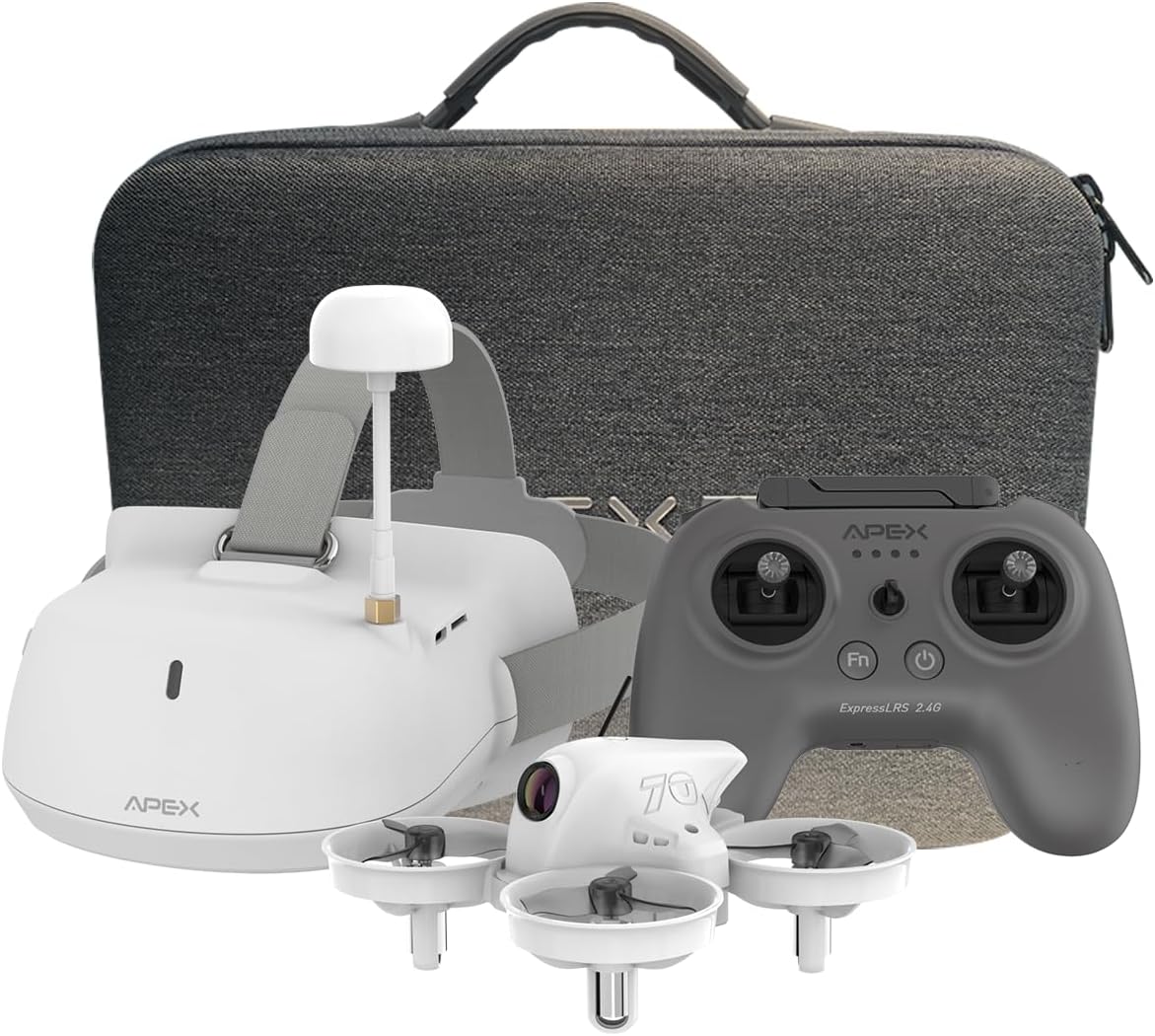
Image: The APEX VR70 Pro FPV Drone Kit, showcasing the drone, remote control, and FPV goggles.
2. Ki sa ki nan bwat la
Your APEX VR70 Pro FPV Drone Kit includes the following components:
- 1 x VR70 Pro Brushless Quadcopter
- 1 x ELRS Edition Remote Control
- 1 x FPV VR Goggles
- 2 x 3.75V 400mAh LiPo Batteries
- 1 x USB Charging Cable (Type C)
- 1 x 3.5mm Male-to-Male AUX Audio Cable
- 1 x Propeller Removal Tool
- 4 x 3-Blade Propellers (spare)
- 1 x ka chaje
- 1 x manyèl itilizatè
- 1 x pòtab pote sak

Image: All components of the APEX VR70 Pro FPV Drone Kit neatly arranged in the carrying case.
3. Pwodwi Features
- FPV VR70 Pro Kit: Designed for beginners and teenagers, offering stable hovering capabilities for safe and easy flight.
- High-Precision Barometer: Integrated for altitude detection and automatic hovering, ensuring high stability.
- Head Tracking Motion Control: FPV VR goggles allow control of drone direction by tilting the head, providing an immersive experience.
- Mòd tòti: Advanced technology to flip the drone back upright if it lands upside down.
- Enhanced Transmitter: Offers extended range, joystick calibration, and firmware updates. Supports FPV simulator practice.
- 5.8G Video Transmission: High-power, low-latency video transmission for stable real-time FPV.
- Multifunctional Drone: Features include image/video transmission, one-button takeoff/landing, headless mode, one-button return, altitude hold, 3 speeds, and 3 flight modes (Beginner, ATTI, Manual).
- Buzzer entegre: Helps locate the drone if connection is lost or it lands in tall grass.

Image: The APEX VR70 Pro drone hovering indoors, demonstrating its stable flight capabilities.
4. Gid Sekirite
Always prioritize safety when operating the APEX VR70 Pro FPV Drone Kit. Failure to follow these guidelines may result in injury, damage to property, or legal issues.
- Tcheke anvan vòl: Ensure all components are in good working order, batteries are charged, and propellers are securely attached.
- Konsyantizasyon anviwònman an: Vole nan zòn ouvè, lwen moun, bèt, bilding ak liy elektrik. Evite vole nan gwo van oswa move tan.
- Liy Vizyon: Maintain visual line of sight with the drone at all times, even when using FPV goggles.
- Sekirite batri: Use only approved chargers and batteries. Do not overcharge or puncture batteries.
- Respekte konfidansyalite: Be mindful of privacy laws and avoid flying over private property without permission.
- Rekòmandasyon laj: This product is recommended for teenagers and above. Adult supervision is advised for younger users.
5. Enstalasyon
5.1 Chaje batri yo
Ensure all batteries (drone, remote control, FPV goggles) are fully charged before use.
- Connect the USB charging cable to the charging case.
- Insert the drone batteries into the charging case. The indicator light will show charging status.
- Plug the USB charging cable into the remote control's charging port. The display light will indicate charging status.
- Plug the USB charging cable into the FPV VR goggles' charging port. The indicator light will show charging status.
Note: The display light on the remote control will be solid green when fully charged. The FPV VR goggles will show a red light during charging and turn off when fully charged.
5.2 Drone and Remote Control Pairing
- Connect the drone battery power cord into the drone interface. The LED lights on the drone will flash.
- Press and hold the power-on key on the remote control to turn it on.
- The drone and remote control will automatically pair. The drone's LED lights will stop flashing and remain solid when paired.
5.3 Drone Calibration
The drone must be calibrated on a horizontal plane to ensure stable flight. Otherwise, it may affect flight performance.
- Place the drone on a flat, horizontal surface.
- Simultaneously push both joysticks of the remote control to the lower right for calibration. The drone's lights will flash rapidly during calibration.
- Once calibration is complete, the drone's lights will become solid.
- If the drone's lights continue to flash, gently shake the drone several times to enter the calibrate state (LED lights flashing). Then, long press the calibrate key on the remote control to re-proofread.
5.4 FPV VR Goggles Setup
- Press and hold the power-on key on the FPV VR goggles to start them.
- Use the "+" and "-" keys to manually change the channel until you find the drone's video feed.
- Alternatively, long press the "-" key to automatically search for channels. Wait a moment for the calibration to complete.
Video: A comprehensive tutorial demonstrating unboxing, function of keys, charging procedures, flight operation, and FPV VR glasses tutorial for the APEX VR70 Pro FPV Drone Kit.
6. Operasyon Enstriksyon
6.1 Dekolaj ak Aterisaj
- After pairing and calibration, pull down both joysticks and press the FN key simultaneously. The drone will take off.
- To land, press the one-button landing key on the remote control.
6.2 Kontwòl vòl debaz yo
- Fly Upward/Downward: Use the left joystick to control altitude.
- Fly Left/Right: Use the right joystick to move the drone horizontally left or right.
- Vire agoch/dwat: Sèvi ak joystick gòch la pou vire dron an agoch oswa adwat.
6.3 Flight Modes and Speed
The drone offers 3 flight modes and 3 speed settings:
- Mòd debutan: For new pilots, offering maximum stability and ease of control.
- Mòd ATTI: Provides altitude hold but allows more manual control over horizontal movement.
- Mòd manyèl: For experienced pilots, offering full manual control without stabilization assistance.
Press the speed key on the remote control to cycle through the 3 available speeds.

Image: Illustration of the drone's 360-degree rotation capability.
6.4 Fonksyon espesyal
- Fonksyon baskile: Long press the speed key, then push the direction joystick down to perform a flip.
- Head Tracking Control: When wearing the FPV VR goggles, tilt your head to control the drone's direction.
- Mòd tòti: If the drone lands upside down, activate Turtle Mode via the transmitter to flip it back over.
- Buzzer entegre: If the drone loses connection, it will emit a beeping sound to assist in locating it.
6.5 Recording and Photography (FPV Goggles)
- In video recording mode, press the "OK" key to start recording. Press "OK" again to stop.
- Press and hold the "OK" key to switch to photo mode. Press "OK" to take a photo.
- Press the "M" key for 3 seconds to enter the photo album to view photos and videos. Use "+" and "-" keys to select. Press "OK" to confirm.
- Press the "M" key to return to the main menu.
Video: A dynamic demonstration of the APEX VR70 Pro FPV Drone in flight, showcasing its features like head tracking, turtle mode, and OSD interface upgrade.
7. Antretyen
- Netwayaj: Use a soft, dry cloth to clean the drone, remote control, and FPV goggles. Avoid using harsh chemicals.
- Enspeksyon elis: Regularly check propellers for damage. Replace any bent or broken propellers using the provided tool.
- Depo batri: Store batteries in a cool, dry place, partially charged (around 50%) if not used for extended periods.
- Mizajou mikrolojisyèl: Tcheke manifakti a websit la pou nenpòt mizajou firmwèr ki disponib pou yon pèfòmans optimal.

Image: Illustration emphasizing the drone's 360-degree protection against impacts.
NAN. Depanaj
- Dròn nan pa limen: Ensure the battery is fully charged and correctly connected to the drone.
- Kontwòl remote la pa konekte: Ensure both the drone and remote control are powered on and within range. Re-attempt the pairing process.
- Vòl enstab: Perform a drone calibration on a flat surface. Check for damaged propellers and replace if necessary.
- No FPV video feed: Ensure FPV VR goggles are powered on and correctly tuned to the drone's channel (manual or auto-search).
- Drone lands upside down: Activate Turtle Mode via the remote control to flip the drone.
- Lost drone: Listen for the built-in buzzer if the drone loses connection.
9. Espesifikasyon
| Karakteristik | Spesifikasyon |
|---|---|
| Mak | Apex |
| Non modèl | VR70 Pro |
| Ranje laj (Deskripsyon) | Adolesan |
| Koulè | BIANCO (Blan) |
| Rezolisyon Capture Videyo | 720p |
| Koneksyon Teknoloji | Wi-Fi, Radio Frequency (Remote Control), 5.8G (Wireless Communication) |
| Nivo konpetans | debutan |
| Max Battery Power | 400 Miliamper-hour (mAh) |
| Fòma Capture Videyo | MP4 |
| Kalite kontwòl | Kontwòl jès |
| Konpozisyon selil batri | Lityòm Polymère |
| Fòma Imaj Sipòte | JPEG |
| Rezolisyon Sòti Videyo | 720p |
| Teknoloji detèktè optik | CMOS |
| Kalite Medya | Mikwo SD |
| Materyèl | ABS |
| Pwa atik | 1400 gram |
| Dimansyon atik (L x W x H) | 8L x 8l x 5H cm |
10. Garanti ak sipò
The APEX VR70 Pro FPV Drone Kit is designed for durability and performance. For any product issues, please contact our customer support team immediately. We are committed to resolving any problems you may encounter.
Please refer to your purchase documentation for specific warranty terms and conditions. Keep your proof of purchase for warranty claims.