
Ourlife Ourlife WiFi Extender 300Mbps
OurlManyèl Itilizatè Ekstendè WiFi ife 300Mbps
Modèl: Ourlife WiFi Extender 300Mbps (ASIN: B0D7HB4DBC)
Entwodiksyon
Thank you for choosing the Ourlife WiFi Extender. This device is designed to expand your existing Wi-Fi network coverage, eliminate dead spots, and provide a stable, high-speed internet connection throughout your home or office. With a data transfer rate of up to 300Mbps on the 2.4GHz band, it is ideal for streaming, online gaming, and general internet use. This manual provides detailed instructions for setup, operation, and troubleshooting.
Enfòmasyon sou Sekirite
- Pa ekspoze aparèy la ak dlo oswa imidite.
- Pa eseye demonte oswa repare aparèy la tèt ou.
- Sèvi sèlman ak adaptè kouran manifakti a bay oswa rekòmande.
- Kenbe aparèy la lwen sous chalè ak limyè solèy la dirèk.
- Asire bon vantilasyon alantou aparèy la pou anpeche surchof.
Kontni pake
Tanpri verifye sa ki nan pake a ak anpil atansyon. Si gen nenpòt atik ki manke oswa ki domaje, kontakte machann ou an.
- Ourlife WiFi Extender (repeater body)
- Manyèl itilizatè
Pwodwi souview
Ourlife WiFi Extender features a compact design with four high-gain external antennas for enhanced signal penetration and coverage. It includes an Ethernet port for wired connections.
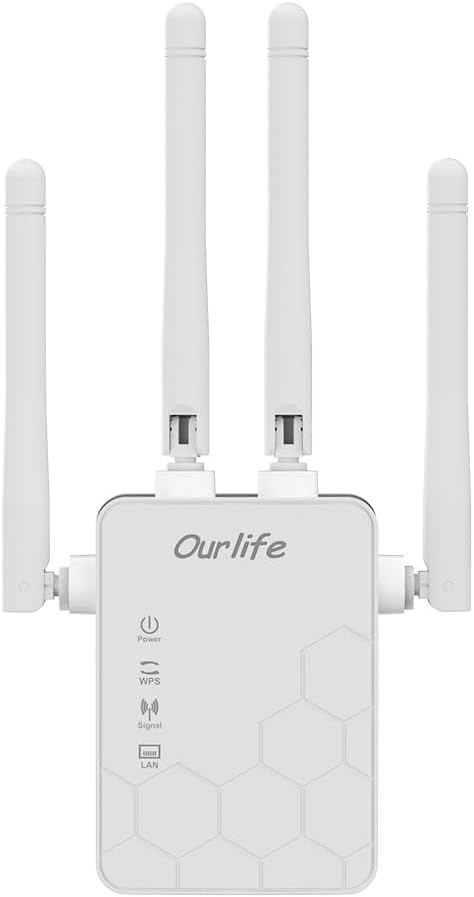
Imaj: Devan view of the Ourlife WiFi Extender, showing the Ourlife logo, power indicator, WPS button, signal strength indicator, and LAN port indicator. Four external antennas are visible.
Konpozan kle:
- Endikatè pouvwa: Limen lè aparèy la limen.
- WPS bouton: Used for quick, one-button setup with compatible routers.
- Endikatè siyal: Shows the strength of the Wi-Fi signal received from the main router.
- Pò LAN: An Ethernet port for connecting wired devices or for setting up the extender in Access Point (AP) mode.
- Antèn ekstèn: Four adjustable antennas to optimize signal reception and transmission.

Imaj: Bò kote view of the Ourlife WiFi Extender with dimensions. The device measures approximately 17.2cm/6.8in in height, 5.4cm/2.1in in width, and 3.3cm/1.3in in depth.
Enstalasyon
Ourlife WiFi Extender offers two primary setup methods: WPS (Wi-Fi Protected Setup) for quick connection, and manual setup via a web navigatè.
Method 1: WPS Setup (Recommended for quick setup)
- Pouvwa sou: Plug the Ourlife WiFi Extender into an electrical outlet near your main Wi-Fi router. Wait for the Power indicator to light up.
- Peze WPS sou Extender a: Press the WPS button on the Ourlife WiFi Extender. The WPS indicator light will start blinking.
- Peze WPS sou routeur la: Within 2 minutes, press the WPS button on your main Wi-Fi router.
- Tann Koneksyon an: The WPS indicator on the extender will stop blinking and remain solid when the connection is established. The Signal indicator will also light up, indicating a successful connection.
- Deplase ekstansyon: Once connected, unplug the extender and move it to a location halfway between your router and the Wi-Fi dead zone. Ensure the Signal indicator shows a strong signal (usually green or multiple bars) for optimal performance.

Image: Visual representation of the four simple setup steps: 1. Unbox, 2. Plug it in, 3. Press the button (WPS), 4. And Pair (with router).
Method 2: Manual Setup via Web Navigatè
- Pouvwa sou: Plug the Ourlife WiFi Extender into an electrical outlet near your computer or mobile device.
- Konekte ak Wi-Fi Extender a: On your computer or mobile device, connect to the Wi-Fi network named "Ourlife_Extender" (or similar, check the label on the device). No password is required for the initial connection.
- Louvri Web Navigatè: Louvri a web browser (e.g., Chrome, Firefox, Safari) and enter the default IP address or domain name (e.g., 192.168.10.1 or reapeter.net) into the address bar. Refer to the device label or included mini-manual for the exact address.
- Konekte: Antre non itilizatè ak modpas defo a (anjeneral admin/admin).
- Chwazi mòd: Choose "Repeater Mode" or "AP Mode" based on your needs.
- Mòd Repetè: Extends your existing Wi-Fi network wirelessly.
- Mòd AP (Pwen Aksè): Converts a wired internet connection into a wireless Wi-Fi hotspot. Connect an Ethernet cable from your router to the extender's LAN port.
- Konfigirasyon rezo a:
- For Repeater Mode: Select your main Wi-Fi network from the list, enter its password, and choose whether to keep the same SSID or create a new one for the extended network.
- For AP Mode: Set a new SSID (network name) and password for the Wi-Fi hotspot.
- Aplike Anviwònman yo: Save the settings and wait for the extender to restart.
- Deplase ekstansyon: Once configured, unplug and relocate the extender to an optimal position.
Opere
After successful setup, the Ourlife WiFi Extender will operate automatically. The Signal indicator will provide visual feedback on the connection quality.
Konekte Aparèy:
- Aparèy san fil: Connect your smartphones, tablets, laptops, and other Wi-Fi enabled devices to the extended Wi-Fi network (the SSID you configured during setup).
- Wired Devices (via LAN Port): If you are using the extender in Repeater mode, you can connect a wired device (e.g., desktop PC, smart TV, game console) to the extender's LAN port using an Ethernet cable to provide it with network access.
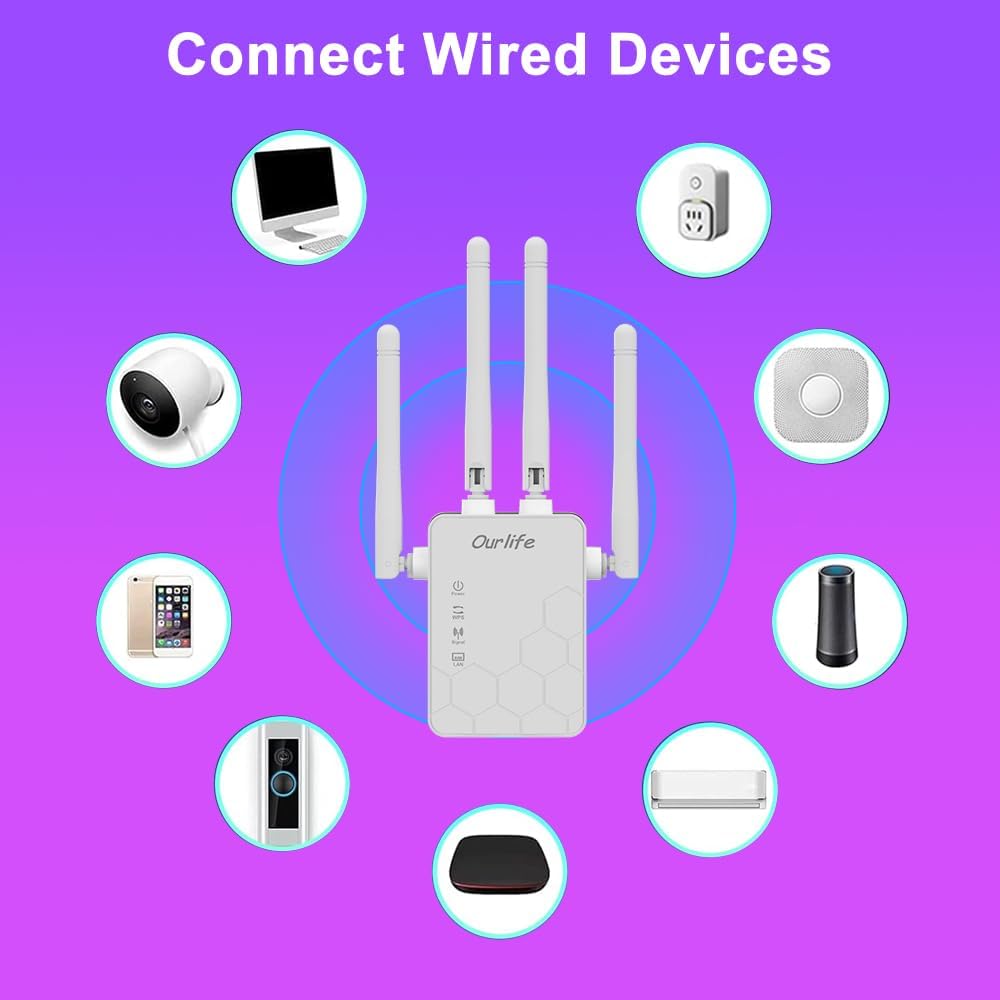
Image: Diagram showing various wired and wireless devices (e.g., desktop computer, smart plug, smart speaker, air conditioner, smart doorbell, security camera, smartphone) that can connect to the Ourlife WiFi Extender.

Image: The Ourlife WiFi Extender plugged into a wall outlet, with an Ethernet cable connected to its LAN port, illustrating its capability to provide a wired connection.
Antretyen
Regular maintenance helps ensure the longevity and optimal performance of your Ourlife WiFi Extender.
- Netwayaj: Sèvi ak yon twal mou epi sèk pou netwaye aparèy la. Pa sèvi ak pwodui netwayaj likid oswa ayewosòl.
- Mizajou mikrolojisyèl: Tcheke manifakti a regilyèman websit pou mizajou firmwèr. Mizajou firmwèr ka amelyore pèfòmans, ajoute fonksyonalite, epi ranje pinèz.
- Rekòmanse: Si w gen pwoblèm ak rezo a, eseye rekòmanse ekstansè a lè w debranche l nan priz kouran an pandan 10 segonn epi answit branche l ankò.
- Plasman Optimal: Ensure the extender is placed in an open area, away from large metal objects, concrete walls, and other electronic devices that may cause interference.
Depanaj
If you encounter issues with your Ourlife WiFi Extender, refer to the following common problems and solutions:
| Pwoblèm | Solisyon posib |
|---|---|
| Ekstè a pa limen. | Asire w ke ekstansyon an byen branche nan yon priz elektrik ki fonksyone. Eseye yon lòt priz. |
| Cannot connect to the extender's Wi-Fi for setup. | Ensure you are connecting to the correct default SSID (e.g., "Ourlife_Extender"). Try restarting the extender and your device. |
| WPS setup fails. | Ensure your router supports WPS. Press the WPS button on both devices within the 2-minute window. Try manual setup if WPS continues to fail. |
| No internet access after connecting to the extended network. | Check if your main router has internet access. Relocate the extender closer to your main router to ensure a strong signal (check Signal indicator). Reconfigure the extender. |
| Slow speeds on the extended network. | Relocate the extender to an optimal position where the Signal indicator shows a strong connection to the main router. Avoid placing it near interference sources. Ensure your main router is providing good speeds. |
| Bliye modpas koneksyon pou web paj jesyon. | Perform a factory reset on the extender (usually by pressing and holding a reset button for 5-10 seconds). This will revert all settings to default, including the login credentials. |
Espesifikasyon
| Karakteristik | Detay |
|---|---|
| Mak | Ourlsi |
| Modèl | Ourlife WiFi Extender 300Mbps |
| ASIN | B0D7HB4DBC |
| Pousantaj Transfè Done | 300 Megabits Per Second (2.4GHz) |
| Antèn | 4 Antèn Ekstèn ki gen gwo benefis |
| Ethernet Port | 1 x LAN Port |
| Koulè | Blan |
| Koneksyon | Wireless-N (802.11n/g/b) |
| Pwotokòl Sekirite | Supports Wireless Security (WPA/WPA2) |
| Dimansyon (apeprè) | 17.2cm (H) x 5.4cm (W) x 3.3cm (D) |
Garanti ak sipò
For warranty information and technical support, please refer to the documentation included with your purchase or visit the official Ourlsi website. You can also contact Ourlife customer service directly for assistance with product setup, troubleshooting, or warranty claims.
Ourlife Store Link: Visit the Ourlife Store on Amazon
Ask a question about this manual
Ask about setup, troubleshooting, compatibility, parts, safety, or missing instructions. Manuals+ will review the question and use this page’s manual context to help answer it.