
LYEAA KS42
LYEAA KS42 Wireless Dual-Color Game Controller User Manual
Modèl: KS42
1. Entwodiksyon
Thank you for choosing the LYEAA KS42 Wireless Dual-Color Game Controller. This manual provides detailed instructions on how to set up, operate, maintain, and troubleshoot your new gamepad. Designed for seamless compatibility with Nintendo Switch, Switch OLED, and Switch Lite, the KS42 offers a precise and immersive gaming experience with its 6-axis gyroscope and comfortable design.
Kontni pake:
- 1 x LYEAA KS42 Wireless Game Controller
- 1 x 1M Data Cable (USB-C)
- 1 x manyèl enstriksyon

Image 1.1: The LYEAA KS42 Wireless Dual-Color Game Controller, showcasing its black finish and ergonomic design.
2. Pwodwi souview
The LYEAA KS42 controller features a split design, allowing for flexible use. Each half is equipped with essential controls for an optimal gaming experience.

Image 2.1: Icons representing key features of the LYEAA KS42 controller: Wireless Connection, Motion Sensing, Vibration Feedback, TURBO Function, and Precise Joysticks.
Konpozan Kontwolè:
- Kontwolè gòch: Directional Pad (D-Pad), Left Analog Stick, L/ZL Buttons, Capture Button, Minus (-) Button.
- Kontwolè Dwa: A/B/X/Y Buttons, Right Analog Stick, R/ZR Buttons, Home Button, Plus (+) Button.
- Seksyon Santral: Indicator Lights, Charging Port (USB-C).
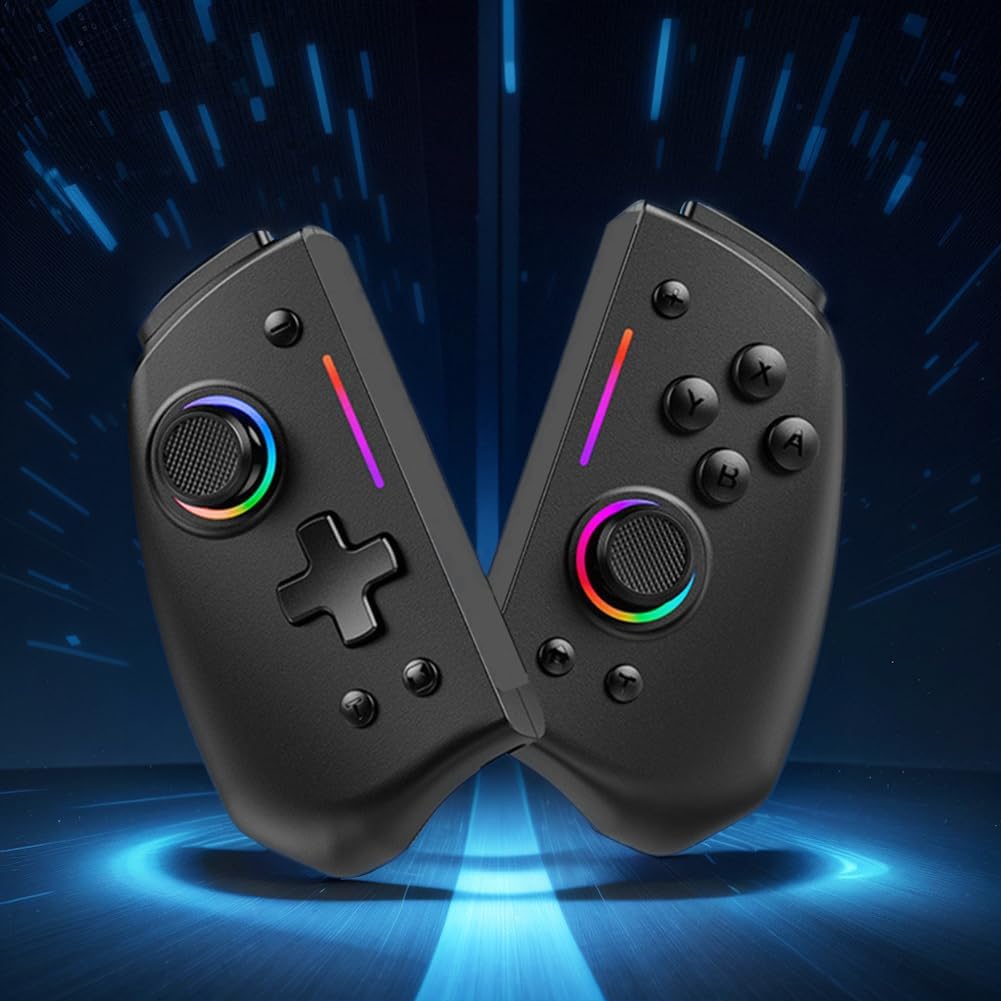
Imaj 2.2: A view of the LYEAA KS42 controller split into its two halves, highlighting its modular design.
3. Espesifikasyon
| Karakteristik | Detay |
|---|---|
| Modèl | KS42 |
| Konpatibilite | Nintendo Switch, Switch OLED, Switch Lite |
| Koneksyon | San fil |
| Kapasite batri | 500 mAh |
| Tan pou chaje | Apeprè 3 èdtan |
| Jwe Tan | Jiska 6.5 èdtan |
| Pwa pwodwi | 178 g (0.39 lbs) |
| Product Dimensions (Single Side) | 109.00 x 65.00 x 54.00 mm (4.29 x 2.56 x 2.13 pous) |
| Dimansyon pake | 145 x 145 x 65 mm (5.71 x 5.71 x 2.56 pous) |
| Karakteristik espesyal | 6-axis Gyroscope, Vibration Feedback, TURBO Function |
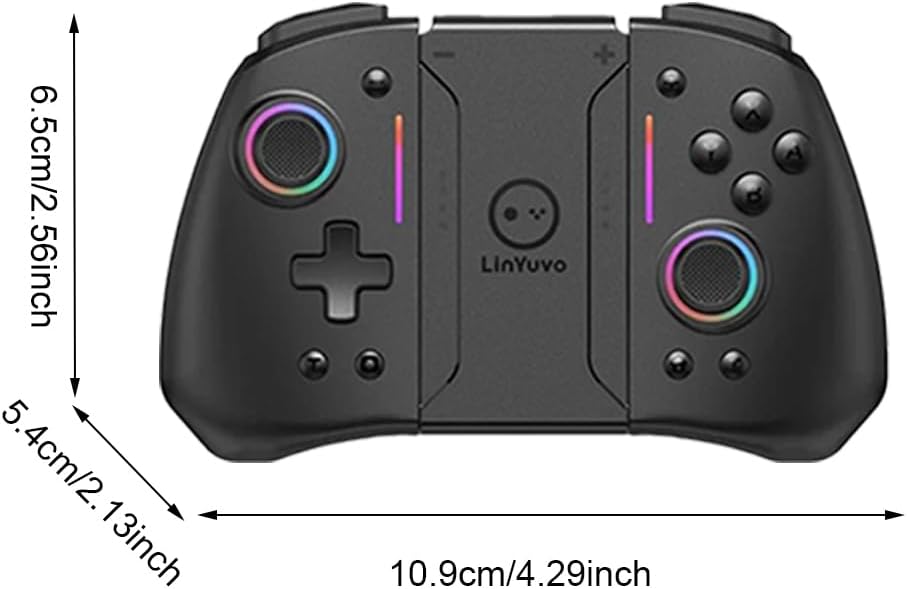
Image 3.1: Diagram illustrating the dimensions of the LYEAA KS42 controller in centimeters and inches.
4. Enstalasyon
4.1 Chaje Kontwolè a
Before first use, fully charge the controller. Use the provided USB-C data cable to connect the controller to a USB power source (e.g., Nintendo Switch dock, computer USB port, or a USB wall adapter).
- The indicator lights on the controller will show charging status.
- Charging typically takes about 3 hours for a full charge.
- Once fully charged, the indicator lights will change or turn off, depending on the controller's state.
4.2 Connecting to Nintendo Switch/OLED/Lite
The LYEAA KS42 controller connects wirelessly to your Nintendo Switch console.
- Sou konsole Nintendo Switch ou a, ale nan meni AKÈY la.
- Chwazi "Kontwolè", lè sa a "Chanje priz/lòd".
- Pandan w sou ekran sa a, peze epi kenbe bouton an Bouton Kay on the LYEAA KS42 controller for a few seconds until the indicator lights start flashing rapidly.
- The controller will automatically pair with your Switch. Once connected, the indicator lights will become solid.
- You can now detach the Joy-Cons from your Switch (if applicable) and insert the Switch console into the LYEAA KS42 controller's central slot for handheld mode, or use it wirelessly.
Note: The controller supports automatic power-on and connectivity once paired.
5. Operasyon Enstriksyon
5.1 Kontwòl debaz yo
Familiarize yourself with the standard button layout:
- Baton analòg: Pou mouvman ak kontwòl kamera.
- D-Pad: For directional input, menu navigation.
- Bouton A/B/X/Y: Action buttons, typically for confirm, cancel, jump, etc.
- L/R/ZL/ZR Buttons: Shoulder and trigger buttons for various in-game actions.
- Bouton Plis (+) / Mwens (-): Equivalent to Start/Select or menu buttons.
- Bouton Kay: Returns to the Switch HOME Menu.
- Bouton Capture: Pran ekran oswa klip videyo (selon jwèt la).

Image 5.1: A user holding the LYEAA KS42 controller, demonstrating its comfortable grip during gameplay.
5.2 Karakteristik avanse
- Jiroskop 6-Aks: The controller features a built-in 6-axis gyroscope for precise motion control. This allows for immersive gameplay in titles that support motion sensing. No special setup is required; the gyroscope activates automatically when supported by the game.
- Feedback Vibration: Experience enhanced immersion with haptic feedback. The controller's vibration motors provide tactile responses to in-game events. This feature is automatically enabled.
- Fonksyon TURBO: Fonksyon TURBO a pèmèt ou peze yon bouton rapidman e otomatikman.
- To activate TURBO: Press and hold the desired action button (e.g., A, B, X, Y, L, R, ZL, ZR), then press the bouton TURBO (refer to controller diagram for location, typically a dedicated button or a combination).
- To deactivate TURBO: Repeat the same process.

Image 5.2: The LYEAA KS42 controller positioned with various game screenshots floating above, illustrating its compatibility with diverse gaming titles.
6. Antretyen
Proper care will extend the life of your LYEAA KS42 controller.
- Netwayaj: Sèvi ak yon twal mou epi sèk pou siye kontwolè a. Pou pousyè tè ki difisil pou retire, siye l yon ti kras.ampen the cloth with water or a mild electronic cleaner. Avoid excessive moisture. Do not use harsh chemicals or abrasive materials.
- Depo: Store the controller in a cool, dry place away from direct sunlight and extreme temperatures. When not in use for extended periods, ensure the controller is fully charged before storing.
- Swen batri: To maintain battery health, avoid completely draining the battery frequently. Recharge the controller when the low battery indicator appears. If storing for a long time, charge it at least once every three months.
- Manyen: Avoid dropping the controller or subjecting it to strong impacts. Do not attempt to disassemble the controller, as this will void any potential warranty.
NAN. Depanaj
| Pwoblèm | Kòz posib / Solisyon |
|---|---|
| Controller does not connect to Switch. |
|
| Kontwolè a pa chaje. |
|
| Bouton yo oswa joystick yo pa reponn. |
|
| Motion control (gyroscope) is not working. |
|
8. Garanti ak sipò
LYEAA products are designed for reliability and performance. While specific warranty details are not provided in this manual, please retain your proof of purchase for any potential warranty claims. For product support, troubleshooting assistance beyond this manual, or inquiries about returns, please contact the seller or refer to the retailer's return policy where you purchased the product. Amazon.es typically offers a 30-day return policy for eligible items.
For the latest information and support, please visit the official LYEAA website or contact their customer service directly if available.
Ask a question about this manual
Ask about setup, troubleshooting, compatibility, parts, safety, or missing instructions. Manuals+ will review the question and use this page’s manual context to help answer it.