
Entwodiksyon
This manual provides essential instructions for setting up, operating, maintaining, and troubleshooting your C idea CM776 Tablet. Please read this manual thoroughly before using your device to ensure proper function and longevity.

Image: The C idea CM776 Tablet, featuring a vibrant display and icons representing its core specifications.
Enstalasyon
1. Chaje tablèt la
Before first use, fully charge the tablet using the provided USB cable and power adapter. The battery indicator on the screen will show charging status.
2. Powering On / Off
- Pou limen: Peze epi kenbe bouton pouvwa a jiskaske ekran an limen.
- Pou etenn: Peze epi kenbe bouton Power la, answit chwazi "Power off" nan opsyon ki sou ekran an.
- Pou rekòmanse: Peze epi kenbe bouton Pouvwa a, answit chwazi "Rekòmanse" nan opsyon ki sou ekran an.
3. Inisyal Enstalasyon
Lè w limen l pou premye fwa, swiv enstriksyon ki parèt sou ekran an pou w ka fè sa:
- Chwazi lang ou pi pito.
- Konekte nan yon rezo Wi-Fi.
- Konekte avèk kont Google ou a oubyen kreye yon nouvo.
- Enstale bloke ekran an ak lòt fonksyon sekirite yo.
4. Konekte kas ekoutè
Connect standard 3.5mm headphones to the audio jack for private listening.
Opere
1. Navigasyon debaz
The tablet uses a touch-sensitive screen. Use the following gestures:
- Tape: Pou chwazi yon atik oubyen louvri yon aplikasyon.
- Glise: Pou defile nan paj oswa lis.
- Zongle: Pou agrandi oswa diminye imaj yo ak web paj.
- Long Press: Pou jwenn aksè nan meni kontèkstal yo oubyen deplase ikòn aplikasyon yo.
2. Koneksyon Wi-Fi
Pou konekte ak Wi-Fi:
- Ale nan Anviwònman > Rezo & Entènèt > Wi-Fi.
- Limen Wi-Fi.
- Chwazi rezo ou vle a nan lis la epi antre modpas la si sa nesesè.
3. Mòd Kontwòl Paran
The tablet features a Parental Control Mode to manage content, limit screen time, and restrict app access for children. This mode helps create a safe digital environment.

Image: The tablet demonstrating its Parental Control Mode features, ensuring a safe experience for young users.
4. Lekti Medya
The tablet supports various media formats for videos and music. You can stream content or play fileyo estoke sou aparèy la.

Image: The tablet showcasing its ability to play videos and display a range of entertainment content.
5. Educational and Learning Features
The tablet is designed to support learning through play, offering access to educational applications and content.
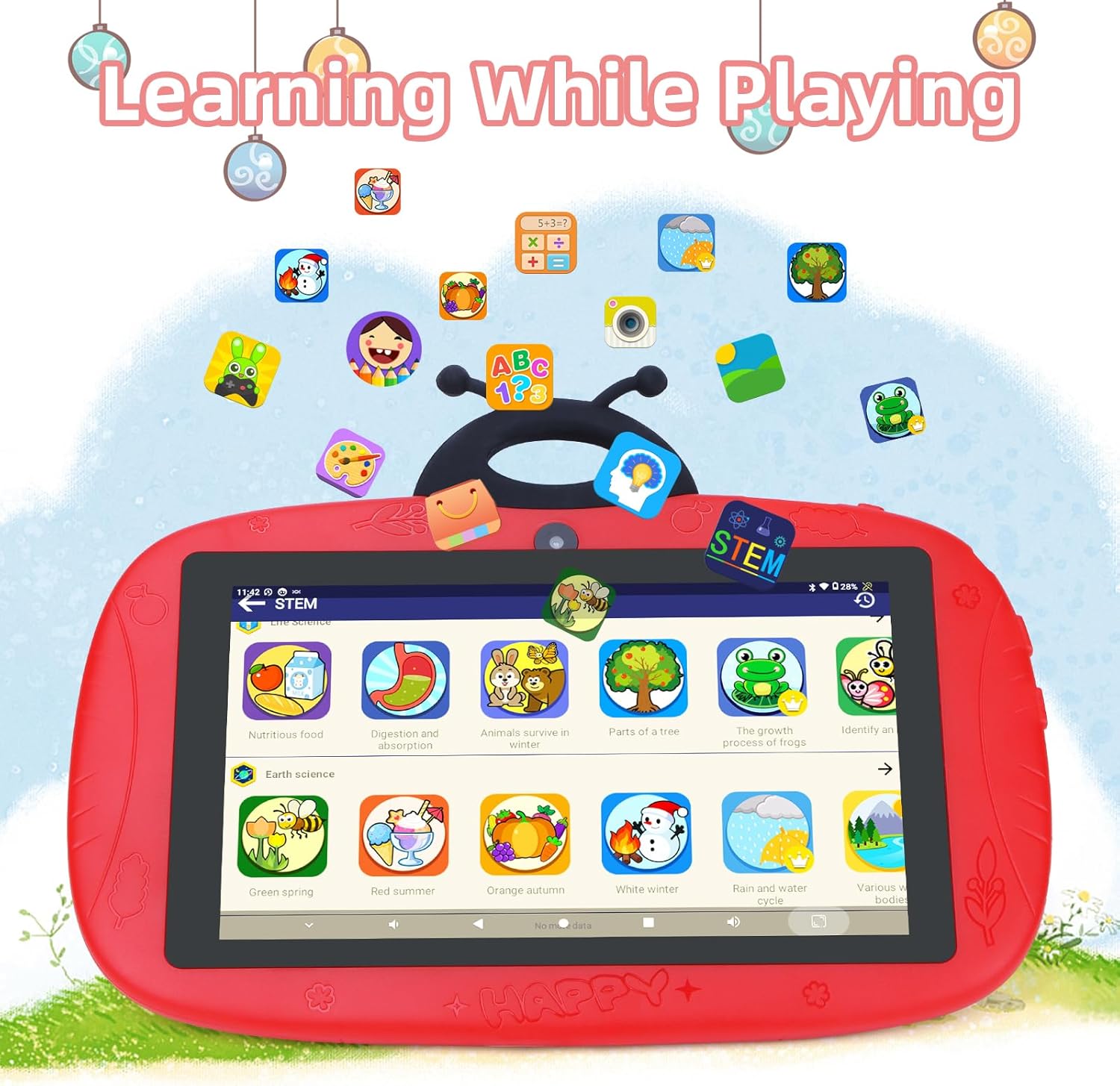
Image: The tablet interface showing educational applications, promoting learning through interactive content.
6. Sèvi ak Kamera yo
The tablet is equipped with dual cameras (2MP front, 5MP rear) for capturing photos and videos.
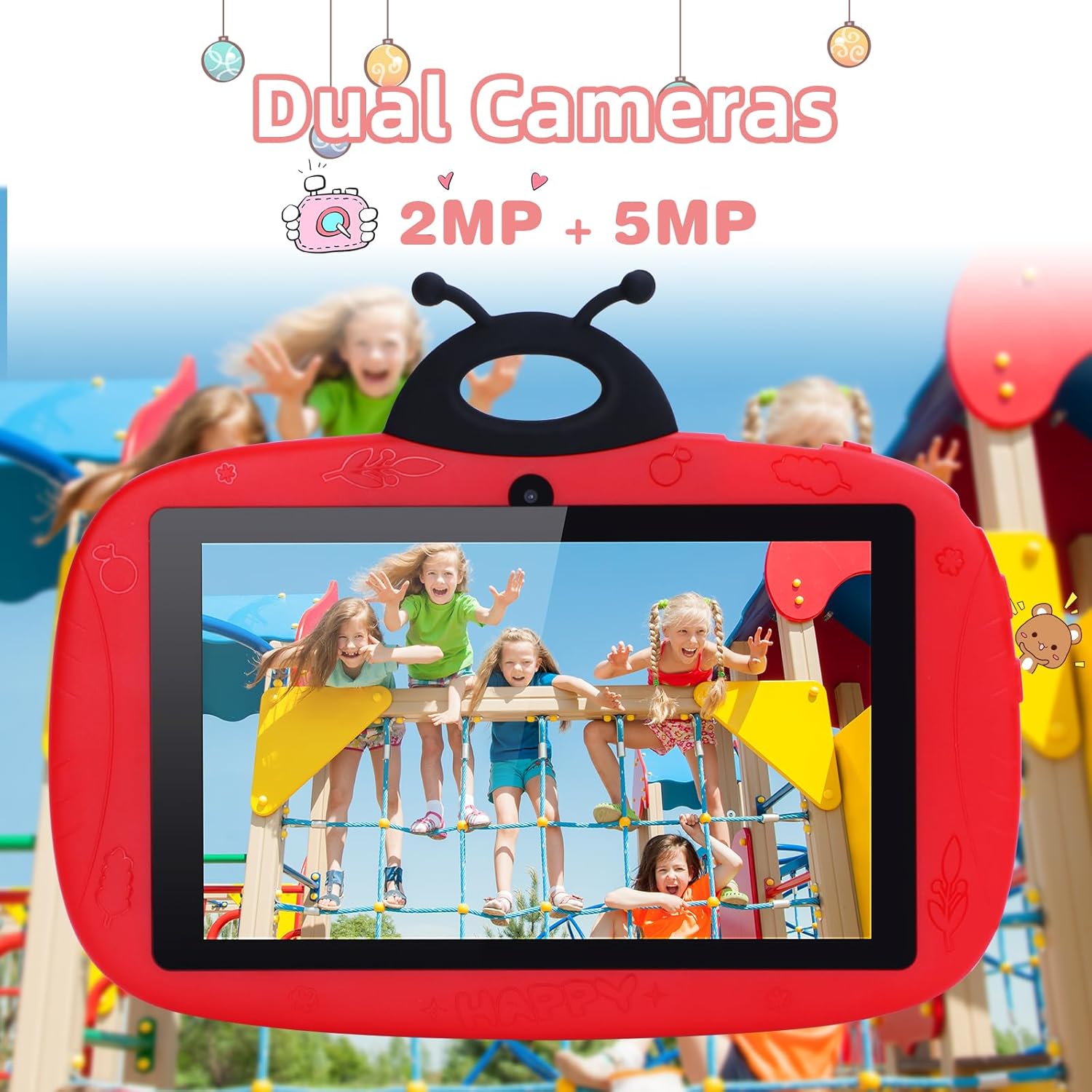
Image: The tablet's camera functionality demonstrated by a picture of children, highlighting its dual camera setup.
Antretyen
1. Netwaye Tablèt la
Sèvi ak yon twal mou ki pa gen pousyè pou netwaye ekran an ak kò tablèt la. Evite itilize pwodui chimik ki agresif oswa materyèl abrazif.
2. Swen batri
- Evite tanperati ekstrèm.
- Pa kite batri a dechaje nèt souvan.
- Sèvi sèlman ak plato orijinal la oswa yon plato konpatib ki sètifye.
3. Mizajou lojisyèl
Tcheke epi enstale mizajou lojisyèl regilyèman pou asire pèfòmans ak sekirite optimal. Ale nan Anviwònman > Sistèm > Aktyalizasyon sistèm lan.
4. Jesyon Depo
To free up storage space, regularly delete unnecessary files, dezenstale aplikasyon ou pa itilize yo, epi efase kach aplikasyon yo. Ou ka tcheke itilizasyon depo nan Anviwònman > Depo.
Depanaj
Tablet Not Powering On
- Asire w batri a chaje. Konekte chajè a epi tann kèk minit anvan ou eseye limen l.
- Try holding the Power button for 10-15 seconds to force a restart.
Pwoblèm Koneksyon Wi-Fi
- Tcheke si Wi-Fi a aktive nan Anviwònman yo.
- Rekòmanse routeur Wi-Fi ou a ak tablèt la.
- Bliye rezo a epi rekonekte l lè w antre modpas la ankò.
Slow Performance / Apps Crashing
- Fèmen aplikasyon ki pa itilize nan background nan.
- Efase kach aplikasyon yo (Anviwònman > Aplikasyon yo > chwazi aplikasyon > Depo ak kach > Klè kachèt).
- Asire w ke gen ase espas depo lib.
- Rekòmanse tablèt la.
Reyajisteman faktori (Dènye rekou)
If issues persist, a factory reset can resolve many software problems. Avètisman: Sa ap efase tout done ki sou tablèt ou a. Fè yon kopi done enpòtan yo anvan ou kontinye.
- Ale nan Anviwònman > Sistèm > Reyajiste opsyon.
- Chwazi Efase tout done (reset faktori).
- Konfime chwa ou.
Espesifikasyon
| Karakteristik | Detay |
|---|---|
| Mak | C lide |
| Non modèl | CM776 |
| Sistèm operasyon | Android |
| Gwosè ekran | 7 pous |
| Rezolisyon maksimòm ekspozisyon | 600x1024 piksèl |
| Gwosè RAM | 4 GB |
| Kapasite Depo | 32 GB |
| Koneksyon | Wi-Fi |
| Total pò USB | 1 |
| Aparèy konpatib | Ekoutè |
| Konpozisyon batri | Lityòm-polymère |
| Entèfas Materyèl | 3.5 mm odyo |
| Ane ki gen konpòtman egzanplè | 2024 |
Enfòmasyon sou Garanti
The C idea CM776 Tablet comes with a Garanti manifakti 1 zan apati dat acha a. Garanti sa a kouvri domaj nan materyèl ak nan fabrikasyon anba itilizasyon nòmal. Li pa kouvri domaj ki koze pa move itilizasyon, aksidan, modifikasyon san otorizasyon, oswa kòz ekstèn.
Tanpri kenbe prèv ou achte pou reklamasyon garanti.
Sipò
For further assistance, technical support, or warranty claims, please contact C idea customer service. Refer to the packaging or the official C idea websit pou detay kontak.
When contacting support, please have your tablet's model number (CM776) and proof of purchase readily available.