
Orcam MyEye 3 Pro
Manyèl Itilizatè Asistan Vizyon IA MyEye 3 Pro
Brand: Orcam | Model: MyEye 3 Pro
Entwodiksyon
The Orcam MyEye 3 Pro is a revolutionary wearable device designed to empower individuals with visual impairments, enhancing their independence and confidence in navigating the world. This advanced AI Vision Assistant offers a range of features to help users interact with their environment, read text, and identify objects and faces.
This manual provides essential information on setting up, operating, maintaining, and troubleshooting your MyEye 3 Pro device. Please read it thoroughly to ensure optimal performance and a seamless user experience.
Ki sa ki nan bwat la
Your MyEye 3 Pro package includes the following components:
- OrCam MyEye 3 Pro Device
- Stand and Mount
- Oratè
- USB Data and Power Adapter and Cable
- Eyeglasses Frame
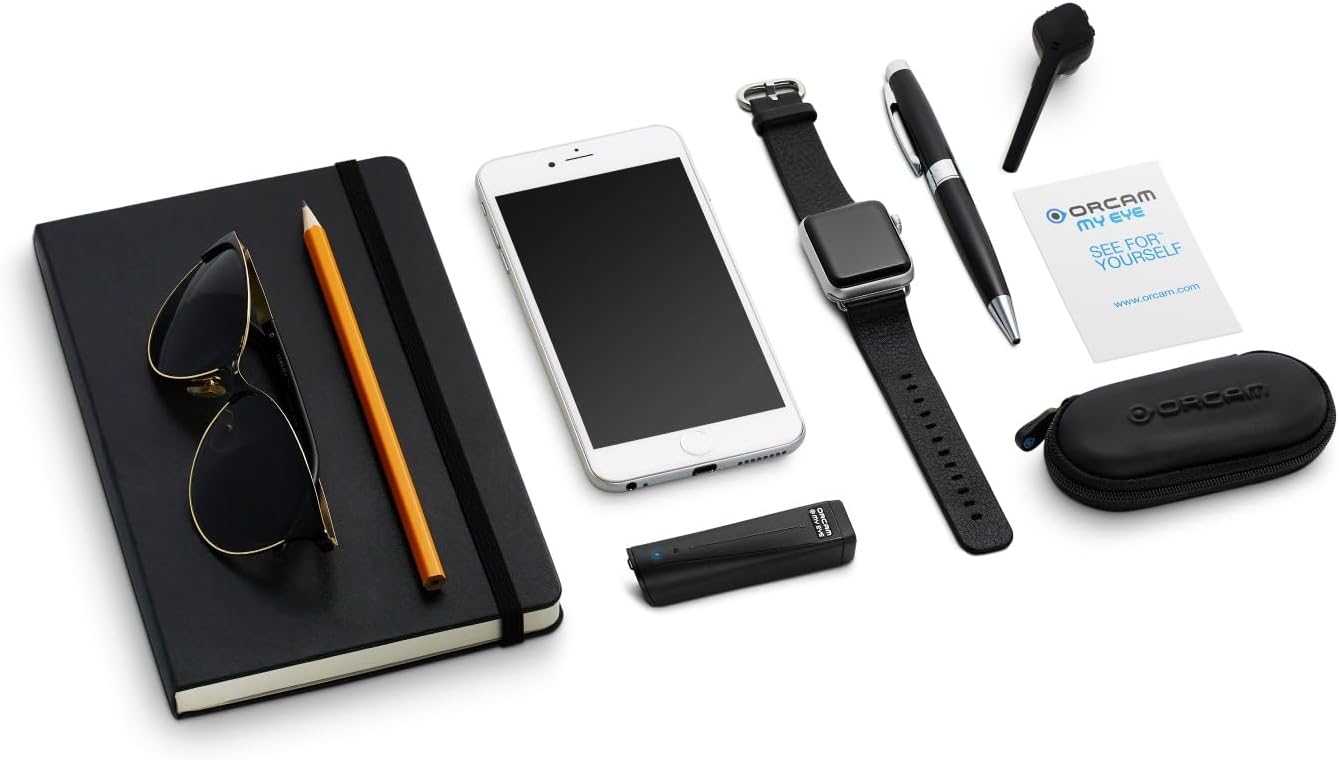
Image: All components included with the Orcam MyEye 3 Pro device.
Enstalasyon
Follow these steps to set up your MyEye 3 Pro for first use:
- Chaje aparèy la: Connect the MyEye 3 Pro to the USB power adapter using the provided cable. Ensure the device is fully charged before initial use. A full charge provides approximately 6 hours of additional use.
- Attach to Eyeglasses: Securely attach the MyEye 3 Pro device to the included eyeglasses frame using the provided mount. Ensure the camera lens is unobstructed and positioned correctly for optimal viewing.
- Kalibrasyon inisyal: Power on the device. Follow the voice prompts for initial calibration, which may include adjusting the camera angle and performing a brief setup routine to optimize performance for your specific needs.
- Pair Speaker (Optional): If using the external speaker, follow the instructions provided with the speaker to pair it with your MyEye 3 Pro device.

Image: The MyEye 3 Pro device attached to eyeglasses, ready for use.
Operating Your MyEye 3 Pro
The MyEye 3 Pro offers intuitive controls and advanced features to assist you in various daily tasks.
Lekti tèks
The device can read text from virtually any surface, including books, newspapers, computer screens, and product labels. Activate reading capabilities using:
- Kòmandman vwa: Speak commands such as "Read text" or "Read from here."
- Jès men yo: Use specific hand gestures recognized by the device to initiate reading.
- Manyen Bar: A physical touch bar on the device allows for quick activation of reading functions.
The scan-to-text capability ensures that the MyEye 3 Pro can read from any point of the text, providing a seamless reading experience.
Interactive AI Assistant (Just Ask)
Utilize the "Just Ask" feature to interact naturally with the AI assistant. You can ask questions related to the text being read or other general topics, receiving instant responses.
Object and Face Recognition
The MyEye 3 Pro can effortlessly recognize faces of loved ones, identify various products, discern money notes, and even recognize colors. This feature provides valuable information about your surroundings, guiding you through different spaces.
Video: Demonstrates the "What's in front of me" feature of the Orcam MyEye 3 Pro, showcasing its ability to identify objects and provide information about surroundings for navigation.
Advanced Magnification and Translation
Zoom in on text and images for clearer viewing. The device also supports translation features in over 140 languages, expanding accessibility.
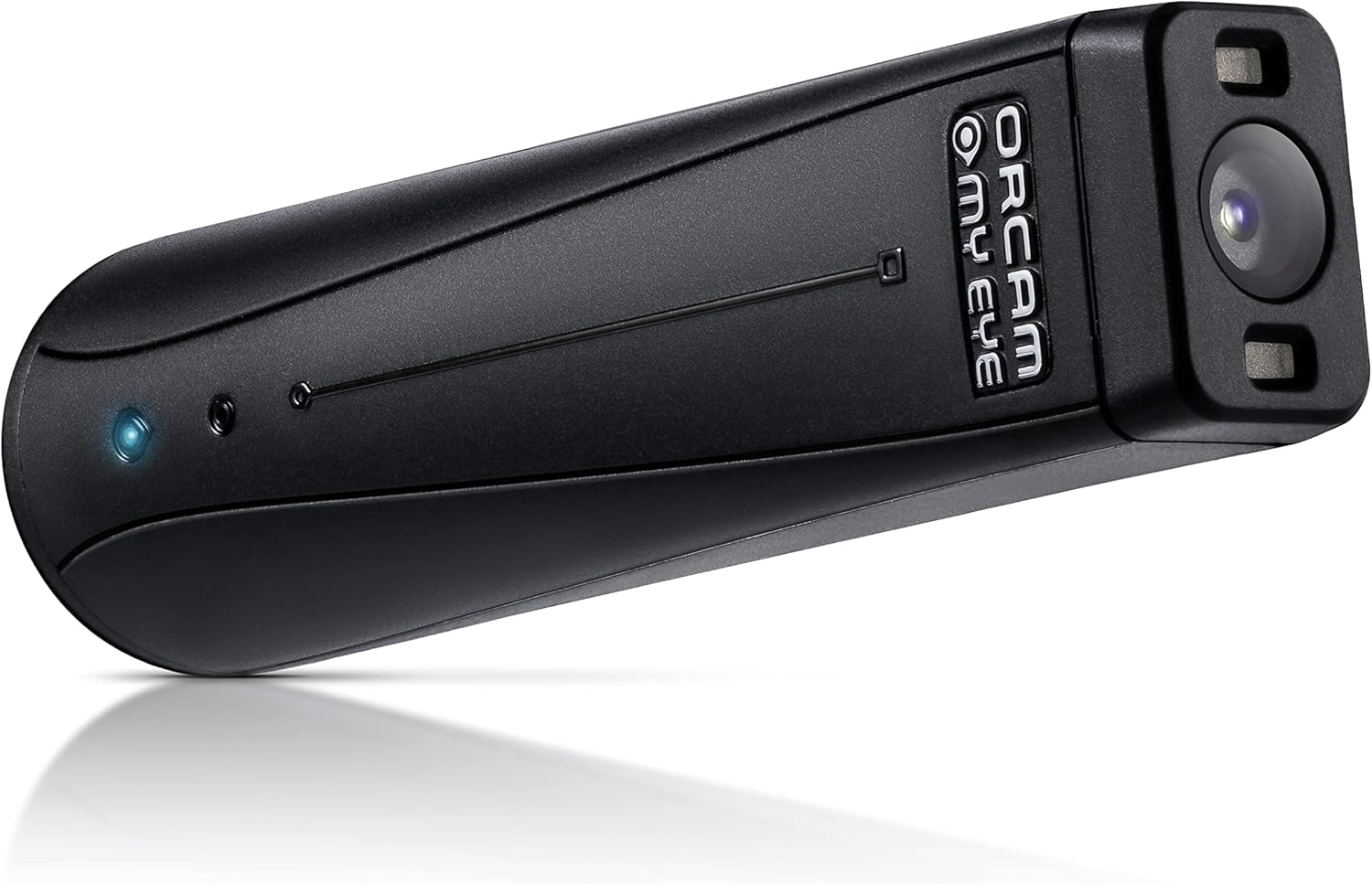
Imaj: Yon imaj detaye view of the MyEye 3 Pro device.
Antretyen ak Swen
To ensure the longevity and optimal performance of your MyEye 3 Pro, follow these maintenance guidelines:
- Netwayaj: Gently wipe the device and camera lens with a soft, dry, lint-free cloth. Do not use liquid cleaners or abrasive materials.
- Depo: When not in use, store the MyEye 3 Pro in its protective case in a cool, dry place, away from direct sunlight and extreme temperatures.
- Swen batri: Avoid fully discharging the battery frequently. For best battery life, charge the device regularly and avoid leaving it uncharged for extended periods.
- Manyen ak Swen: The MyEye 3 Pro is a precision electronic device. Avoid dropping it or subjecting it to strong impacts.
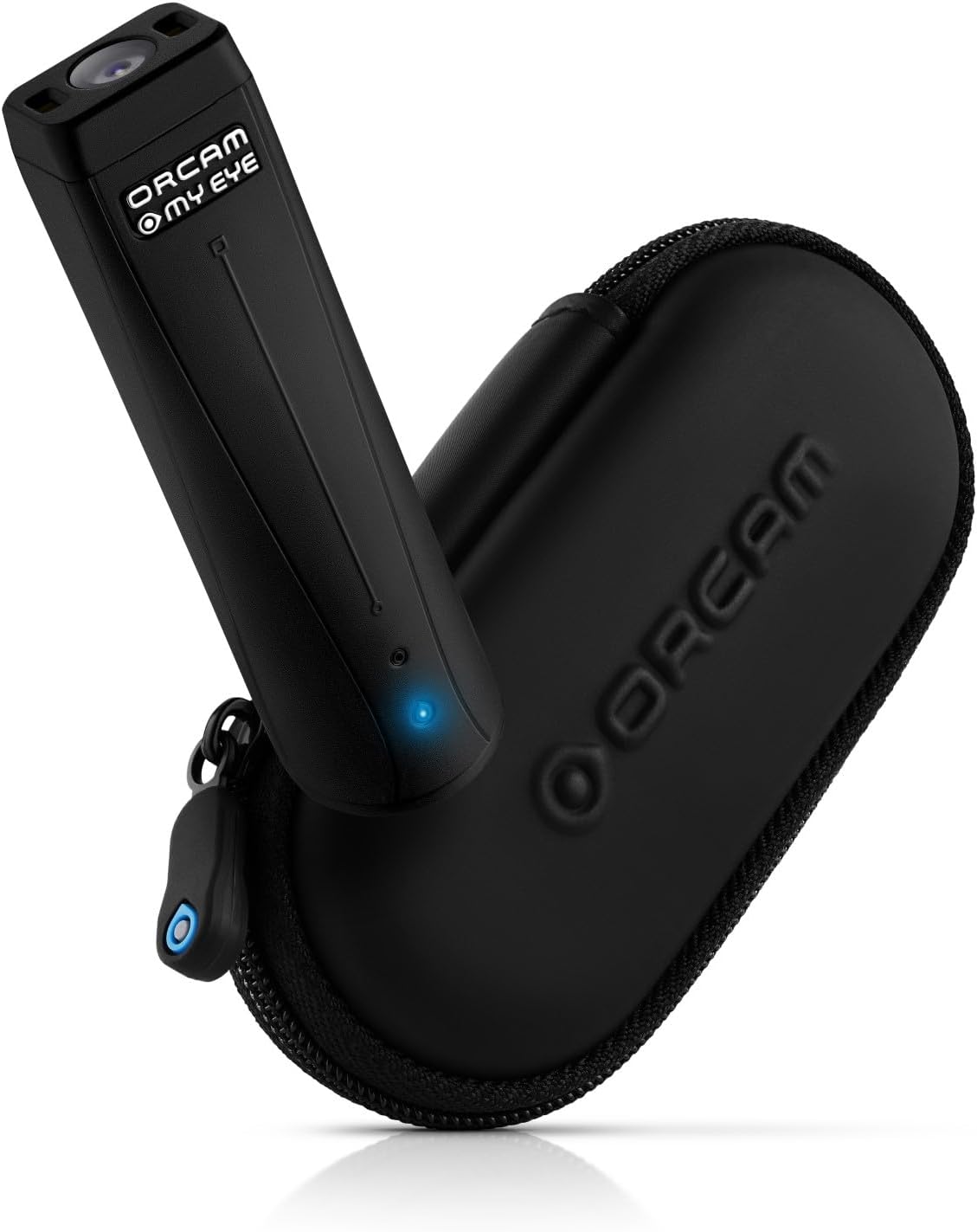
Image: MyEye 3 Pro with its protective case, ideal for storage.
Depanaj
If you encounter issues with your MyEye 3 Pro, try the following common troubleshooting steps:
- Aparèy pa reponn: Ensure the device is charged. Try restarting the device by holding down the power button.
- Reading Inaccuracies: Check that the camera lens is clean and unobstructed. Ensure adequate lighting in your environment. Re-calibrate the device if necessary.
- Pwoblèm odyo: Verify that the speaker is properly connected or paired. Check the volume settings on the device.
- Pwoblèm chaje: Ensure the USB cable and power adapter are securely connected and functioning correctly. Try a different power outlet.
If the issue persists after attempting these steps, please refer to the support section for further assistance.
Espesifikasyon
| Karakteristik | Detay |
|---|---|
| ASIN | B0D2P6RF84 |
| Manifakti | Orcam |
| Dat Premye Disponib | 25 avril 2024 |
| Lavi batri | Approximately 6 hours additional use (with enclosed battery) |
Garanti ak sipò
For detailed warranty information and to register your MyEye 3 Pro device, please visit the official Orcam websit la oubyen kontakte sèvis kliyan yo. Kenbe prèv acha ou pou reklamasyon garanti.
If you require technical assistance or have questions not covered in this manual, please reach out to Orcam customer support through their official channels. Information regarding optional protection plans may also be available from your retailer.
Ask a question about this manual
Ask about setup, troubleshooting, compatibility, parts, safety, or missing instructions. Manuals+ will review the question and use this page’s manual context to help answer it.