
1. Entwodiksyon
This manual provides detailed instructions for the installation, operation, and maintenance of the Intellinet 48-Port L3 Managed Gigabit PoE+ Switch, Model 562041. This device is designed for enterprise networks requiring efficient and scalable routing solutions with high-powered Power over Ethernet (PoE) capabilities.
2. Enfòmasyon sou Sekirite
Observe the following safety precautions to prevent damage to the device and injury to personnel:
- Asire bon baz nan aparèy la.
- Pa ekspoze switch la nan dlo oswa imidite twòp.
- Opere aparèy la nan limit tanperati ak imidite ki espesifye yo.
- Use only the power cable provided or a compatible replacement.
- Do not open the switch casing; konfye sèvis la bay pèsonèl kalifye.
- Asire w ke switch la gen ase vantilasyon pou anpeche li chofe twòp.
3. Pake kontni
Verifye ke tout atik yo prezan nan pakè a:
- Intellinet 48-Port L3 Managed Gigabit PoE+ Switch (Model 562041)
- Kab pouvwa
- 19" rackmount brackets
- Pye kawotchou
- Enstriksyon (manyèl sa a)
4. Pwodwi souview
The Intellinet 562041 is a robust Layer 3 managed switch featuring 48 Gigabit PoE+ ports and six 10G SFP+ uplink slots. It supports a total power budget of 850 watts for PoE devices.
4.1 Panèl devan
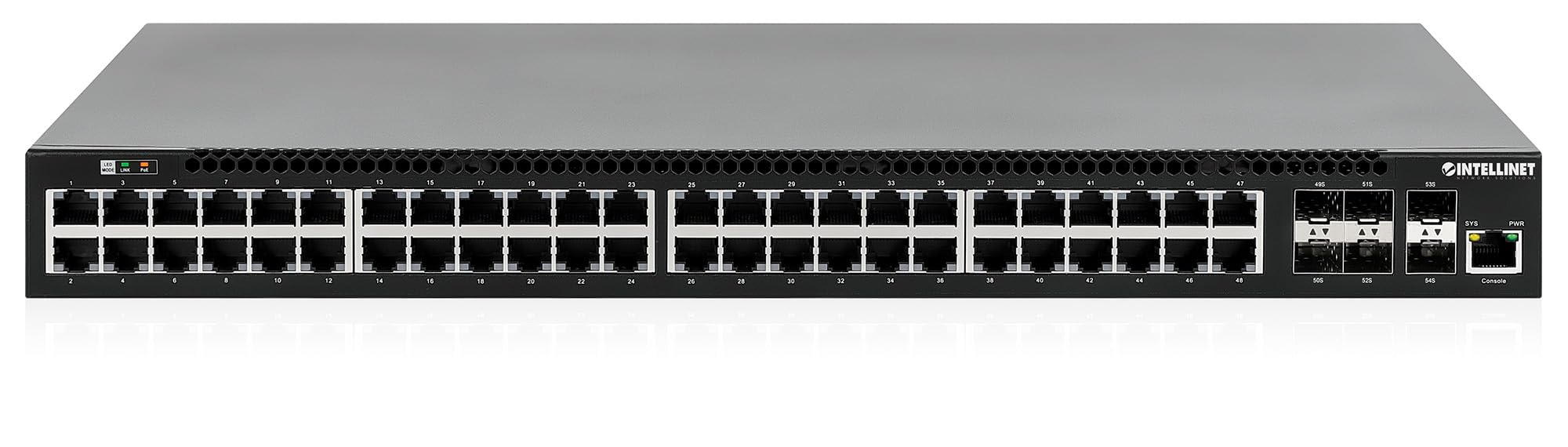
Panèl devan an gen ladan:
- 48 x 10/100/1000 Mbps RJ45 Ports: These ports support Power over Ethernet Plus (PoE+) for connecting compatible devices.
- 6 x 10 Gigabit SFP+ Slots: For high-speed uplink connections to other network devices.
- Endikatè ki ap dirije: Provide status information for power, system, link activity, and PoE status.
- Pò konsole: For local management and configuration.


4.2 Panèl dèyè

The rear panel typically includes the AC power input and cooling fans for heat dissipation.

5. Enstalasyon
5.1 Enstalasyon Fizik
Yo ka enstale switch la nan yon etajè ekipman estanda 19 pous oubyen yo ka mete l sou yon òdinatè.
- Enstalasyon Rackmount: Attach the provided rackmount brackets to the sides of the switch using the included screws. Secure the switch into a standard 19-inch rack.
- Enstalasyon Desktop: Attach the provided rubber feet to the bottom of the switch to prevent scratching and ensure stability. Place the switch on a flat, stable surface.
5.2 Koneksyon pouvwa
Connect the provided power cable to the AC power input on the rear panel of the switch and then to a grounded electrical outlet. Ensure the power switch is in the OFF position before connecting the power cable.
5.3 Koneksyon rezo
- Aparèy PoE: Connect PoE-compatible devices (e.g., IP cameras, VoIP phones, wireless access points) to any of the 48 Gigabit RJ45 ports. The switch will automatically detect and provide power to these devices.
- Koneksyon Uplink: Insert compatible SFP+ transceivers into the 10 Gigabit SFP+ slots and connect them to your core network or other high-speed devices using appropriate fiber optic cables.
- Koneksyon konsole: For initial configuration or direct management, connect a console cable from your computer to the console port on the switch.
5.4 Inisyal Konfigirasyon
Refer to the separate software configuration guide for detailed instructions on accessing the switch's management interface (web-based GUI or command-line interface via console port) and performing initial setup, including IP address assignment, user accounts, and basic network settings.
6. Operasyon Enstriksyon
6.1 Layer 3 Routing
This switch offers dynamic Layer 3 IP routing capabilities, including OSPF (Open Shortest Path First), RIP (Routing Information Protocol), and VRRP (Virtual Router Redundancy Protocol). These protocols enable efficient and scalable routing within complex network environments.

6.2 Power over Ethernet (PoE+)
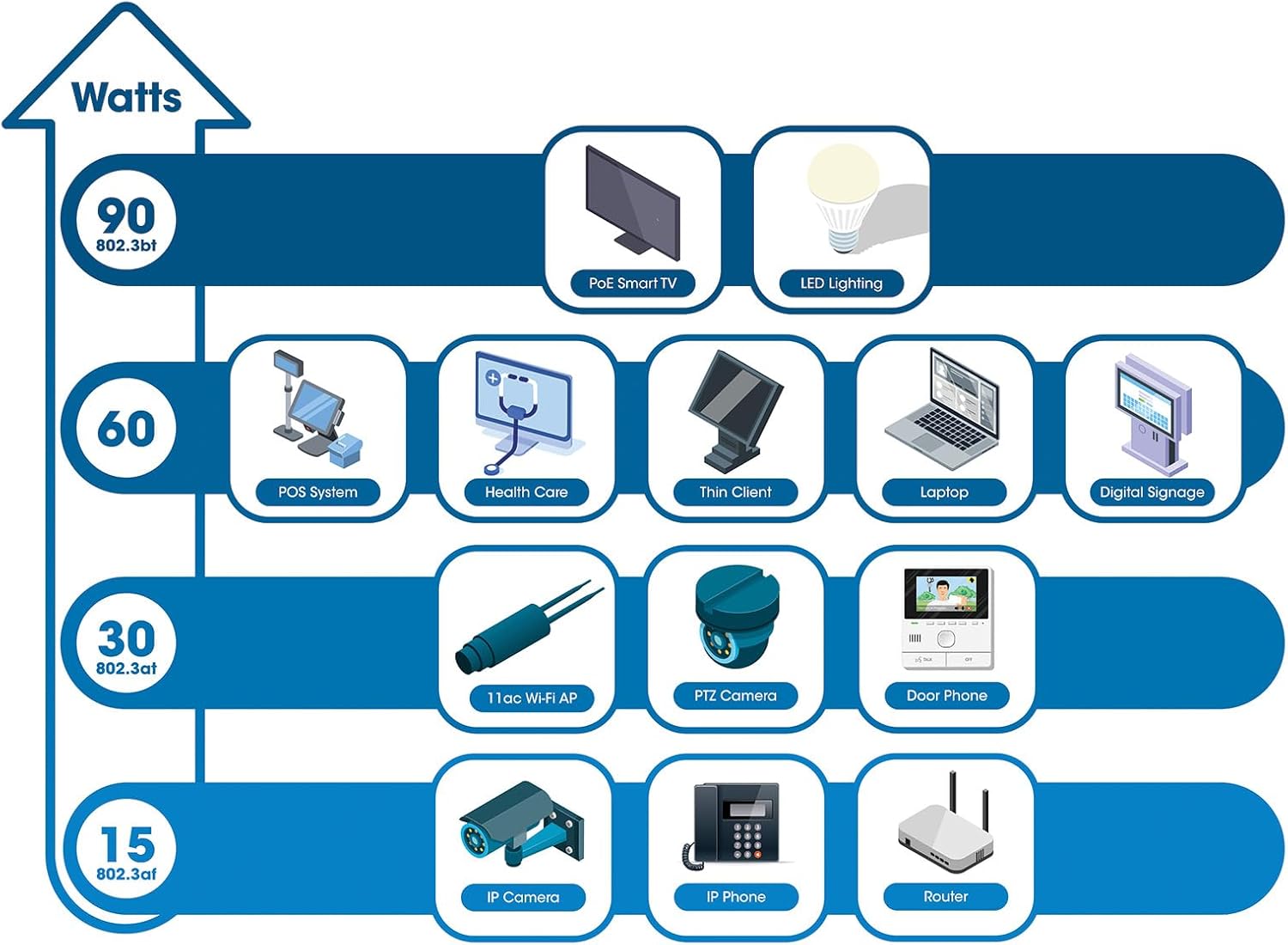
The switch provides up to 30 watts of power per port across its 48 PoE+ ports, with a total power budget of 850 watts. This allows for seamless integration of various PoE devices without the need for separate power adapters.
6.3 PoE Scheduling
The switch supports PoE scheduling, allowing administrators to define specific times for powering on, powering off, or rebooting connected PoE devices. This feature can optimize power consumption and enhance network security.


6.4 Self-Healing Functionality (PDM)
The Powered Device Monitor (PDM) feature enables the switch to proactively monitor the status of connected PoE devices. If a device becomes unresponsive, the PDM can automatically restart the PoE port to restore functionality, minimizing downtime and maintaining network integrity.
6.5 Jesyon nwaj
The switch supports cloud management capabilities, allowing for remote configuration, monitoring, and troubleshooting of the device from a centralized platform. Refer to the cloud management documentation for setup and usage details.
7. Antretyen
7.1 Mizajou Firmware
Regularly check the Intellinet Network Solutions website for the latest firmware updates. Applying firmware updates can improve performance, add new features, and address security vulnerabilities. Follow the instructions provided with the firmware update package carefully.
7.2 Netwayaj
To clean the switch, power it off and disconnect all cables. Use a soft, dry cloth to wipe the exterior. Do not use liquid or aerosol cleaners. Ensure ventilation openings are free from dust and debris.
7.3 Konsiderasyon Anviwònman
Ensure the switch operates within its specified temperature and humidity ranges. Avoid placing the switch in direct sunlight, near heat sources, or in areas with high dust accumulation.
NAN. Depanaj
This section addresses common issues you might encounter with the switch.
8.1 Pa gen pouvwa
- Verify the power cable is securely connected to both the switch and a working electrical outlet.
- Asire w ke switch pouvwa a sou panèl dèyè a nan pozisyon ON.
- Check the power outlet with another device to confirm it is functional.
8.2 Pa gen lyen sou yon pò
- Check the Ethernet cable connection at both ends. Ensure it is securely plugged in.
- Verify the cable is not damaged. Try a different cable.
- Asire w ke aparèy ki konekte a limen epi li fonksyone byen.
- Check the port status in the switch's management interface.
8.3 Aparèy PoE a pa resevwa kouran
- Confirm the connected device is a PoE-compatible device.
- Tcheke LED estati PoE a pou pò espesifik la.
- Verify the total PoE power budget (850W) is not exceeded by all connected devices.
- Utilize the Powered Device Monitor (PDM) feature to automatically restart the port if the device is unresponsive.
- Check PoE settings in the switch's management interface.
9. Espesifikasyon
| Karakteristik | Spesifikasyon |
|---|---|
| Nimewo Modèl | 562041 |
| Mak | SOLISYON REZO ENTELLINET |
| Kantite pò | 54 (48 Gigabit PoE+, 6 10G SFP+) |
| Kalite entèfas | PoE, SFP |
| Maximum Power (PoE Budget) | 850 Watts |
| Pousantaj Transfè Done | 10 Gigabits Per Second (SFP+ uplinks) |
| Pwa atik | 6.2 kilogram (13.64 liv) |
| Dimansyon pwodwi (L x W x H) | 13.78 x 17.32 x 1.73 pous |
| Evalyasyon Tanperati Upper | 104 Degre Farennayt (40°C) |
| Lower Evalyasyon Tanperati | 32 Degre Farennayt (0°C) |
| Aparèy konpatib | Desktop, Router, PoE devices (IP cameras, VoIP phones, WAPs) |
| Konpozan ki enkli | 19" rackmount brackets, Instructions, Rubber feet, power cable |
| UPC | 766623562041 |
10. Garanti ak sipò
10.1 Enfòmasyon sou Garanti
This Intellinet Network Solutions product is covered by a Garanti manifakti 3 anTanpri konsève prèv acha ou a pou reklamasyon garanti. Garanti a kouvri domaj nan materyèl ak nan fabrikasyon anba itilizasyon nòmal.
10.2 Sipò teknik
For technical assistance, product documentation, or to register your product, please visit the official Intellinet Network Solutions website or contact their customer support. Contact information can typically be found on the manufacturer's websit oswa nan anbalaj pwodwi a.