
1. Entwodiksyon
The Phomemo M950 Label Maker is a versatile, portable thermal label printer designed for both home and office use. It offers dual printing modes: direct input via its integrated keyboard and wireless printing via Bluetooth connection to a mobile application. This device utilizes thermal printing technology, eliminating the need for ink cartridges, and supports various label tape types for diverse labeling needs.
2. Enfòmasyon sou Sekirite
- Keep the device away from water and high humidity to prevent electric shock or damage.
- Pa demonte oswa eseye repare aparèy la tèt ou. Kontakte sipò kliyan pou asistans.
- Use only Phomemo-approved label tapes to ensure optimal performance and prevent damage to the print head.
- Kenbe soti nan atenn timoun yo.
- Evite ekspoze aparèy la a limyè solèy la dirèk oswa tanperati ekstrèm.
- Charge the device using a compatible Type-C USB power adapter.
3. Pake kontni
Please check the package contents upon unboxing. If any items are missing or damaged, contact your retailer or Phomemo customer support.
- Phomemo M950 Label Maker
- 12mm Label Tape Roll (pre-installed or included separately)
- USB Kalite-C Chaje Kab
- Manyèl Itilizatè (dokiman sa a)
4. Pwodwi souview
Familiarize yourself with the components of your Phomemo M950 Label Maker.

Image: Phomemo M950 Label Maker showing its main features including no ink, one-touch key, keyboard editing, app editing, 203 DPI resolution, backlight support, Type-C recharge, and built-in cutter.
Karakteristik kle:
- Antre klavye: Integrated QWERTY keyboard for direct label creation.
- Koneksyon Bluetooth: Connects to smartphones for advanced label design via the Phomemo app.
- Enpresyon tèmik: No ink required, uses thermal label tapes.
- Ekran ekleraj dèyè: Asire vizibilite nan kondisyon ki pa twò klere.
- Kouto entegre: For clean and precise label cutting.
- Batri rechargeable: Integrated 1200mAh battery, rechargeable via Type-C port.
5. Enstalasyon
5.1. Chaje Aparèy la
Before first use, fully charge the label maker.
- Connect the provided USB Type-C cable to the charging port on the side of the label maker.
- Konekte lòt bout kab la nan yon adaptè kouran USB konpatib (pa enkli) oubyen nan yon pò USB òdinatè.
- Limyè endikatè chaj la ap montre eta chaj la. Yon fwa li fin chaje nèt, endikatè a ap chanje oswa etenn.

Image: Phomemo M950 Label Maker highlighting the Type-C charging port and its compact dimensions.
5.2. Chaje tep etikèt la
Ensure the device is powered off before loading or replacing tape.
- Open the tape compartment cover located on the top or back of the device.
- Insert the label tape roll with the label side facing up, ensuring it sits securely in the compartment.
- Feed the end of the label tape through the tape guide until it protrudes slightly from the output slot.
- Close the tape compartment cover firmly.
5.3. Powering On / Off
Press and hold the Power button (usually marked with a power symbol) for a few seconds to turn the device on or off.
6. Operasyon Enstriksyon
The Phomemo M950 offers two primary methods for creating labels.

Image: Phomemo M950 Label Maker illustrating the two usage modes: direct printing from the keyboard and printing via a mobile device using the 'Print Master' app.
6.1. Keyboard Printing
This mode allows you to create labels directly on the device without needing a smartphone.
- Pouvwa sou: Turn on the label maker. The screen will illuminate.
- Type Text: Use the QWERTY keyboard to type your desired label text. The text will appear on the display.
- Customize: Use the function keys (e.g., 'Fn', 'Shift', 'Symbol', 'Caps', 'Accent') to access various customization options such as font styles, sizes, symbols, and borders. The device supports multiple languages, borders, and symbols.
- Preview: Use the 'Preview' button to see how your label will look before printing.
- Enprime: Press the 'Print' button to print the label. The built-in cutter will automatically cut the label after printing.

Image: Phomemo M950 Label Maker showcasing its extensive features including support for 23+ languages, 103+ borders, and 790+ symbols and icons for label customization.
6.2. Bluetooth App Printing
For more advanced design options, connect your label maker to the 'Print Master' mobile app.
- Telechaje App: Download the 'Print Master' app from your mobile device's app store (App Store for iOS, Google Play for Android).
- Pèmèt Bluetooth: Ensure Bluetooth is enabled on your mobile device and the Phomemo M950.
- Konekte: Open the 'Print Master' app and follow the on-screen instructions to connect to your M950 label maker via Bluetooth.
- Design Label: Use the app's interface to design your label. The app offers massive templates, additional fonts, borders, and icons.
- Enprime: Once your design is complete, tap the print icon in the app to send the label to the M950 for printing.

Image: Phomemo M950 Label Maker demonstrating the use of the 'Print Master' app with numerous templates, 270+ borders, 110+ fonts, 1500 icons, and 14+ languages for creative label design.
6.3. Adjusting Print Density
For optimal print quality, especially with ribbon tapes, adjust the print density.
- Press the 'Fn' key, then select 'Pinter Densities' (Printer Densities).
- Choose 'High' for clearer prints, particularly when using ribbon tapes.

Image: Step-by-step guide on how to set the print density to 'High' on the Phomemo M950 Label Maker for clear prints, especially for ribbon tapes.
7. Antretyen
7.1. Netwaye tèt enpresyon an
Regular cleaning ensures consistent print quality.
- Turn off the label maker and open the tape compartment.
- Gently wipe the print head with a soft, lint-free cloth dampfini ak alkòl izopropilik.
- Allow the print head to dry completely before closing the compartment and powering on the device.
7.2. Depo kasèt
Store label tapes in a cool, dry place away from direct sunlight to preserve their quality and adhesive properties.
NAN. Depanaj
If you encounter issues with your Phomemo M950, refer to the following common problems and solutions.
| Pwoblèm | Kòz posib | Solisyon |
|---|---|---|
| Pa gen pouvwa | Batri fèb; Aparèy la etenn | Charge the device; Press and hold power button to turn on. |
| Move kalite enprime | Print head dirty; Incorrect print density; Low battery | Clean print head; Adjust print density to 'High'; Charge device. |
| Label not feeding | Tape incorrectly loaded; Tape jammed; Out of tape | Re-load tape correctly; Clear any jams; Replace tape roll. |
| Echèk koneksyon Bluetooth | Bluetooth off; Device not paired; App issue | Ensure Bluetooth is on for both devices; Re-pair in app; Restart app/device. |
| Kouto a pa fonksyone | Tape jammed; Cutter mechanism obstructed | Clear any tape jams; Ensure no debris is blocking the cutter. |
9. Espesifikasyon
| Karakteristik | Detay |
|---|---|
| Non modèl | M950 |
| Mak | Phomemo |
| Teknoloji Enpresyon | Tèmik |
| Koneksyon Teknoloji | Bluetooth, Keyboard |
| Sòti enprimant | Monokrom |
| Rezolisyon Maksimòm Enpresyon | 203 dpi |
| Max Media Size | 12mm * 4000mm |
| Aparèy konpatib | Smartphones |
| Pouvwa | 10 Watts |
| Kalite batri | Bati-an 1200mAh Lityòm-ion |
| Port chaje | USB Kalite-C |
| Dimansyon pwodwi | 15.2 x 5.4 x 11.2 cm |
| Pwa atik | 490 gram |
| Koulè | Blan |
| Karakteristik espesyal | Portable, Backlight Screen, Built-in Cutter |
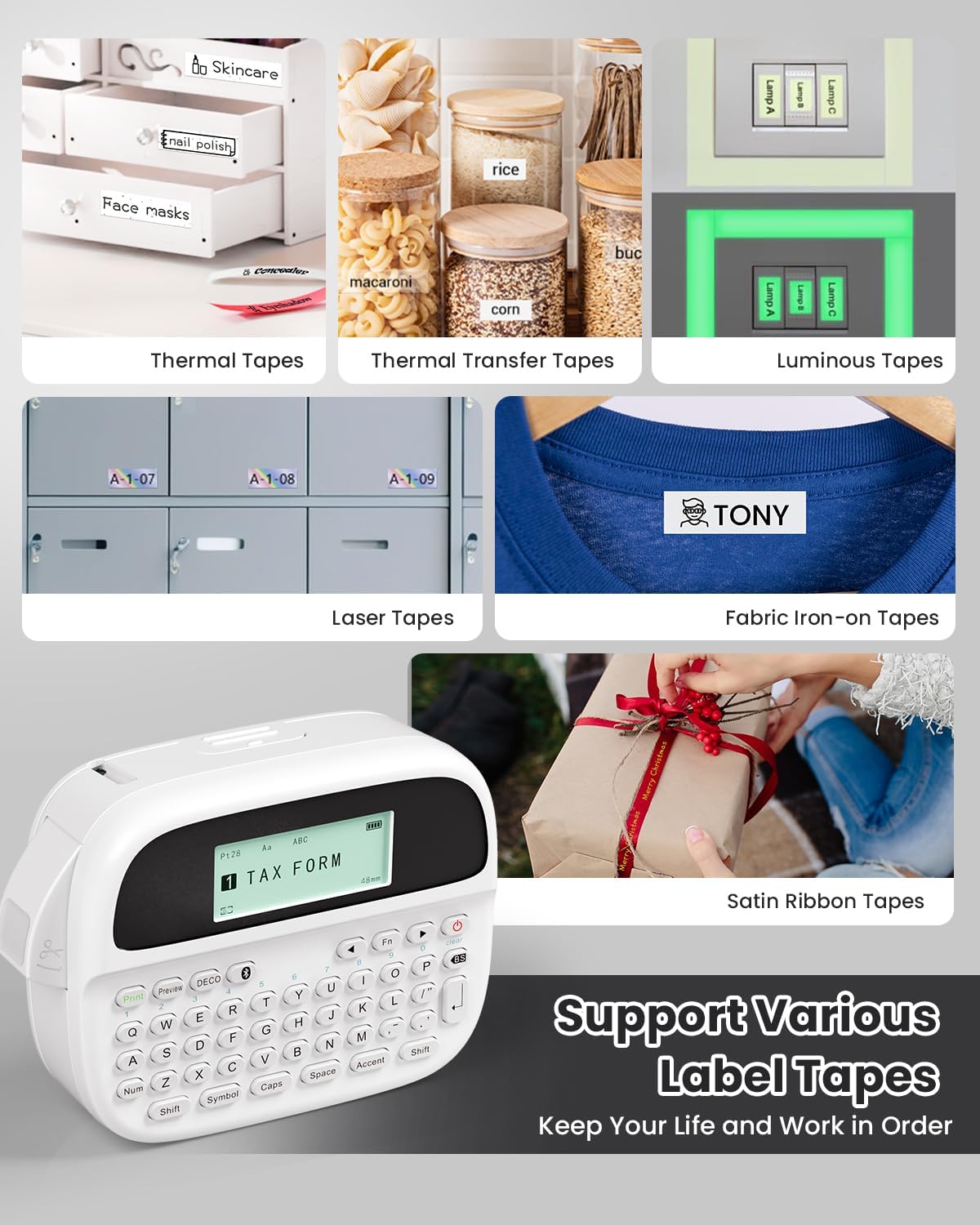
Image: Phomemo M950 Label Maker supporting various label tape types including Thermal, Thermal Transfer, Luminous, Laser, Fabric Iron-on, and Satin Ribbon tapes.

Image: Phomemo M950 Label Maker demonstrating its backlight screen feature, allowing for comfortable use even at night.
10. Garanti ak sipò
For warranty information, technical support, or service inquiries, please refer to the official Phomemo websit la oubyen kontakte sèvis kliyan yo dirèkteman. Kenbe resi acha w la kòm prèv acha pou reklamasyon garanti.
Phomemo Official Websit: Visit Phomemo Store