
Maxview TVSL/22
Maxview Alphatronics SL Line+ Smart TV with DVD Player User Manual
Model: TVSL/22 | Brand: Maxview
1. Entwodiksyon ak souview
This manual provides comprehensive instructions for the setup, operation, and maintenance of your Maxview Alphatronics SL Line+ Smart TV. Designed for mobile use, this versatile television operates on both 12v and 240v power, making it ideal for motorhomes, caravans, trucks, and boats. It features a Full HD LED display, integrated DVD player, Wi-Fi, Bluetooth, and access to popular streaming services via WebOS.

Imaj: Devan view of the Maxview Alphatronics SL Line+ Smart TV, highlighting its smart features and integrated DVD player.
Karakteristik kle yo enkli:
- Full HD LED Smart TV with Freeview.
- WebOS for access to Netflix, Amazon Prime, Disney+, iPlayer, ITVX, Sky Store, YouTube, and more.
- Dual power compatibility (12v or 240v).
- Built-in DVD Player, Bluetooth, Wi-Fi, and Ethernet.
- Multiple connectivity options: 2 HDMI ports, USB Port, and AV connections.
2. Ki sa ki nan bwat la
Tanpri verifye sa ki nan pake a avèk lis ki anba a:
- Alphatronics TV (TVSL/22)
- Kontwòl Remote
- 240v Mains Lead
- 12v pouvwa adaptè
- Manyèl Itilizatè (dokiman sa a)

Image: The included remote control for the Maxview Alphatronics Smart TV.
3. Enstalasyon
3.1. Plasman ak aliye
Choose a stable and flat surface for your TV. Ensure adequate ventilation around the unit. If mounting, refer to your specific wall mount instructions and ensure the mount is compatible with VESA standards for your TV size.

Imaj: Egzample of the TV installed within a caravan interior.
3.2. Koneksyon pouvwa
The TV can be powered by either 12v DC or 240v AC.
- For 240v AC: Connect the supplied 240v Mains Lead to the TV's AC input and then to a standard wall socket.
- For 12v DC: Connect the supplied 12v Power Adapter to the TV's DC input and then to a 12v power source (e.g., vehicle's 12v socket).
Ensure the correct power source is used to prevent damage.
3.3. Konekte Aparèy Ekstèn
Televizyon an gen plizyè pò pou konekte aparèy ekstèn:
- Pò HDMI (x2): For high-definition audio and video devices like satellite receivers, game consoles, or laptops.
- Pò USB: Pou konekte aparèy depo USB pou jwe medya files.
- AV Connections: Pou aparèy ki pi ansyen k ap itilize videyo konpoze ak odyo stereo.
- Antre Antèn/Satelit: Connect your terrestrial antenna or satellite dish cable for Freeview or satellite TV reception.

Image: Rear panel of the TV displaying available connection ports.
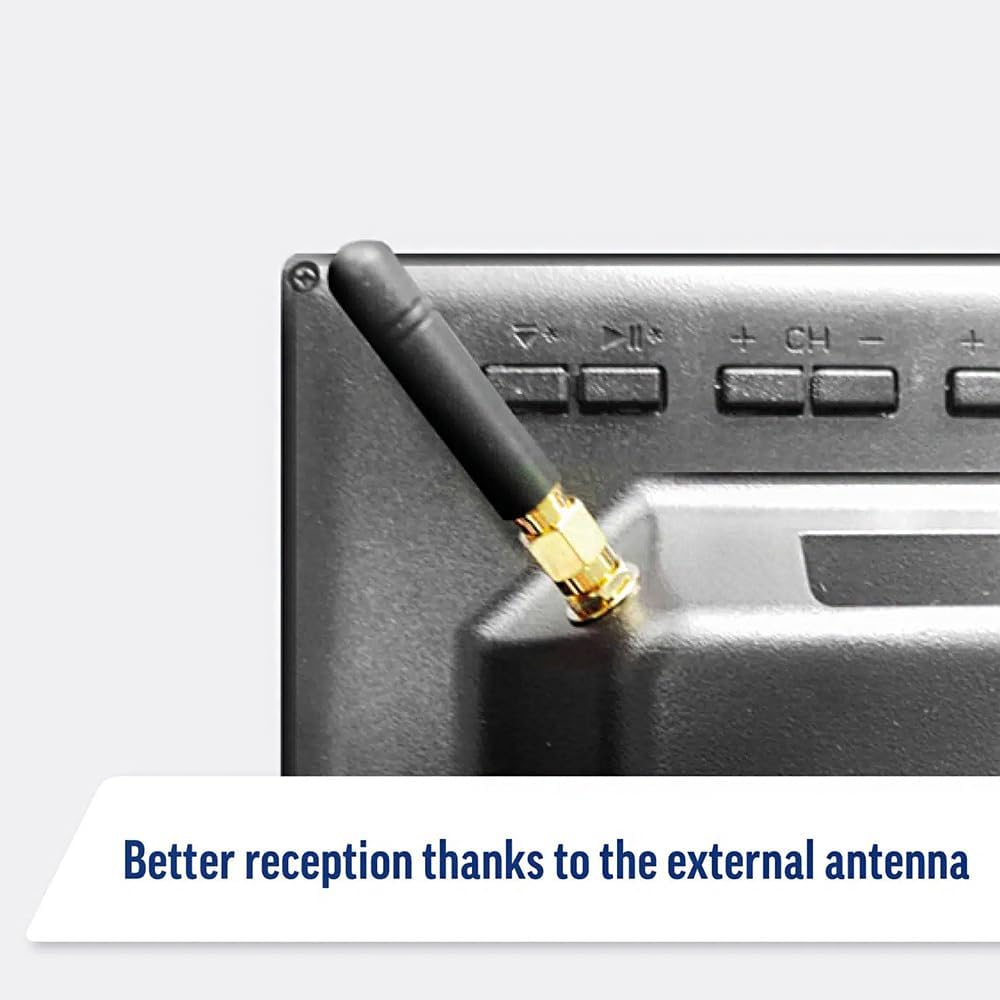
Image: Detail of the external antenna connection for improved signal reception.
3.4. Inisyal Enstalasyon Sòsye
Lè w limen televizyon an pou premye fwa, li pral gide w nan yon asistan konfigirasyon inisyal. Sa gen ladan l:
- Seleksyon Lang: Chwazi lang ou prefere.
- Rezo Koneksyon: Connect to your Wi-Fi network or via Ethernet for internet access. This is crucial for Smart TV features.
- Chèn Scan: Scan for available Freeview or satellite channels.
- Time and Date Settings: Set the correct time zone and date.
4. Itilizasyon televizyon an
4.1. Kontwòl debaz yo
Use the supplied remote control to navigate the TV. Common functions include:
- Bouton pouvwa: Limen/etenn televizyon an oubyen li mete l nan mòd veille.
- Volim monte/desann: Ajiste nivo odyo a.
- Chèn monte/desann: Chanje chanèl televizyon yo.
- Sous/Antre: Selects the input source (HDMI, AV, TV, DVD).
- Bouton Navigasyon (Kle Flèch, OK): Navige nan meni yo epi chwazi opsyon yo.
- Bouton Kay: Aksè a WebOS Smart TV home screen.
- Bouton Aksè Rapid: Dedicated buttons for Netflix and Amazon Prime Video for direct access.
4.2. Karakteristik televizyon entelijan (WebOS)
Your Maxview Alphatronics TV runs on WebOS, providing a user-friendly interface for accessing a wide range of applications and content.
- Kay Dashboard: Peze a Lakay button to access the main dashboard, where you can find installed apps, input sources, and settings.
- App Store: Telechaje epi enstale lòt aplikasyon nan magazen aplikasyon entegre a.
- Sèvis difizyon: Easily access popular services like Netflix, Amazon Prime Video, Disney+, BBC iPlayer, ITVX, and YouTube.
- Pataje ekran: Share content from your smartphone or tablet to the TV screen.
Image: Using a smartphone as a remote control for the TV.
4.3. DVD Player Operation
The integrated DVD player allows you to enjoy your movie collection on the go.
- Insert a DVD disc into the slot on the side of the TV.
- Televizyon an ta dwe chanje otomatikman sou antre DVD a. Si se pa sa, peze bouton an Sous / Antre button on your remote and select "DVD".
- Use the remote control's playback buttons (Play, Pause, Stop, Fast Forward, Rewind) to control the DVD.
- To eject the disc, press the Eject button on the remote or the TV.
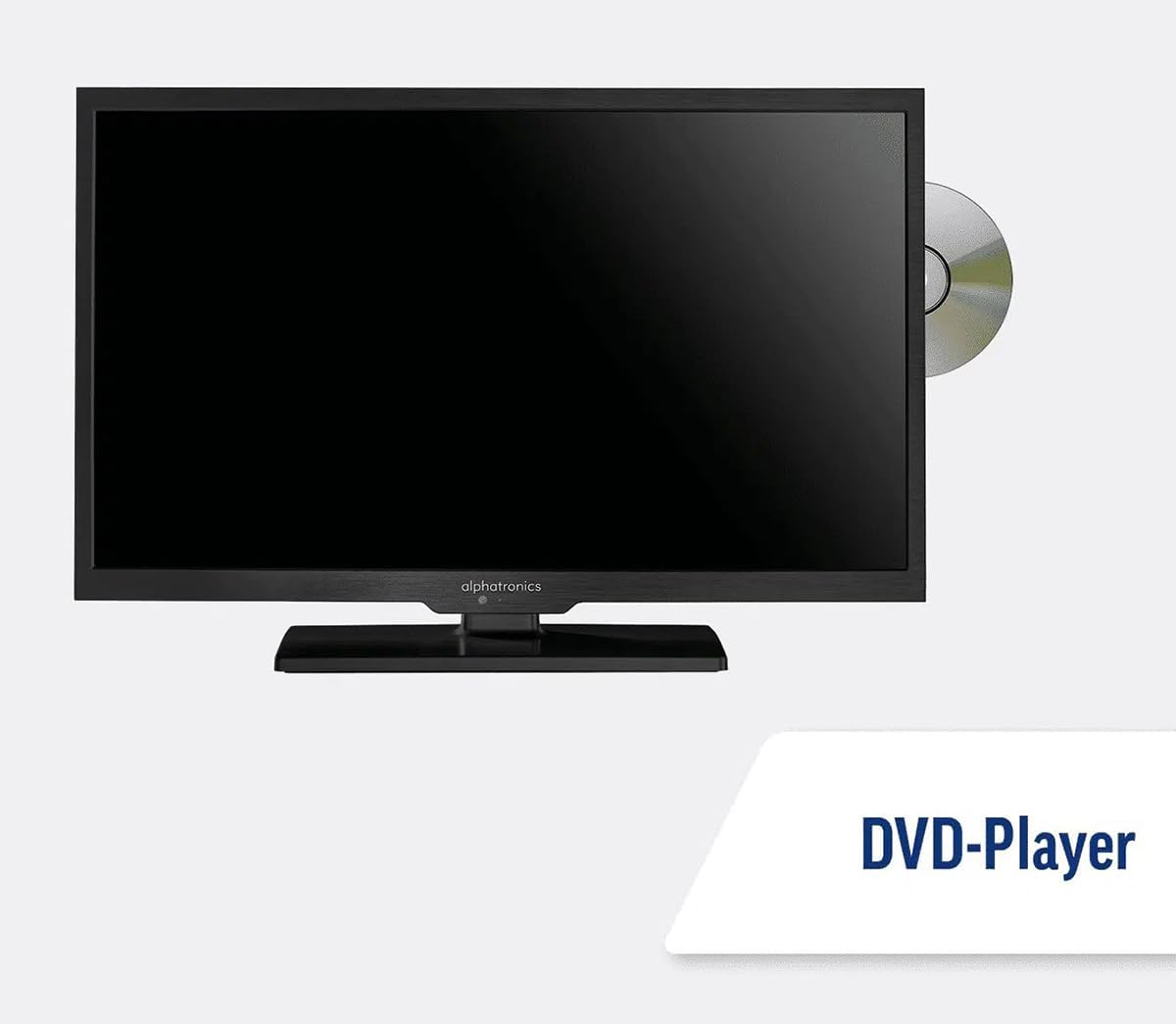
Image: The TV with a DVD disc being inserted into its built-in player.
5. Antretyen
5.1. Netwayaj
To clean the TV screen, gently wipe it with a soft, lint-free cloth. For stubborn marks, dampen the cloth slightly with water or a screen-cleaning solution. Do not spray liquid directly onto the screen. Clean the TV casinSiye ak yon twal sèk e mou.
Atansyon: Always unplug the TV from the power source before cleaning.
5.2. Mizajou lojisyèl
Your Maxview Alphatronics Smart TV supports automatic software updates via the internet. Ensure your TV is connected to a stable Wi-Fi or Ethernet network to receive the latest firmware and feature enhancements.
- To check for updates manually, navigate to the Anviwònman menu on your TV, then look for Mizajou lojisyèl or Enfòmasyon sou Sistèm.
- Follow the on-screen prompts to download and install any available updates. Do not power off the TV during an update process.

Image: The TV screen indicating a software update in progress.
NAN. Depanaj
If you encounter issues with your TV, please refer to the following common problems and solutions before contacting support.
| Pwoblèm | Kòz posib | Solisyon |
|---|---|---|
| Pa gen pouvwa | Power cable disconnected; no power from outlet/source. | Check power connections. Ensure outlet/source is active. Try a different outlet. |
| Pa gen siyal | Incorrect input selected; antenna/cable disconnected or faulty. | Peze Sous / Antre to select correct input. Check antenna/cable connections. Perform a channel scan. |
| Pa gen koneksyon entènèt | Wi-Fi password incorrect; router issue; TV too far from router. | Re-enter Wi-Fi password. Restart your router. Move TV closer to router or use Ethernet. |
| DVD a pa ap jwe | Disc dirty or scratched; incorrect input selected; region code mismatch. | Clean the disc. Ensure "DVD" input is selected. Check disc region compatibility. |
| Remote Control pa travay | Batteries low/dead; obstruction between remote and TV; remote not paired (if Bluetooth). | Replace batteries. Remove obstructions. Re-pair remote if necessary (refer to TV settings). |
If the problem persists after trying these solutions, please contact Maxview sipò pou kliyan.
7. Espesifikasyon
| Karakteristik | Detay |
|---|---|
| Nimewo Modèl | TVSL/22 |
| Gwosè ekran | 22 pous (56 cm dyagonal vizib) |
| Teknoloji ekspozisyon | dirije |
| Rezolisyon | 1080p (Full HD) |
| Dimansyon pwodwi (D x W x H) | 12D x 58W x 38H santimèt |
| Antre pouvwa | 12v DC / 240v AC |
| Koneksyon | Wi-Fi, Bluetooth, Ethernet |
| Pò | 2x HDMI, 1x USB, AV connections, Antenna/Satellite input |
| Karakteristik espesyal | Smart TV (WebOS), Built-in DVD Player |
| Aspè rapò | 16:9 |
| Manifakti | Alphatronics |
8. Garanti ak sipò
Your Maxview Alphatronics SL Line+ Smart TV comes with a 3-ane garanti, providing peace of mind regarding your purchase. This warranty covers manufacturing defects and ensures reliable operation.
For warranty claims, technical support, or further assistance, please contact Maxview customer service. You can typically find contact information on the official Maxview websit la oubyen sou materyèl anbalaj yo.
Please have your model number (TVSL/22) and proof of purchase ready when contacting support.
Remak: Pa gen okenn videyo ofisyèl pwodwi vandè a ki te jwenn nan done yo bay pou entegre nan manyèl sa a.
Ask a question about this manual
Ask about setup, troubleshooting, compatibility, parts, safety, or missing instructions. Manuals+ will review the question and use this page’s manual context to help answer it.