
AUN AUN M98 Y9
AUN 4K Android TV Stick User Manual
Model: AUN M98 Y9
Mak: AUN
Entwodiksyon
This user manual provides comprehensive instructions for the AUN 4K Android TV Stick (Model: M98 Y9). It covers product features, setup, operation, maintenance, and troubleshooting to ensure optimal performance and user experience. The AUN TV Stick transforms any compatible display into a smart TV, offering access to a vast array of streaming content and applications.
Ki sa ki nan bwat la
Lè w ap debale l, tanpri verifye si tout atik sa yo ladan l:
- 1 x 4K Android TV Stick (AUN M98 Y9)
- 1 x kontwòl remote
- 1 x pouvwa adaptè
- 1 x Kalite C kab
- 1 x IR Cable
- 1 x HDMI Extender Cable
- 1 x manyèl itilizatè

Image: All components included in the AUN 4K Android TV Stick package, laid out for clear viewing. This includes the TV stick, its remote control, power adapter, Type-C cable, IR cable, HDMI extender cable, and the user manual.
Pwodwi souview
The AUN M98 Y9 Android TV Stick is a compact device designed to provide smart TV functionalities to any display with an HDMI input. It features a sleek design and intuitive controls.
Konpozan aparèy
- Konektè HDMI: Plugs directly into your TV's HDMI port.
- Entèfas USB: For connecting external storage devices or peripherals.
- Power Hole (Type-C): Pou konekte adaptè pouvwa a.
- Pilòt Lamp: Endike estati aparèy la.

Image: The AUN 4K Android TV Stick and its accompanying remote control. The stick is a compact, black rectangular device, and the remote is an ergonomic black controller with various buttons for navigation and voice control.
Kontwòl Remote
The included remote control allows for easy navigation and interaction with the TV Stick. It supports voice search for quick content discovery.
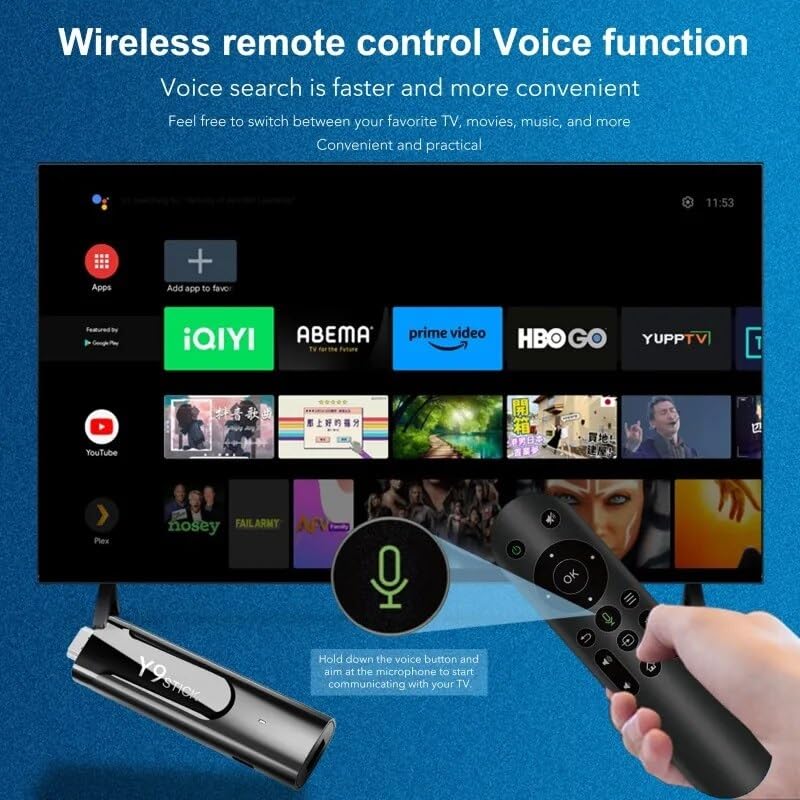
Image: A hand holding the AUN TV Stick remote control, with a visual overlay indicating the voice search button and microphone icon. The image illustrates the ease of using voice commands to interact with the TV stick's interface, which is displayed on a television screen in the background.
Gid Enstalasyon
Follow these steps to set up your AUN 4K Android TV Stick:
- Connect the TV Stick: Plug the AUN TV Stick directly into an available HDMI port on your television or projector. If space is limited, use the provided HDMI extender cable.
- Konekte pouvwa: Connect the Type-C cable to the "Power Hole" on the TV Stick and the other end to the provided power adapter. Plug the power adapter into a wall outlet.
- Connect IR Cable (Optional): If the TV Stick is hidden behind the TV or in a cabinet, connect the IR cable to the TV Stick and position the IR receiver in a location where it has a clear line of sight to your remote control.
- Chwazi Antre HDMI: Turn on your TV or projector and select the corresponding HDMI input source to which the TV Stick is connected.
- Premye konfigirasyon: Follow the on-screen instructions to complete the initial setup, including language selection, Wi-Fi network connection, and Google account login.
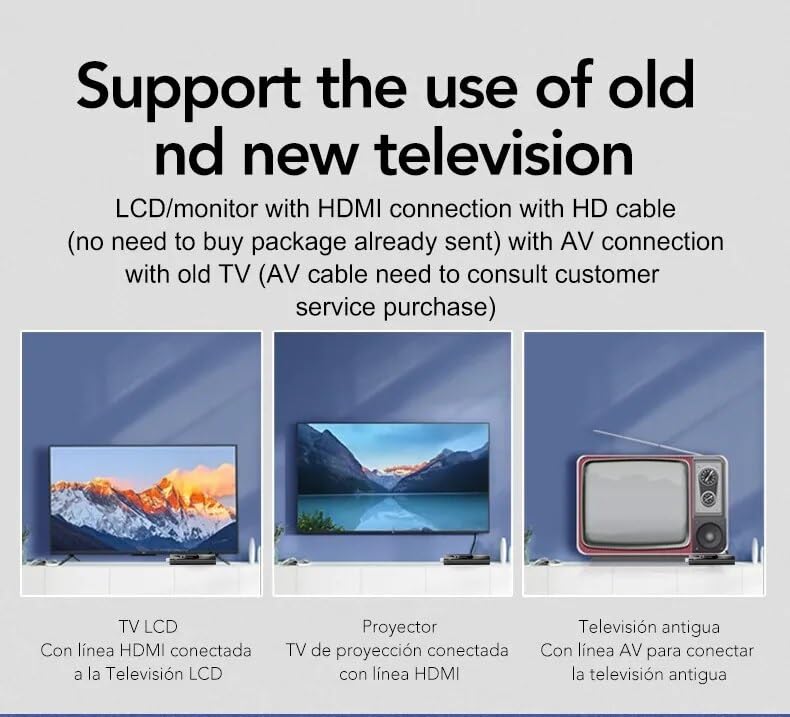
Image: This diagram illustrates the versatility of the AUN TV Stick, showing its compatibility with modern LCD TVs and projectors via HDMI, and older televisions using an AV connection (AV cable sold separately). It highlights the ease of connecting the device to various display types.
Enstriksyon Operasyon
Navige Entèfas la
Use the directional pad and "OK" button on the remote control to navigate through the Android TV interface. The "Back" button returns to the previous screen, and the "Home" button takes you to the main home screen.
Konekte ak Wi-Fi
- Sou ekran prensipal la, ale nan Anviwònman.
- Chwazi Rezo & Entènèt.
- Chwazi rezo Wi-Fi ou vle a nan lis la.
- Enter the Wi-Fi password using the on-screen keyboard and select Konekte.
The AUN TV Stick supports dual-band Wi-Fi (2.4G/5G) for stable and fast wireless connectivity.

Image: This visual demonstrates the AUN TV Stick's support for both 2.4G and 5G dual-band Wi-Fi, ensuring smooth high-speed graphics and streaming. It also shows the capability to mirror content from a mobile phone to the TV screen, enhancing the vieweksperyans nan.
Enstale aplikasyon yo
Access the Google Play Store from the home screen to download and install your favorite streaming apps (e.g., Netflix, Prime Video, Disney+ Hotstar) and games. A Google account is required for Play Store access.
Using Voice Search
Press the dedicated voice button on your remote control and speak into the microphone to search for content, open apps, or get information. Voice search is faster and more convenient.
Karakteristik kle
- 4K Ultra HD Rezolisyon: Supports stunning 4K resolution for crisp, clear visuals and an immersive vieweksperyans nan.
- HDR 10+ Support: Enhanced dynamic range for vibrant colors and greater contrast.
- Widevine L1 sètifye: Enables streaming of high-definition content from premium services like Netflix and Prime Video.
- Sistèm operasyon Android 13: Provides a smooth, user-friendly interface with access to a vast ecosystem of apps.
- Amlogic S905Y4 Quad A35 CPU: High-performance processor for seamless streaming and gaming.
- 2GB RAM & 16GB Storage: Sufficient memory for smooth operation and ampespas pou aplikasyon ak medya.
- Wi-Fi Doub-Band (2.4G/5G): Ensures stable and fast internet connectivity.
- Bluetooth 5: For connecting wireless headphones, game controllers, and other Bluetooth accessories.
- Dolby Audio & DTS Digital Support: Delivers rich, immersive sound quality.
- USB & Memory Card Ports: Allows for external storage expansion and media playback.
- Sipò Miracast: Enables screen mirroring from compatible devices.

Image: This image highlights the superior image quality of the AUN TV Stick, emphasizing its 4K Ultra HD and HDR capabilities. The vibrant colors and sharp details demonstrate the immersive visual experience provided by the device.

Image: This image emphasizes the generous memory configuration of the AUN TV Stick, featuring 2GB of DDR3 RAM and 16GB of eMMC storage. This combination ensures smooth operation and ample space for applications and media content.
Depanaj
If you encounter issues with your AUN 4K Android TV Stick, refer to the following common problems and solutions:
- Pa gen kouran/Aparèy la pa limen:
- Ensure the power adapter is securely connected to the TV Stick and a working power outlet.
- Eseye yon priz kouran diferan.
- No Signal on TV Screen:
- Verify the TV Stick is firmly plugged into the HDMI port.
- Tcheke si televizyon ou an byen branche sou bon sous antre HDMI a.
- Eseye yon lòt pò HDMI sou televizyon ou an.
- If using the HDMI extender, ensure it is properly connected.
- Kontwòl Remote pa reponn:
- Ensure there are no obstructions between the remote and the TV Stick (or IR receiver).
- Tcheke si pil kontwòl remote la bezwen chanje.
- If using the IR cable, ensure it is properly connected and positioned.
- Pwoblèm koneksyon Wi-Fi:
- Rekòmanse routeur Wi-Fi ou a.
- Ensure the TV Stick is within range of your Wi-Fi router.
- Re-enter the Wi-Fi password to ensure it is correct.
- Try connecting to the 2.4GHz band if you are on 5GHz, or vice-versa.
- App Crashing/Slow Performance:
- Fèmen aplikasyon ki an background.
- Clear the cache of the problematic app via Settings > Apps.
- Restart the TV Stick by unplugging and re-plugging the power.
- Asire w ou gen ase espas depo lib.
Espesifikasyon
| Karakteristik | Detay |
|---|---|
| Mak | AUN |
| Modèl | AUN M98 Y9 |
| Sistèm operasyon | Android 13 |
| Processeur | Amlogic S905Y4 kwadwilatè A35 |
| RAM | 2 GB |
| Depo | 16 GB |
| Rezolisyon | 4K |
| Karakteristik espesyal | Widevine L1, HDR 10+, AV1, Dolby Audio, DTS Digital, Miracast |
| Koneksyon | 2.4G/5G Dual WiFi, Bluetooth 5 |
| Pò | USB, Memory Card, HDMI, Type-C Power |
| Aparèy konpatib | Television, Projectors |
| Dimansyon pwodwi | 8 x 3 x 2 cm |
| Pwa atik | 300 g |

Image: This graphic illustrates the core technical specifications of the AUN TV Stick, highlighting its Amlogic S905Y4 Quad A35 CPU, OpenGL ES 3.2 GPU, H.265 video decoder supporting up to 4K@60fps, and HDMI 2.0 output for 4K@60fps display.
Antretyen
To ensure the longevity and optimal performance of your AUN 4K Android TV Stick, follow these maintenance guidelines:
- Netwayaj: Sèvi ak yon twal mou epi sèk pou netwaye aparèy la. Pa sèvi ak pwodui netwayaj likid oswa ayewosòl.
- Vantilasyon: Ensure the device is placed in a well-ventilated area to prevent overheating. Do not cover ventilation openings.
- Depo: Lè w pa itilize aparèy la pou yon bon bout tan, sere l nan yon kote ki fre epi sèk, lwen limyè solèy dirèk ak tanperati ekstrèm.
- Mizajou lojisyèl: Regularly check for and install system updates to ensure the device has the latest features and security patches.
Garanti ak sipò
The AUN 4K Android TV Stick comes with a 6-mwa garanti apati dat acha a. Garanti sa a kouvri domaj fabrikasyon ak fonksyònman ki pa kòrèk nan itilizasyon nòmal. Tanpri konsève resi acha ou kòm prèv acha.
For technical support, warranty claims, or any other inquiries, please contact Megaa Electronics using the following details:
- Imèl: sipò@megaaelectronics.com or megaaelectronics@gmail.com
- WhatsApp: 8328671337
Please provide your product model (AUN M98 Y9) and a detailed description of the issue when contacting support.
Ask a question about this manual
Ask about setup, troubleshooting, compatibility, parts, safety, or missing instructions. Manuals+ will review the question and use this page’s manual context to help answer it.