
AVMATRIX SHARK S4
AVMATRIX SHARK S4
Multi Camera Video Switcher Mixer for Live Streaming
1. Entwodiksyon
The AVMATRIX SHARK S4 is a compact and versatile multi-camera video switcher and mixer designed for live streaming applications. It integrates 4-channel video inputs (2x HDMI, 2x 3G-SDI), a 6-channel audio mixer, and multiple output options including HDMI PGM, HDMI Multiview, USB Type-C, and LAN for streaming. This device supports various professional features such as Chroma Key, Luma Key, Logo overlay, DSK, and a range of transition effects, making it suitable for broadcast, education, conference, live sports, church, concert, and wedding productions.
2. Enfòmasyon sou Sekirite
Please read and understand all safety instructions before operating the device. Failure to follow these instructions may result in electric shock, fire, or damage to the equipment.
- Pwovizyon pou pouvwa: Use only the provided power adapter. Ensure the power source matches the device's requirements (DC 12V).
- Vantilasyon: Pa bloke ouvèti vantilasyon yo. Asire w ke gen ase lè k ap sikile toutotou aparèy la pou anpeche l chofe twòp.
- Imidite: Keep the device away from water, rain, and excessive humidity. Do not operate with wet hands.
- Netwayaj: Disconnect power before cleaning. Use a dry, soft cloth. Do not use liquid or aerosol cleaners.
- Sèvis: Pa eseye fè sèvis pwodui sa a tèt ou. Refere tout sèvis yo bay pèsonèl sèvis kalifye.
- Plasman: Place the device on a stable, flat surface. Avoid placing it in direct sunlight or near heat sources.
3. Pake kontni
Verifye ke tout atik yo prezan nan pakè a:
- AVMATRIX SHARK S4 Video Switcher
- Adaptè pouvwa (12V 2A)
- USB-A pou USB-C kab
- Tally Connector
- Manyèl Itilizatè (dokiman sa a)
4. Pwodwi souview
The SHARK S4 features a robust design with clearly labeled controls and a comprehensive set of input/output ports. Understanding the layout is crucial for effective operation.
4.1 Kontwòl Panel Front
The front panel provides access to input selection buttons, transition controls (T-bar, Auto, Cut), audio controls, and various effect buttons.

Figure 4.1: Top and Rear View of the AVMATRIX SHARK S4. The top view displays the control surface with input selection buttons, T-bar, and effect controls. The rear view shows all connectivity ports.
4.2 Koneksyon Panèl Dèyè
The rear panel houses all essential input and output ports for video, audio, data, and power.

Figure 4.2: Detailed Rear Panel Connections. This diagram highlights the location and function of each port, including SD Card Slot, SDI IN (1, 2), HDMI IN (3, 4), PGM OUT, Multiview OUT, USB REC, USB OUT, LAN, TALLY, and DC 12V IN.
- Plas kat SD: For recording PGM output to an SD card.
- SDI IN (1, 2): Two 3G-SDI inputs for professional video sources.
- HDMI IN (3, 4): Two HDMI inputs for various video sources.
- PGM OUT (HDMI): Program output for the main switched video feed.
- MULTIVIEW OUT (HDMI): Output for monitoring all inputs, program, and preview on a single screen.
- USB REC (USB-A): For recording PGM output to a USB disk.
- USB OUT (USB Type-C): For USB video capture to a computer for streaming.
- LAN: Ethernet port for IP streaming (RTMP/SRT) and PC remote control.
- KONTE: Connector for Tally light system.
- DC 12V AN: Antre pouvwa.
- MIC/LINE IN (1, 2): Two 3.5mm audio inputs.
- KAY KÒSÈ SOTI: 3.5mm audio output for monitoring.
5. Enstalasyon
Follow these steps to set up your AVMATRIX SHARK S4 for operation.
5.1 Koneksyon pouvwa
- Connect the provided 12V power adapter to the "DC 12V IN" port on the rear panel.
- Ploge adaptè pouvwa a nan yon priz elektrik apwopriye.
- Aparèy la pral limen otomatikman.
5.2 Video Input Connections
The SHARK S4 supports up to four video inputs.
- Connect your SDI cameras or video sources to the "SDI IN 1" and "SDI IN 2" ports.
- Connect your HDMI cameras, computers, or other video sources to the "HDMI IN 3" and "HDMI IN 4" ports.
- Ensure all video sources are set to compatible resolutions and frame rates. The switcher supports up to 1080p 60Hz.
5.3 Koneksyon Antre Odyo
The switcher features a 6-channel audio mixer, including embedded audio from HDMI/SDI inputs and external analog inputs.
- Connect microphones or line-level audio devices to the "MIC/LINE IN 1" and "MIC/LINE IN 2" 3.5mm ports.
- Embedded audio from connected HDMI and SDI sources will be automatically detected.
5.4 Koneksyon Sòti
- Program Output: Connect a display or recording device to the "PGM OUT" HDMI port for the main switched video feed.
- Multiview Sòti: Connect a monitor to the "MULTIVIEW OUT" HDMI port to view all inputs, preview, and program simultaneously.

Figure 5.1: Configurable Multiview Output. The multiview display allows monitoring of all active video inputs, the program output, and audio levels on a single screen.
- USB Capture: Connect the "USB OUT" (USB Type-C) port to a computer for direct video and audio capture using software like OBS, vMIX, ZOOM, Teams, Skype, or VLC.

Figure 5.2: USB Capture for Streaming. The USB Type-C output enables the SHARK S4 to function as a webcam, allowing direct streaming to popular software and platforms.
- LAN Output: Connect an Ethernet cable from the "LAN" port to your network for RTMP(S) and SRT protocol streaming.
- Ekoute Sòti: Connect headphones to the "EARPHONE OUT" port for audio monitoring.
5.5 PC Remote Control Setup
The SHARK S4 can be controlled remotely via PC software.
- Connect the "LAN" port of the switcher to your computer's network port or a network switch.
- Download and install the latest PC control software from the official AVMATRIX websit.
- Launch the software and follow the on-screen instructions to connect to the SHARK S4.
6. Operasyon Enstriksyon
This section details the primary functions and operations of the AVMATRIX SHARK S4.
6.1 Basic Switching
- Seleksyon Antre: Press the numbered buttons (1-4) on the program row to select the input currently live on the program output. Use the preview row buttons to select the next input to be transitioned to.
- T-Bar: Smoothly transition between the preview and program sources by moving the T-bar fader.
- Bouton OTO: Initiates an automatic transition between the preview and program sources using the selected transition effect and duration.
- Bouton KOUPE: Performs an instant, hard cut between the preview and program sources.
6.2 Efè Tranzisyon
The SHARK S4 offers various transition effects to enhance your live production.
- WIPE: Select from 9x2 patterns of wipe transitions.
- MIX: A smooth dissolve transition.
- Plonje: A transition that dips to a color before revealing the new source.
- Adjust transition speed using the dedicated controls.
6.3 Audio Mixing and Monitoring
Control audio levels for all 6 channels (2x HDMI embedded, 2x SDI embedded, 2x MIC/Line in).
- Use the audio mixer controls on the device or via PC software to adjust individual channel volumes.
- The "EARPHONE OUT" allows for real-time audio monitoring.
- Audio delay is available for synchronization.
6.4 Keying Effects (Chroma Key, Luma Key, DSK)
The switcher supports up to 6 layers of effects, including advanced keying.
- Kle Kwoma: Used to remove a specific color (e.g., green screen) from a video source, allowing another background to be inserted. Access settings to fine-tune color range, spill suppression, and edge adjustments.

Figure 6.1: Chroma Key Functionality. This image demonstrates the ability to remove a background color (like green) and replace it with another video source or image, enabling virtual sets and layered compositions.
- Luma Key: Used to key out areas based on brightness levels.
- DSK (Downstream Key): For overlaying graphics, titles, or logos over the program output.
6.5 PIP/POP Mode and Logo Overlay
Enhance your production with picture-in-picture, picture-out-picture, and custom logo overlays.
- PIP/POP: Display multiple video sources simultaneously on the screen. PIP (Picture-in-Picture) places a smaller video feed within the main program. POP (Picture-out-Picture) displays multiple sources side-by-side.
- Logo Overlay: Import and overlay your custom logo or graphic onto the program output.

Figure 6.2: Functional Diversity. This image illustrates various advanced features including Picture-in-Picture (PIP) and Picture-out-Picture (POP) modes, custom logo overlay, dynamic transition effects, and the PC control interface for remote operation.
6.6 Media Library
The built-in media library stores patterns, imported images, and captured images.
- Access 49 default patterns, 16 imported images, and 16 captured images.
- Import custom images via USB for use as backgrounds or overlays.
6.7 Anrejistreman
Record your program output directly to a USB disk or SD card.
- Insert a formatted USB disk into the "USB REC" port or an SD card into the "SD Card Slot".
- Navigate to the recording settings (via device menu or PC software) to start/stop recording.
- Sipòte file formats: MP4/TS. Bitrate up to 32Mbps.
6.8 Live Streaming
The SHARK S4 offers multiple ways to stream your content.
- LAN Streaming (RTMP/SRT): Configure streaming parameters (RTMP/SRT server URL, stream key) via the device menu or PC software. Connect the LAN port to your network and initiate streaming.
- USB Capture Streaming: Connect the USB Type-C port to a computer. The switcher will appear as a webcam. Use streaming software (OBS, vMIX, etc.) on your computer to stream the video and audio.
7. Antretyen
Proper maintenance ensures the longevity and optimal performance of your SHARK S4.
- Netwayaj: Regularly wipe the exterior with a soft, dry, lint-free cloth. Do not use abrasive cleaners or solvents.
- Vantilasyon: Ensure the ventilation slots are clear of dust and debris. Use compressed air to gently clear any blockages.
- Depo: Lè w pa itilize aparèy la pou yon bon bout tan, sere l nan yon kote ki fre epi sèk, lwen limyè solèy dirèk ak tanperati ekstrèm.
- Mizajou mikrolojisyèl: Periodically check the AVMATRIX official websit pou mizajou firmwèr. Kenbe firmwèr la ajou ka amelyore pèfòmans epi ajoute nouvo fonksyonalite.
NAN. Depanaj
Seksyon sa a bay solisyon pou pwoblèm komen ou ka rankontre.
| Pwoblèm | Kòz posib | Solisyon |
|---|---|---|
| No video output on PGM or Multiview. | Incorrect cable connection; input source not active; output display not powered on or set to correct input. | Check all HDMI/SDI cable connections. Ensure input sources are active and output displays are correctly configured. Verify input selection on the switcher. |
| SDI inputs not recognized. | Incompatible SDI signal; faulty cable; switcher settings. | Ensure SDI sources are 3G-SDI compatible. Try different SDI cables. Check switcher settings for input detection. (Note: Some users have reported issues with SDI input recognition; ensure firmware is up to date and contact support if issue persists.) |
| No audio output or distorted audio. | Audio levels too low/high; incorrect audio input selected; faulty cables. | Adjust audio levels on the mixer. Verify correct audio input is enabled. Check audio cables and connections. Ensure audio delay is not excessively set. |
| Chroma Key not working effectively. | Poor lighting on green screen; incorrect color selection; fine-tuning needed. | Ensure even, bright lighting on your green/blue screen. Adjust the chroma key settings (color, tolerance, spill) carefully within the switcher's menu or PC software. |
| USB streaming not detected by computer. | Incorrect USB cable; driver issue; software not configured. | Use the provided USB Type-C cable. Ensure your computer's operating system (Windows, Linux, Mac) recognizes the device. Check settings in your streaming software (OBS, vMIX) to select the SHARK S4 as the video/audio input device. |
| Recording to USB/SD card fails. | Unsupported format; insufficient storage; card/disk error. | Ensure USB disk/SD card is formatted to FAT32/exFAT/NTFS. Check available storage space. Try a different USB disk or SD card. |
9. Espesifikasyon
Detailed technical specifications for the AVMATRIX SHARK S4.
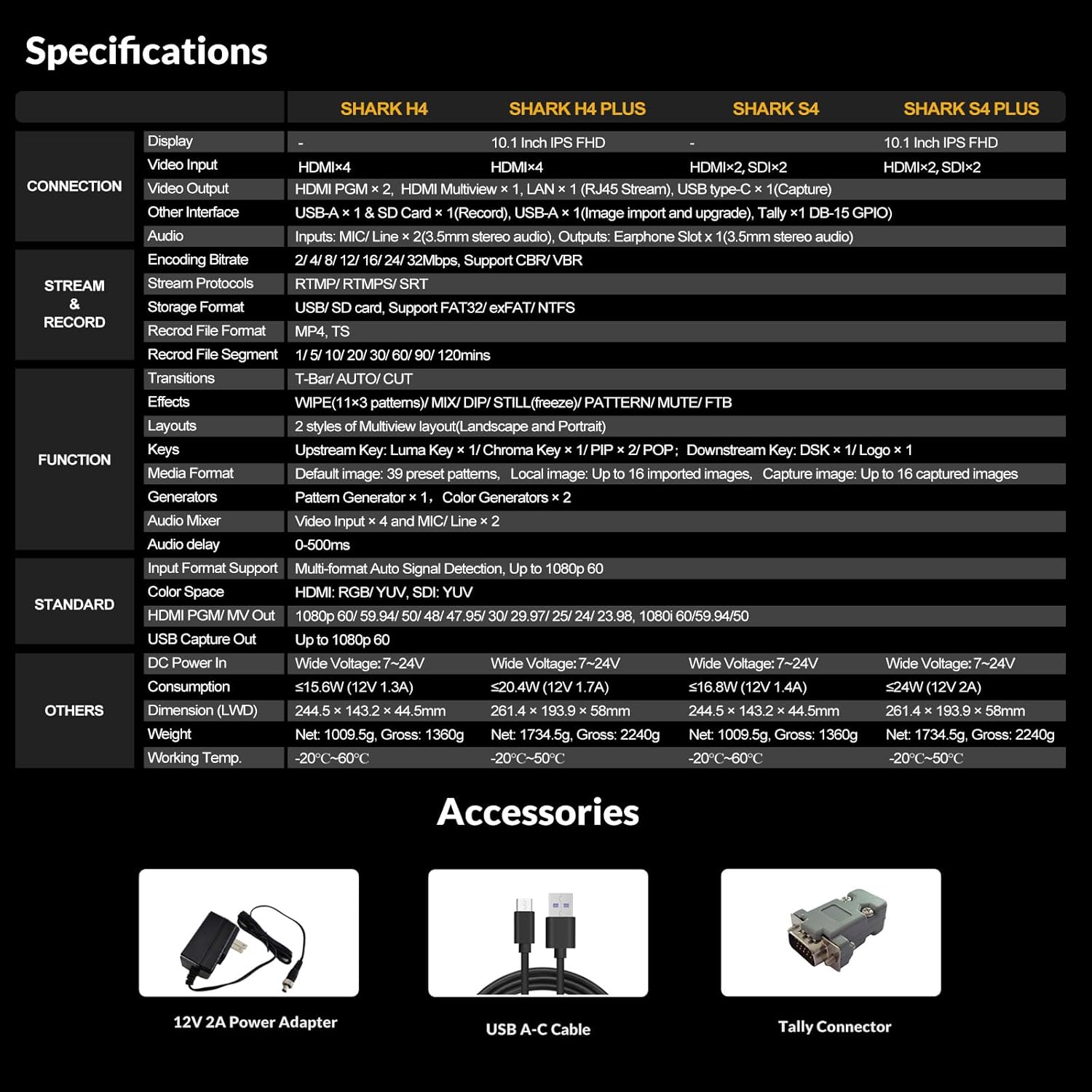
Figure 9.1: Comprehensive Specifications Table. This table provides detailed technical specifications for the SHARK S4, including display, connections, streaming, recording, functions, and physical characteristics, alongside other SHARK series models for comparison.
| Karakteristik | Detail (SHARK S4) |
|---|---|
| Dimansyon pwodwi | 9.6 x 5.6 x 1.7 pous |
| Pwa atik | 3.34 liv |
| Nimewo Modèl Atik | REKEN S4 |
| Manifakti | AVMATRIX |
| Peyi orijin | Lachin |
| Koulè | Nwa |
| Kalite Connector | HDMI, USB-C |
| Aparèy konpatib | Odinatè pèsonèl |
| Kalite kab | Ethernet, USB, HDMI |
| Antre Videyo | 2x HDMI, 2x 3G-SDI |
| Sorti Videyo | 2x HDMI PGM, 1x HDMI Multiview, 1x USB Type-C, 1x LAN |
| Entrain Audio | 2x MIC/Line In (3.5mm), Embedded HDMI/SDI audio |
| Fòma anrejistreman | MP4/TS (USB Disk & SD Card) |
| Pwotokòl Streaming | RTMP(S), SRT |
| Efè | WIPE (9x2 patterns), MIX, DIP, Chroma Key, Luma Key, Logo, DSK, PIP/POP |
10. Garanti ak sipò
AVMATRIX products are designed for reliability and performance. For warranty information and technical support, please refer to the official AVMATRIX websit la oubyen kontakte sèvis kliyan yo dirèkteman.
- Ofisyèl Websit: www.avmatrix.net (Tanpri tcheke pou jwenn enfòmasyon kontak ak resous sipò ki pi resan yo.)
- Sèvis Kliyan: Gade seksyon kontak la sou paj ofisyèl la. website for email or phone support.
- Mizajou mikrolojisyèl: Regularly check the support section of the AVMATRIX website for the latest firmware and software updates.
Nòt: Tèm ak kondisyon garanti a ka varye selon rejyon an. Tanpri konsève prèv acha ou pou reklamasyon garanti.
Ask a question about this manual
Ask about setup, troubleshooting, compatibility, parts, safety, or missing instructions. Manuals+ will review the question and use this page’s manual context to help answer it.