
Entwodiksyon
This manual provides detailed instructions for the installation, operation, and maintenance of your XTRONS IQ72DLRP Car Stereo GPS unit. Please read this manual thoroughly before using the product to ensure proper functionality and to prevent damage. Keep this manual for future reference.
Enfòmasyon sou Sekirite
- Pa eseye itilize aparèy la pandan w ap kondui. Distraksyon nan kondwi ka lakòz aksidan.
- Ensure all wiring is correctly connected before powering on the unit to avoid short circuits or damage.
- Consult a professional for installation if you are unsure about any steps. Incorrect installation can void your warranty.
- Evite ekspoze aparèy la nan tanperati ekstrèm, limyè solèy dirèk pou peryòd pwolonje, oswa imidite twòp.
- Do not disassemble the unit. This may cause damage and will void the warranty.
Kontni pake
Verifye ke tout atik yo prezan nan pake a anvan ou kontinye ak enstalasyon an.
- XTRONS IQ72DLRP Head Unit
- GPS antèn
- Pouvwa ekipay
- USB Câbles
- RCA Câbles
- Mikwofòn ekstèn
- Manyèl Itilizatè (dokiman sa a)
- Other accessories as pictured below.

Figi 1: Akseswa ki enkli yo
Enstalasyon
1. Enstalasyon souview
The XTRONS IQ72DLRP is designed for specific integration with the Land Rover Freelander 2. Professional installation is recommended. Ensure the vehicle's battery is disconnected before starting any electrical work.
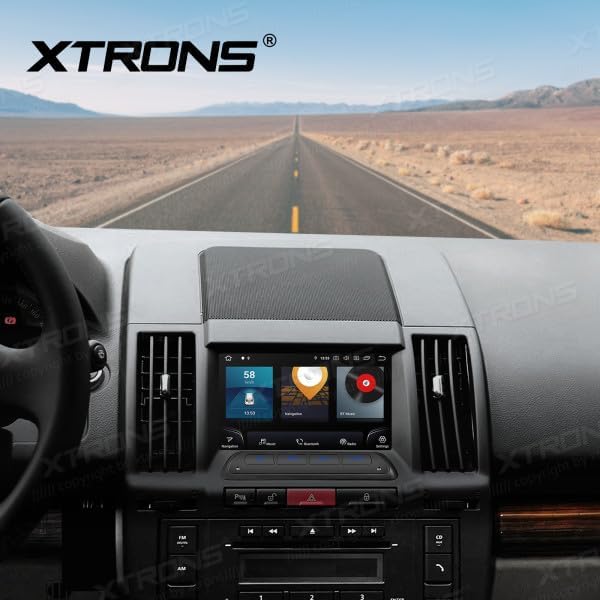
Figure 2: Unit installed in Land Rover Freelander 2 dashboard
2. Koneksyon fil elektrik
Connect the main power harness, speaker wires, and other auxiliary cables according to your vehicle's wiring diagram and the provided XTRONS harness. Pay close attention to the following connections:
- Pouvwa: Connect the yellow wire (constant 12V), red wire (accessory 12V), and black wire (ground).
- Oratè: Connect the speaker wires to the corresponding vehicle speaker wires (e.g., Front Left +, Front Left -).
- GPS Antèn: Monte antèn GPS la nan yon kote ki klè. view nan syèl la, tipikman sou tablodbò a oswa anba vit machin nan.
- USB: Connect the USB cables for external storage or smartphone connectivity.
- Mikwofòn ekstèn: Connect the external microphone for improved call quality.
3. Premye Limen
After all connections are secure, reconnect the vehicle's battery. Turn on the ignition. The unit should power on automatically. Follow any on-screen prompts for initial setup, such as language selection and time zone.
Enstriksyon Operasyon
1. Fonksyon debaz yo
- Limen/Etenyen: Press and hold the power button (if available) or turn the vehicle ignition on/off.
- Kontwòl Volim: Use the volume knob or on-screen controls to adjust audio levels.
- Ekran Kay: Tap the home icon to return to the main Android interface.

Figure 3: Main Android Home Screen
2. Android OS Navigation
The unit runs on Android 12. Navigate through menus and applications by tapping, swiping, and dragging on the touchscreen, similar to a smartphone or tablet.

Figure 4: Application Drawer
3. Operasyon Radyo
Access the "Radio" application from the home screen. You can scan for stations, save presets, and switch between AM/FM bands.
4. Bluetooth Koneksyon
To pair your phone:
- Ale nan Anviwònman > Bluetooth.
- Enable Bluetooth on both the head unit and your mobile device.
- Chèche pou available devices on your mobile phone and select "XTRONS IQ72DLRP" (or similar name).
- Konfime kòd koneksyon an sou tou de aparèy yo.
Yon fwa yo konekte, ou ka fè apèl men lib epi difize odyo.
5. CarPlay / Android Auto
Connect your compatible smartphone via USB to use Apple CarPlay or Android Auto. The system will automatically detect and launch the respective interface, allowing access to navigation, music, messages, and more directly from your phone.
6. Navigasyon GPS
The unit comes with a built-in GPS module and antenna. You can use pre-installed navigation apps or download others from the Google Play Store. Ensure the GPS antenna is properly installed for optimal signal reception.
7. USB / Media Playback
Insert a USB drive into one of the provided USB ports. Use the "Music" or "Video" applications to browse and play media files. The unit supports various audio and video formats.
8. DSP Settings
The Digital Sound Processor (DSP) allows for advanced audio customization. Access the "DSP" application to adjust equalizer settings, balance, fader, and other sound effects to optimize your listening experience.

Figure 5: DSP Settings Interface
9. Wi-Fi and 4G Connectivity
Connect to a Wi-Fi network via Anviwònman > Rezo & Entènèt > Wi-Fi. For 4G connectivity, insert a compatible SIM card (if the unit supports it and a slot is available) or use a USB 4G dongle (sold separately) and configure network settings.
Antretyen
1. Netwayaj Inite a
Sèvi ak yon twal mou epi sèk pou netwaye ekran an ak deyò aparèy la. Pou tach ki difisil pou retire, yon ti krasamp cloth with a mild, non-abrasive cleaner can be used. Avoid spraying liquids directly onto the unit.
2. Mizajou lojisyèl
Periodically check for software updates to ensure optimal performance and access to new features. Updates can usually be found in the system settings or on the official XTRONS website. Follow the instructions provided with the update package carefully.
Depanaj
| Pwoblèm | Kòz posib | Solisyon |
|---|---|---|
| Aparèy pa limen. | Fil elektrik ki pa kòrèk; Fuzib boule; Batri machin nan dekonekte. | Check power connections (yellow, red, black wires). Inspect vehicle fuses. Ensure battery is connected. |
| Pa gen son ki soti nan moun kap pale. | Speaker wires incorrectly connected; Volume too low; Mute function active. | Verify speaker wiring. Increase volume. Check if the unit is muted. |
| GPS signal is weak or unavailable. | GPS antenna improperly installed or obstructed. | Asire w ke antèn GPS la gen yon vizyon klè. view nan syèl la. Tcheke koneksyon antèn lan. |
| Bluetooth appariement echwe. | Bluetooth not enabled; Incorrect pairing code; Device out of range. | Enable Bluetooth on both devices. Re-enter pairing code. Ensure devices are close. |
| Touchscreen pa reponn. | Temporary software glitch; Unit frozen. | Restart the unit (turn vehicle ignition off and on). If issue persists, perform a factory reset (refer to settings). |
Espesifikasyon
- Nimewo Modèl: IQ72DLRP
- Mak: XTRONS
- Sistèm operasyon: Android 12
- Gwosè ekran: 7 pous
- Koneksyon: Bluetooth, Wi-Fi, 4G (optional), Apple CarPlay, Android Auto, USB
- Aparèy konpatib: Telefòn mobil
- Koulè: Nwa
- Processeur: Octa-nwayo
- RAM: 8GB LPDDR4
- ROM: 256GB SSD
- Teknoloji ekspozisyon: QLED
- Sòti odyo: Optical Coaxial, RCA Audio Out
Note: Specifications are subject to change without prior notice. Some product images may show Android 13, but the product title specifies Android 12.
Garanti ak sipò
1. Enfòmasyon sou Garanti
XTRONS products typically come with a limited warranty covering manufacturing defects. Please refer to the warranty card included with your product or visit the official XTRONS websit la pou wè kondisyon garanti detaye ki espesifik pou rejyon ou an.
2. Sipò pou Kliyan
If you encounter any issues not covered in the troubleshooting section or require further assistance, please contact XTRONS customer support. You can usually find contact information (email, phone, or support portal) on the official XTRONS websit:
When contacting support, please have your product model number (IQ72DLRP) and purchase details ready.