
1. Entwodiksyon
This manual provides comprehensive instructions for the setup, operation, and maintenance of your TruVoice BT85 Bluetooth Wireless Headset. Designed for clear communication and extended use, the BT85 features noise suppression technology, a noise-canceling microphone, and multi-device connectivity.
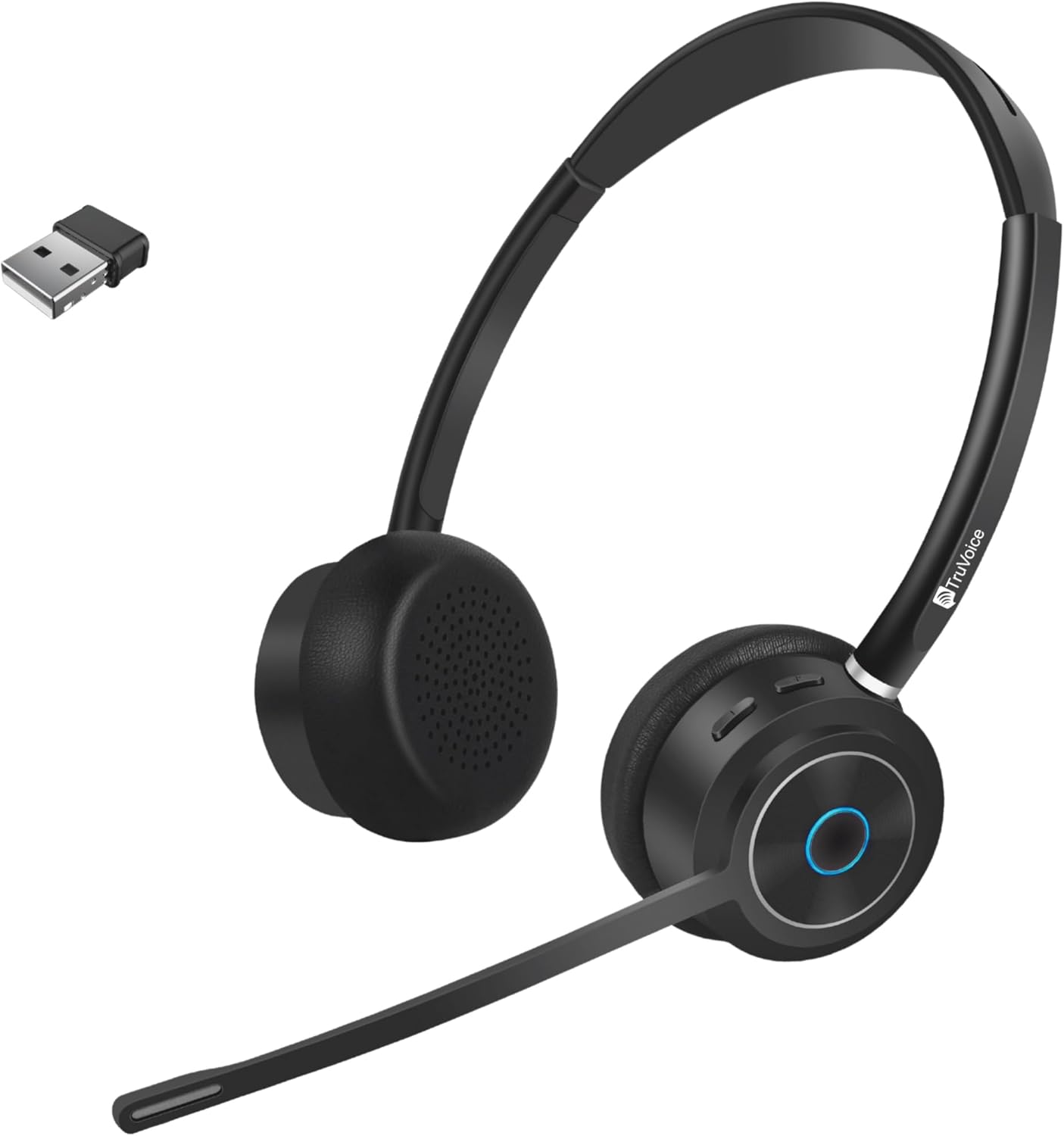
Image 1.1: TruVoice BT85 Bluetooth Wireless Headset with included USB dongle.
2. Ki sa ki nan bwat la
Upon unboxing your TruVoice BT85 headset, please verify that all the following components are included:
- TruVoice BT85 Bluetooth Wireless Headset
- V5.2 USB Dongle
- USB Chaje Kab
- Ear Cushions (pre-installed or spare)
- Headband (integrated)
- Ka Pwoteksyon
- Manyèl Itilizatè (dokiman sa a)
3. Gid Enstalasyon
3.1. Premye Chajman
Before first use, fully charge your headset. Connect the provided USB charging cable to the headset's charging port and to a USB power source (e.g., computer USB port or wall adapter). A full charge typically takes approximately 90 minutes. The LED indicator on the headset will change to indicate charging status (refer to LED indicator section for details).
3.2. Pairing ak Aparèy
The BT85 headset supports simultaneous connection with two Bluetooth devices (multipoint connectivity).
- Using the USB Dongle (Recommended for Computers):
Insert the V5.2 USB Dongle into an available USB port on your computer. The dongle will automatically pair with the headset. Ensure the headset is powered on and in pairing mode if it doesn't connect automatically. The headset is designed for plug-and-play functionality with most operating systems.
- Direct Bluetooth Pairing (for Smartphones, Tablets, or other Bluetooth-enabled devices):
- Asire ekoutè a koupe.
- Press and hold the Multi-functional Key (usually the main button on the earcup) until the LED indicator flashes blue and red, indicating pairing mode.
- On your device, navigate to Bluetooth settings and search for new devices.
- Select "TruVoice BT85" from the list of available devices.
- Once connected, the LED indicator will turn solid blue or flash blue periodically.
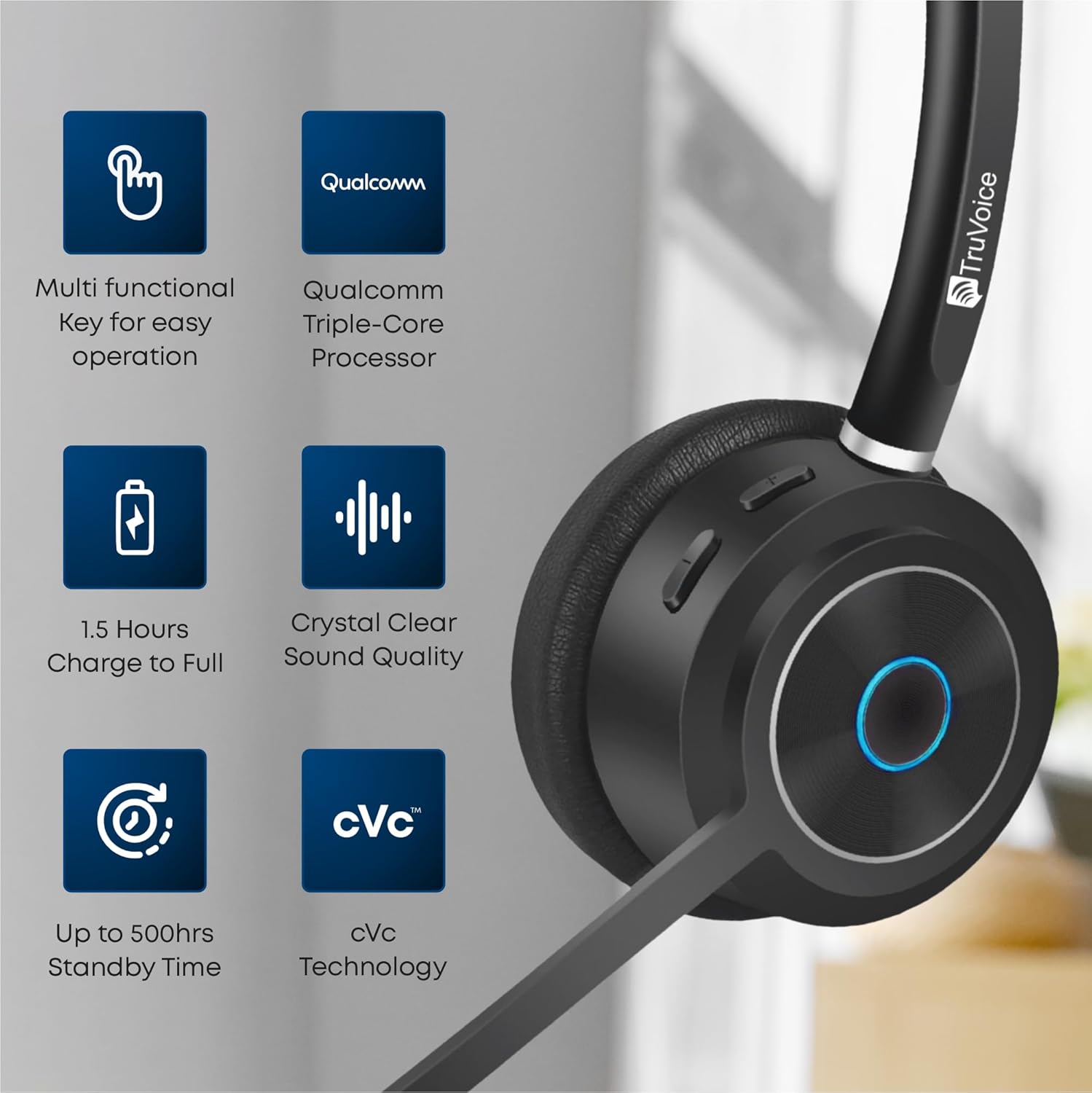
Image 3.1: Key features of the BT85 headset, including the multi-functional key and charging indicators.
4. Operasyon Enstriksyon
4.1. Power On/Off
- Pouvwa sou: Press and hold the Power button (or Multi-functional Key) for approximately 3 seconds until you hear an audible prompt or see the LED indicator light up.
- Pouvwa Off: Press and hold the Power button (or Multi-functional Key) for approximately 5 seconds until you hear an audible prompt or the LED indicator turns off.
4.2. Rele Jesyon
The BT85 headset is equipped with a Uni-Directional Noise Cancellation Microphone and Qualcomm cVc Echo Canceling Noise Suppression Technology for clear calls.
- Reponn/Fen Apèl: Press the Multi-functional Key once.
- Rejte apèl: Press and hold the Multi-functional Key for 2 seconds.
- Mikwofòn pou fèmen/retire son: Locate the dedicated mute button on the headset (refer to product diagram if available). Press it once to mute, and again to unmute.

Image 4.1: The BT85 headset provides crystal clear voice calls with advanced noise suppression.
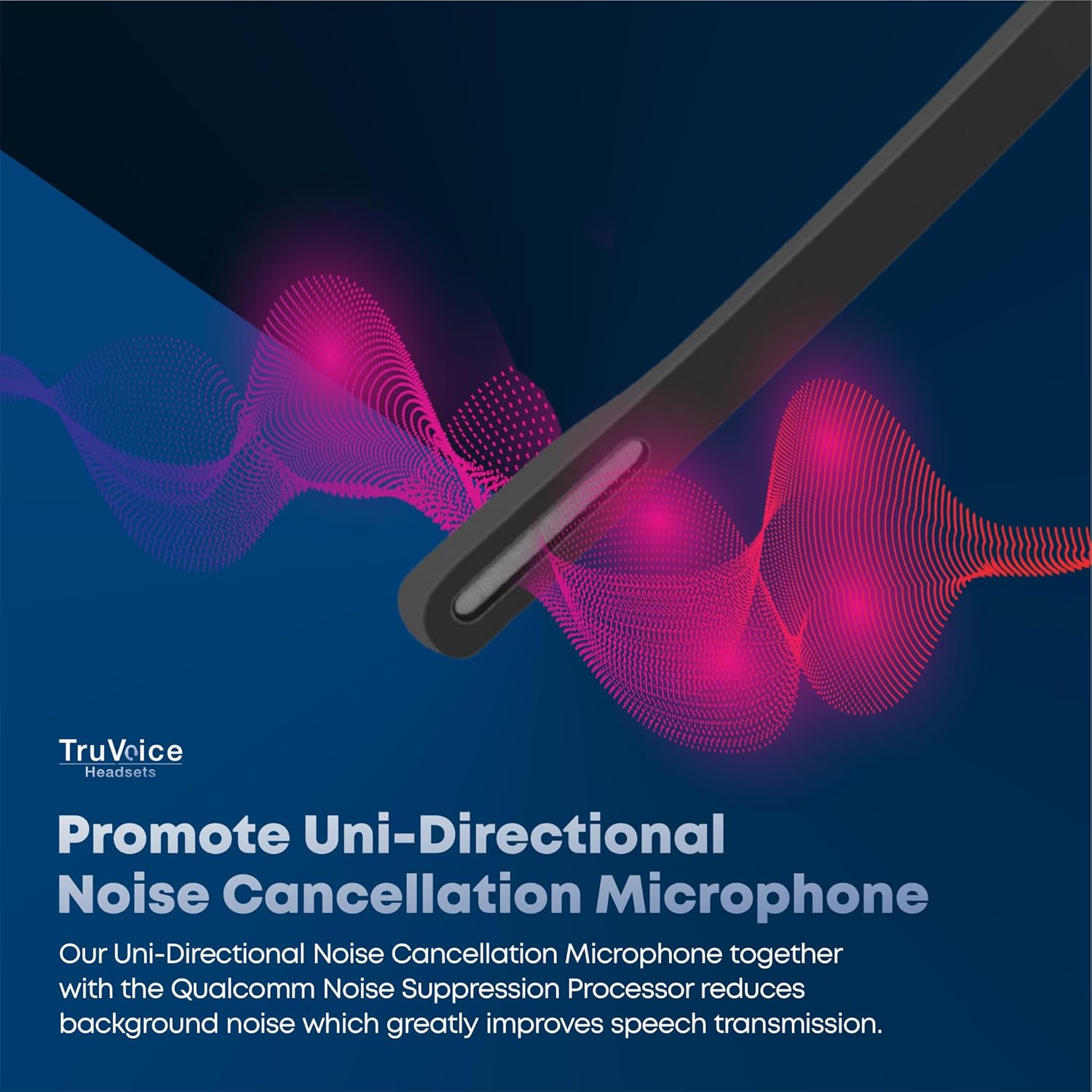
Image 4.2: The uni-directional noise cancellation microphone reduces background noise for improved speech transmission.
4.3. Kontwòl Volim
Adjust the listening volume using the dedicated volume buttons on the headset. These are typically marked with '+' and '-' symbols.
4.4. Lavi batri
The BT85 headset offers extended battery performance:
- Tan sibstiti: Jiska 500 èdtan
- Tan pou pale kontinyèl: Jiska 22 èdtan
- Media Playing Time: Jiska 19 èdtan
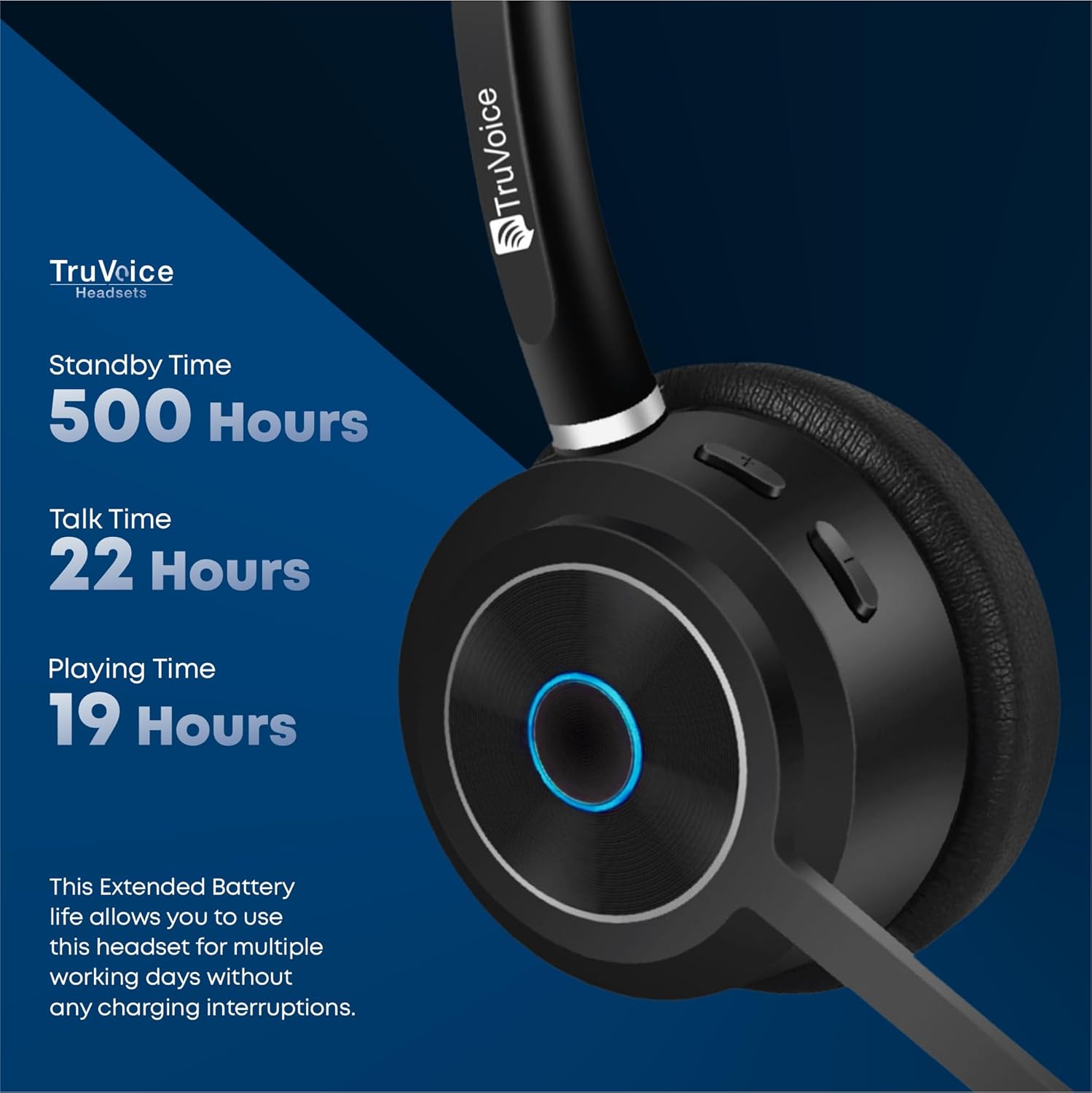
Image 4.3: Detailed battery performance of the BT85 headset.
4.5. Inivèsèl konpatibilite
The BT85 headset is compatible with a wide range of UC (Unified Communications) computer voice platforms and devices, including:
- Microsoft Teams (includes remote call answer)
- Skype
- Zoom
- Avaya
- Cisco
- Ring Central
- Vonage Nextiva
- 3CX
- And many more UC platforms.
It also connects with computers, cell phones, and desk phones that have Bluetooth headset capabilities.

Image 4.4: The BT85 headset offers universal compatibility with leading UC platforms.
5. Antretyen
Proper maintenance ensures the longevity and optimal performance of your TruVoice BT85 headset.
- Netwayaj: Use a soft, dry, lint-free cloth to clean the headset. For ear cushions, gently wipe with a slightly damp cloth and allow to air dry completely before use. Do not use harsh chemicals or abrasive materials.
- Depo: When not in use, store the headset in its protective case to prevent dust accumulation and physical damage. Avoid exposing the headset to extreme temperatures, humidity, or direct sunlight.
- Chaje: Always use the provided USB charging cable. Avoid overcharging by disconnecting the headset once fully charged.
NAN. Depanaj
If you encounter issues with your TruVoice BT85 headset, please refer to the following common solutions:
| Pwoblèm | Kòz posib | Solisyon |
|---|---|---|
| Kas ekoutè a pa limen. | Batri ki ba. | Charge the headset fully (approx. 90 minutes). |
| Pa ka konekte ak aparèy la. | Headset not in pairing mode; device Bluetooth off; too many Bluetooth signals. | Ensure headset is in pairing mode (flashing blue/red). Turn on Bluetooth on your device. Try disabling other nearby Bluetooth devices if interference is suspected. |
| Poor audio quality / Microphone not working. | Microphone muted; headset out of range; incorrect audio settings on device. | Ensure microphone is not muted. Stay within 50 feet of the connected device. Check your computer/phone's audio input/output settings to ensure the BT85 is selected. |
| Headset is uncomfortable after extended use. | Move anfòm. | Adjust the headband and microphone boom for optimal comfort. The headset features a soft silicone headband and premium leather plush ear cushions for ergonomic fit. |
| Mute function is difficult to use or unresponsive. | User unfamiliarity with button location/function. | Familiarize yourself with the dedicated mute button on the headset. Ensure a single, firm press for activation/deactivation. |
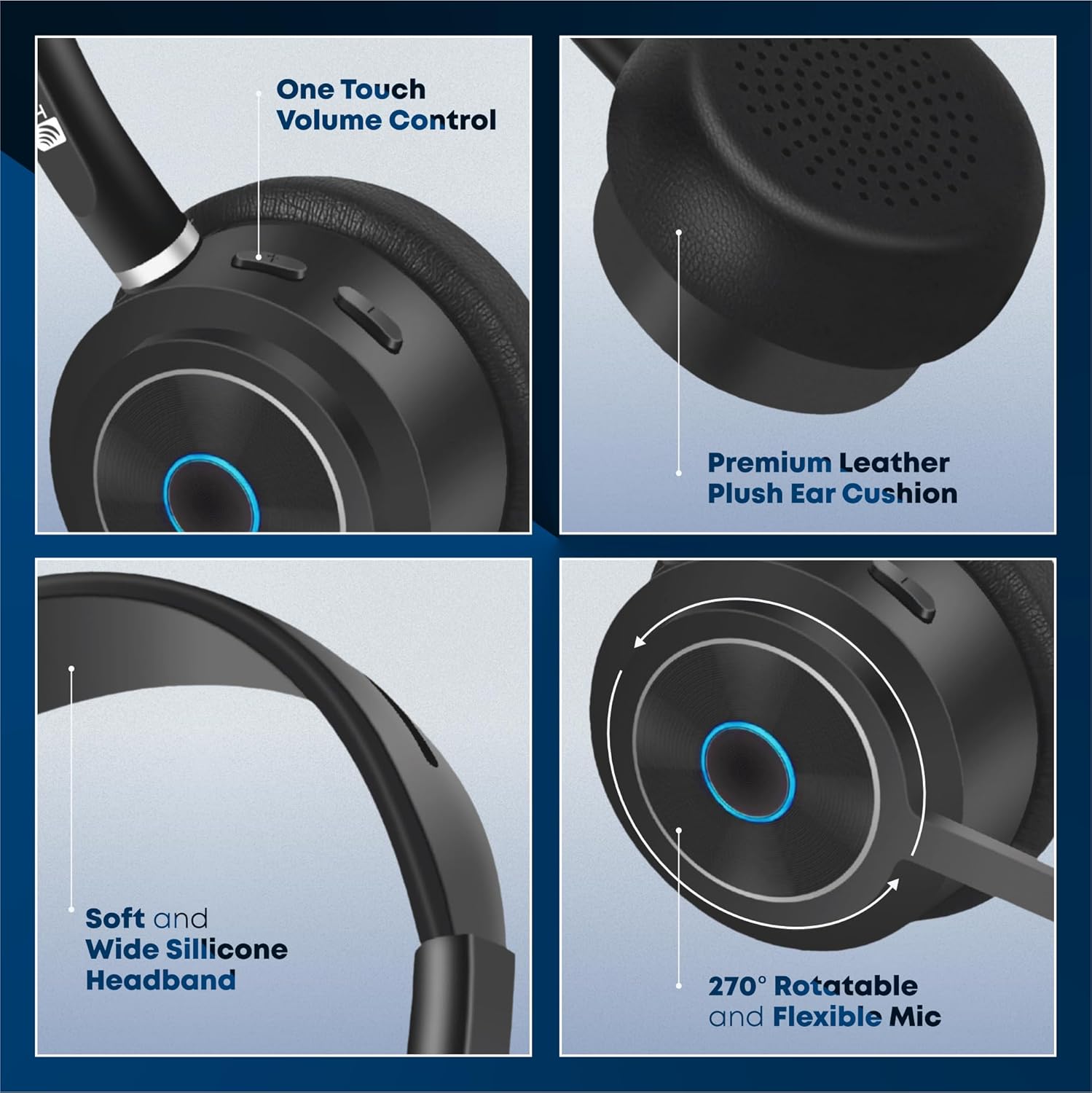
Image 6.1: Ergonomic design features of the BT85 headset for all-day comfort.
7. Espesifikasyon
Detailed technical specifications for the TruVoice BT85 Headset:
| Non modèl | Bluetooth Wireless Headsets |
| Koneksyon Teknoloji | San fil |
| Teknoloji kominikasyon san fil | Bluetooth |
| Bluetooth vèsyon | 5.2 |
| Gamme Bluetooth | 50 pye |
| Dire batri (tan pou pale) | 22 èdtan |
| Lavi batri (standby) | 500 èdtan |
| Tan chaj | 90 Minutes (Full Charge) |
| Kalite chofè odyo | Chofè dinamik |
| Gamme frekans | 20 Hz - 20,000 Hz |
| Kalite Mikwofòn | Uni-Directional Noise Cancellation |
| Kalite kontwòl | Kontwòl Medya, Manyen |
| Plasman Zòrèy | Sou Zòrèy |
| Fòm ekoutè | Over-ear cup |
| Faktè fòm | Sou Zòrèy |
| Koulè | Nwa |
| Pwa atik | 9.6 ons |
| Manifakti | TruVoice |
| Nimewo Modèl Atik | BT75 and BT85 |
| UPC | 643781593073 |
8. Garanti ak sipò
TruVoice stands behind the quality of its products. For warranty information and technical support, please refer to the official TruVoice websit la oubyen kontakte sèvis kliyan yo dirèkteman.
Additional protection plans may be available for purchase to extend coverage beyond the standard warranty period. Please check with your retailer for details on available protection plans.
For direct inquiries, you may contact TruVoice Telecom, the seller of this product.