
Blackmagic Design SWPANELCCU4
Blackmagic Design ATEM Camera Control Panel User Manual
Model: SWPANELCCU4
Entwodiksyon
The Blackmagic Design ATEM Camera Control Panel is a compact, professional remote camera control unit designed for live production environments. It allows a single operator to control up to four Blackmagic URSA Broadcast, URSA Mini, Blackmagic Studio, or Blackmagic Micro Studio cameras simultaneously. This panel provides traditional broadcast-style controls for precise adjustments of technical parameters, freeing camera operators to focus on creative aspects like framing and composition.
This manual provides detailed instructions for setting up, operating, maintaining, and troubleshooting your ATEM Camera Control Panel.
1. Enstalasyon
Proper setup ensures optimal performance and seamless integration with your ATEM live production switcher.
1.1 Debalaj ak Premye Enspeksyon
- Ak anpil atansyon retire tout eleman nan anbalaj la.
- Verify that all included items are present: ATEM Camera Control Panel, 6ft Power Cord, 7ft Cat5e Cable, 6ft USB-C Cable, Solid Signal Cable Ties.
- Inspect the unit for any signs of physical damage. If damage is found, contact your reseller immediately.
1.2 Koneksyon pouvwa
Connect the included 6ft Power Cord to the AC power input on the rear of the ATEM Camera Control Panel and then to a suitable power outlet.
1.3 Network Connection (Ethernet)
The ATEM Camera Control Panel connects to your ATEM live production switcher or ATEM hardware control panel via Ethernet. Use the included 7ft Cat5e Cable for this connection.
- Connect one end of the Ethernet cable to an Ethernet port on the ATEM Camera Control Panel.
- Connect the other end to an Ethernet port on your ATEM switcher or another ATEM device in your network. Ethernet can be looped from one ATEM device to another.
- Ensure your ATEM switcher and cameras are properly configured for network communication.
1.4 USB-C Koneksyon
The USB-C port on the rear of the panel is used for firmware updates and initial configuration via a computer. Connect the included 6ft USB-C Cable to your computer and the panel when performing these tasks.

Figure 1: The ATEM Camera Control Panel with its included accessories, including power, Ethernet, and USB-C cables.
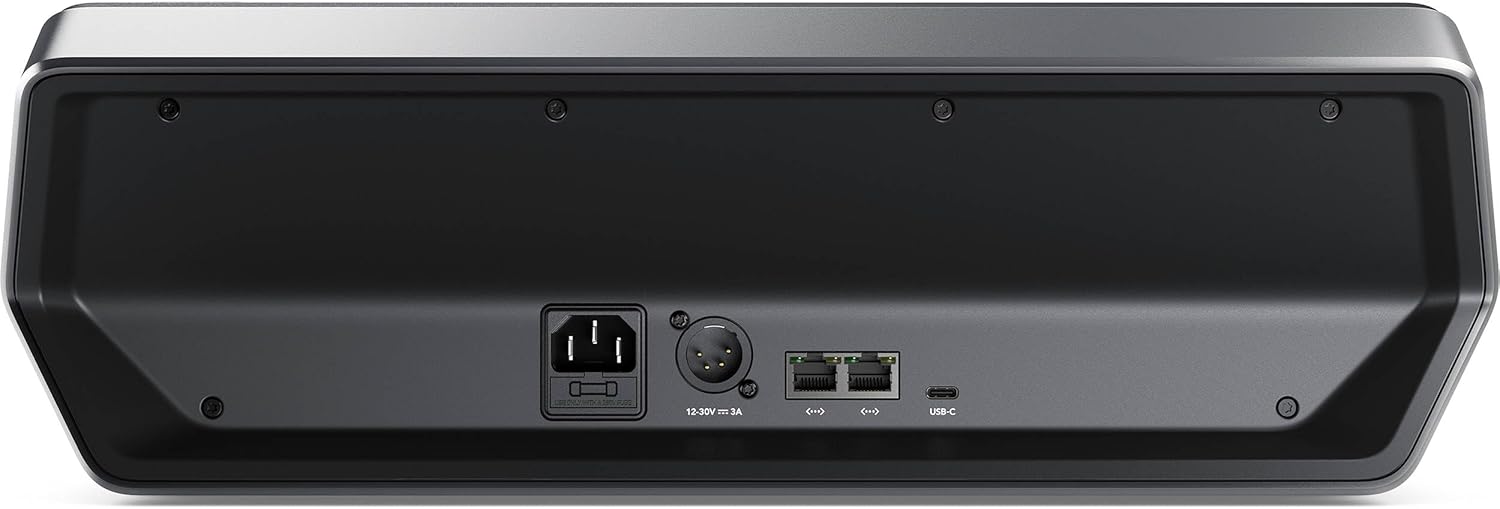
Figi 2: Dèyè view of the control panel, highlighting the AC power input, XLR DC input, Ethernet ports, and USB-C port for connectivity.
2. Itilizasyon Panèl Kontwòl la
The ATEM Camera Control Panel is designed with a familiar and logical layout for efficient camera control.
2.1 Plis paseview nan Kontwòl
The panel features four camera controllers, each with a dedicated LCD screen, soft buttons, and knobs at the top, and a full set of professional controls below.

Figi 3: Detaye view of the control panel's interface, showing the four camera control sections with their respective LCDs, buttons, and joysticks.
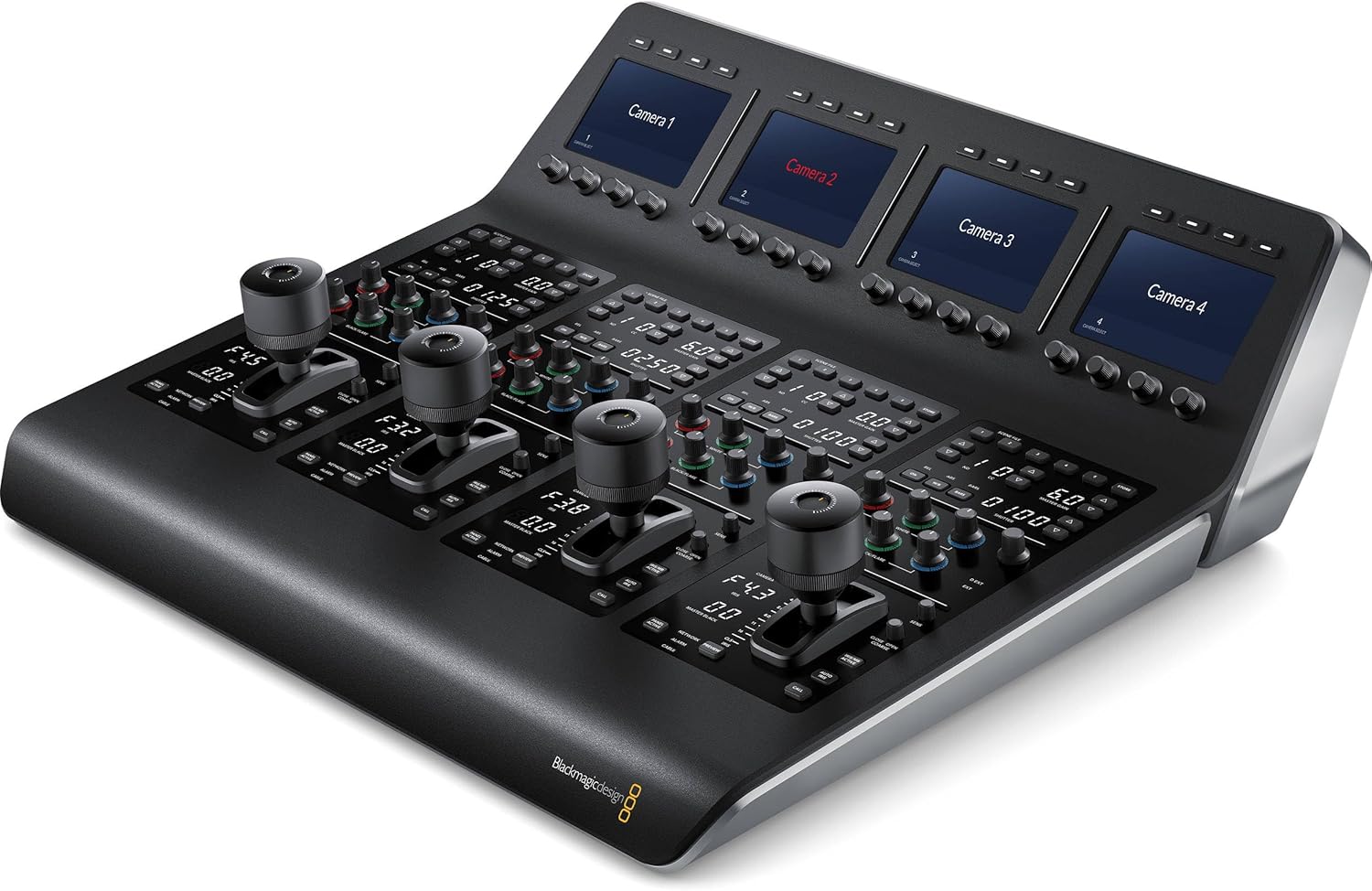
Figure 4: Angled perspective of the control panel, illustrating the ergonomic design and accessibility of its various controls.
2.2 Scene and Camera Controls (Top Section)
- Prereglaj sèn: Use the controls in the top section to save and recall scene presets. This allows for quick adjustments to cameras based on changes in lighting or scene conditions.
- Mèt Akeri: Adjust the overall gain level for the camera.
- Balans blan: Perform white balancing to ensure accurate color reproduction.
- Vitès vole: Modify the camera's shutter speed to control motion blur and exposure.
2.3 Gain and Pedestal Controls (Center Section)
- This section features independent RGB controls for gain (white levels) and pedestal (black levels).
- Adjust individual red, green, and blue levels in your blacks and whites to compensate for unwanted color casts and achieve precise color balance.
2.4 Lens and Iris Controls (Bottom Section)
- LED Camera Number: Indicates the active camera and its preview/on-air status.
- Joysticks: A high-quality professional joystick is used for precise adjustment of the iris (aperture) and master black levels.
- Bouton Rele: Activates talkback communication with the camera operator.
- Panel Lock Button: Locks the panel controls to prevent accidental changes during live production.
- Endikatè: LEDs for network, power, and cable connection status to the camera.
3. Antretyen
Regular maintenance helps ensure the longevity and reliable operation of your ATEM Camera Control Panel.
- Netwayaj: Use a soft, dry, lint-free cloth to clean the exterior of the unit. Avoid using liquid cleaners, aerosols, or solvents, as these can damage the finish or internal components.
- Mizajou mikrolojisyèl: Periodically check the Blackmagic Design support website for new firmware updates. Keeping your panel's firmware up-to-date ensures access to the latest features and performance improvements. Connect via USB-C for updates.
- Depo: When not in use for extended periods, store the panel in a clean, dry environment, away from extreme temperatures and direct sunlight.
NAN. Depanaj
This section addresses common issues you might encounter with your ATEM Camera Control Panel.
4.1 Pa gen pouvwa
- Tcheke kab pouvwa: Ensure the AC power cord is securely connected to both the panel and a working power outlet.
- Verifye Priz: Teste priz kouran an ak yon lòt aparèy pou konfime si l ap bay kouran.
4.2 No Connection to ATEM Switcher/Cameras
- Ethernet kab: Confirm the Ethernet cable is securely connected to both the control panel and the ATEM switcher/network. Try a different Ethernet cable if necessary.
- Konfigirasyon rezo: Ensure the IP addresses and network settings of the control panel, ATEM switcher, and cameras are correctly configured and on the same subnet. Refer to the Blackmagic Design ATEM Switcher manual for network setup details.
- ATEM Switcher Status: Verify that your ATEM switcher is powered on and functioning correctly.
- Camera Compatibility/Firmware: Ensure your Blackmagic cameras are compatible with the ATEM Camera Control Panel and have the latest firmware installed.
4.3 Controls Unresponsive
- Fèmen Panel: Check if the "Panel Lock" button is engaged. Disengage it to enable controls.
- Rekòmanse: Try power cycling the ATEM Camera Control Panel and the ATEM switcher.
- Firmware: Ensure the panel's firmware is up-to-date.
For further assistance, visit the official Blackmagic Design support websit oswa kontakte sèvis kliyan yo.
5. Espesifikasyon
Key technical specifications for the Blackmagic Design ATEM Camera Control Panel (SWPANELCCU4).
| Karakteristik | Spesifikasyon |
|---|---|
| Dimansyon pwodwi (L x W x H) | 15.31 x 16.93 x 5.57 pous |
| Pwa atik | 20 liv |
| Koulè | Black or dark gray |
| Kalite Connector | Ethernet, USB-C, AC Power, DC Power (XLR) |
| Aparèy konpatib | Blackmagic ATEM Panels, Blackmagic ATEM Switchers, Blackmagic Studio Cameras, Blackmagic URSA Cameras |
| Cable Type (Included) | Ethernet, USB-C, AC Power Cord |
| Dat Premye Disponib | 28 desanm 2023 |
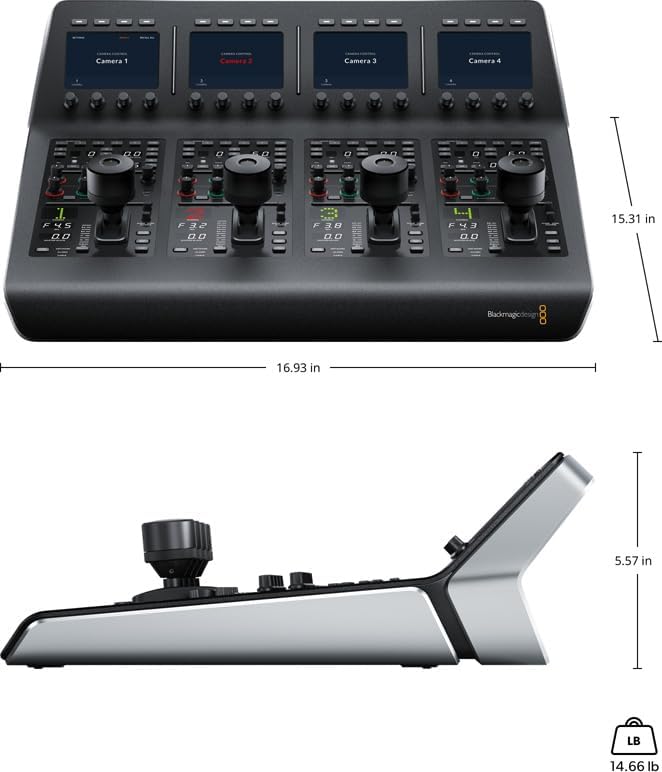
Figure 5: Diagram illustrating the physical dimensions (length, width, height) and weight of the ATEM Camera Control Panel.
6. Garanti ak sipò
For detailed information regarding the product warranty, please refer to the official Blackmagic Design websit la oswa kat garanti ki vini ak acha ou a. Tèm ak kondisyon garanti yo ka varye selon rejyon an.
For technical support, software downloads, and additional resources, please visit the Blackmagic Design support page:
Ask a question about this manual
Ask about setup, troubleshooting, compatibility, parts, safety, or missing instructions. Manuals+ will review the question and use this page’s manual context to help answer it.