
1. Entwodiksyon
This manual provides detailed instructions for the Hyperkin Pixel Art Bluetooth Controller, Miraculous Cat Noir Edition. Please read this manual thoroughly before using the product to ensure proper operation and to maximize your gaming experience. This controller is designed for use with multiple platforms, offering wireless connectivity and a comfortable, ergonomic design.
2. Pwodwi souview
The Hyperkin Pixel Art Bluetooth Controller combines a retro aesthetic with modern functionality. It features a unique Miraculous Cat Noir design, wireless Bluetooth connectivity, and a built-in turbo function.
2.1 Karakteristik kle
- Koneksyon Bluetooth san fil: Enjoy gaming freedom up to 30 feet away.
- Turbo Fonksyon: Activate rapid-fire action for enhanced gameplay.
- Retro Design with Modern Ergonomics: A classic look combined with comfortable handling for extended play sessions.
- Vwayaje zanmitay: Konsepsyon kontra enfòmèl ant pèmèt pou portabilite fasil.
- High-Quality Symmetrical Sticks: Designed for precision and responsiveness.
2.2 Kontwolè Layout

Imaj 2.2.1: Devan view of the Hyperkin Pixel Art Bluetooth Controller, Miraculous Cat Noir Edition. This image displays the D-pad, left and right analog sticks with paw print designs, A/B/X/Y buttons, Start/Select buttons, and the Cat Noir character art.

Imaj 2.2.2: Side view of the Hyperkin Pixel Art Bluetooth Controller, Miraculous Cat Noir Edition. This image shows the shoulder buttons (L1, R1) and triggers (L2, R2), along with the USB-C charging port and mode switch.

Imaj 2.2.3: Fèmen view emphasizing the controller's retro design combined with modern ergonomic features for comfortable handling.
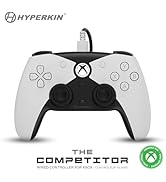
Imaj 2.2.4: Fèmen view montreasing the high-quality symmetrical analog sticks, designed for precise control during gameplay.
3. Enstalasyon
3.1 Chaje Kontwolè a
The controller includes a built-in Lithium Polymer battery. To charge, connect the supplied Type-C cable to the controller's charging port and the other end to a USB power source (e.g., a computer USB port, a USB wall adapter). The LED indicator on the controller will show charging status and turn off when fully charged.
3.2 Pairing via Bluetooth
To pair the controller with your device:
- Asire w ke kontwolè a chaje ase.
- Limen kontwolè a lè w peze bouton Akèy la.
- Put the controller into pairing mode (refer to your device's specific instructions for Bluetooth pairing, as this may vary). Typically, this involves holding a small pairing button or a combination of buttons until the LED indicator flashes rapidly.
- On your device (Nintendo Switch, PC, Mac, Android, iOS, etc.), navigate to the Bluetooth settings.
- Chèche pou available devices and select "Hyperkin Pixel Art Controller" (or similar name) from the list.
- Once connected, the LED indicator on the controller will stabilize.
For Nintendo Switch, navigate to the 'Controllers' menu, then 'Change Grip/Order' to initiate pairing mode on the console.
Imaj 3.2.1: Illustration of the controller connecting wirelessly via Bluetooth, indicating a range of up to 30 feet.
3.3 Koneksyon branche
The controller can also be used via a wired connection. Connect the Type-C cable from the controller to a compatible USB port on your device. This mode is often plug-and-play, requiring no additional pairing.
4. Operasyon Enstriksyon
4.1 Kontwòl debaz yo
The controller features standard gaming buttons:
- D-pad: Antre direksyonèl.
- Baton analòg: Left and Right symmetrical sticks for precise movement and camera control.
- Bouton Aksyon (A, B, X, Y): Bouton entèraksyon prensipal yo.
- Shoulder Buttons (L, R) and Triggers (ZL, ZR): Additional input buttons, typically for actions like aiming, firing, or menu navigation.
- Start/Select Buttons: For in-game menus and options.
- Bouton Kay: Returns to the system's home screen.
4.2 Fonksyon Turbo
The turbo function allows for rapid, repeated input of a button press without continuously pressing the button. To activate or deactivate turbo for a specific button:
- Peze epi kenbe la Turbo bouton.
- While holding the Turbo button, press the desired action button (e.g., A, B, X, Y, L, R, ZL, ZR) once to activate turbo for that button.
- Repeat the process (hold Turbo, press the same action button) to deactivate turbo for that button.
5. Konpatibilite
The Hyperkin Pixel Art Bluetooth Controller is compatible with a wide range of gaming platforms:
- Nintendo switch
- Nintendo Switch OLED Model
- Nintendo switch Lite
- Windows 10/11 PC
- Mac
- Chromebook
- Aparèy android
- Aparèy Apple iOS yo
- Machin vapè
- Deck vapè
- ROG Ally
- Franbwaz Pi
- Amazon Games/Amazon Luna
- Tesla
Imaj 5.1: Visual representation of the controller's broad compatibility across multiple gaming platforms and operating systems.
6. Antretyen
Pou asire lonjevite ak pèfòmans optimal kontwolè ou a, swiv gid antretyen sa yo:
- Netwayaj: Sèvi ak yon twal mou epi sèk pou siye kontwolè a. Pou pousyè tè ki difisil pou retire, siye l yon ti kras.ampRense twal la avèk dlo. Evite pwodui chimik ki agresif oswa pwodui netwayaj abrazif.
- Depo: Sere kontwolè a nan yon kote ki fre epi sèk, lwen limyè solèy dirèk ak tanperati ekstrèm.
- Swen batri: Evite dechaje batri a nèt souvan. Chaje kontwolè a regilyèman, menm si w pa itilize l pandan yon bon bout tan, pou kenbe batri a an bon eta.
- Evite enpak fizik: Do not drop or expose the controller to strong impacts, as this can damage internal components.
NAN. Depanaj
If you encounter issues with your Hyperkin Pixel Art Bluetooth Controller, refer to the following common problems and solutions:
| Pwoblèm | Solisyon posib |
|---|---|
| Kontwolè a pa limen. | Ensure the controller is charged. Connect it to a power source using the Type-C cable. |
| Controller does not connect via Bluetooth. |
|
| Buttons are unresponsive or delayed. |
|
| USB charging port does not work. |
|
| Vibration is too strong or loud. | Some games or systems may offer an option to adjust or disable vibration feedback within their settings. Consult your game or system's options menu. |
8. Espesifikasyon
| Karakteristik | Detay |
|---|---|
| Nimewo Modèl | M01328-MTCN |
| Koneksyon | Bluetooth (Wireless), USB Type-C (Wired) |
| Wireless Range | Jiska 30 pye |
| Kalite batri | 1 batri ityòm Polymère (enkli) |
| Dimansyon pake | 7.4 x 5.2 x 2.4 pous |
| Pwa atik | 9.9 ons |
| Manifakti | Hyperkin |
9. Garanti ak sipò
This product is covered by the manufacturer's standard warranty. For specific warranty terms and conditions, please refer to the documentation included with your purchase or visit the official Hyperkin website. For technical support or further assistance, please contact Hyperkin customer service through their official channels.