
Entwodiksyon
Byenveni nan manyèl itilizatè pou Black ou a.view Active 8 Pro Rugged Tablet. This device is engineered for durability and performance, designed to withstand challenging environments while providing a robust computing experience. Featuring a 10.36-inch display, a powerful MediaTek Helio G99 Octa-core processor, and a massive 22000mAh battery, the Active 8 Pro is built for extended use and demanding tasks. It is MIL-STD-810H certified and boasts IP68 & IP69K waterproof ratings, ensuring resilience against water, dust, and drops.
This manual provides essential information on setting up, operating, maintaining, and troubleshooting your tablet to ensure optimal performance and longevity.
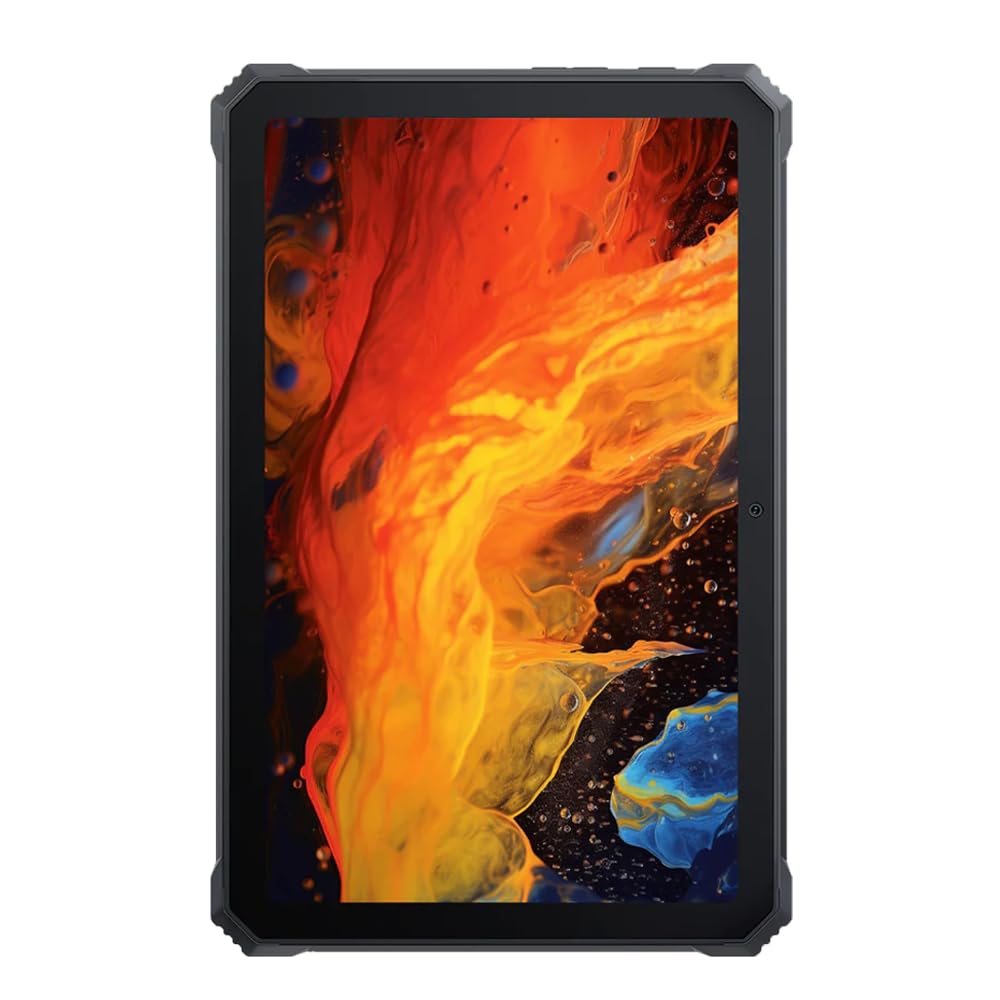
Imaj: Devan view nan Nwa aview Active 8 Pro Rugged Tablet, showcasing its display and robust bezel.
Kontni pake
Tanpri verifye ke tout atik yo prezan nan pake pwodwi ou a:
- Nwaview Tablèt Active 8 Pro ki solid
- Padded Leather Strap
- Chaje kab
- Adaptè pouvwa
- Zouti pou retire kat SIM lan (si sa aplikab)
- Gid Quick Start
Layout aparèy
Familiarize yourself with the physical components and ports of your Active 8 Pro tablet.

Imaj: Devan view nan Nwa aview Active 8 Pro tablet, highlighting the display and front camera location.

Imaj: Dèyè view nan Nwa aview Active 8 Pro tablet, showing the camera module, speaker grilles, and the attached padded leather strap for secure handling.

Imaj: Dèyè angilè view nan Nwa aview Active 8 Pro tablet, providing a perspective of its ruggedized corners and the ergonomic padded leather strap.
Enstalasyon
1. Chaje Aparèy la
Before first use, fully charge your Active 8 Pro tablet. Connect the provided charging cable to the tablet's charging port and the power adapter to a wall outlet. The tablet supports 33W fast charging for quick power replenishment.
- Use only the original Blackview charger and cable to ensure optimal charging speed and safety.
- Yon endikatè chaj ap parèt sou ekran an.
2. Powering On / Off
- Pou limen: Press and hold the Power button (typically located on the side) until the Blackview logo a parèt sou ekran an.
- Pou etenn: Peze epi kenbe bouton pouvwa a jiskaske yon meni pouvwa parèt. Chwazi "Etenn" nan opsyon yo.
- Pou rekòmanse: From the power menu, select "Restart".
3. Inisyal Konfigirasyon
Lè w limen tablèt la pou premye fwa, li pral gide w nan pwosesis konfigirasyon inisyal la. Swiv enstriksyon ki parèt sou ekran an pou:
- Chwazi lang ou.
- Konekte nan yon rezo Wi-Fi.
- Konekte avèk kont Google ou a oubyen kreye yon nouvo.
- Konfigire blokaj ekran an (Kòd PIN, modèl, modpas, oswa anprent dwèt).
- Review epi aksepte tèm ak kondisyon yo.
Enstriksyon Operasyon
1. Navigasyon debaz
Your Active 8 Pro runs on Android 14, offering an intuitive user interface. Use standard touchscreen gestures:
- Tape: Chwazi yon atik oubyen louvri yon aplikasyon.
- Tape epi kenbe: Jwenn aksè nan meni kontèks yo oubyen deplase ikòn yo.
- Glise: Defile nan paj yo, lis yo, oubyen chanje ant ekran prensipal yo.
- Zoom-pou-Zoom: Agrandi oswa diminye imaj yo epi web paj.
2. Koneksyon
- Wi-Fi: Go to Settings > Network & internet > Wi-Fi to connect to available networks. The tablet supports 802.11ac, 802.11ax, 802.11g, and 802.11n standards.
- Bluetooth: Go to Settings > Connected devices > Connection preferences > Bluetooth to pair with Bluetooth accessories like headphones or speakers.
- Mobile Data (if applicable): Insert a SIM card into the designated slot to access mobile data services.
3. Itilizasyon kamera
The tablet features a 48 MP rear camera. Open the Camera app to capture photos and videos. Tap on the screen to focus, and use the on-screen shutter button to take a picture.
4. Audio Enhancement
Experience enhanced audio quality with Sound By Harman AudioEFX. Adjust audio settings in the tablet's sound preferences to optimize your listening experience for music, movies, or calls.
5. Using the Padded Leather Strap
The included padded leather strap is designed to provide extra grip and comfort, reducing hand fatigue during extended use. Securely attach the strap to the designated points on the back of the tablet. Adjust for a snug fit that allows for comfortable one-handed or two-handed holding.
Antretyen
1. Netwaye Tablèt ou a
- Use a soft, lint-free cloth to wipe the screen and body of the tablet.
- Pou pousyè tè ki difisil pou retire, yon ti kras dampen the cloth with water or a screen-safe cleaning solution.
- Avoid using harsh chemicals, abrasive materials, or excessive moisture, especially near ports.
- Ensure all port covers are securely closed before cleaning if exposing to water.
2. Depo
When not in use for extended periods, store your tablet in a cool, dry place away from direct sunlight and extreme temperatures. Ensure the battery is charged to approximately 50% before long-term storage to preserve battery health.
3. Mizajou lojisyèl
Regularly check for and install software updates to ensure your tablet has the latest features, security patches, and performance improvements. Go to Settings > System > System update to check for available updates.
Depanaj
Seksyon sa a adrese pwoblèm komen ou ka rankontre ak Black ou a.view Tablèt Active 8 Pro.
- Aparèy pa limen:
Ensure the tablet is sufficiently charged. Connect it to the charger for at least 30 minutes before attempting to power it on again. If it still doesn't power on, try holding the power button for 10-15 seconds to force a restart.
- Screen Unresponsive or Display Issues:
If the screen becomes unresponsive, try restarting the device. If the display fails or shows abnormalities, ensure the tablet has not sustained severe physical damage. Contact customer support if the issue persists after a restart.
- Pwoblèm chaje:
Verify that the charging cable and adapter are securely connected and undamaged. Try using a different compatible charger and cable if available. Ensure the charging port is free of debris.
- Pwoblèm koneksyon Wi-Fi/Bluetooth:
Toggle Wi-Fi or Bluetooth off and on. Restart your tablet and the router/Bluetooth device. Ensure you are within range and have the correct password for Wi-Fi networks.
- Pèfòmans Ralanti:
Close unnecessary background applications. Clear cache data for apps that are frequently used. Consider performing a factory reset as a last resort (back up your data first).
Espesifikasyon
| Karakteristik | Spesifikasyon |
|---|---|
| Non modèl | Aktif 8 Pro |
| Gwosè ekspozisyon | 10.36 pous |
| Rezolisyon ekran | 1920 x 1080 piksèl |
| Processeur | MediaTek Helio G99 Octa-core (2.2 GHz) |
| RAM | 8 GB (DDR4 SDRAM) |
| Depo Entèn | 256 GB |
| Sistèm operasyon | Android 14 |
| Kapasite batri | 22000mAh |
| Chaje vit | Sipò 33W |
| Evalyasyon Durabilite | MIL-STD-810H Certified, IP68 & IP69K Waterproof |
| Pwoteksyon ekran | Corning Gorilla Glass 5 |
| Kamera dèyè | 48 MP |
| Koneksyon san fil | 802.11ac, 802.11ax, 802.11g, 802.11n |
| Dimansyon (LxWxH) | 10.09 x 6.53 x 0.66 pous |
| Pwa atik | 3.34 liv |
Garanti ak sipò
Nwa ouview Active 8 Pro tablet comes with a limited warranty. Please refer to the warranty card included in your package for specific terms and conditions, including coverage duration and limitations. Keep your proof of purchase for warranty claims.
For technical support, service, or warranty inquiries, please visit the official Blackview sipò website or contact their customer service department. Contact information can typically be found on the Blackview websit la oubyen nan dokimantasyon ki vini ak pwodwi w la.
Pou plis enfòmasyon, ou ka vizite a Nwaview Magazen sou Amazon.