1. Entwodiksyon
Thank you for choosing the VGN X68 Mechanical Gaming Keyboard. This user manual provides detailed instructions on setting up, operating, and maintaining your new keyboard. The VGN X68 is a versatile mechanical keyboard designed for gaming and productivity, featuring three connectivity modes (wired, 2.4G wireless, and Bluetooth 5.0), vibrant RGB backlighting, and hot-swappable switches for personalized customization.

Image: The VGN X68 Mechanical Gaming Keyboard with its retail packaging, showcasing konsepsyon li yo ak ekleraj RGB li yo.
2. Pake kontni
Tanpri verifye ke tout atik ki nan lis anba a yo enkli nan pakè ou a:
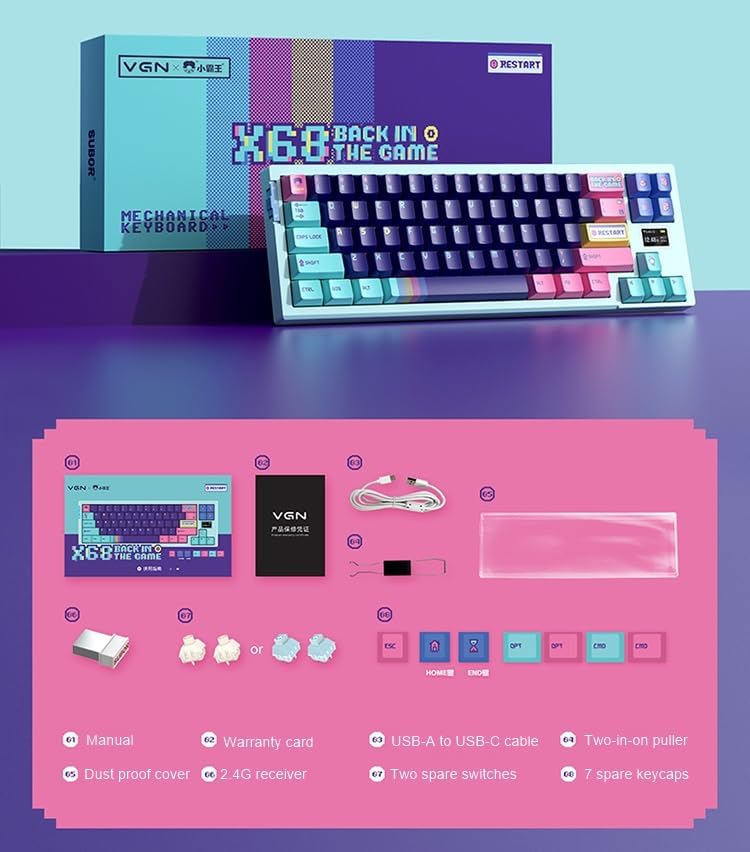
Image: A visual representation of all items included in the VGN X68 keyboard package.
- VGN X68 Mechanical Gaming Keyboard
- Manyèl itilizatè
- Kat Garanti
- USB-A pou USB-C kab
- Two-in-one Puller (for keycaps and switches)
- Kouvèti pousyè prèv
- 2.4G san fil reseptè
- Two Spare Switches
- Seven Spare Keycaps
3. Enstalasyon
3.1 Premye chaj
Before first use, it is recommended to fully charge the keyboard. Connect the provided USB-A to USB-C cable to the keyboard's Type-C port and a USB power source (e.g., computer USB port, wall adapter). The charging indicator will show the charging status.
3.2 Konekte klavye ou a
The VGN X68 supports three connection modes: Wired, 2.4G Wireless, and Bluetooth 5.0. Use the switch located on the keyboard to select your desired mode.

Imaj: Yon imaj detaye view of the physical switch on the keyboard used to toggle between 2.4G wireless, wired, and Bluetooth modes.
3.2.1 Mòd Filaire
- Set the mode switch to 'Wired' (usually indicated by a cable icon or 'USB').
- Connect the USB-C end of the cable to the keyboard and the USB-A end to your computer.
- The keyboard will be automatically recognized by your operating system (e.g., Windows 10) and ready for use.
3.2.2 2.4G Mòd san fil
- Set the mode switch to '2.4G' (usually indicated by a wireless icon).
- Branche reseptè san fil 2.4G la nan yon pò USB ki disponib sou òdinatè w la.
- The keyboard should connect automatically. If not, press Fn + R (or a similar key combination indicated in the manual) to initiate pairing.
3.2.3 Bluetooth mòd
- Set the mode switch to 'BT' (Bluetooth).
- Sou òdinatè w la oswa aparèy ou an, aktive Bluetooth epi chèche nouvo aparèy.
- The keyboard will appear as 'VGN X68' or similar. Select it to pair.
- You may need to press Fn + 1/2/3 to select a Bluetooth profile if the keyboard supports multiple Bluetooth connections.
4. Operasyon Enstriksyon
4.1 Fonksyon kle ak Layout
The VGN X68 is a 61-key mechanical keyboard. Many functions are accessed via the 'Fn' key in combination with other keys. Refer to the keycap legends for specific shortcuts.
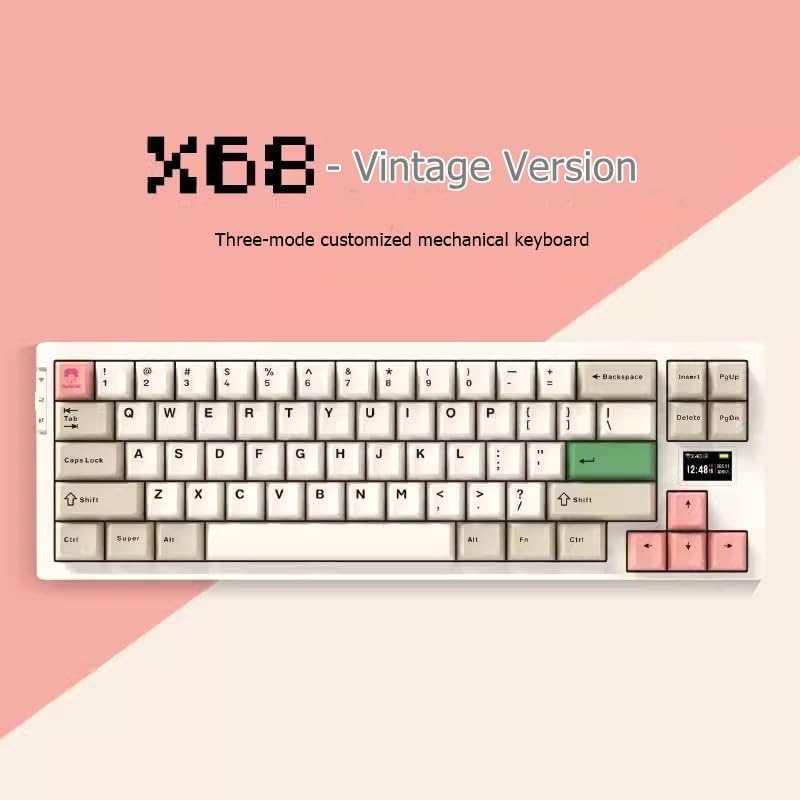
Image: The VGN X68 keyboard, showcasing its compact layout and keycap design.
4.2 Kontwòl ekleraj RGB
The keyboard features multicolor RGB backlighting. Use the following key combinations to control the lighting effects:
- Fn + \| Cycle through different RGB lighting modes.
- Fn + ↑/↓: Ajiste klète ekleraj.
- Fn + ←/→: Ajiste vitès oswa direksyon efè ekleraj la.
- Fn + Del: Chanje koulè ekleraj la (pou mòd estatik).
4.3 Screen Display Functions
The VGN X68 features a small screen display that provides useful information at a glance:
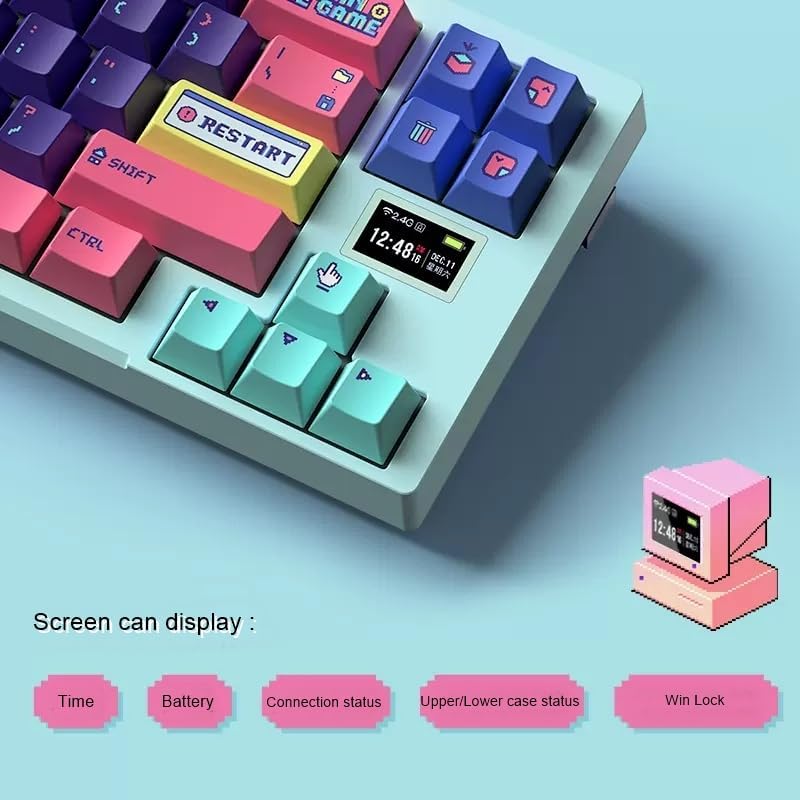
Image: A close-up of the keyboard's integrated screen, displaying icons for time, battery level, connection status, case status, and Win Lock.
- Tan: Montre tan aktyèl la.
- Batri: Montre nivo batri aktyèl la.
- Estati Koneksyon: Indicates the active connection mode (Wired, 2.4G, or Bluetooth).
- Upper/Lower Case Status: Shows if Caps Lock is enabled.
- Genyen Lock: Indicates if the Windows key is locked (to prevent accidental presses during gaming).
5. Antretyen
5.1 Netwayaj
To maintain your keyboard's performance and appearance:
- Dekonekte klavye a nan òdinatè w la anvan ou netwaye li.
- Sèvi ak yon bwòs mou oswa lè konprese pou retire pousyè ak debri ki ant bouchon kle yo.
- Wipe the keycaps and keyboard surface with a slightly damp, twal ki pa gen pousyè. Evite twòp imidite.
- Use the provided dust proof cover when the keyboard is not in use to prevent dust accumulation.
5.2 Ranplasman kle ak switch
The VGN X68 features hot-swappable switches, allowing you to easily change switches without soldering. Use the provided two-in-one puller for both keycaps and switches.
- To remove a keycap: Use the keycap puller end of the tool to gently pull the keycap straight up.
- To remove a switch: Use the switch puller end of the tool to grasp the switch from its top and bottom clips, then gently pull it straight up.
- To install a switch: Align the pins of the new switch with the holes on the PCB and press down firmly until it clicks into place. Ensure pins are not bent.
- To install a keycap: Align the keycap with the switch stem and press down firmly.
NAN. Depanaj
If you encounter issues with your VGN X68 keyboard, please refer to the following common solutions:
- Klavye a pa reponn: Ensure the keyboard is charged. Check the connection mode switch (Wired, 2.4G, Bluetooth) and ensure it matches your connection method. For wired, try a different USB port. For wireless, ensure the receiver is properly plugged in or Bluetooth is paired.
- Kle yo pa anrejistre: Check if any keycaps or switches are loose. Re-seat them if necessary. Test on another device to rule out software issues.
- Backlight not working/flickering: Ensure the keyboard is charged. Try cycling through backlight modes (Fn + \|) or adjusting brightness (Fn + ↑/↓).
- Koneksyon Bluetooth la pa estab: Ensure no other devices are interfering with the Bluetooth signal. Try re-pairing the keyboard. Ensure your device's Bluetooth drivers are up to date.
- 2.4G wireless lag: Ensure the receiver is not too far from the keyboard. Avoid placing the receiver near other wireless devices that might cause interference.
Si pwoblèm yo pèsiste, tanpri al gade seksyon Garanti ak Sipò a.
7. Espesifikasyon
| Karakteristik | Spesifikasyon |
|---|---|
| Mak | Jenerik |
| Modèl | X68 |
| Manifakti | jeni |
| Koulè | Cyan |
| Sistèm operasyon konpatibilite | Windows 10 |
| Koneksyon Teknoloji | Bluetooth 5.0, 2.4G Wireless, Kalite-C branche |
| Deskripsyon klavye | Mekanik |
| Itilizasyon Rekòmande | Gaming |
| Karakteristik espesyal | Retroeklere |
| Kantite kle | 61 |
| Keyboard Backlight Color Support | Rgb (wouj, vèt, ble) |
| Style | Modèn |
| Enpresyon Keycap | Doubleshot |
| Materyèl Keycap | PBT plastik |
| Bouton ki ka chanje cho | Wi |
| Switch Manufacturer | Kailh |
| Mak kò Axis | Kailh Box |
| Full-size Keyboard | Non |
| Wrist Rest Support | Non |
8. Garanti ak sipò
Your VGN X68 Mechanical Gaming Keyboard comes with a manufacturer's warranty. For any product issues, including damaged or incorrect items, please do not hesitate to contact our support team. We are committed to providing prompt assistance and will respond to your inquiries within 24 hours.
Tanpri gade kat garanti ki enkli nan pakè w la pou kondisyon espesifik yo.