
1. Entwodiksyon
Mèsi pou acha aasing the WiMiUS K9 Projector. This manual provides essential information for setting up, operating, and maintaining your projector. Please read it thoroughly before use to ensure proper functionality and to maximize your vieweksperyans nan.
The WiMiUS K9 is a high-performance projector featuring native Full HD 1080P resolution with 4K support, AI auto-focus and keystone correction, WiFi 6, Bluetooth 5.2, and integrated Netflix certification with Dolby Audio support.
2. Enfòmasyon sou Sekirite
- Pa gade dirèkteman nan lantiy pwojektè a lè l ap limen.amp se sou.
- Asire bon vantilasyon alantou pwojektè a pou anpeche surchof.
- Avoid placing the projector in dusty, humid, or extremely hot/cold environments.
- Sèvi sèlman ak adaptè kouran ki vini ak pwojektè a.
- Kenbe pwojektè a lwen dlo oswa lòt likid.
- Pa eseye demonte oswa repare pwojektè a tèt ou. Kontakte sèvis kliyan pou jwenn asistans.
3. Pake kontni
Verifye ke tout atik yo prezan nan pakè a:
- WiMiUS K9 Projector
- HDMI kab
- Kontwòl Remote
- Pouvwa kab
- Netwaye twal
- Lens Cap
- Manyèl Itilizatè (dokiman sa a)
4. Pwodwi souview
Familiarize yourself with the projector's components and connection ports.
Imaj: Devan ak bò view of the WiMiUS K9 Projector, showing the lens and ventilation.
4.1. Pò ak Koneksyon
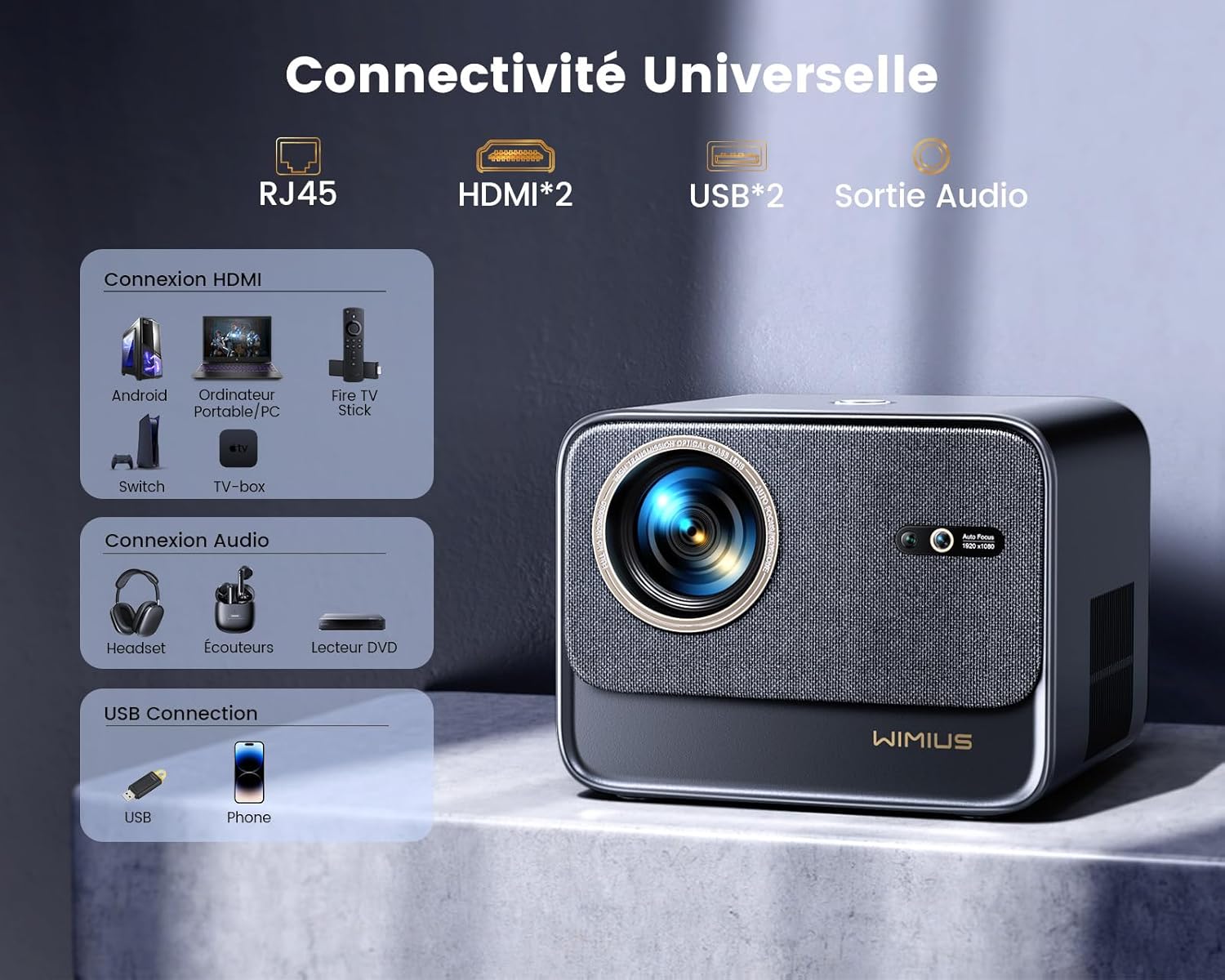
Imaj: Dèyè view of the WiMiUS K9 Projector, highlighting the Ethernet (RJ45), HDMI (x2), USB (x2), and Audio Out ports.
- RJ45 (Etènèt): Pou koneksyon entènèt filaire.
- HDMI (x2): Connect to devices like TV sticks, game consoles (PS5), laptops, or TV boxes. Supports HDMI ARC.
- USB (x2): Connect USB drives for media playback or charge compatible devices.
- Sòti Odyo (Jack 3.5mm): Konekte oratè ekstèn yo oswa kas ekoutè yo.
5. Enstalasyon
5.1. Plasman
Place the projector on a stable, flat surface or mount it according to your preference. Ensure the lens is unobstructed. The projector supports a screen size of 50-300 inches with a projection ratio of 1.33:1.
5.2. Koneksyon pouvwa
- Konekte kab kouran an nan pò antre kouran pwojektè a.
- Ploge lòt bout kab pouvwa a nan yon priz kouran.
- Peze bouton pouvwa a sou pwojektè a oswa sou kontwòl remote la pou limen li.
5.3. Auto Focus and Keystone Correction
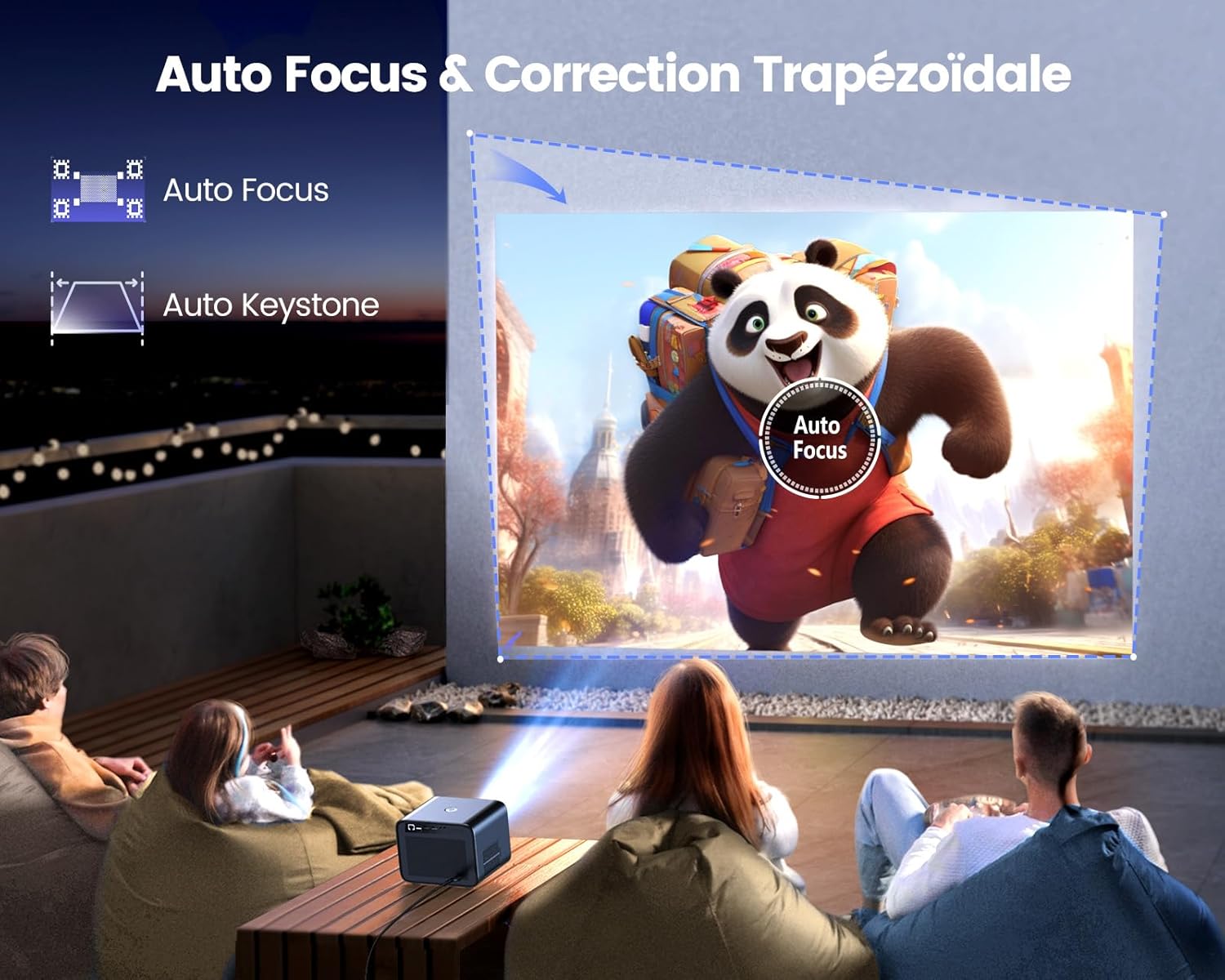
Image: Illustration of the projector automatically adjusting focus and keystone to achieve a rectangular image.
The WiMiUS K9 features AI-powered auto-focus and auto-keystone correction. Upon startup or movement, the projector will automatically adjust the image to be clear and rectangular within approximately 3 seconds. If manual adjustment is needed, use the remote control to fine-tune focus or keystone settings.
5.4. Fonksyon Zoom
The projector includes a 50%-100% zoom function, allowing you to adjust the image size without physically moving the projector. Access this feature through the projector's menu or dedicated remote control buttons.
6. Operasyon Enstriksyon
6.1. Navigasyon ak Entèfas Itilizatè

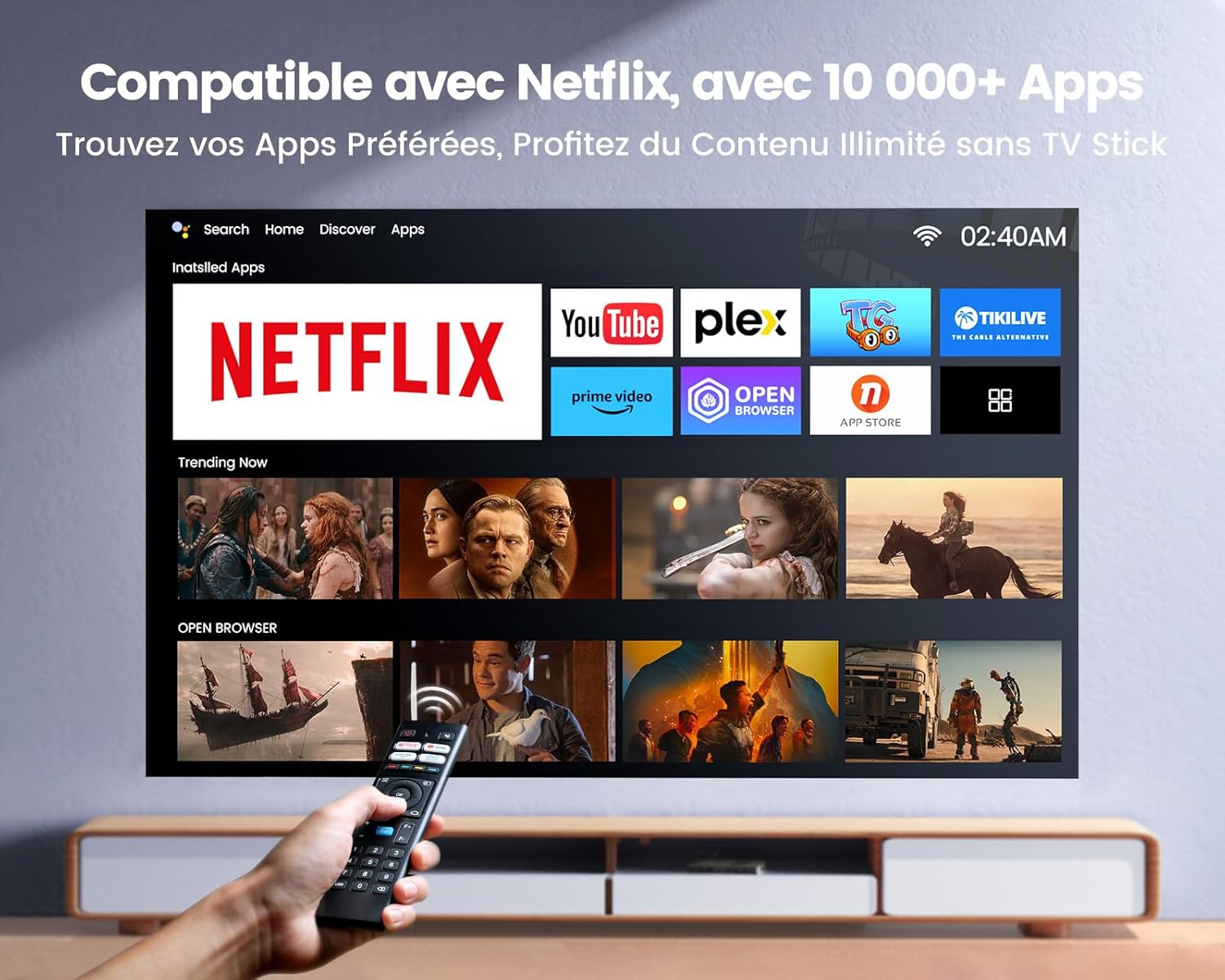
Image: The projector's home screen displaying various streaming applications like Netflix, YouTube, and Prime Video, controlled by a remote.
Use the provided remote control to navigate the projector's Linux-based operating system. The interface provides access to certified applications such as Netflix, Amazon Prime Video, and YouTube, along with other streaming services.
6.2. Konekte Aparèy Ekstèn
The K9 projector offers multiple connectivity options:
- HDMI: Connect your TV stick, game console (e.g., PS5), laptop, or TV box using an HDMI cable. Select the corresponding HDMI input from the projector's source menu.
- USB: Insert a USB flash drive into a USB port to play media files dirèkteman.
- Ethernet (RJ45): For a stable wired internet connection, plug an Ethernet cable into the RJ45 port.
6.3. Wireless Connectivity (WiFi 6 & Bluetooth 5.2)

Image: A person enjoying a video game projected by the WiMiUS K9, illustrating the fast WiFi 6 connection.
- WiFi 6: Connect to your wireless network for internet access and streaming. Navigate to the network settings in the projector's menu to connect to a WiFi 6 network. This enables seamless streaming and screen mirroring from iOS/Android phones and tablets.
- Bluetooth 5.2: Pair with Bluetooth headphones, speakers, or soundbars for enhanced audio. Go to Bluetooth settings in the menu, enable Bluetooth, and select your device to pair. The projector supports Dolby Audio output to connected Bluetooth devices.
6.4. Anviwònman Odyo (Dolby Audio)
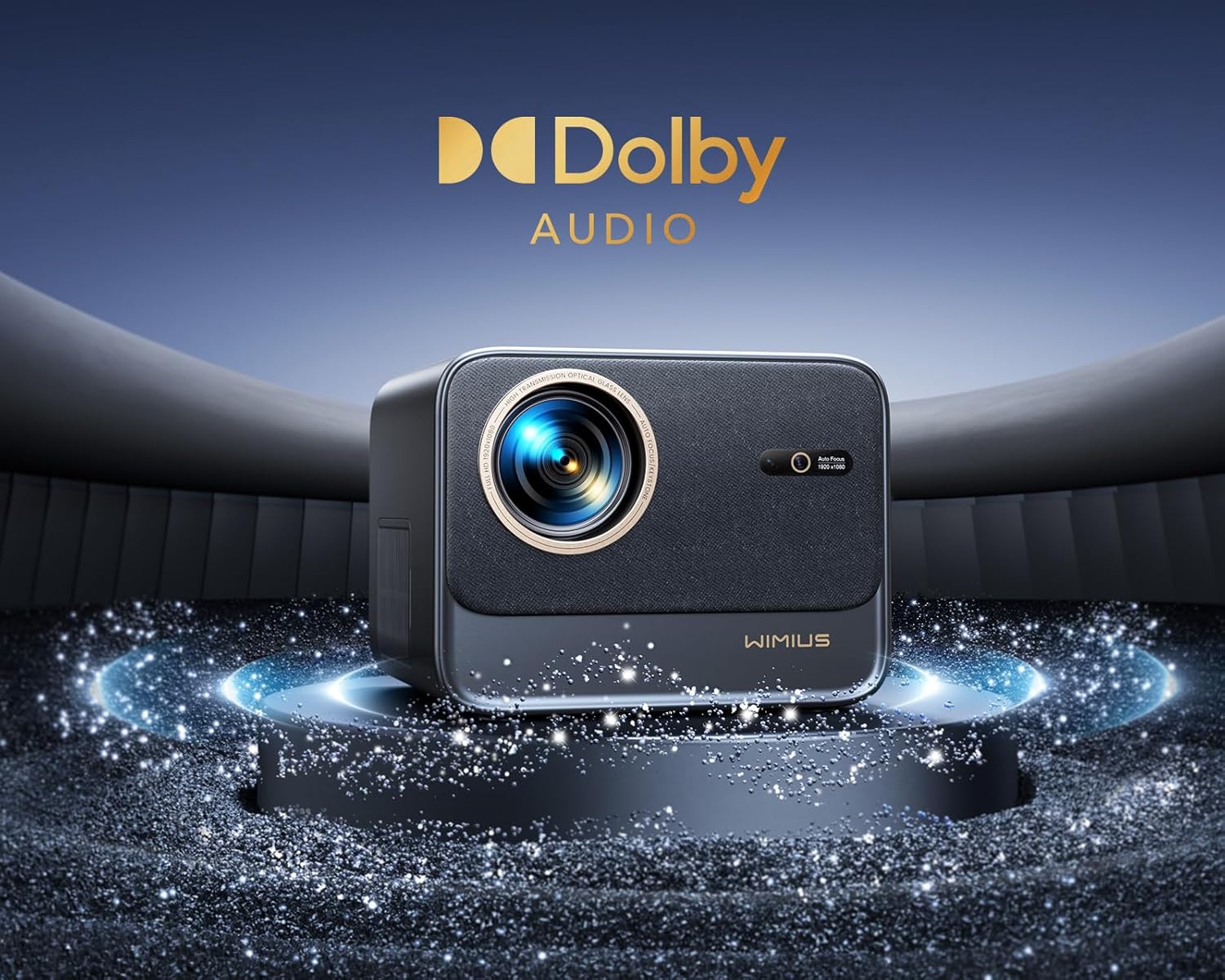
Image: The WiMiUS K9 Projector prominently displaying the Dolby Audio logo, indicating its audio capabilities.
The K9 projector supports Dolby Audio, providing a cinematic sound experience. You can output audio through the built-in speakers, the 3.5mm audio jack, or wirelessly via Bluetooth 5.2 to compatible audio devices.
7. Antretyen
7.1. Netwaye lantiy la
Gently wipe the projector lens with the provided cleaning cloth or a soft, lint-free cloth. Avoid using abrasive cleaners or excessive pressure, which can damage the lens coating.
7.2. Prevansyon pousyè
The WiMiUS K9 features a fully sealed optical machine design to effectively block dust and reduce black spots on the projection. Periodically clean the projector's exterior with a soft cloth. Ensure ventilation openings are clear of obstructions.
7.3. Depo
When not in use for extended periods, store the projector in a cool, dry place, protected from dust and extreme temperatures. Use the lens cap to protect the lens.
NAN. Depanaj
If you encounter issues with your WiMiUS K9 Projector, refer to the following common problems and solutions:
- Pa gen imaj:
- Asire w ke kab kouran an byen konekte epi pwojektè a limen.
- Check the input source selection (HDMI 1, HDMI 2, etc.) matches your connected device.
- Verifye ke aparèy ki konekte a (laptop, kle televizyon) limen epi li ap bay yon siyal.
- Imaj flou:
- Allow the auto-focus function to complete its adjustment.
- If needed, manually adjust the focus using the remote control.
- Ensure the projection surface is flat and the projector lens is clean.
- Distorted Image (not rectangular):
- Allow the auto-keystone correction to complete.
- If necessary, manually adjust keystone correction via the projector's menu.
- Pa gen son:
- Tcheke nivo volim nan tou de pwojektè a ak aparèy sous ki konekte a.
- Ensure external speakers or headphones are correctly connected and powered on if used.
- Verify Bluetooth audio is correctly paired and selected as the output.
- Pwoblèm koneksyon WiFi/Bluetooth:
- Ensure the WiFi network is active and within range. Re-enter the password if necessary.
- Pou Bluetooth, asire w ke aparèy la an mòd koneksyon epi li nan zòn nan.
- Restart the projector and the device you are trying to connect.
For further assistance, please refer to the contact information in the Warranty and Support section.
9. Espesifikasyon
| Mak | WiMiUS |
| Modèl | K9 |
| Rezolisyon natif natal | 1920 x 1080P (Full HD) |
| Rezolisyon sipòte | Up to 4K Ultra HD (60Hz) |
| Klète | 32000 Lumèn (1100 ANSI Lumèn) |
| Pwopòsyon kontras | 40000:1 |
| Sistèm operasyon | Linux (Netflix Certified) |
| Koneksyon | WiFi 6, Bluetooth 5.2, 2x HDMI (ARC), 2x USB, Ethernet (RJ45), 3.5mm Audio Out |
| Karakteristik espesyal | AI Auto Focus, AI Auto Keystone Correction, Dolby Audio Support, Fully Sealed Optical Machine, 50-100% Zoom |
| Itilizasyon Rekòmande | Home Cinema, Gaming Console |
| Konpozan ki enkli | Projector, HDMI Cable, Remote Control, Power Cable, Cleaning Cloth, Lens Cap, User Manual |
10. Garanti ak sipò
The WiMiUS K9 Projector comes with a 3-ane garanti soti nan dat acha a.
For technical support, warranty claims, or any questions regarding your projector, please contact WiMiUS customer service. Refer to the contact information provided in the physical user manual included with your product or visit the official WiMiUS websit pou detay sipò.
When contacting support, please have your product model (K9) and purchase details ready.