
1. Entwodiksyon
Welcome to the user manual for your new SGIN E10P 10-inch Kids Tablet. This guide provides essential information on setting up, operating, maintaining, and troubleshooting your device. Please read this manual thoroughly to ensure proper use and to maximize your tablet's features.
Ki sa ki nan bwat la
Lè w ap debale, tanpri verifye si tout atik ki nan lis anba a yo la:
- SGIN E10P Kids Tablet (with protective case)
- Manyèl itilizatè
- USB Kalite-C kab
- Adaptè pouvwa (Charjeur)
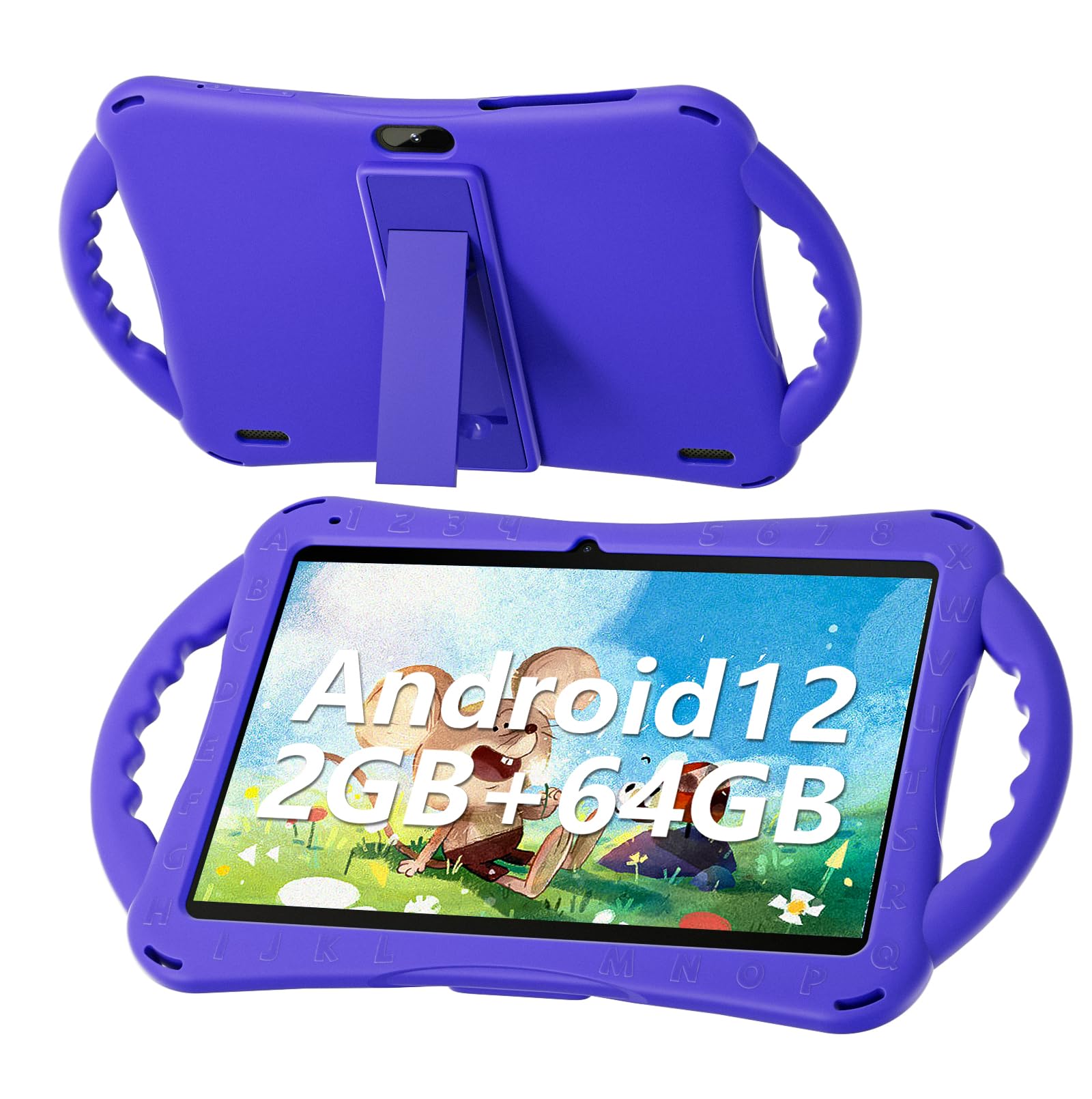
Figure 1: SGIN E10P Kids Tablet with its protective case.
2. Pwodwi souview
Familiarize yourself with the physical components of your SGIN E10P Kids Tablet.

Figure 2: Labeled diagram of the SGIN E10P Kids Tablet components.
- Kamera devan: Pou apèl videyo ak selfie.
- Kamera dèyè: Pou pran foto ak videyo.
- Oratè: Pwodiksyon odyo.
- Kalite-C Port: Pou chaje ak transfè done.
- TF Kat plas: For expanding storage with a microSD card.
- Kas ekoutè Jack: Pou konekte kas ekoutè ak fil.
- Ogmante Volim: Button to raise the audio level.
- Diminye Volim: Button to lower the audio level.
- Bracket (Kickstand): Integrated stand for hands-free viewing.
- Armrest (Handle): Ergonomic handles on the protective case for easy gripping.
3. Enstalasyon
3.1 Chaje tablèt la
Before first use, fully charge the tablet. Connect the USB Type-C cable to the tablet's Type-C port and the other end to the power adapter. Plug the power adapter into a wall outlet. The battery indicator on the screen will show charging status. A full charge typically takes several hours.
3.2 Limen/Etenyen
- Pou limen: Press and hold the Power button (usually located on the side or top edge) until the SGIN logo appears on the screen.
- Pou etenn: Press and hold the Power button until a menu appears. Select "Power off" from the options.
- Pou rekòmanse: Press and hold the Power button until a menu appears. Select "Restart" from the options.
3.3 Inisyal Enstalasyon
The first time you power on the tablet, you will be guided through an initial setup process:
- Seleksyon Lang: Chwazi lang ou prefere.
- Koneksyon Wi-Fi: Chwazi rezo Wi-Fi ou a epi antre modpas la pou konekte ak entènèt la.
- Kont Google: Sign in with an existing Google account or create a new one. This is necessary for downloading apps from the Google Play Store.
- Dat ak Lè: Mete dat ak lè ki kòrèk la, oubyen kite rezo a mete l otomatikman.
- Kontwòl paran yo: Configure Google Kids Space or other parental control features to manage content and screen time for children.
4. Itilizasyon Tablèt la
4.1 Navigasyon debaz
The SGIN E10P tablet uses a touch-sensitive screen for navigation:
- Tape: Touche ekran an yon fwa pou ouvri yon aplikasyon, chwazi yon atik, oubyen peze yon bouton.
- Manyen epi kenbe: Press and hold an item to access additional options or move it.
- Glise: Trennen dwèt ou sou ekran an pou defile paj yo oswa lis yo.
- Zoom-pou-Zoom: Place two fingers on the screen and move them apart to zoom in, or together to zoom out.
4.2 Koneksyon Wi-Fi
To connect or manage Wi-Fi networks:
- Ale nan Anviwònman > Rezo ak entènèt > Wi-Fi.
- Aktive Wi-Fi a On.
- Chwazi rezo ou vle a nan lis la epi antre modpas la si yo mande w.

Figure 3: The tablet supports both 2.4GHz and 5GHz Wi-Fi for stable connections.
4.3 Applications and Content
The tablet runs on Android 12 and comes with access to the Google Play Store, allowing you to download a wide range of applications. It is pre-configured for children's use, supporting apps like YouTube Kids, educational games, and other child-friendly content.

Figure 4: The Android 12 interface with various pre-installed and downloadable kids' apps.
4.4 Kontwòl paran yo
Utilize the built-in parental control features to manage your child's tablet experience. This includes setting screen time limits, filtering content, and approving app downloads. Access these settings through the Google Family Link app or directly in the tablet's settings under "Digital Wellbeing & parental controls."
5. Antretyen
5.1 Netwayaj
- Ekran: Sèvi ak yon twal mou ki pa gen pousyè, espesyalman fèt pou aparèy elektwonik. Pou tach ki difisil pou retire, siye yon ti kras.ampen the cloth with water or a screen cleaner solution (do not spray directly onto the screen).
- Ka: The silicone protective case can be wiped with a damp cloth and mild soap if necessary. Ensure it is completely dry before reattaching it to the tablet.
- Pò: Keep all ports (USB-C, headphone jack, TF card slot) free of dust and debris. Use a soft brush or compressed air if needed.
5.2 Swen Batri
The tablet is equipped with a 5000mAh battery, providing extended usage time.

Figure 5: The tablet features a 5000mAh battery for prolonged use.
- Evite tanperati ekstrèm, paske yo ka diminye lavi batri a.
- Sèvi sèlman ak plato ak kab ki vini ak yo pou evite domaj.
- Pou yon batri ki dire pi lontan, evite vide batri a nèt souvan oubyen evite kite l a 100% chaj pandan yon bon bout tan.
5.3 Depo
Store the tablet in a cool, dry place away from direct sunlight and moisture when not in use.
NAN. Depanaj
This section addresses common issues you might encounter with your SGIN E10P tablet.
Tablèt 6.1 la pa limen
- Asire w tablèt la byen chaje. Konekte l nan plato a pou omwen 30 minit anvan ou eseye limen l ankò.
- Peze epi kenbe bouton Pouvwa a pandan 10-15 segonn pou fòse rekòmanse.
6.2 Pwoblèm Koneksyon Wi-Fi
- Check if Wi-Fi is enabled in the tablet's settings.
- Verify that your Wi-Fi router is working correctly and other devices can connect.
- Bliye rezo a nan paramèt Wi-Fi tablèt la epi konekte ankò.
- Restart both the tablet and your Wi-Fi router.
6.3 Aplikasyon ki kraze oswa bloke
- Fèmen epi relouvri aplikasyon an.
- Efase kach aplikasyon an ak done yo nan Anviwònman > Aplikasyon yo > [Non Aplikasyon an] > Depo ak kach.
- Ensure the app is updated to its latest version via the Google Play Store.
- Rekòmanse tablèt la.
6.4 Pèfòmans Ralanti
- Fèmen aplikasyon background ki pa nesesè yo.
- Clear cached data from apps and the system.
- Ensure there is sufficient storage space available. Delete unused apps or files.
- Consider performing a factory reset as a last resort (Nòt: This will erase all data on the tablet. Back up important files premye).
7. Espesifikasyon
Key technical specifications for the SGIN E10P Kids Tablet:
| Karakteristik | Spesifikasyon |
|---|---|
| Mak | SGIN |
| Nimewo Modèl | E10P |
| Gwosè ekran | 10 pous |
| Rezolisyon ekran | 1280 x 800 |
| Processeur | 1.5 GHz Allwinner Quad-core A133 |
| RAM | 2 GB |
| Depo (ROM) | 64 GB |
| Depo dilatabl | TF Card Slot (for additional expansion) |
| Sistèm operasyon | Android 12 |
| Dèyè WebCam Rezolisyon | 5 MP |
| Kamera devan | 2 MP |
| Kapasite batri | 5000 mAh |
| Koneksyon | 2.4G/5G WiFi, Bluetooth 4.2 |
| Dimansyon (LxWxH) | 10.1 x 6 x 0.4 pous |
| Pwa atik | 2.27 liv |
8. Garanti ak sipò
SGIN provides a 1-year maintenance period from the date of purchase for this product. If you encounter any issues or require assistance, please contact SGIN customer support.
For further support, please refer to the contact information provided with your purchase documentation or visit the official SGIN websit.