
CUPEISI YQ10S MAX
CUPEISI YQ10S MAX Android 15 Tablet User Manual
Model: YQ10S MAX | Brand: CUPEISI
1. Entwodiksyon
This manual provides detailed instructions for the setup, operation, maintenance, and troubleshooting of your CUPEISI YQ10S MAX Android 15 Tablet. Please read this manual thoroughly before using your device to ensure proper functionality and to maximize your user experience. Keep this manual for future reference.

Image 1.1: CUPEISI YQ10S MAX Android 15 Tablet with included accessories (keyboard, mouse, stylus, and protective case).
2. Pake kontni
Verifye ke tout atik ki nan lis anba a yo prezan nan pake pwodwi ou a:
- CUPEISI YQ10S MAX Android 15 Tablet
- Wireless klavye
- Bluetooth sourit
- Foldable Protective Cover
- Stylus
- Kalite-C Kab
- Charger
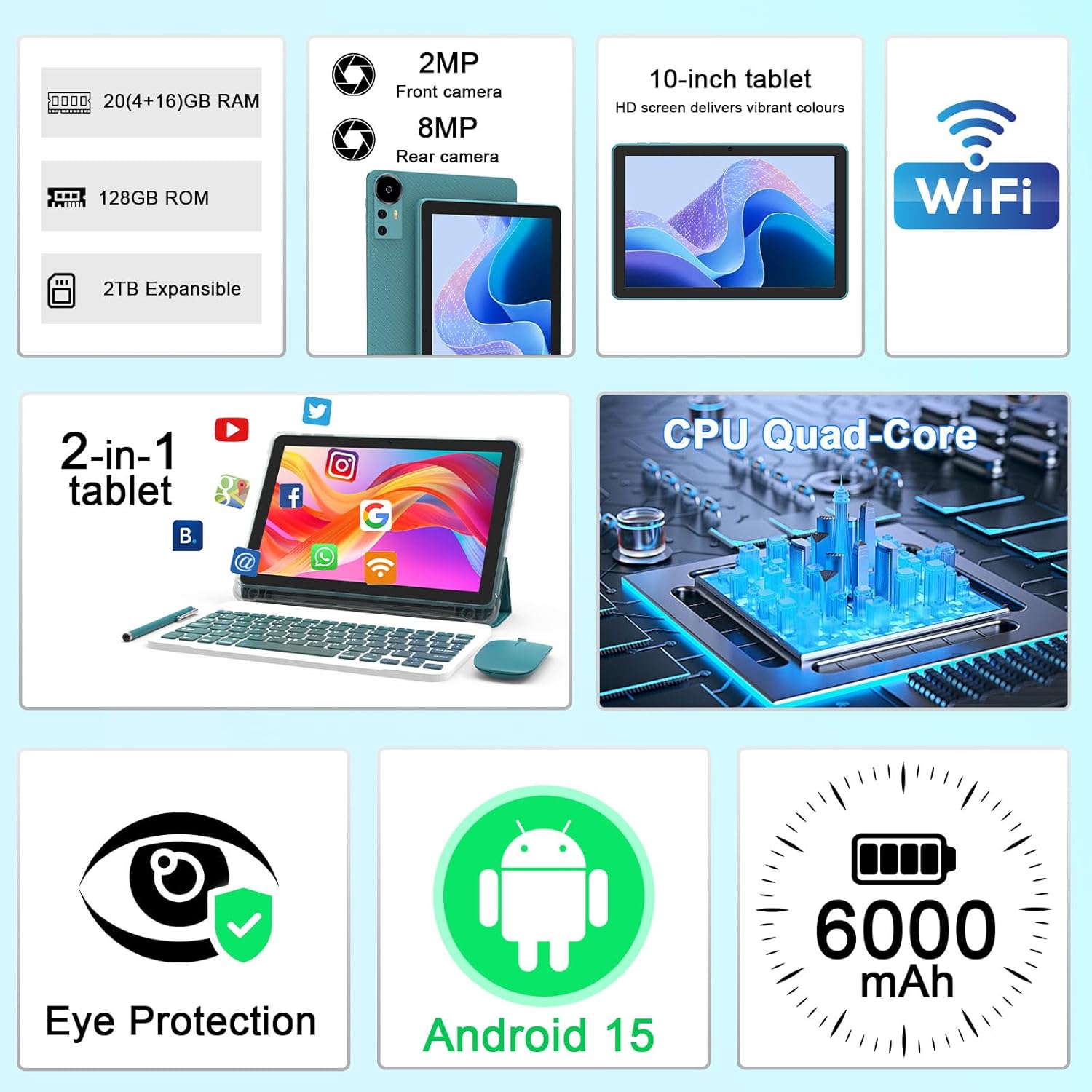
Imaj 2.1: Plis paseview of key features and included components.
3. Inisyal Enstalasyon
3.1 Limen/Etenyen
- Pou limen: Peze epi kenbe bouton pouvwa a ki sitiye sou kote tablèt la jiskaske ekran an limen.
- Pou etenn: Peze epi kenbe bouton pouvwa a, answit chwazi 'Etenn' nan opsyon ki parèt sou ekran an.
- Pou rekòmanse: Press and hold the power button, then select 'Restart' from the options.
3.2 Chaje tablèt la
Before first use, fully charge the tablet. Use the provided Type-C cable and charger.
- Connect the Type-C cable to the tablet's charging port.
- Konekte lòt bout kab la ak adaptè pouvwa a.
- Ploge adaptè pouvwa a nan yon priz miray.
- The battery icon on the screen will indicate charging status. A full charge typically takes several hours.

Image 3.1: Battery and charging information.
3.3 Connecting Accessories (Keyboard, Mouse, Stylus)
The tablet supports Bluetooth connectivity for the included keyboard and mouse.
- Pèmèt Bluetooth: Ale nan Anviwònman > Aparèy ki konekte > Bluetooth epi limen li.
- Pair Keyboard/Mouse: Put the keyboard or mouse into pairing mode (refer to their individual instructions if needed). Select the device name from the list of available Bluetooth devices on your tablet to pair.
- Dyaman: The included stylus is typically passive and does not require pairing. It can be used directly on the screen for navigation or drawing.
3.4 Koneksyon Wi-Fi
Connect your tablet to a Wi-Fi network for internet access.
- Ale nan Anviwònman > Rezo ak entènèt > Wi-Fi.
- Aktive Wi-Fi a. Tablèt la pral chèche rezo ki disponib yo.
- Chwazi rezo ou vle a nan lis la.
- Si yo mande w, antre modpas rezo a epi tape Konekte.
4. Operasyon debaz
4.1 Navige sou Android 15
Your tablet runs on Android 15, offering an intuitive user interface. Swipe gestures, tap actions, and the navigation bar (Back, Home, Recents) are standard for interaction. The Google Mobile Services (GMS) certification ensures access to the Google Play Store and other Google applications.

Image 4.1: Android 15 operating system features.
4.2 Anviwònman ekspozisyon
The 10.1-inch IPS display with 1280x800 resolution provides clear visuals. You can adjust display settings to suit your preferences:
- Klate: Adjust screen brightness from the quick settings panel or in Anviwònman > Ekspozisyon.
- Mòd lekti: Enable 'Reading Mode' in display settings to reduce blue light emission, which can enhance comfort during extended reading sessions.
- Size Font: Pèsonalize gwosè tèks la pou pi bon lizibilite.

Image 4.2: Details of the 10.1-inch HD screen display.
4.3 Jesyon Depo
The tablet features 128GB of internal storage and 20GB RAM (4GB physical + 16GB virtual expansion). Storage can be expanded up to 2TB using a microSD card (not included).
- Tcheke Depo: Ale nan Anviwònman > Depo pou view internal and external storage usage.
- Mete kat MicroSD: Locate the microSD card slot on the tablet, insert the card gently until it clicks into place.

Image 4.3: Storage and RAM configuration.
4.4 Itilizasyon Kamera
Tablèt la ekipe ak yon kamera dèyè 8MP ak yon kamera devan 2MP.
- Louvri aplikasyon Kamera a: Tape ikòn Kamera a sou ekran prensipal ou a oswa nan tiwa aplikasyon an.
- Chanje Kamera: Sèvi ak ikòn chanjman kamera a pou chanje ant kamera devan ak dèyè.
- Pran Foto/Videyo: Tape bouton deklanchè a pou pran yon foto oswa pou kòmanse/sispann anrejistreman videyo.

Image 4.4: Camera specifications and modes.
4.5 Lekti Miltimedya
The tablet supports Widevine L1, enabling high-definition streaming from platforms like Netflix, Hulu, YouTube, and Prime Video.
- Ensure a stable internet connection for optimal streaming quality.
- Download streaming apps from the Google Play Store.

Image 4.5: Widevine L1 support for multimedia streaming.
4.6 Miltitasking
Android 15 enhances multitasking capabilities. Use the 'Recents' button to switch between open applications or utilize split-screen mode for running two apps simultaneously.
- Split-Screen: From the 'Recents' view, tap the app icon at the top of an app's card and select 'Split screen'. Choose a second app to open alongside it.
- The included keyboard and mouse facilitate a laptop-like experience for productivity tasks.

Image 4.6: Tablet used in 2-in-1 mode with keyboard and mouse.
5. Swen ak Antretyen
5.1 Netwayaj
- Sèvi ak yon twal mou ki pa gen pousyè pou netwaye ekran an ak kò tablèt la.
- Evite itilize pwodui chimik ki agresif, pwodui netwayaj abrazif, oswa espre ayewosòl.
- Asire w ke tablèt la etenn epi debranche anvan ou netwaye li.
5.2 Swen Batri
- Evite ekspoze tablèt la nan tanperati ekstrèm (cho oswa frèt).
- Pa kite grenn nan konplètman dechaje pou yon peryòd tan pwolonje.
- Use only the provided charger and cable to prevent damage to the battery.
5.3 Mizajou lojisyèl
- Tcheke epi enstale mizajou lojisyèl regilyèman pou asire pèfòmans, sekirite, ak aksè a nouvo fonksyonalite optimal.
- Ale nan Anviwònman > Sistèm > Aktyalizasyon sistèm lan pou tcheke si gen mizajou ki disponib.
NAN. Depanaj
If you encounter issues with your tablet, refer to the following common problems and solutions:
6.1 Pwoblèm pouvwa
- Tablet won't turn on: Asire w batri a chaje. Konekte chajè a epi tann kèk minit anvan ou eseye limen l ankò.
- Tablet freezes: Peze epi kenbe bouton pouvwa a pandan apeprè 10-15 segonn pou fòse yon rekòmanse.
6.2 Pwoblèm koneksyon
- Wi-Fi a pa konekte: Check if Wi-Fi is enabled in settings. Restart your router and the tablet. Ensure you are entering the correct password.
- Aparèy Bluetooth la pa konekte: Ensure the Bluetooth accessory is in pairing mode and within range. Restart Bluetooth on the tablet and try pairing again.
6.3 Performance Lags
- Pèfòmans ralanti: Close unused applications running in the background. Clear cache data for frequently used apps. Consider adding a microSD card for additional storage if internal storage is nearly full.
- Aplikasyon k ap kraze: Ensure apps are updated to their latest versions. Clear the app's cache and data (Anviwònman > Aplikasyon yo > [Non Aplikasyon an] > Depo).
7. Spécifications pwodwi
| Karakteristik | Spesifikasyon |
|---|---|
| Mak | CUPEISI |
| Non modèl | CP31M (Item model number: YQ10S MAX) |
| Sistèm operasyon | Android 15 |
| Gwosè ekran | 10.1 pous |
| Rezolisyon ekran | 1280 x 800 Piksèl (HD) |
| Processeur | 2.0 GHz kat-nwayo |
| RAM | 20GB (4GB fizik + 16GB ekspansyon) |
| Depo Entèn | 128 GB |
| Depo dilatabl | Up to 2TB with microSD card (not included) |
| Kalite san fil | 802.11ax (Wi-Fi 6.0, 2.4G/5G) |
| Bluetooth | BT 5.0 |
| Kamera dèyè | 8 MP |
| Kamera devan | 2 MP |
| Kapasite batri | 6000 mAh |
| Mwayèn lavi batri | 6-8 Hours (usage dependent) |
| Dimansyon (LxWxH) | 9.7 x 6.5 x 0.3 pous |
| Pwa atik | 0.176 ons |
| Koulè | NavyBlue |
8. Garanti ak sipò
For warranty information, please refer to the warranty card included in your product packaging or contact CUPEISI customer support directly. If you require technical assistance or have questions not covered in this manual, please reach out to our support team through the contact information provided with your purchase.
Ask a question about this manual
Ask about setup, troubleshooting, compatibility, parts, safety, or missing instructions. Manuals+ will review the question and use this page’s manual context to help answer it.