
1. Entwodiksyon
The Ottocast PICASOU 2 Pro PCS35 is a car gadget designed to convert your vehicle's existing wired Apple CarPlay system into a full Android tablet experience. By simply connecting it to the USB port that supports wired CarPlay, you can access various Android applications, stream media, and utilize advanced navigation features directly on your car's display. This device integrates an Android 10 system, offering enhanced connectivity and entertainment options for your journeys.
2. Pwodwi souview
2.1 Karakteristik kle
- Sistèm Android 10: Equipped with Android 10, allowing installation and use of various Android applications from the Google Play Store (e.g., video streaming, music, maps). Note: Display and audio quality may vary by vehicle and display. Some applications may not be fully compatible. Internet connection via Wi-Fi or SIM card is required for online services.
- Mini HDMI Input/Output: Features Mini HDMI output for connecting to external monitors (e.g., rear seat displays) and Mini HDMI input for connecting external media players like Fire TV Stick. Supports up to 1080P resolution for both input and output.
- Pò USB: Includes a USB-A port for storage expansion up to 128GB, enabling playback of pre-downloaded videos and music.
- Nano SIM plas kat: Supports 4G(LTE)/3G communication standards. Verified for operation with docomo, au, and Softbank networks in Japan. Note: Some Nano SIM cards may not support 4G networks due to frequency band limitations.
- Processeur pèfòmans segondè: Powered by a Qualcomm Snapdragon 665 8-core processor for smooth operation.
- GPS entegre: Built-in high-precision GLONASS car antenna ensures accurate speed, position, and braking distance measurements.
- OttoDrive 1.0 Interface: Features a redesigned interface with automatic screen adjustment to fit various car display shapes and customizable left/right menu bars.
2.2 Kontni pake a
Atik sa yo enkli nan pake pwodwi a:
- PICASOU 2 Pro PCS35 AI Box
- USB tip-C pou yon kab
- USB Kalite-C pou C kab
- Y-kab
- HDMI kab
- Kontwòl Remote
- User Manual (Japanese/English)

Figure 2.2.1: Package Contents. Shows the AI Box, USB Type-C to A cable, USB Type-C to C cable, Y-cable, user manual, and product packaging.

Figure 2.2.2: Device Ports and Connections. This image details the various ports on the PICASOU 2 Pro PCS35, including USB-C for power/data, Mini HDMI for both input and output, a USB-A port for peripherals, and a Nano SIM card slot. It also shows examples of connected devices like Apple TV, Fire TV Stick, USB memory, and rear monitors.
3. Enstalasyon
Follow these steps to set up your Ottocast PICASOU 2 Pro PCS35:
- Connect to Car's USB Port: Plug the provided USB Type-C to A or Type-C to C cable into the PICASOU 2 Pro PCS35 and then into your car's USB port that supports wired Apple CarPlay. Ensure the connection is secure.
- Insert Nano SIM Card (Optional): If you plan to use 4G/3G mobile data, carefully insert a Nano SIM card into the designated SIM card slot on the device. Ensure the SIM card is correctly oriented.
- Connect USB Devices (Optional): If you wish to use external USB storage or other USB peripherals, connect them to the USB-A port on the device.
- Connect HDMI Devices (Optional):
- For HDMI output to a rear monitor, connect the provided HDMI cable from the Mini HDMI output port on the PCS35 to the HDMI input of your external monitor.
- For HDMI input from an external media player (e.g., Fire TV Stick), connect an HDMI cable from your media player to the Mini HDMI input port on the PCS35.
- Pouvwa sou: Once connected, the device should power on automatically with your car's infotainment system. The car's display will transition to the Android interface of the PICASOU 2 Pro PCS35.
4. Operasyon Enstriksyon
4.1 Initial Boot-up and Network Connection
Upon initial connection, the device will boot into the Android 10 interface. To access online services and download apps, you must establish an internet connection:
- Koneksyon Wi-Fi: Navigate to the settings menu, select Wi-Fi, and connect to an available Wi-Fi network (e.g., your phone's hotspot).
- Done Kat SIM: If a Nano SIM card is inserted, ensure mobile data is enabled in the settings.
4.2 Enstalasyon ak Itilizasyon Aplikasyon an
Access the Google Play Store from the main interface to download and install your preferred applications, such as navigation apps, video streaming services, and music players.
4.3 HDMI Output for Rear Monitors
The Mini HDMI output allows you to mirror or extend your car's display to rear seat monitors, providing entertainment for passengers. Connect the HDMI cable as described in the Setup section. Note that not all video playback applications may support output to rear monitors.
4.4 HDMI Input for External Media Players
Connect external media players (e.g., Fire TV Stick, gaming consoles) to the Mini HDMI input port. Switch the input source on the PCS35 interface to view kontni ki soti nan aparèy la konekte.

Figure 4.4.1: HDMI Input and Output in Use. This image demonstrates the versatility of the HDMI ports, showing video playback on both the main car display and rear monitors, as well as an external gaming console connected via HDMI input.
4.5 OttoDrive 1.0 Interface
The OttoDrive 1.0 interface automatically adjusts to your car's display shape. You can customize the fixed menu bar to appear on the left or right side of the screen for convenience. The interface supports split-screen display, allowing you to run two applications simultaneously (e.g., navigation and video playback).

Figure 4.5.1: OttoDrive 1.0 Interface. This image showcases the user interface with different screen layouts, demonstrating its adaptability and the ability to display multiple applications simultaneously.
4.6 Itilizasyon kontwòl Remote
Use the included remote control to navigate the interface, select applications, and control media playback without touching the car's screen.
5. Antretyen
To ensure the longevity and optimal performance of your PICASOU 2 Pro PCS35, follow these maintenance guidelines:
- Netwayaj: Sèvi ak yon twal mou epi sèk pou netwaye aparèy la. Evite itilize pwodui netwayaj likid oswa materyèl abrazif.
- Tanperati: Operate and store the device within recommended temperature ranges. Extreme temperatures can affect performance and lifespan.
- Mizajou lojisyèl: Periodically check for and install software updates to ensure you have the latest features and security patches. Updates can usually be found in the device's settings menu.
- Evite domaj fizik: Protect the device from drops, impacts, and excessive vibration.
NAN. Depanaj
If you encounter issues with your PICASOU 2 Pro PCS35, refer to the following common problems and solutions:
- No Display on Car Screen:
- Ensure the USB cable is securely connected to both the PCS35 and the car's CarPlay-compatible USB port.
- Verify that your car's infotainment system is set to Apple CarPlay mode.
- Restart your car and the PCS35 device.
- Pa gen son:
- Check the volume levels on both the PCS35 and your car's audio system.
- Ensure the car's audio input is correctly selected (e.g., Bluetooth, USB, or CarPlay audio).
- Apps Crashing or Not Loading:
- Ensure the device has a stable internet connection.
- Clear the app's cache and data in the Android settings.
- Mete aplikasyon an ajou nan dènye vèsyon li nan Google Play Store la.
- Some apps may have compatibility issues with the car's display or the Android 10 system on the device.
- Siyal GPS ki fèb:
- Asire ke aparèy la gen yon klè view of the sky. Avoid placing it under metallic objects that might obstruct the signal.
- Verify that location services are enabled in the Android settings.
- 4G/3G Network Issues:
- Check if the Nano SIM card is correctly inserted and activated.
- Confirm that mobile data is enabled in the device settings.
- Verify that your SIM card's frequency bands are compatible with the device and your region's network.
7. Espesifikasyon
| Mak | Ottocast |
| Nimewo Modèl | PCS35 |
| Sistèm operasyon | Android 10 |
| Processeur | Qualcomm Snapdragon 665 (8-core) |
| Koneksyon Teknoloji | HDMI, USB, Wi-Fi, 4G/3G (Nano SIM) |
| Kalite Connector | Mini HDMI Output/Input Port, USB-A Port, Nano SIM Slot |
| Metòd kontwòl | Kontwòl Remote |
| Max Storage Expansion | 128GB (via USB) |
| Konpozan ki enkli | HDMI Cable, Remote Control, Y-Cable, USB Type-C to A Cable, USB Type-C to C Cable, User Manual (Japanese/English) |
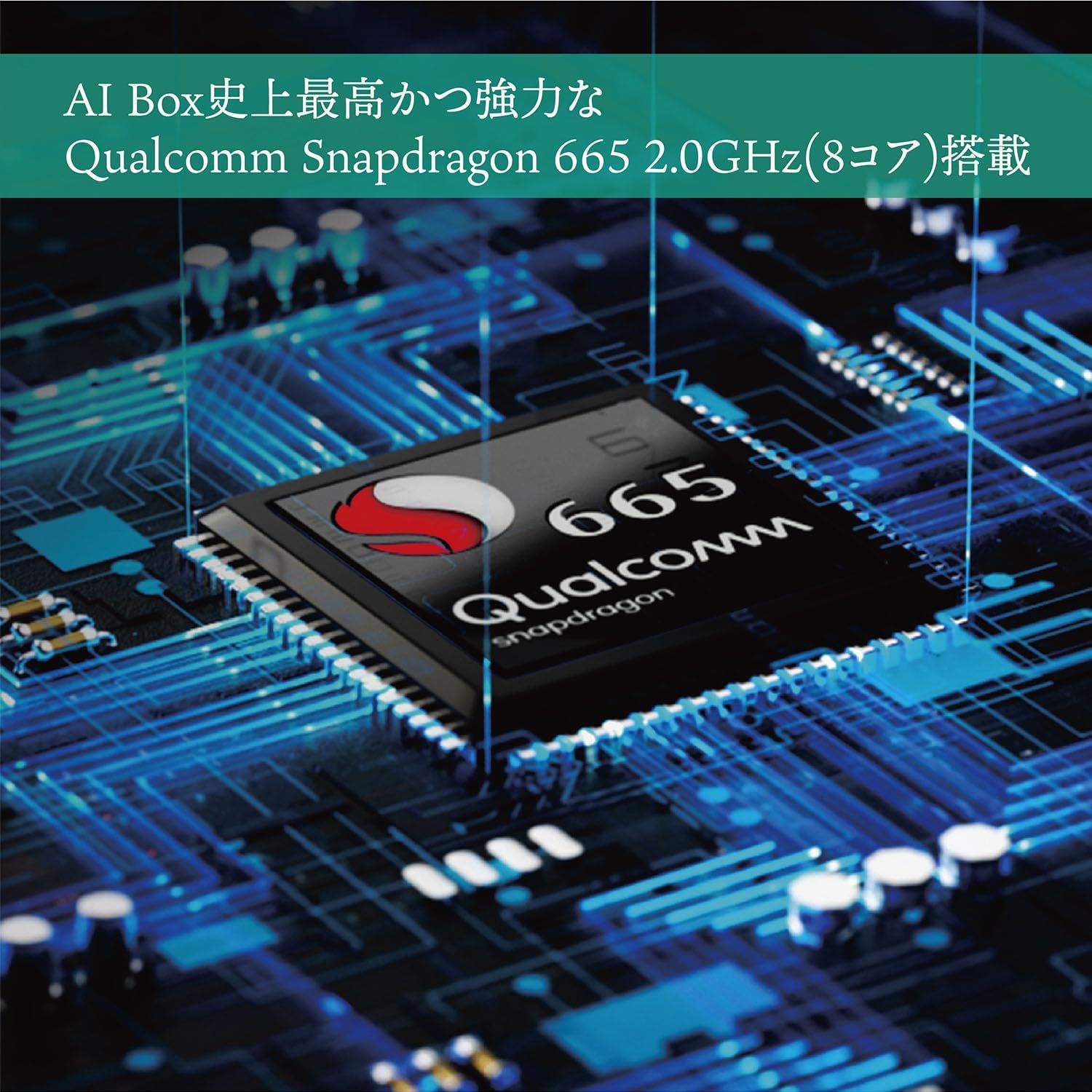
Figure 7.1: Qualcomm Snapdragon 665 Processor. This image highlights the powerful 8-core processor integrated into the device.

Figure 7.2: High-Precision GLONASS Antenna. This image illustrates the integrated GLONASS antenna for accurate positioning.
8. Konpatibilite
The Ottocast PICASOU 2 Pro PCS35 is compatible with a wide range of vehicles equipped with wired Apple CarPlay. Please refer to the table below for a general compatibility guide. Note that compatibility may vary based on specific vehicle models and infotainment system versions.

Figure 8.1: Vehicle Compatibility List. This table provides a list of car brands and model years generally compatible with the device.
9. Garanti ak sipò
This product is sold through authorized dealers and is certified for technical conformity. For any support inquiries, troubleshooting assistance, or warranty claims, please contact your point of purchase or the official Ottocast support channels.
9.1 Important Notice Regarding Non-Genuine Products
Be aware of counterfeit or OEM products. Non-genuine products may lack the official Ottocast logo, may not be listed as Ottocast products, or may mimic Ottocast product names. Such products may pose risks including:
- Potential violation of radio law.
- Lack of proper warranty service.
- No after-sales support in English.
- Poor manufacturing quality.
- Significant differences in product quality.
Always purchase from authorized retailers to ensure product authenticity and access to official support.

Figure 9.1.1: Warning Against Non-Genuine Products. This image provides a crucial warning to consumers about the risks associated with purchasing unofficial or counterfeit versions of the product.