
Entwodiksyon
This manual provides comprehensive instructions for the setup, operation, maintenance, and troubleshooting of your VisionTechShop TVP-12B Price Computing Scale and LP-50 Thermal Label Printer. Please read this manual thoroughly before operating the device to ensure proper function and longevity.

Figure 1: VisionTechShop TVP-12B Price Computing Scale with LP-50 Thermal Label Printer and labels.
Enstalasyon
1. Debake
Carefully unpack all components from the box. Ensure you have the TVP scale, DLP-50 printer, and the case of LST8060 labels (12 rolls).
Video 1: Unpacking the TVP Scale and DLP-50 Printer. This video demonstrates how to safely unpack your new scale and printer, identifying all included components.
2. Koneksyon pouvwa
- Connect the 12V/500mA adapter to the TVP scale. The port is located on the underside of the scale.
- Connect the 12V/2.5A adapter to the DLP-50 printer.
- Plug both adapters into a suitable power outlet. A red light will illuminate on the front of the scale, indicating it is receiving power. A green light will appear on the printer.
3. Koneksyon kab entèfas
Connect the interface cable between the DLP-50 printer and the TVP scale. The connection port for the printer is labeled 'LABEL PRINTER' and for the scale, it is on the underside.
4. Premye Limen
Turn on the scale using the switch located on the right front side of the bottom of the scale. The display will cycle through numbers and then settle at 0.00.
Enstriksyon Operasyon
1. Changing Measurement Units (Lb/Oz/Kg)
To change the measurement unit, press the INITE key. The display will cycle through kilograms (kg), pounds (lb), and ounces (oz). Select your desired unit.
Video 2: How to Change Measurement Units and Use the Give Change Function. This video demonstrates how to switch between different weight units and utilize the change calculation feature.
2. Using the Accumulation Function
The accumulation function allows you to sum the total price of multiple items. Follow these steps:
- Power on the TVP scale while holding down the TARE key. Continue holding until 'Pn' appears on the screen.
- Antre kòd la 0000 ak peze TARE pou antre.
- Peze TARE ankò.
- Sèvi ak la M+ or PLU buttons to navigate until the weight display reads 'F11'.
- Peze TARE to enter the setting. The 'Unit Price' display should read 'nodE'.
- Peze PLU until the 'Unit Price' reads 'EP50'.
- Peze M+ to go back, then press TARE pou sove.
- Peze a ZERO key repeatedly to exit to the main menu.
- Place the first item on the scale and enter its unit price.
- Peze M+ to accumulate the price.
- Remove the first item, place the second item, enter its unit price, and press M+ again. Repeat for all items.
- Peze CH pou view the accumulated total price.
Video 3: How to Use the Accumulation Function. This video guides you through the steps to enable and use the accumulation feature for multiple item transactions.
3. Creating PLU Profiles
To save frequently used prices as PLU (Price Look-Up) profiles:
- Antre pri inite ou vle a avèk klavye nimerik la.
- Kenbe la PLU key for 3 seconds until 'SAVE PoS' appears on the screen.
- Enter a PLU number (0-9) where you want to save the price. For example, press '1' for PLU 1. The screen will show 'SAVEd'.
- To recall a saved PLU, place an item on the scale, press PLU, and then the corresponding PLU number.
- Peze M+ to print a label with the PLU information.
Video 4: Creating PLU Profiles. This video demonstrates how to save and recall Price Look-Up profiles for quick access to common item prices.
4. Turning On the Backlight
To activate the display backlight:
- Power on the TVP scale.
- Kenbe la '.' (decimal) key until the backlight setting opens. The display will show '6LSEE' and 'OFF' or 'ON' or 'AUTO'.
- Sèvi ak la M+ or PLU button to cycle through 'OFF', 'ON', or 'AUTO'. 'AUTO' mode saves power by turning on the backlight only when the scale is in use.
- Peze TARE pou konsève pou seleksyon ou a.
Video 5: How to Turn On the Backlight. This video shows how to adjust the backlight settings for optimal visibility.
5. Using the Give Change Function
To calculate change for a customer:
- Place the item on the scale and enter its unit price.
- Peze M+ to add the item to the total.
- Peze CH pou view the total price.
- Enter the amount the customer paid using the numeric keypad. The 'Total Price' display will show the change due.
- Peze TARE to clear the transaction and exit.
6. Enpresyon Etikèt
After weighing an item and entering its unit price, press the M+ key to print a label. The printer will generate a label with sales information including weight, unit price, and total price. Note: The printer does not print barcodes. It prints text such as "THANK YOU", "Total Weight", "Price per lb and Total Price". If the total price is 0.00, no label will be printed. The total price must be greater than 0.00 to print a label.
Antretyen
Netwayaj
The TVP-12B scale features a stainless steel removable platter for easy cleaning. Regularly clean the platter and the scale body with a damp cloth. Avoid using abrasive cleaners or submerging the unit in water.

Figure 2: TVP-12B Scale with its protective dust cover.
Pwoteksyon
A dust cover is included to protect the scale from dust and spills when not in use. Always use the dust cover to prolong the life of your scale.
Depanaj
Printer Not Printing Labels
- Ensure the total price displayed on the scale is greater than 0.00. The printer will not issue a label if the total price is zero.
- Check if the printer is properly connected to the scale via the interface cable and that its power adapter is securely plugged in and the printer is turned on (green light).
- Verify that the label roll is correctly installed and not jammed.
Espesifikasyon
| Karakteristik | Detay |
|---|---|
| Mak | VisionTechShop |
| Modèl | TVP-12B |
| Kapasite | 12 liv x 0.002 liv, 160 ons x 0.05 ons, 6 kg x 0.001 kg |
| Lekti Presizyon | NTEP Required Accuracy |
| Inite Mezi | Lb/Oz/Kg switchable |
| Sètifikasyon | NTEP Approved Legal for Trade (Coc #19-038), NSF Certified |
| Printer Model | LP-50 Thermal Label Printer |
| Etikèt enkli | 1 Case of 12 Rolls of LST8060 Labels (55 x 25mm, 550 Per Roll) |
| Kalite ekspozisyon | LCD ak ekleraj |
| PLU Memory | 10 Indirect PLU for selection |
| Sous pouvwa | Adapter, Battery Operated |
| Materyèl plato | Nerjaveèi asye |
| Gwosè plato | 10.5 x 8 inch (W x D) |
| Dimansyon Echèl | 11 x 12 x 4 inch / 288 x 313 x 108.8mm (W x D x H) |
| Pwa nèt | 9lb / 4.1kg |
| Faktè fòm | Kalite ban |
| Itilizasyon Rekòmande | Food, Fish |

Figure 3: Dimensions of the TVP-12B Price Computing Scale.
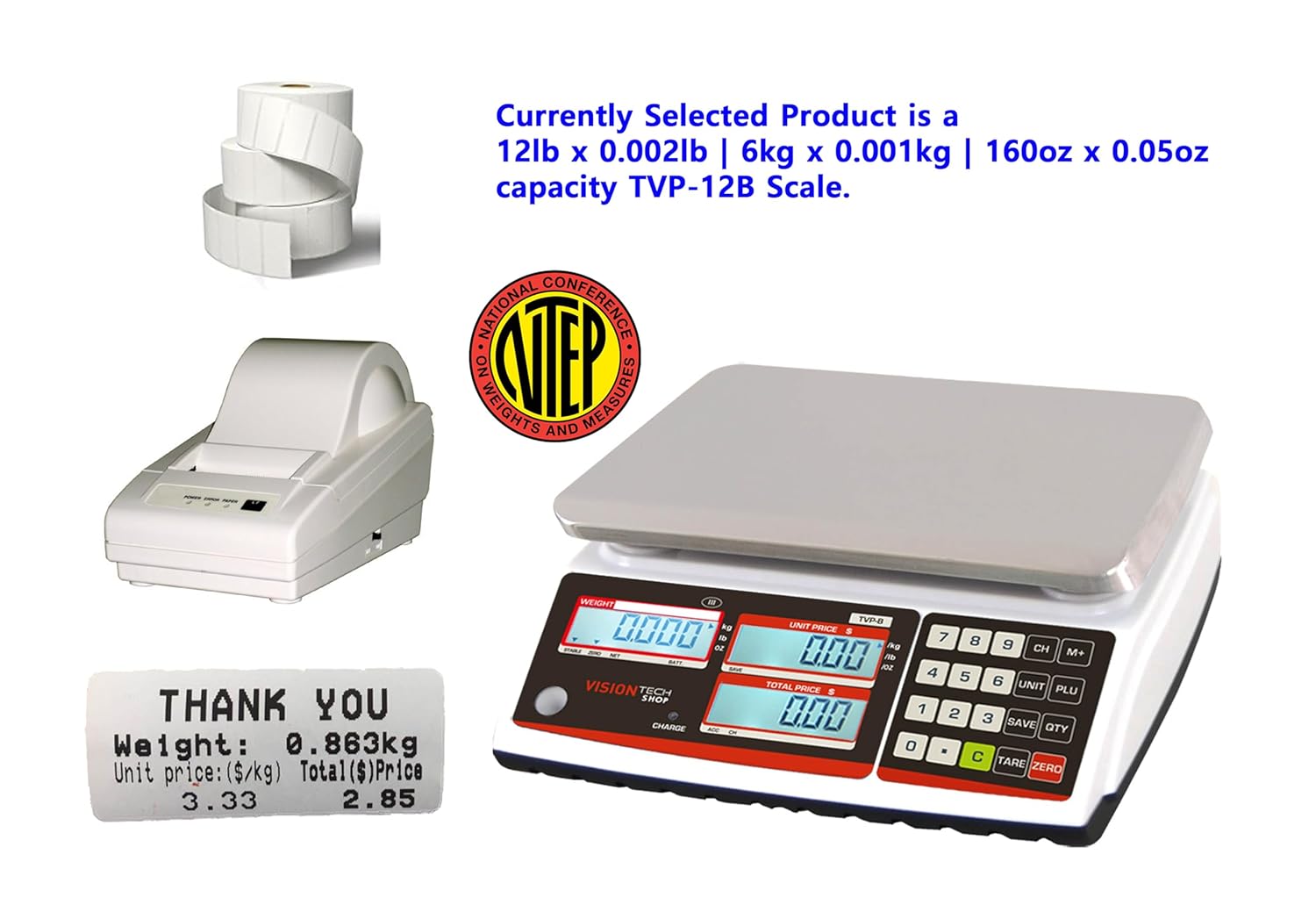
Figure 4: NTEP Certificate of Conformance for TVP Series scales.
Sipò
For technical support or any inquiries regarding your VisionTechShop product, please contact us:
- Telefòn: +1.201.970.8897
- Imèl: GoUSApos@Gmail.com
- Websit: www.VisionTechShop.com
- Adrès: 100 Temple Ave. Hackensack, NJ 07601