
1. Pwodwi souview
Thank you for choosing the PDP AIRLITE GLOW Wired Headset. This headset is designed to provide an immersive audio experience and clear communication for gaming on Xbox Series X|S, Xbox One, and Windows 10/11 PC. Its lightweight design and comfortable earcups ensure extended use without discomfort.
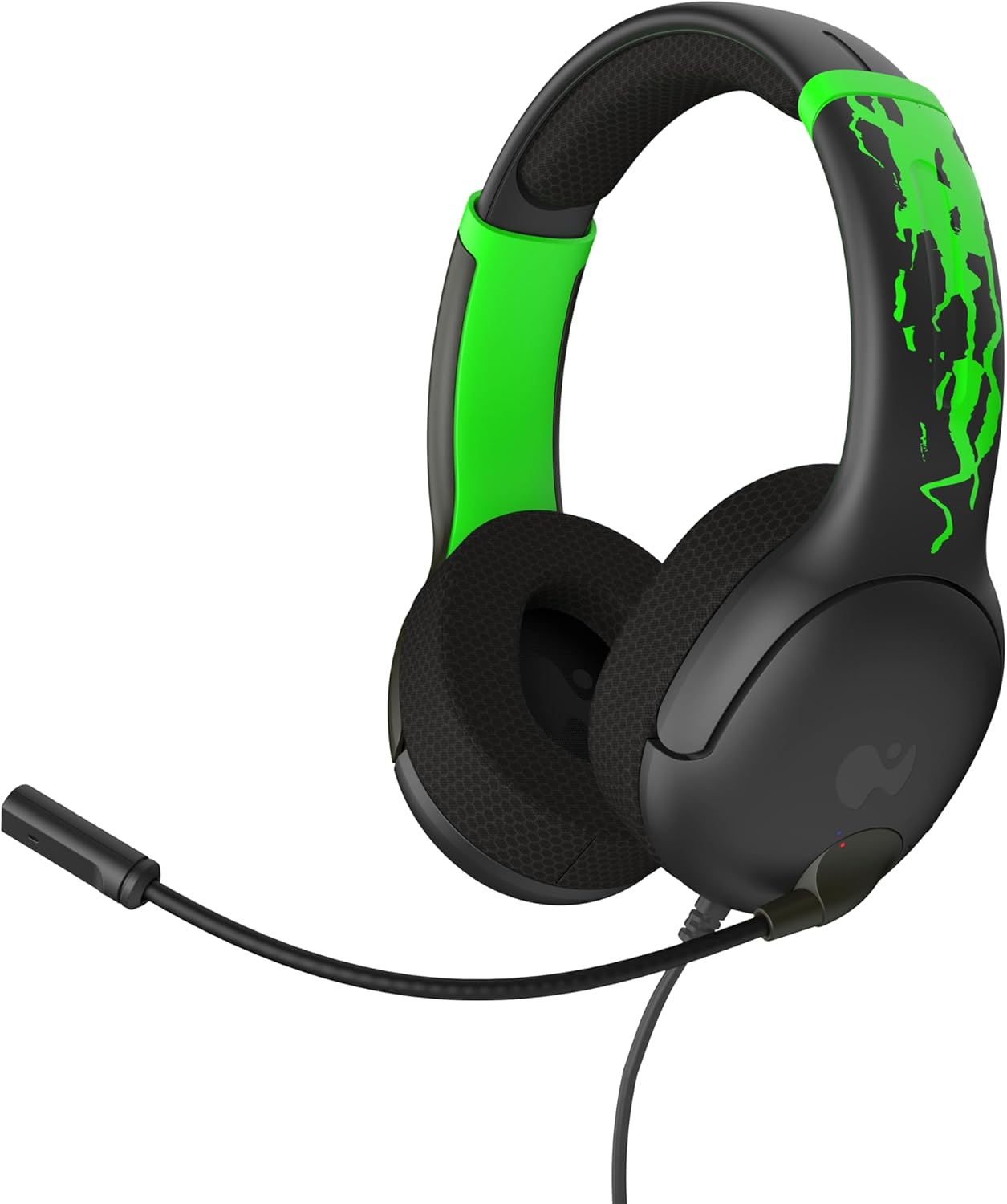
Figi 1: Devan view of the PDP AIRLITE GLOW Wired Headset.
Karakteristik kle:
- Unique design glows in the dark after exposure to light (for best results use UV light).
- Lightweight construction (7 oz) and soft padded earcups for all-day comfort.
- 40mm drivers with fine-tuned audio for immersive gameplay.
- Sleek, noise-canceling mic with flip-to-mute feature.
- Officially licensed by Xbox.
2. Enstriksyon Enstalasyon
The PDP AIRLITE GLOW Wired Headset connects directly to your gaming controller or compatible device via a 3.5mm audio jack.
Connecting to an Xbox Controller:
- Ensure your Xbox console and controller are powered on.
- Locate the 3.5mm audio jack port on the bottom of your Xbox controller.
- Insert the 3.5mm audio plug from the headset firmly into the controller's audio jack.
- The headset should now be connected and ready for use. You may need to adjust audio settings on your Xbox console or controller for optimal sound and microphone levels.
Connecting to PC (Windows 10/11):
- Locate the 3.5mm audio jack on your PC. If your PC has separate ports for microphone and headphones, you may need a 3.5mm splitter (not included).
- Insert the 3.5mm audio plug from the headset into the combined audio jack or the appropriate headphone/microphone jacks.
- Access your PC's sound settings to ensure the headset is selected as the default input and output device. Adjust volume and microphone levels as needed.
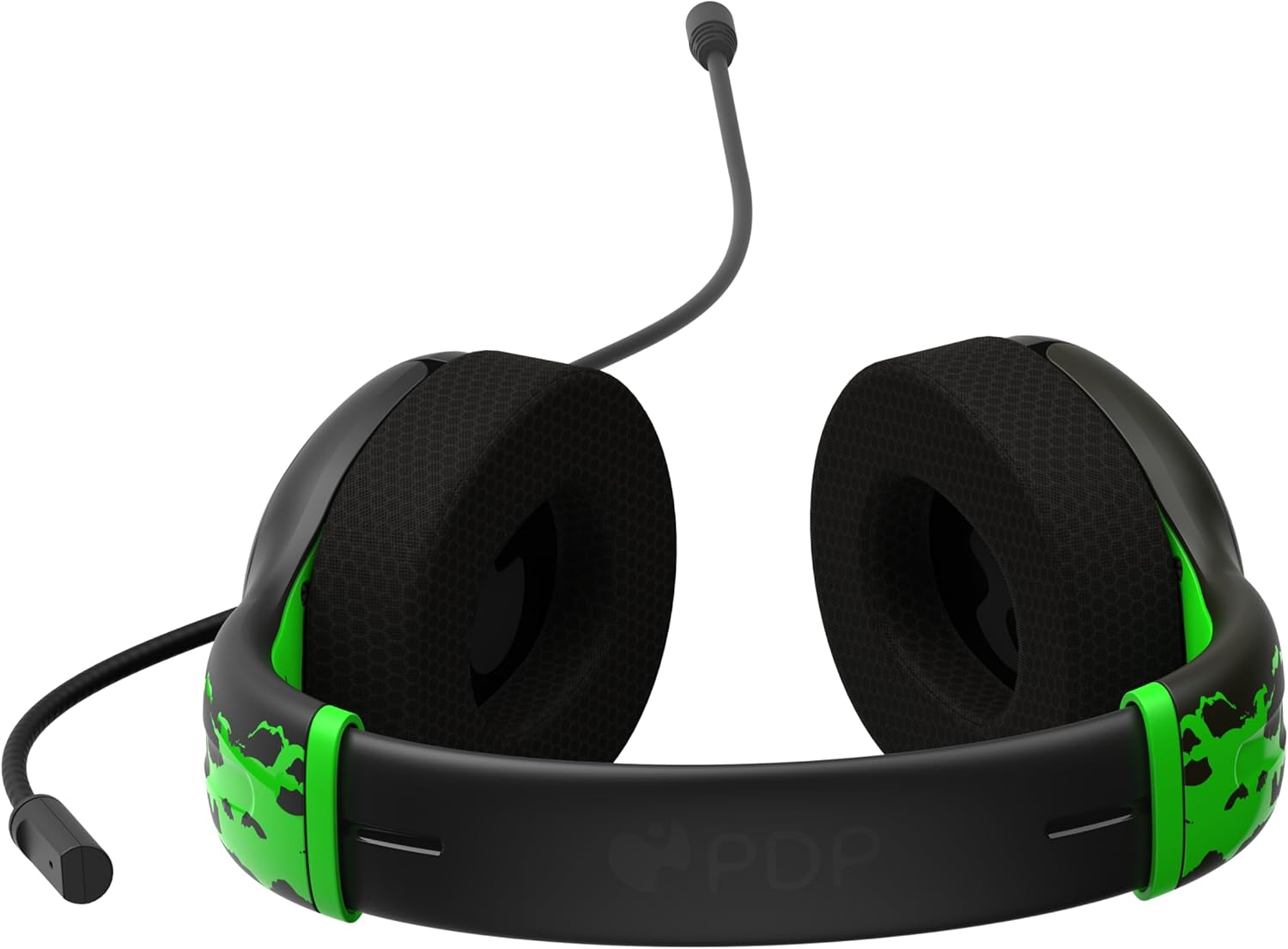
Figure 2: The 3.5mm audio jack for connecting the headset.
3. Operasyon Enstriksyon
Fonksyonalite Mikwofòn:
- Vire-pou-Silans: The headset features a convenient flip-to-mute microphone. To mute your microphone, simply flip the microphone boom arm upwards until it clicks into the vertical position. To unmute, flip the microphone boom arm back down to the speaking position.
- Mikwofòn reglabl: The microphone arm is flexible and can be adjusted to your preferred speaking distance for optimal voice clarity.
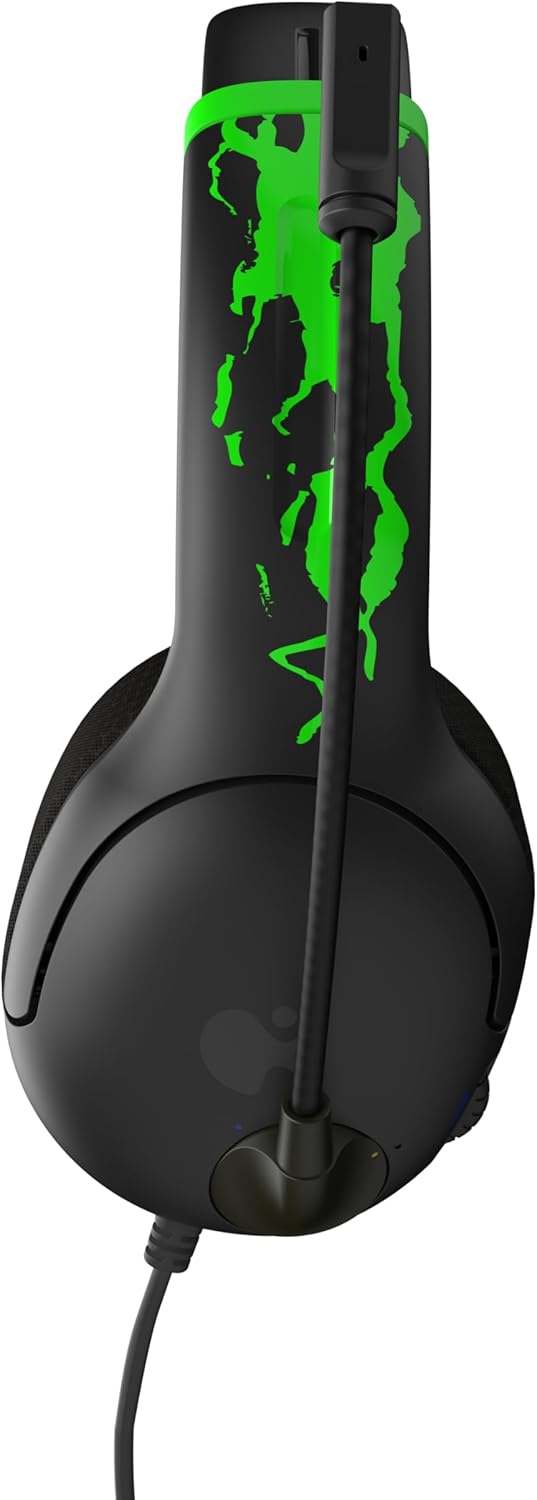
Figure 3: Microphone in the muted (upright) position.
Kontwòl Volim:
- The headset includes an on-ear volume control dial. Rotate the dial to increase or decrease the audio volume to your desired level.

Figure 4: Volume control dial located on the earcup.
Adjusting Headset Fit:
- The headband is adjustable. Gently slide the earcups up or down to find a comfortable and secure fit on your head.

Figure 5: Adjustable headband for a personalized fit.
4. Swen ak Antretyen
- Netwayaj: Sèvi ak yon twal mou epi sèk pou netwaye kas ekoutè a. Evite itilize pwodui chimik ki agresif oswa materyèl abrazif.
- Depo: Sere kas ekoutè a nan yon kote ki fre epi sèk, lwen limyè solèy dirèk ak tanperati ekstrèm.
- Swen kab: Evite pliye oswa tòde kab la byen file pou anpeche domaj entèn.
- Glow Feature: For optimal glow effect, expose the headset's glow-in-the-dark elements to a light source (preferably UV light) before use in dark environments.
NAN. Depanaj
| Pwoblèm | Solisyon |
|---|---|
| Pa gen son nan kask. |
|
| Mikwofòn pa mache. |
|
| Headset feels uncomfortable. |
|
6. Spécifications pwodwi
| Karakteristik | Detay |
|---|---|
| Non modèl | AIRLITE GLOW |
| Nimewo Modèl | 049-015-JGR |
| Mak | PDP |
| Koneksyon Teknoloji | Filaire (3.5 mm Jack) |
| Aparèy konpatib | Xbox Series X|S, Xbox One, Windows 10/11 PC, Gaming Consoles, Desktops, Laptops |
| Kalite chofè odyo | Chofè dinamik (40mm) |
| Mikwofòn | Noise-canceling, Flip-to-mute |
| Kalite kontwòl | Volume Control (on-ear dial) |
| Pwa atik | 0.018 ounces (approximately 7 oz as per feature bullet) |
| Materyèl | Plastik |
| Karakteristik espesyal | Lightweight, Glow-in-the-dark design |
7. Garanti ak sipò
For warranty information and customer support, please refer to the official PDP websit la oubyen kontakte sèvis kliyan yo dirèkteman. Kenbe prèv acha ou a pou nenpòt reklamasyon garanti.
Sipò sou entènèt: Vizite la Magazen PDP sou Amazon pou plis enfòmasyon sou pwodwi a ak resous sipò.
8. Videyo pwodwi yo
AIRLITE GLOW Wired Headset for Xbox: Jolt Green 3D Video
This video provides a 3D view of the PDP AIRLITE GLOW Wired Headset in Jolt Green, showcasing its design and features. Note: This is a short preview videyo.
PDP Licensed Gaming Accessories Xbox Nintendo Playstation
Yon souview prezantasyon videyoasing various PDP licensed gaming accessories for Xbox, Nintendo, and PlayStation, including the AIRLITE GLOW headset.