
1. Entwodiksyon
Thank you for choosing the OOOUSE 1200Mbps Dual-Band WiFi Repeater. This device is designed to extend your existing wireless network coverage, eliminate Wi-Fi dead zones, and provide a strong, reliable internet connection throughout your home or office. It supports both 2.4GHz and 5GHz bands, offering high-speed data transfer rates up to 1200Mbps. This manual will guide you through the setup, operation, and troubleshooting of your new WiFi repeater.

Figure 1: OOOUSE 1200Mbps Dual-Band WiFi Repeater
2. Pwodwi Features
- Dual-Band High Speed: Supports 2.4GHz (up to 300Mbps) and 5GHz (up to 1200Mbps) for a combined speed of 1200Mbps, ensuring fast and stable connections.
- Pwolonje Kouvèti: Equipped with four 5dBi omni-directional antennas to boost WiFi signal and eliminate dead zones, covering an area of 80 to 100 square meters.
- Fonksyonalite 3-an-1: Operates as a WiFi Repeater, Access Point (AP), or Router, offering versatile networking solutions.
- Inivèsèl konpatibilite: Works with 99% of standard WiFi routers and all WiFi-enabled devices, including PCs, laptops, smartphones, tablets, Smart TVs, and TV boxes.
- Pò Ethernet: Features two RJ45 network ports for wired connections, allowing the repeater to function as a wireless access point for wired devices.
- Enstalasyon fasil: Simple configuration via web interface or WPS button for quick and hassle-free installation.

Figure 2: High-Performance Antennas and Speed

Figure 3: Signal Coverage Extension

Figure 4: 3-in-1 Operating Modes
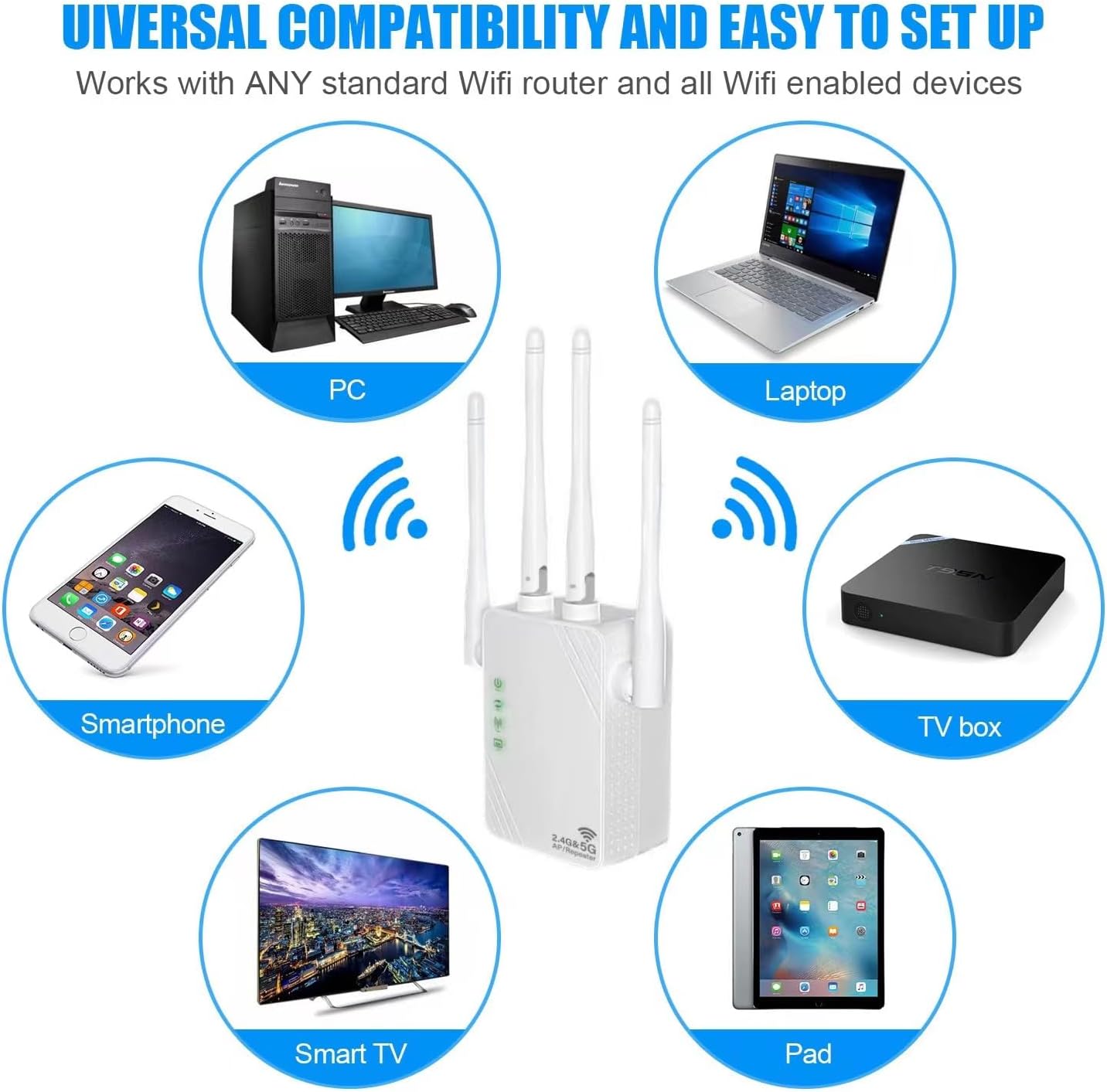
Figure 5: Universal Device Compatibility

Figure 6: Ethernet Ports and Controls
3. Pake kontni
Upon opening the package, please verify that you have received the following items:
- OOOUSE 1200Mbps Dual-Band WiFi Repeater (XL-Z04)
- Manyèl Itilizatè (dokiman sa a)
4. Gid Enstalasyon
4.1 Premye pouvwa-sou
- Plug the WiFi Repeater into an electrical outlet near your main router.
- Wait for the Power LED indicator to light up, indicating the device is powered on.
4.2 Configuring Repeater Mode via Web Interface (Recommended)
This method provides full control over settings and is recommended for optimal performance.
- Konekte ak rezo repetitè a: On your smartphone, tablet, or computer, go to your Wi-Fi settings. Find and connect to the network named "Repeater_2.4G_XXXXXX" or "Repeater_5G_XXXXXX" (the XXXXXX will be part of the device's MAC address). No password is required for the initial connection.
- Aksè Web Entèfas: Louvri a web navigatè (pa egzanp, Chrome, Firefox, Safari) epi tape
192.168.11.1nan ba adrès la, Lè sa a, peze Antre. - Konekte: If prompted, the default username and password are usually
admin(or check the label on the device). - Chwazi mòd: On the setup page, select "Repeater Mode" (sometimes labeled "WISP Mode").
- Eskane pou rezo yo: The repeater will scan for available Wi-Fi networks. Select your home Wi-Fi network (SSID) from the list.
- Antre modpas: Enter the Wi-Fi password for your home network. You can choose to keep the same SSID for the extended network or create a new one.
- Aplike Anviwònman yo: Click "Apply" or "Finish" to save the settings. The repeater will restart.
- Rekonekte: Once the repeater restarts, reconnect your devices to the newly extended Wi-Fi network (either your original SSID or the new one you created).

Figure 7: Wireless Configuration via Smartphone/Tablet
4.3 WPS Setup (Wi-Fi Protected Setup)
WPS offers a quick way to connect without accessing the web interface, but it may not be supported by all routers.
- Plug the repeater into an electrical outlet.
- Peze bouton WPS la sou routeur prensipal ou a.
- Within two minutes, press the WPS/Reset button on the side of the OOOUSE WiFi Repeater.
- Wait for the indicator lights on the repeater to show a stable connection, indicating successful pairing.
5. Operasyon Modes
The OOOUSE WiFi Repeater supports three main operating modes:
- Repeater Mode (WISP Mode): Extends the range of an existing wireless network. It connects to your main router wirelessly and rebroadcasts the signal, effectively expanding coverage.
- Mode Pwen Aksè (AP): Converts a wired network connection into a wireless one. Connect the repeater to your router via an Ethernet cable, and it will create a new Wi-Fi hotspot.
- Mòd Routeur: Functions as a basic router, creating a new private network. This mode is typically used when you have a modem but no router, or if you want to create a separate network.
6. Antretyen
- Plasman: For optimal performance, place the repeater halfway between your router and the Wi-Fi dead zone. Avoid placing it near large metal objects, concrete walls, or other electronic devices that may cause interference.
- Netwayaj: Sèvi ak yon twal mou epi sèk pou netwaye aparèy la. Pa sèvi ak pwodui netwayaj likid oswa ayewosòl.
- Reyajiste aparèy la: If you encounter persistent issues or wish to reconfigure the device from scratch, you can perform a factory reset. With the device powered on, press and hold the WPS/Reset button for approximately 7-8 seconds until the indicator lights flash. The device will then revert to its factory default settings.
NAN. Depanaj
- Pa gen aksè a Entènèt apre enstalasyon an:
- Ensure the repeater is successfully connected to your main router's Wi-Fi network. Check the signal indicator lights.
- Verify that the Wi-Fi password entered during setup was correct.
- Try restarting both your main router and the repeater.
- Perform a factory reset on the repeater and try the setup process again.
- Slow Speed or Weak Signal:
- Relocate the repeater closer to your main router, but still within the area where you need extended coverage.
- Ensure there are no major obstructions (thick walls, large appliances) between the repeater and your devices, or between the repeater and the main router.
- Tcheke pou wè si gen entèferans ki soti nan lòt aparèy elektwonik (telefòn san fil, mikwo ond).
- Ensure your main router is providing a strong signal to the repeater.
- Pa Ka Aksè Web Paj Jesyon:
- Ensure your device is connected to the repeater's Wi-Fi network (e.g., "Repeater_2.4G_XXXXXX").
- Verify that you are typing the correct IP address:
192.168.11.1. - Eseye itilize yon lòt web navigatè.
- Temporarily disable any VPN or firewall software on your device.
- Enstalasyon WPS la echwe:
- Ensure your main router supports WPS.
- Make sure you press the WPS button on both devices within the two-minute window.
- Eseye a web interface setup method instead.
8. Espesifikasyon
| Karakteristik | Deskripsyon |
|---|---|
| Mak | OOOUSE |
| Nimewo Modèl | XL-Z04 |
| Wireless Creole | 802.11ac (backward compatible with a/b/g/n/ax) |
| Pousantaj Transfè Done | Jiska 1200 Mbps (300 Mbps pou 2.4GHz, 1200 Mbps pou 5GHz) |
| Bann Frekans | 2.4 GHz, 5 GHz |
| Antèn | 4 x 5dBi Omni-directional Antennas |
| Pò | 2 x RJ45 Ethernet Ports |
| Range | 80 to 100 square meters |
| Aparèy konpatib | iPad, PC, Android devices, Smart TV, Laptops, TV boxes |
9. Garanti ak sipò
For warranty information and technical support, please refer to the purchase platform or contact the seller directly. Keep your proof of purchase for any warranty claims.