
1. Pwodwi souview
The CUPEISI Android 15 Tablet YQ10S MAX is a versatile 10-inch device designed for both productivity and entertainment. Running on the latest Android 15.0 system with Google GMS certification, it offers a smooth and secure user experience. This 2-in-1 tablet comes equipped with a powerful quad-core processor, ample memory, and a high-definition IPS screen, making it ideal for various tasks from gaming and multimedia consumption to work and study.

Figure 1.1: CUPEISI Android 15 Tablet with included accessories.
Karakteristik kle:
- Sistèm operasyon: Android 15.0 with Google GMS certification for enhanced security and performance.
- Memwa ak Depo: 18GB RAM (6GB + 12GB expansion) and 128GB ROM, expandable up to 2TB via microSD card (not included).
- Processeur: New generation ultra-high performance and low power consumption 2.0GHz Quad-core CPU.
- Ekspozisyon: 10.1-inch IPS HD screen with 1280x800 resolution, featuring a sensitive touchscreen and a comfortable "reading mode".
- Kamera: 8MP rear camera and 2MP front camera for capturing moments and video calls.
- Koneksyon: Supports 2.4G/5G Wi-Fi 6.0 and Bluetooth 5.0 for stable and fast wireless connections.
- Batri: 6000mAh battery providing up to 10 hours of usage on a single charge.
- Fonksyonalite 2-an-1: Transforms into a laptop-style device with the included Bluetooth keyboard, wireless mouse, and stylus.
2. Ki sa ki nan bwat la
Tanpri verifye sa ki nan pake a pou asire w ke tout atik yo la:
- CUPEISI Android 15 Tablet (YQ10S MAX)
- Wireless klavye
- Bluetooth sourit
- Foldable Protective Cover
- Stylus
- Kalite-C Kab

Figi 2.1: Tout konpozan ki enkli nan pake a.
3. Gid Enstalasyon
3.1 Premye chaj
- Connect the provided Type-C cable to the tablet's charging port.
- Connect the other end of the cable to a compatible USB power adapter (not included) and plug it into a power outlet.
- Kite tablèt la chaje nèt anvan premye itilizasyon an. Endikatè batri a sou ekran an ap montre eta chaj la.
3.2 Limen/Etenyen
- Pou limen: Peze epi kenbe bouton Power ki sou kote tablèt la jiskaske ekran an limen.
- Pou etenn: Peze epi kenbe bouton Power la jiskaske yon meni pou etenn parèt. Chwazi "Power off" pou fèmen aparèy la.
- Pou rekòmanse: Nan meni etenn lan, chwazi "Rekòmanse".
3.3 Konekte Pwodwi
The tablet comes with a Bluetooth keyboard, wireless mouse, and stylus for enhanced usability.

Figure 3.1: Tablet used with various accessories.
Connecting the Bluetooth Keyboard:
- Limen klavye a avèk bouton pouvwa li a.
- Press the "Connect" button on the keyboard to enter pairing mode (indicator light will blink).
- Sou tablèt ou a, ale nan Anviwònman > Aparèy ki konekte > Bluetooth.
- Ensure Bluetooth is enabled. The tablet will search for available devices.
- Select the keyboard from the list (e.g., "Bluetooth Keyboard") and follow any on-screen prompts to complete pairing.
Connecting the Wireless Mouse:
- Insert the necessary batteries into the wireless mouse (refer to mouse instructions for battery type and insertion).
- Locate the USB receiver for the mouse, usually found in a compartment on the mouse itself.
- Plug the USB receiver into the tablet's USB-C port using an appropriate adapter if necessary (adapter not included).
- The tablet should automatically detect and connect to the mouse.
Sèvi ak Stylus la:
The stylus does not require pairing. Simply use it to navigate the touchscreen, draw, or write as you would with your finger.
4. Operasyon Enstriksyon
4.1 Navigasyon debaz
- Manyen: Tape yon ikòn pou ouvri yon aplikasyon oubyen chwazi yon atik.
- Glise: Trennen dwèt ou sou ekran an pou defile paj yo oswa kontni an.
- Zoom-pou-Zoom: Mete de dwèt sou ekran an epi separe yo pou agrandi, oubyen pense yo ansanm pou agrandi.
- Ekran Kay: Tape bouton Akèy la (anjeneral yon sèk oswa yon ikòn kay) pou retounen nan ekran prensipal la.
- Retounen: Tap the Back button (usually a triangle or arrow icon) to return to the previous screen.
- Aplikasyon ki sot pase yo: Tape bouton Aplikasyon resan yo (anjeneral yon ikòn kare) pou view epi chanje ant aplikasyon ou te itilize dènyèman yo.
4.2 Koneksyon Wi-Fi
The tablet supports both 2.4GHz and 5GHz Wi-Fi 6 for fast and stable internet access.

Figure 4.1: Tablet showing Wi-Fi connection capabilities.
- Ale nan Anviwònman > Rezo ak entènèt > Wi-Fi.
- Toggle the Wi-Fi switch to the "On" position.
- Chwazi rezo Wi-Fi ou vle a nan lis rezo ki disponib yo.
- If prompted, enter the network password and tap "Connect".
4.3 Lekti Miltimedya
Enjoy high-definition multimedia content with Widevine L1 support, ensuring a premium viewing experience for streaming services like Netflix and YouTube.
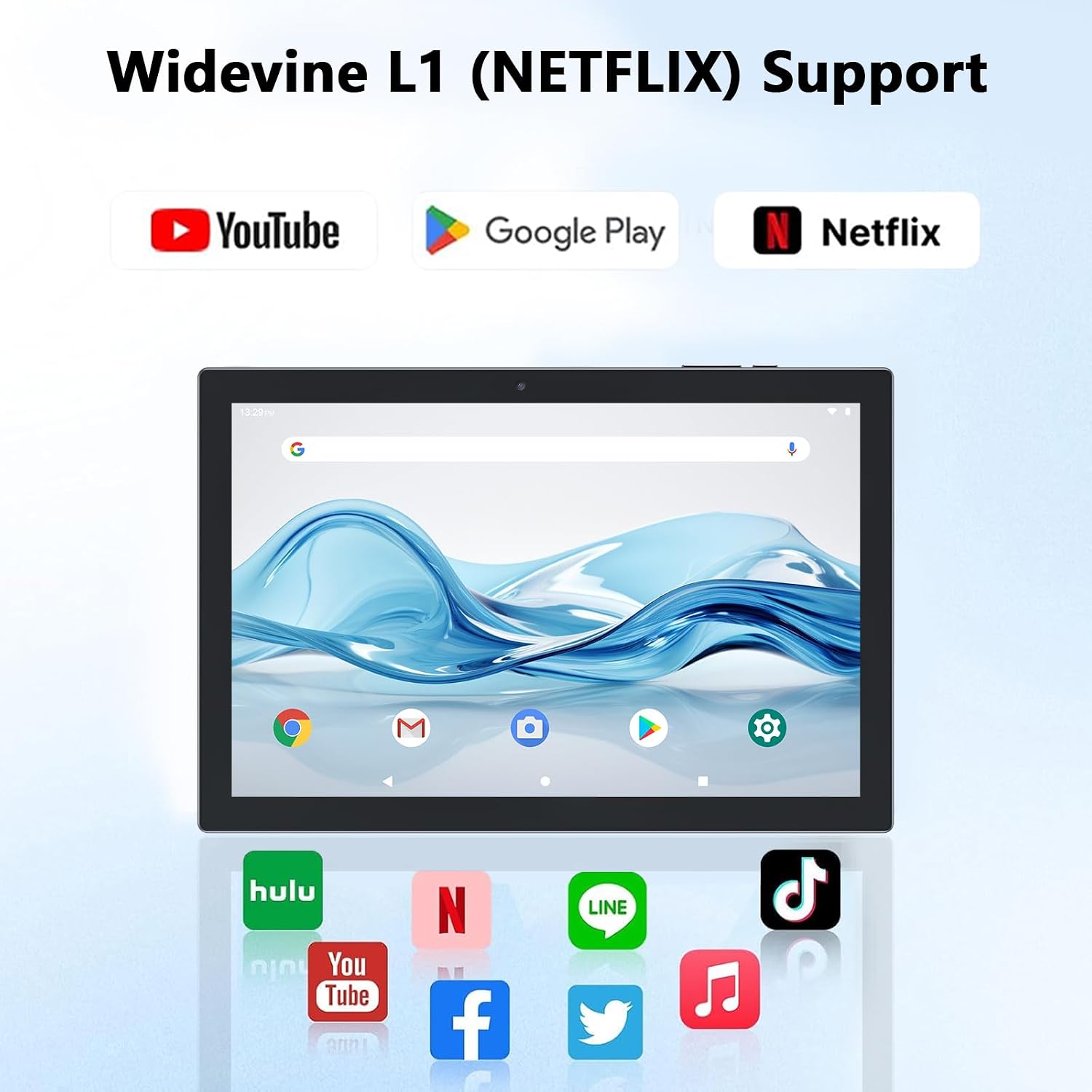
Figure 4.2: Widevine L1 support for popular streaming platforms.
The tablet's IPS HD screen provides vibrant colors and advanced visual effects. Utilize the pre-installed media players or download your preferred streaming apps from the Google Play Store.
Videyo 4.1: Yon overview of the YQ10SMAX Android 15 tablet's features and performance, demonstrating its capabilities for daily use and entertainment.
4.4 Using Cameras
Tablèt la gen yon kamera dèyè 8MP ak yon kamera devan 2MP.

Figure 4.3: Dual cameras for photos and video calls.
- Open the "Camera" application from the home screen or app drawer.
- Tape ikòn kamera a pou chanje ant kamera devan ak dèyè.
- Tape bouton deklanchè a pou pran yon foto oswa pou kòmanse/sispann anrejistreman videyo.
4.5 Storage and Expansion
The tablet comes with 128GB of internal storage and supports up to 2TB expansion via a microSD card.

Figure 4.4: Mass storage and easy expansion options.
- Pou mete yon kat microSD, jwenn fant kat la sou kote tablèt la epi pouse kat la dousman jiskaske li fè yon klik.
- Pou jere depo, ale nan Anviwònman > Depo.
5. Antretyen
5.1 Netwaye Tablèt ou a
- Sèvi ak yon twal mou ki pa gen pousyè pou netwaye ekran an ak kò tablèt la.
- Pou tach ki difisil pou retire, yon ti kras dampen the cloth with water or a screen-safe cleaning solution.
- Evite itilize pwodui chimik ki agresif, materyèl abrazif, oswa imidite twòp.
5.2 Swen Batri
The tablet is equipped with a 6000mAh battery for long-lasting performance.

Figure 5.1: Large-capacity battery with long-lasting battery life.
- Charge the tablet regularly, but avoid leaving it plugged in for extended periods after it's fully charged.
- Sèvi sèlman ak kab Kalite-C ki vini ak aparèy la pou chaje.
- Avoid exposing the tablet to extreme temperatures, as this can affect battery life.
5.3 Mizajou lojisyèl
Periodically check for system updates to ensure optimal performance and security.
- Ale nan Anviwònman > Sistèm > Aktyalizasyon sistèm lan.
- Swiv enstriksyon ki sou ekran an pou telechaje epi enstale nenpòt mizajou ki disponib.
NAN. Depanaj
If you encounter any issues with your tablet, please refer to the following common problems and solutions:
| Pwoblèm | Kòz posib | Solisyon |
|---|---|---|
| Tablèt la pa vle limen | Batri fèb; Sistèm nan kraze | Chaje tablèt la pou omwen 30 minit. Peze epi kenbe bouton Pouvwa a pandan 10-15 segonn pou fòse rekòmanse li. |
| Pwoblèm koneksyon Wi-Fi | Modpas ki pa kòrèk; Pwoblèm routeur; Pa nan seri a | Verify Wi-Fi password. Restart your router. Move closer to the Wi-Fi router. |
| Pèfòmans dousman | Twòp aplikasyon k ap kouri; Ti espas depo; Lojisyèl demode | Close unnecessary apps. Clear cache/uninstall unused apps. Check for system updates. |
| Akseswa yo pa konekte | Bluetooth off; Incorrect pairing; Low battery in accessory | Ensure Bluetooth is on. Re-pair the accessory. Check accessory batteries. |
| Ekran pa reponn | Glitch lojisyèl tanporè | Force restart the tablet by holding the Power button. |
7. Espesifikasyon
| Karakteristik | Detay |
|---|---|
| Mak | CUPEISI |
| Non modèl | YQ10S MAX |
| Sistèm operasyon | Android 15 |
| Gwosè ekran | 10.1 pous |
| Rezolisyon ekran | 1280 x 800 pixels (IPS HD) |
| Processeur | 2.0 GHz kat-nwayo |
| RAM | 18GB (6GB + 12GB expansion) |
| Depo Entèn | 128 GB |
| Depo dilatabl | Up to 2TB (microSD card not included) |
| Kamera dèyè | 8 MP |
| Kamera devan | 2 MP |
| Kalite san fil | 802.11ax (Wi-Fi 6), 2.4G/5G Dual-band |
| Bluetooth | Bluetooth 5.0 |
| Kapasite batri | 6000 mAh Lityòm Polymère |
| Mwayèn lavi batri | Jiska 10 èdtan |
| Pwa atik | 2.75 liv (apeprè 1.25 kg) |
| Dimansyon pwodwi | 9.45 x 5.91 x 0.39 pous (apeprè 24 x 15 x 1 cm) |
8. Garanti ak sipò
CUPEISI products are manufactured to the highest quality standards. This product is covered by a standard manufacturer's warranty against defects in materials and workmanship from the date of purchase. Please retain your proof of purchase for warranty claims.
For technical support, warranty inquiries, or any questions regarding your CUPEISI Android 15 Tablet, please contact our customer service team through the retailer's platform or visit the official CUPEISI websit pou enfòmasyon kontak.
Please note that the warranty does not cover damage caused by misuse, accidents, unauthorized repairs, or normal wear and tear.