
1. Entwodiksyon
Thank you for choosing the Upperizon Portable Monitor. This 16-inch 2K QHD (2560x1600) monitor is designed to enhance your productivity and entertainment experience with its high resolution, fast refresh rate, and versatile connectivity. This manual provides essential information for setting up, operating, maintaining, and troubleshooting your new monitor.

Imaj: Plis paseview of the Upperizon 16-inch 2.5K 144Hz QHD Portable Monitor's key features.
2. Pake kontni
Tanpri tcheke kare a pou atik sa yo:
- 1 × Upperizon 16-inch Portable Monitor
- 1 × 30W pouvwa adaptè
- 2 × USB-C to USB-C Display Cables (for both video & power)
- 1 × HDMI to HDMI Cable (for video only)
- 1 × Protective Sleeve Case

Image: All items included in the product package.
3. Enstriksyon Enstalasyon
3.1 Connecting to a Laptop/PC via USB-C
For devices with a full-featured USB-C port (Thunderbolt 3/4/5 or DisplayPort Alt Mode support), a single USB-C to USB-C cable can transmit both video and power.
- Connect one end of the USB-C to USB-C cable to the monitor's USB-C port.
- Connect the other end of the USB-C to USB-C cable to your laptop's full-featured USB-C port.
- The monitor should automatically detect the signal and power on. If the screen flickers, please use the original power adapter for stable power supply.

Image: Single USB-C connection for power and video. Ensure your device's USB-C port supports Thunderbolt 3/4/5 or DisplayPort Alt Mode.
3.2 Connecting to a Laptop/PC via HDMI
For devices without a full-featured USB-C port, or for gaming consoles, use the HDMI and power adapter for connection.
- Connect one end of the HDMI cable to the monitor's HDMI port.
- Connect the other end of the HDMI cable to your device's HDMI output.
- Connect the provided 30W power adapter to the monitor's USB-C power input port and to a power outlet.
- The monitor should power on and display the signal.

Image: HDMI and power cable connection for devices that require separate power input.
3.3 Connecting to Mac Devices
The 16:10 aspect ratio of this monitor is designed to seamlessly match 16-inch MacBook screens without black bars. For MacBooks with full-featured USB-C (Thunderbolt) ports, a single USB-C cable is sufficient. Older MacBooks may require a Mini DisplayPort to HDMI adapter.
For Mac Mini, connect to the rear USB-C ports. Do not connect to the front USB-C ports.

Image: The 16:10 aspect ratio of the Upperizon monitor provides a perfect match for MacBooks.

Image: Connecting the portable monitor to a Mac Mini using the rear USB-C ports.
3.4 Konekte ak Konsòl Jwèt
The monitor is compatible with PS4/5, Xbox, and Steam Deck. Please use an HDMI cable for connecting to Nintendo Switch, as USB-C is not compatible with Switch.

Image: Portable monitor connected to a gaming console, supporting 60Hz SDR/HDR and 120Hz SDR/HDR.
3.5 Using the Integrated Kickstand and VESA Mount
The monitor features an integrated kickstand that allows for 0° to 180° adjustment, supporting both landscape and portrait modes. For a more permanent setup, the monitor is VESA compatible (M4*6mm, 75x75mm) for mounting on a desktop arm or wall mount (VESA stand not included).
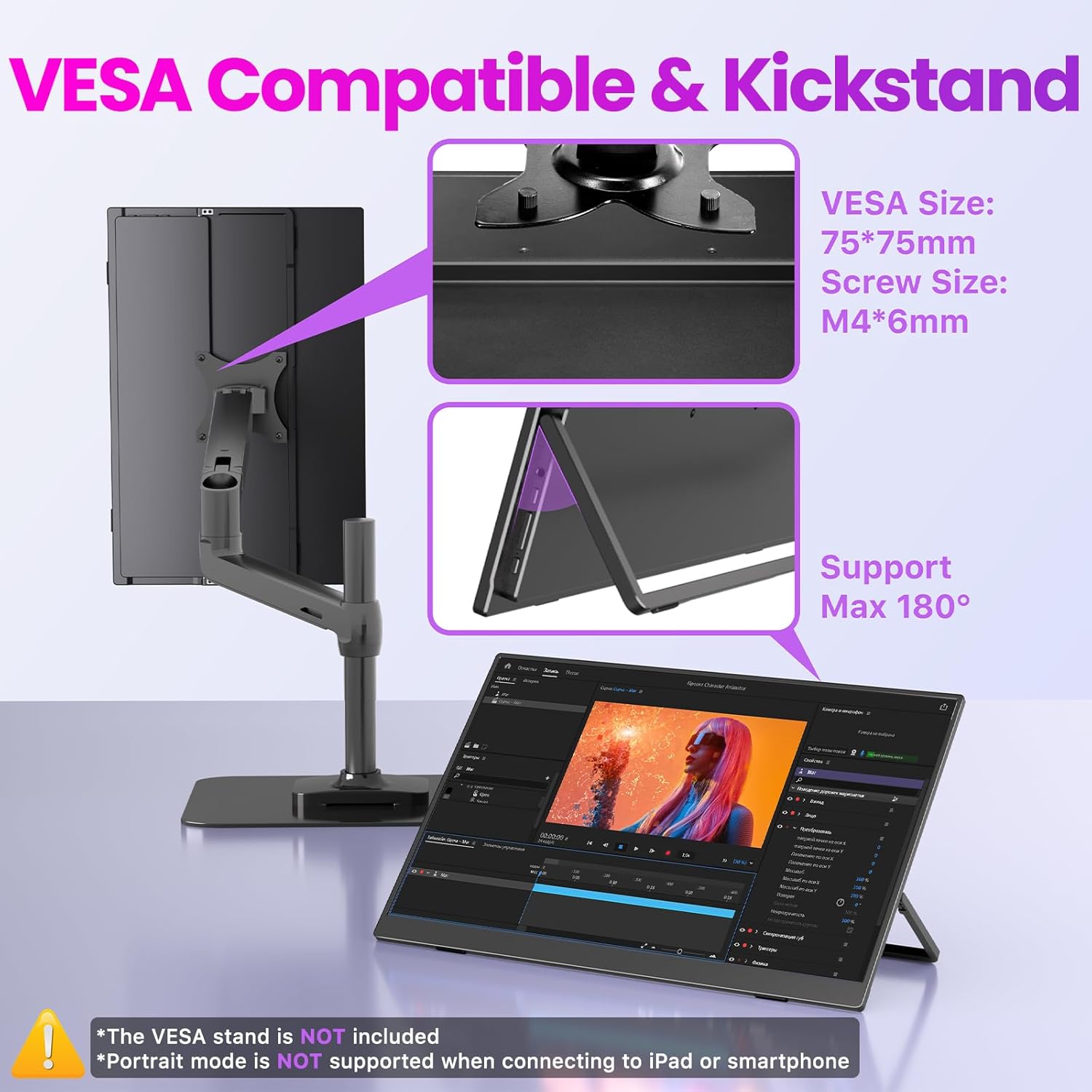
Image: The monitor's integrated kickstand and VESA compatibility for flexible placement.

Image: The adjustable kickstand allows for optimal viewing angles in both landscape and portrait modes.

Image: VESA compatible mounting for a clean and professional workstation setup.
4. Operasyon Enstriksyon
4.1 Kontwòl pou kontwole
The monitor features intuitive controls for power, menu navigation, brightness, and volume adjustments.
- Power/Exit Button: Press to turn the monitor on/off. Use to exit the OSD menu.
- Down/Up Button: Navigate through OSD menu options. Quick press for volume/brightness adjustment.
- Meni/Konfime bouton: Press to enter the OSD menu. Use to confirm selections within the menu.

Imaj: Plis paseview of the monitor's control buttons and ports.
4.2 Meni OSD (On-Screen Display).
To access the OSD menu, press the Menu/Confirm button. Use the Up/Down buttons to navigate and the Menu/Confirm button to select options. The OSD menu allows you to adjust various settings such as:
- Klate/Kontrast: Adjust display luminance.
- Anviwònman koulè: Modifye tanperati koulè, ton, ak saturation.
- Sous Antre: Chwazi manyèlman ant antre USB-C ak HDMI.
- Mòd HDR: Enable or disable High Dynamic Range.
- Rapò aspè: Adjust display aspect ratio.
- Odyo: Control volume and mute.
4.3 Karakteristik odyo
The monitor includes built-in speakers for convenience. For private listening, a 3.5mm audio jack is available for connecting headphones or external speakers.

Image: The monitor's built-in speakers provide audio for media and games.
5. Karakteristik ekspozisyon
5.1 High Resolution and Refresh Rate
Experience crisp visuals with 2560x1600 QHD resolution. The monitor supports a 144Hz refresh rate via USB-C and 120Hz via HDMI, providing smooth motion for gaming and fast-paced content.

Image: Comparison of 60Hz vs. 144Hz refresh rates for gaming, highlighting smoother visuals.

Image: Visual comparison of 2.5K QHD versus 1080P resolution.
5.2 Color Accuracy and Brightness
The monitor boasts 145% sRGB and 100% DCI-P3 wide color gamut, along with 1.07 billion colors (10-bit color depth) and 400 nits brightness, ensuring vibrant and accurate color reproduction. Advanced low blue light and flicker-free technology reduce eye strain.

Image: High color fidelity features for expressive hues.

Image: Comparison of 100% DCI-P3 & 145% sRGB wide color gamut for a better vieweksperyans nan.

Image: HDR (High Dynamic Range) support for an immersive visual experience.
6. Antretyen
6.1 Netwaye monitè a
- Always power off the monitor and disconnect all cables before cleaning.
- Sèvi ak yon moso twal mou, ki san pèl damplave avèk dlo oswa yon pwodui netwayaj ekran ki pa abrazif.
- Pa flite pwodui netwayaj la dirèkteman sou ekran an.
- Evite itilize alkòl, amonyak, oswa pwodui netwayaj abrazif, paske yo ka domaje sifas ekran an.
6.2 Depo
- When not in use, store the monitor in its protective sleeve case to prevent scratches and dust accumulation.
- Keep the monitor in a cool, dry place away from direct sunlight and extreme temperatures.
NAN. Depanaj
7.1 Pa gen Siyal / Ekran Nwa
- Ensure all cables (USB-C or HDMI + Power) are securely connected to both the monitor and your device.
- Verify that your device's USB-C port supports video output (DisplayPort Alt Mode or Thunderbolt).
- Try connecting the monitor to a different device to rule out an issue with the source device.
- If using HDMI, ensure the power adapter is connected to the monitor.
- Check the OSD menu to ensure the correct input source is selected.
7.2 Screen Flickering
- Ensure the monitor is receiving sufficient power. Use the provided 30W power adapter, especially when using HDMI or if your device's USB-C port cannot provide enough power.
- Eseye yon lòt kab USB-C oubyen HDMI.
- Adjust the refresh rate settings on your connected device.
7.3 Pa gen son ki soti nan oratè yo
- Check the volume settings on both the monitor (via OSD menu) and your connected device.
- Ensure the monitor is not muted.
- If using HDMI, ensure your device is configured to output audio through HDMI.
- Test with headphones connected to the monitor's audio jack.
8. Espesifikasyon
| Karakteristik | Spesifikasyon |
|---|---|
| Gwosè ekran | 16 pous |
| Rezolisyon | 2560 x 1600 Pixels (2K QHD) |
| Aspè rapò | 16:10 |
| Rafrechisman pousantaj | 144Hz (USB-C), 120Hz (HDMI) |
| Gamut koulè | 145% sRGB, 100% DCI-P3 |
| Koulè Pwofondè | 1.07 Billion colors (10-bit) |
| Klète | 400 Kandela (nits) |
| Pwopòsyon kontras | 1200:1 |
| Sifas ekran | Matte IPS |
| Sipò HDR | Wi |
| Koneksyon | 2 x Full-featured USB-C, 1 x HDMI |
| Odyo | Built-in Speakers, 3.5mm Audio Jack |
| Montaj | Integrated Kickstand (0-180°), VESA Compatible (75x75mm, M4*6mm) |
| Dimansyon pwodwi | 14.06 x 9.49 x 0.55 pous |
| Pwa atik | 1.56 liv |
| Nimewo Modèl | U16LS |

Image: Physical dimensions of the Upperizon 16-inch Portable Monitor.
9. Garanti ak sipò
This product comes with a 2-Year Warranty. For any support inquiries or warranty claims, please contact Upperizon customer service. You can find contact information on the warranty card included in your package or by visiting the official Upperizon websit.
Manifakti: Upperizon
Vandè: Upperizon