
XTUGA BT4
XTUGA BT4 Karaoke Mixer User Manual
Modèl: BT4
Brand: XTUGA
1. Pwodwi souview
The XTUGA BT4 is a versatile 4-channel audio mixer designed for karaoke, DJ mixing, home entertainment, and various audio applications. It features wireless microphone connectivity, Bluetooth 3.0, 48V phantom power, and a USB audio interface, providing a comprehensive solution for sound control and mixing.

Image 1.1: The XTUGA BT4 mixer unit shown alongside its two accompanying wireless handheld microphones.
2. Pake kontni
Tanpri verifye ke tout atik yo prezan nan pakè a:
- 1 x XTUGA BT4 Mixer Unit
- 2 x Handheld Wireless Microphones (requires 2*AA batteries each, not included)
- 1 x pouvwa kab
- 1 x 5V2A Power Plug
- 1 x USB to USB Cable
- 2 x Mic Protection Rings
- 1 x manyèl itilizatè

Image 2.1: All components included in the XTUGA BT4 mixer package.
3. Kontwòl ak Koneksyon
Familiarize yourself with the various inputs, outputs, and controls on the BT4 mixer for proper operation.
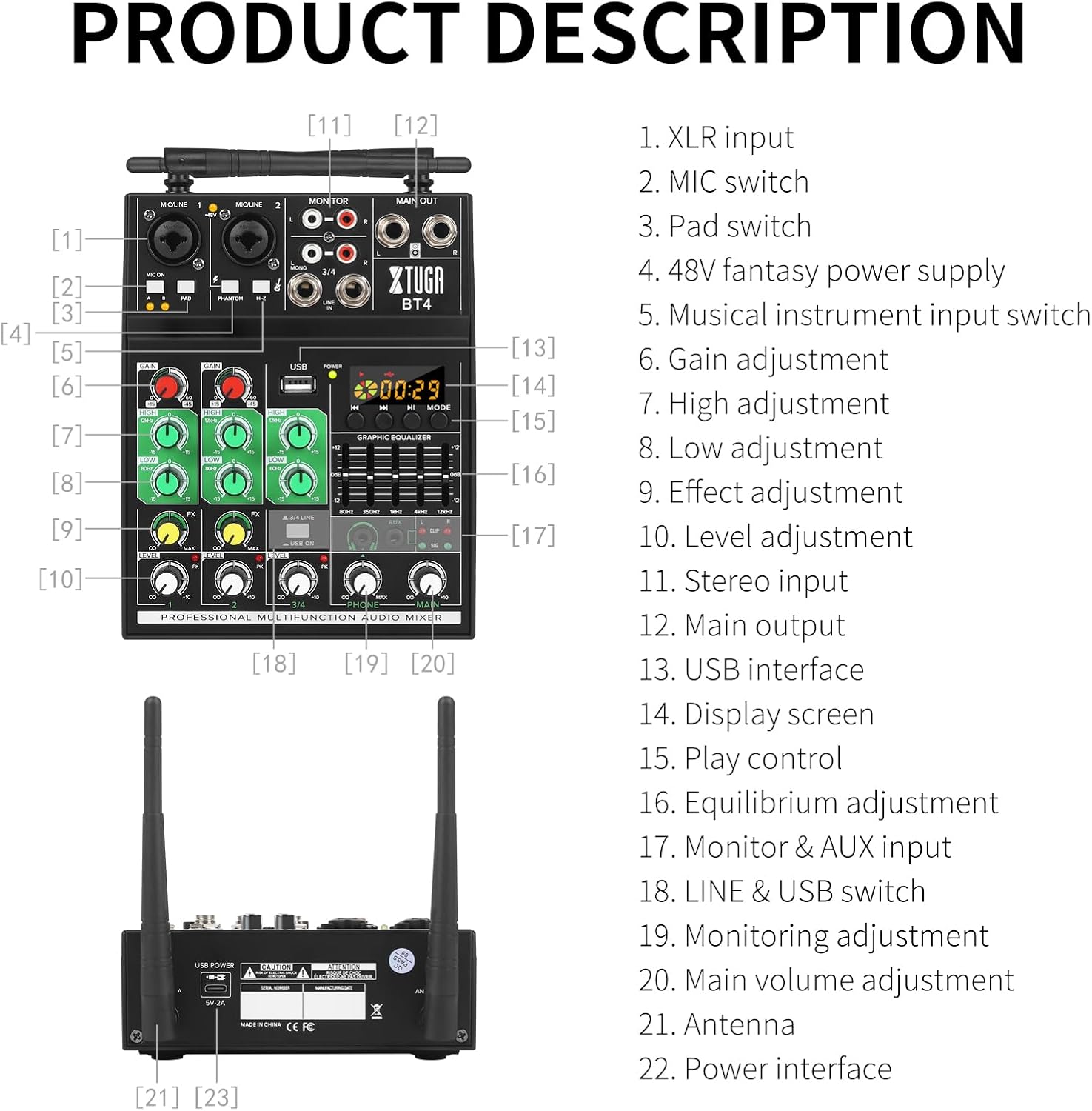
Image 3.1: Detailed diagram of the BT4 mixer's front panel and rear connections with corresponding labels.
- XLR Input (Channels 1 & 2)
- MIC Switch (for wireless microphones A/B)
- Pad Switch (attenuates input signal)
- 48V Phantom Power Switch (for condenser microphones)
- Hi-Z Switch (for high impedance instruments like guitar)
- Gain Adjustment (input sensitivity)
- High Adjustment (treble EQ)
- Low Adjustment (bass EQ)
- FX Adjustment (effect send level)
- Level Adjustment (channel volume)
- Stereo Input (RCA L/R for channels 3/4)
- Main Output (1/4" L/R)
- Entèfas USB
- Display Screen (for USB/Bluetooth)
- Play Control (USB/Bluetooth transport controls)
- Graphic Equalizer (7-band master EQ)
- Monitor & AUX Input (3.5mm headphone jack, AUX input)
- LINE & USB Switch (selects input for channels 3/4)
- Monitoring Adjustment (headphone volume)
- Main Volume Adjustment (master output volume)
- Antenna (for wireless microphones)
- Power Interface (5V DC input)
4. Gid Enstalasyon
4.1 Koneksyon pouvwa
Connect the provided power cable to the 5V DC Power Interface (22) on the rear of the mixer and plug the 5V2A power plug into a suitable power outlet. The POWER indicator light will illuminate.
4.2 Koneksyon Mikwofòn
- Mikwofòn filaire: Connect XLR microphones to the XLR Input jacks (1) on channels 1 or 2. If using condenser microphones requiring phantom power, activate the 48V Phantom Power switch (4).
- Mikwofòn san fil: Insert 2 AA batteries into each wireless microphone. Turn on the microphones. Ensure the antennas (21) on the mixer are upright. Press the MIC Switch (2) to 'A' or 'B' to activate the corresponding wireless microphone channel. The mixer will automatically link to the microphones.

Image 4.1: Detail of the XLR inputs, MIC ON, PAD, PHANTOM, and Hi-Z switches.
4.3 Audio Input/Output Connections
- Antre Stereo (Chanèl 3/4): Connect audio sources like CD players, smartphones, or other line-level devices to the Stereo Input (11) RCA L/R jacks.
- Segondè Enpedans Antre: For instruments like electric guitars or basses, connect to Channel 2's XLR input and activate the Hi-Z Switch (5).
- Main Sòti: Connect the Main Output (12) 1/4" L/R jacks to your amplifter, oratè ki mache ak elektrisite, oswa aparèy anrejistreman.
- Sòti pou kontwole: Connect headphones to the Monitor & AUX Input (17) 3.5mm jack for personal monitoring.
5. Operasyon Enstriksyon
5.1 Operasyon debaz
- Pouvwa sou: Ensure all connections are secure, then plug in the power adapter.
- Adjust Main Volume: Start with the Main Volume Adjustment (20) at a low setting.
- Adjust Channel Gain: For each active channel, adjust the Gain Adjustment (6) to achieve a healthy signal level without clipping (the PK indicator should not light up consistently).
- Ajiste Nivo Chanèl la: Use the Level Adjustment (10) for each channel to balance the mix.
5.2 Itilizasyon Mikwofòn San Fil
The BT4 mixer supports two wireless microphones with automatic frequency pairing.
- Ensure microphones have fresh AA batteries.
- Turn on the microphones.
- Press the MIC Switch (2) on the mixer to 'A' or 'B' to activate the corresponding wireless channel. The mixer will automatically find an available frequency (16 frequencies per channel, 32 groups total).
- Adjust the Gain, Echo, Equalization, and Level for the wireless microphone on Channel 2.

Image 5.1: Illustration of the wireless microphone's long transmission range, up to 180 feet.

Image 5.2: The mixer and microphones automatically select from 16 frequencies per channel for stable connection.
5.3 Equalization and Effects
- EQ chanèl: Use the High Adjustment (7) and Low Adjustment (8) knobs on each channel to shape the tone of individual inputs.
- Master Graphic EQ: The 7-band Graphic Equalizer (16) allows for fine-tuning the overall sound output. Adjust the sliders to boost or cut specific frequencies (80Hz, 350Hz, 1kHz, 2.5kHz, 5kHz, 8kHz, 12kHz).
- Efè (FX): Use the FX Adjustment (9) knob on each channel to send a portion of that channel's signal to the built-in effects processor. The overall effect level can be adjusted via the master FX control.

Image 5.3: Visual representation of the mixer's five-band equalization and high-bass adjustment capabilities.
5.4 Koneksyon Bluetooth
To play music wirelessly via Bluetooth:
- Asire w ke mixer a limen.
- On your Bluetooth device (smartphone, tablet), search for available devices and select "XTUGA BT4".
- Once paired, audio from your device will play through channels 3/4. Use the Play Control (15) buttons on the mixer to control playback (play/pause, skip tracks).
5.5 USB Audio Entèfas
The BT4 can function as a USB audio interface for playback and recording with a computer or for playing MP3 files soti nan yon kondwi USB.
- Lekti sou yon kle USB: Mete yon kondwi flash USB ki gen MP3 files into the USB Interface (13). Use the Play Control (15) buttons to navigate and play tracks.
- Koneksyon Odinatè: Connect the mixer to your computer using the provided USB cable. The mixer will be recognized as an audio device. You can then use it for recording audio from the mixer or playing computer audio through the mixer.

Image 5.4: The mixer's USB port allows connection to a computer for mixing and recording, or direct playback from a USB drive.
6. Antretyen
- Netwayaj: Sèvi ak yon twal mou epi sèk pou netwaye sifas mixer a. Evite itilize pwodui netwayaj abrazif oswa solvan.
- Depo: Sere mixer a nan yon kote ki fre epi sèk, lwen limyè solèy dirèk ak tanperati ekstrèm.
- Ranplasman batri: Replace AA batteries in the wireless microphones when the battery indicator is low or performance degrades.
NAN. Depanaj
| Pwoblèm | Kòz posib | Solisyon |
|---|---|---|
| Pa gen pwodiksyon son | Power off; incorrect connections; volume too low; input not selected. | Check power supply; verify all cables are correctly connected; increase Main Volume and individual channel Levels; ensure LINE/USB switch is correct. |
| Mikwofòn san fil la pa fonksyone | Microphone off; low batteries; MIC switch not engaged; interference. | Turn on microphone; replace batteries; press MIC switch (A/B); try moving closer to mixer or away from other wireless devices. |
| Chanson oswa bri buz | Ground loop; faulty cable; nearby electronic interference. | Check cable connections; try different cables; ensure proper grounding; move mixer away from other electronics. |
| Bluetooth pa konekte | Mixer not in pairing mode; device too far; incorrect device selected. | Ensure mixer is powered on; move Bluetooth device closer; re-scan for devices and select "XTUGA BT4". |
| Distorsion son | Input gain too high; output level too high. | Reduce Gain Adjustment (6) for the affected channel; reduce Main Volume Adjustment (20). |
8. Espesifikasyon
| Karakteristik | Spesifikasyon |
|---|---|
| Nimewo Modèl | BT4 |
| Kantite Chanèl | 4 |
| Koneksyon Teknoloji | Bluetooth, USB |
| Sous pouvwa | Fil elektrik (5V DC) |
| Pwa atik | 2.99 liv (1.36 kilogram) |
| Dimansyon pake | 12.32 x 10.47 x 3.19 pous |
| Mikwofòn san fil | Up to 35 Ft (Bluetooth 3.0), Up to 180 Ft (UHF) |
| Phantom pouvwa | 48V |
| Ajisteman frekans | 7-band balanced total volume adjustment |
9. Garanti ak sipò
For warranty information or technical support, please contact XTUGA customer service through their official website or the retailer from whom the product was purchased. Keep your purchase receipt as proof of purchase.
Visit the official XTUGA Store for more information: XTUGA Store on Amazon
Ask a question about this manual
Ask about setup, troubleshooting, compatibility, parts, safety, or missing instructions. Manuals+ will review the question and use this page’s manual context to help answer it.