
Entwodiksyon
This manual provides essential information for the operation and maintenance of your NOVOJOY 10-Inch Android Tablet. Please read it thoroughly before using the device to ensure proper functionality and longevity.
The NOVOJOY 10-Inch Android Tablet is a versatile 2-in-1 device designed for various tasks, featuring a 10.1-inch HD display, a powerful Quad-core processor, and the Android 13 operating system. It comes bundled with a keyboard, mouse, stylus, and protective case to enhance your productivity and entertainment experience.
Ki sa ki nan bwat la
Verifye ke tout atik yo prezan nan pakè a:
- NOVOJOY 10-Inch Android Tablet
- Bluetooth klavye
- Sourit san fil
- Stylus
- Foldable Protective Case
- Chaje kab (Tip-C)
- Power Adapter (5V2A)

Pwodwi souview
Familiarize yourself with the tablet's components and features.
Karakteristik kle:
- 10.1-inch 1280*800 IPS HD Display with Eye Protection
- Android 13 sistèm operasyon
- Quad-core Processor (2 GHz)
- 64GB Internal Storage (ROM) + 8GB RAM (4GB fixed, 4GB virtual)
- Expandable Storage up to 1TB (via microSD card, not included)
- Kamera dèyè 8MP, Kamera devan 2MP
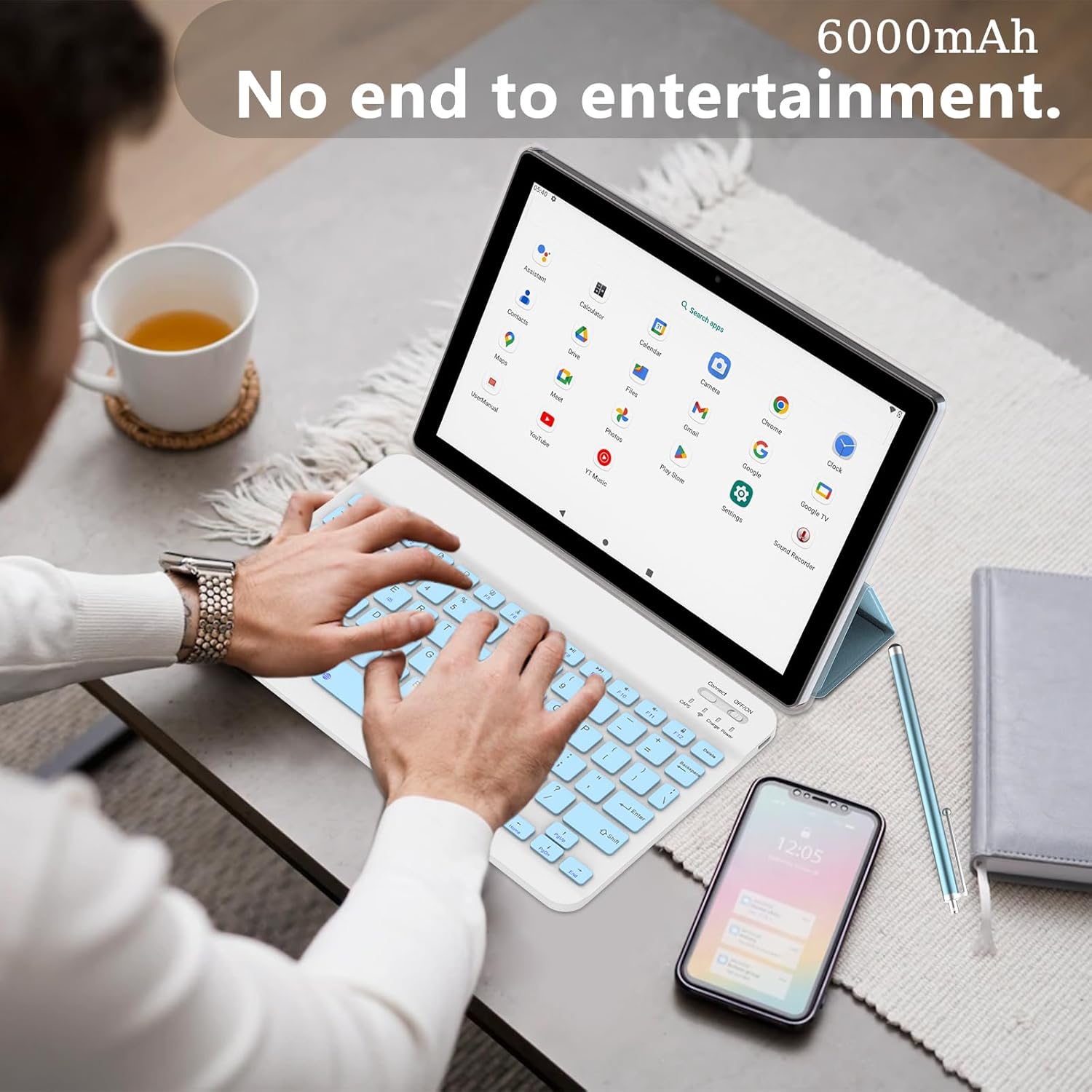
- 6000mAh Battery for extended use
- 5G WIFI-6 and Bluetooth connectivity
- Integrated Speakers and Microphone


Enstalasyon
1. Premye Chajman
Before first use, fully charge the tablet. Connect the provided Type-C charging cable to the tablet's charging port and the power adapter to a wall outlet. The battery indicator on the screen will show charging status.
2. Powering On / Off
- Pou limen: Press and hold the Power button until the NOVOJOY logo appears.
- Pou etenn: Peze epi kenbe bouton Power la, answit chwazi "Power off" nan opsyon ki sou ekran an.
- Pou rekòmanse: Peze epi kenbe bouton Pouvwa a, answit chwazi "Rekòmanse" nan opsyon ki sou ekran an.
3. Connecting the Bluetooth Keyboard
- Ensure the keyboard is charged. Slide the power switch on the keyboard to the "ON" position.
- Press the "Connect" button on the keyboard. The Bluetooth indicator light will flash blue.
- Sou tablèt ou a, ale nan Anviwònman > Aparèy ki konekte > Pè nouvo aparèy.
- Select "Bluetooth Keyboard" from the list of available devices to pair.

4. Connecting the Wireless Mouse
The wireless mouse typically connects via a USB dongle. Insert the USB dongle into a compatible USB-OTG adapter (if required, not always included) and then into the tablet's USB-C port, or directly into a full-size USB port if available. The tablet should automatically detect the mouse.
5. Inserting a MicroSD Card (for expandable storage)
Locate the microSD card slot on the side of the tablet. Gently insert the microSD card with the gold contacts facing down until it clicks into place. You may need to format the card via the tablet's settings for optimal use.
Enstriksyon Operasyon
1. Navigasyon debaz
- Jès manyen: Tape pou chwazi, glise pou defile, pense pou agrandi.
- Ekran Kay: Jwenn aksè a aplikasyon, widjèt, ak notifikasyon.
- Ba Estati: Displays time, battery, Wi-Fi, and notification icons. Swipe down for quick settings and detailed notifications.
2. Wi-Fi Koneksyon
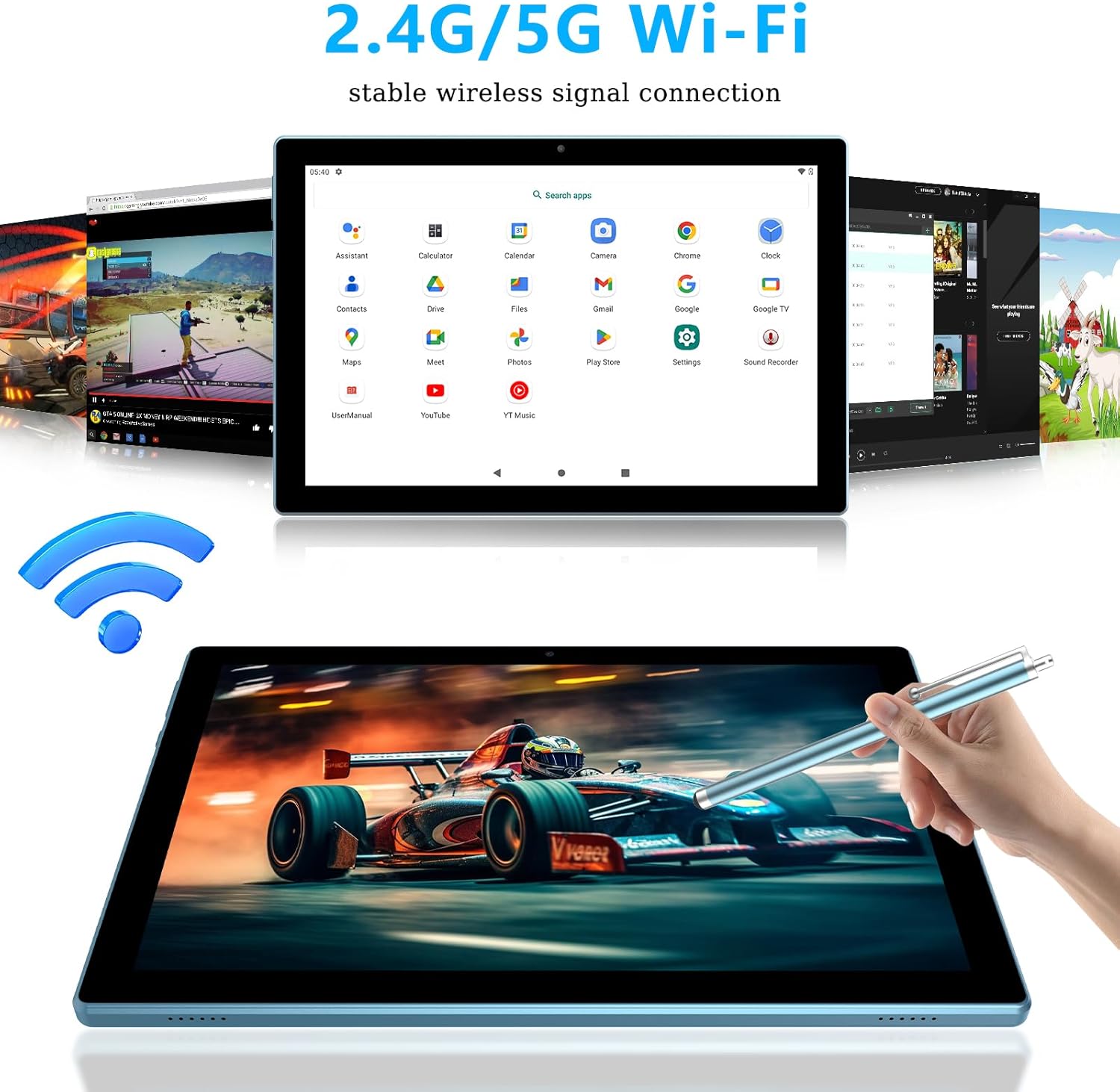
- Ale nan Anviwònman > Rezo ak entènèt > Wi-Fi.
- Aktive Wi-Fi a sou "On".
- Chwazi rezo ou vle a nan lis la epi antre modpas la si yo mande w.
3. Sèvi ak Kamera yo
Open the "Camera" application from the home screen or app drawer. You can switch between the 8MP rear camera and the 2MP front camera for photos and video recording.
4. Jesyon batri
The tablet is equipped with a 6000mAh battery, providing approximately 6-8 hours of continuous use. To optimize battery life:
- Ajiste klète ekran an.
- Etenn Wi-Fi ak Bluetooth lè w pa ap itilize yo.
- Fèmen aplikasyon ou pa itilize k ap fonksyone nan background nan.
Antretyen
- Netwayaj: Sèvi ak yon twal mou ki pa gen pousyè pou netwaye ekran an ak kò a. Evite pwodui netwayaj abrazif oswa solvan.
- Depo: Sere grenn nan nan yon kote ki fre epi sèk, lwen limyè solèy dirèk ak tanperati ekstrèm.
- Swen batri: Avoid fully discharging the battery frequently. Charge the tablet regularly.
- Mizajou lojisyèl: Tcheke regilyèman pou mizajou sistèm nan Anviwònman > Sistèm > Aktyalizasyon sistèm lan pou asire pèfòmans ak sekirite optimal.
Depanaj
| Pwoblèm | Solisyon posib |
|---|---|
| Tablèt la pa limen. | Ensure the tablet is charged. Connect it to the charger for at least 30 minutes, then try powering on again. |
| Pa ka konekte ak Wi-Fi. | Check if Wi-Fi is enabled in settings. Verify the Wi-Fi password. Restart your router and the tablet. |
| Bluetooth keyboard/mouse not connecting. | Ensure the accessories are charged and in pairing mode. Remove previous pairings from the tablet's Bluetooth settings and try pairing again. |
| Tablet is running slow. | Close unused applications. Clear cache from apps in Anviwònman > Aplikasyon yoKonsidere libere espas depo. |
| Ekran an pa reponn. | Restart the tablet. If the issue persists, perform a factory reset (data will be lost, back up important files). |
Espesifikasyon
| Karakteristik | Detay |
|---|---|
| Non modèl | NVCP20blue6in1 |
| Sistèm operasyon | Android 13 |
| Processeur | Kwadwilatè-nwayo, 2 GHz |
| RAM | 8GB (4GB fixed, 4GB virtual) |
| Depo Entèn (ROM) | 64GB |
| Depo dilatabl | Jiska 1TB atravè kat MicroSD |
| Gwosè ekran | 10.1 pous |
| Rezolisyon ekran | 1280 x 800 piksèl (IPS HD) |
| Kamera dèyè | 8 MP |
| Kamera devan | 2 MP |
| Kapasite batri | 6000mAh |
| Mwayèn lavi batri | 6-8 Hours (continuous use) |
| Koneksyon san fil | 5G WIFI-6, Bluetooth (802.11ax) |
| Dimansyon (LxWxH) | 12 x 7 x 0.3 pous |
| Pwa atik | 1 liv |
Garanti ak sipò
For warranty information and technical support, please refer to the documentation provided with your purchase or visit the official NOVOJOY websit la. Kenbe resi acha ou kòm prèv acha pou reklamasyon garanti.
If you encounter issues not covered in this manual, please contact NOVOJOY customer service for assistance.